If you've got two identical drives, your motherboard or Windows can combine them into a single RAID volume. The two setups home PC builders usually choose between are RAID 0 and RAID 1, and they do almost opposite things: RAID 0 trades safety for speed and capacity, while RAID 1 gives up half your space to protect you from a drive failure. We've explained both using Intel's Rapid Storage Technology (RST) documentation and Microsoft's guide to Storage Spaces in Windows.
The short answer
| RAID 0 (striping) | RAID 1 (mirroring) |
|---|
How it works | Data split into blocks across the drives | The same data written to both drives in real time |
Drives (Intel RST) | 2 minimum, up to 6 | 2 only |
Usable capacity | All drives added together | The size of one drive |
Speed (Intel's description) | Fastest RAID level, especially for large files | Faster reads than one drive; writes don't benefit |
If one drive fails | All data in the array is lost | Data is still available on the other drive |
Best for | Scratch space and temporary files | Files you need to keep available |
How RAID 0 works
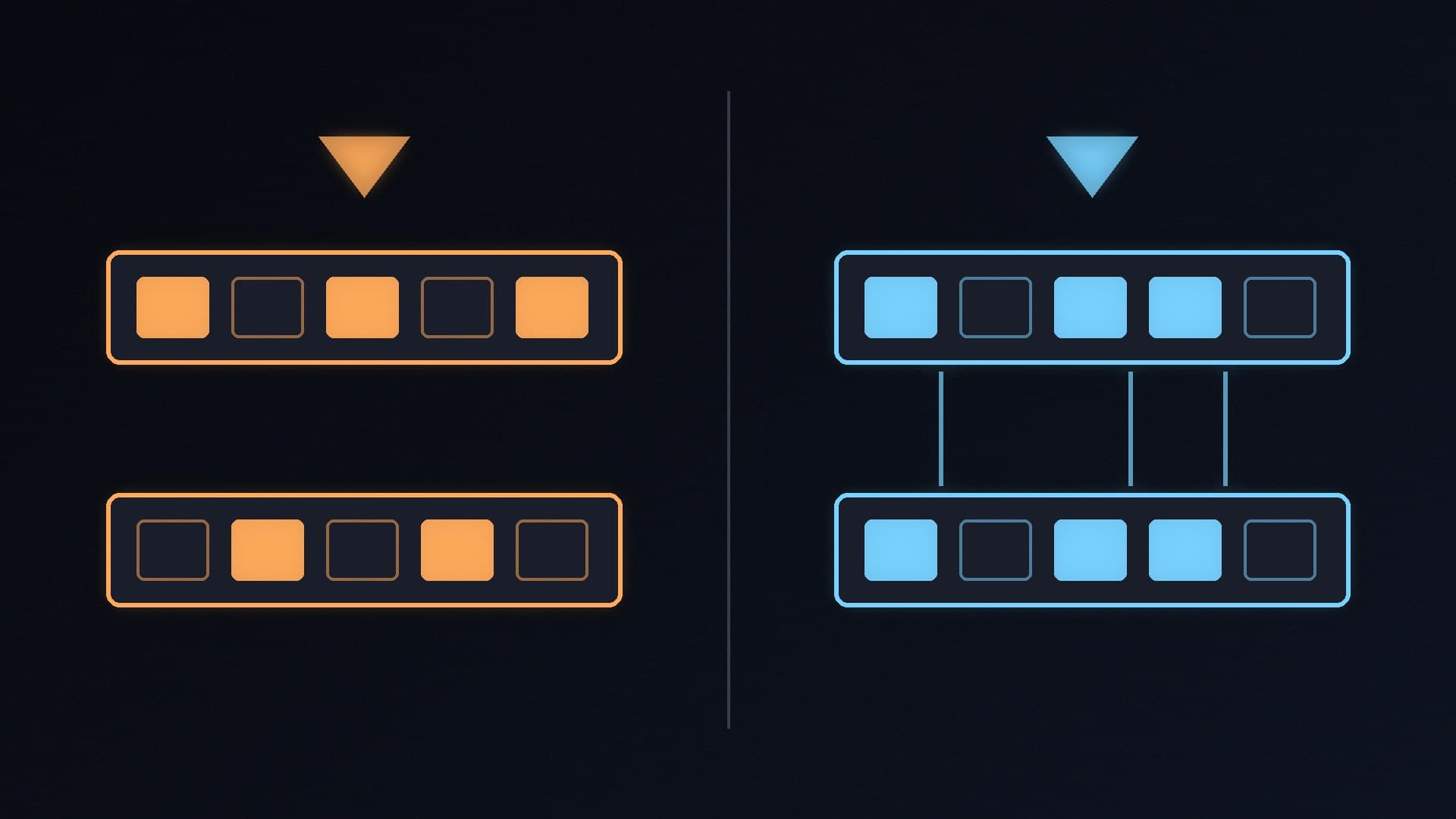
RAID 0, or striping, splits your data into blocks and spreads them across two or more drives, so reads and writes can happen on several drives at once. Intel describes it as the fastest of all RAID levels, especially for reading and writing large files, and gives examples such as loading large files into image-editing software and saving large video files.
The drives appear to Windows as one big drive. Intel's example is four 120GB drives in RAID 0 showing up as a single 480GB drive, so you don't lose any capacity.
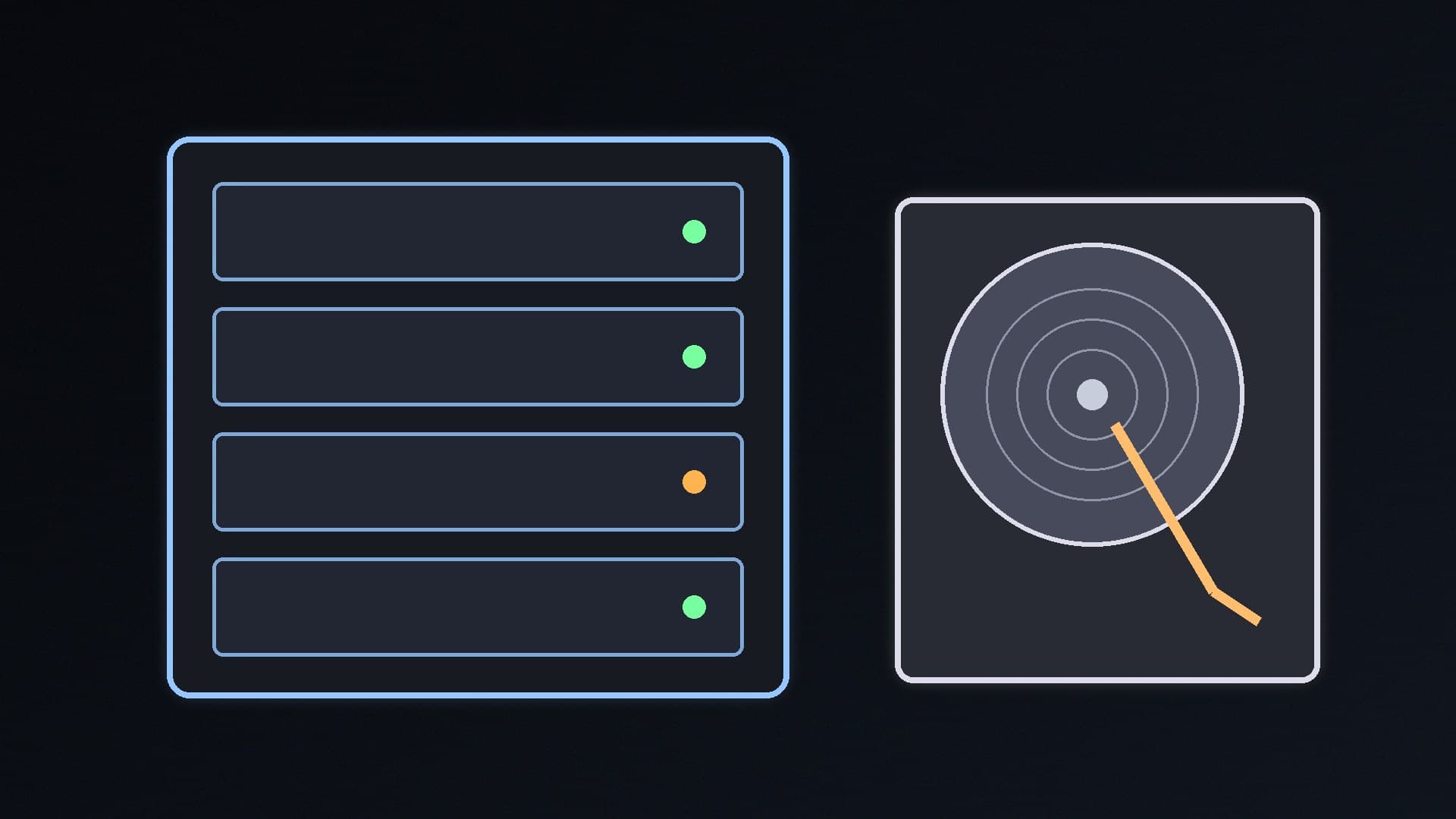
The catch is that there's no redundancy at all. Because every file is spread across the drives, Intel says that if one drive fails, all the data in the array is lost. Adding drives adds speed and capacity, but it also adds more things that can fail. Intel says RAID 0 isn't recommended where data redundancy is a priority, and lists it for desktops and workstations wanting maximum performance for temporary data.
Microsoft's equivalent in Windows Storage Spaces is a "simple" space, which it says is designed for performance but doesn't protect files from drive failure. Microsoft suggests using simple spaces for temporary data such as video rendering files, image editor scratch files and compiler files.
How RAID 1 works
RAID 1, or mirroring, uses two drives and writes the same data to both in real time. Intel says that if one drive fails, all the data is immediately available on the other and the PC keeps running, so you can replace the failed drive and rebuild the mirror. Intel recommends rebuilding to a new disk to restore that protection.
You pay for that safety in capacity: Windows sees a RAID 1 pair as the size of a single drive, so two 120GB drives give you 120GB. Intel says reads can be faster than a single drive because data can come from either disk, but writes don't get the same benefit because everything has to be written twice.
In Storage Spaces, the equivalent is a two-way mirror. Microsoft says two-way mirror spaces keep two copies of your files and can tolerate one drive failure, and that formatting a mirror space with ReFS lets Windows automatically maintain data integrity.
RAID 1 is not a backup
This is the most important thing to understand before choosing RAID 1. Because a mirror copies changes to both drives in real time, anything that changes your files changes both copies: an accidental deletion, a corrupted file or ransomware will be mirrored straight away. RAID 1 protects you against one drive dying; it doesn't give you an older copy to go back to. Keep a separate backup on another drive or a NAS, using something like the tools in our best free backup software for Windows guide.
How to set up RAID on a desktop PC
There are two common routes:
Motherboard RAID: on Intel platforms, RAID is handled by Intel RST. Intel says the RAID controller must be enabled in the BIOS, and that RST supports RAID 0 with two to six drives and RAID 1 with exactly two. Back up everything on the drives first and follow your motherboard manual's steps. On other platforms, check your motherboard manual for its RAID options.
Windows Storage Spaces: no BIOS changes needed. Microsoft says you need at least two drives in addition to the one Windows is installed on, and they can be internal SATA or USB drives. Some USB enclosures hide individual disks from Windows, so drives connected directly are the safer choice. Our Storage Spaces guide walks through the steps.
Whichever you use, matching drives make sense: Intel's own capacity examples use identical drives, and RAID 1 gives you the usable space of one drive.
Which should you choose?
Choose RAID 0 if you work with large files that you can afford to lose or recreate, such as a video editing cache or render output, and you want one larger, faster volume. Don't keep anything on it that isn't backed up elsewhere.
Choose RAID 1 if you want your PC to keep working through a single drive failure, for example on a work machine where downtime matters, and you're happy to give up half the raw capacity.
Choose neither if you just want more space or speed for games and apps. A single, larger NVMe SSD is simpler and avoids the extra point of failure; see NVMe vs SATA SSD and our guide to installing an M.2 SSD. If you want always-on, redundant storage for the whole household, a NAS is usually a better home for it than your gaming PC.
Our verdict
RAID 0 and RAID 1 solve different problems. RAID 0 stripes data across two or more drives to give you one larger volume that Intel describes as the fastest RAID level, but if one drive fails you lose everything on the array, so use it only for scratch files and temporary data. RAID 1 mirrors two drives so your files stay available if one dies, at the cost of half your raw capacity. Neither is a backup: RAID 1 copies deletions and corruption to both drives instantly. For most gaming PCs, a single larger SSD plus a proper backup is the simpler choice.