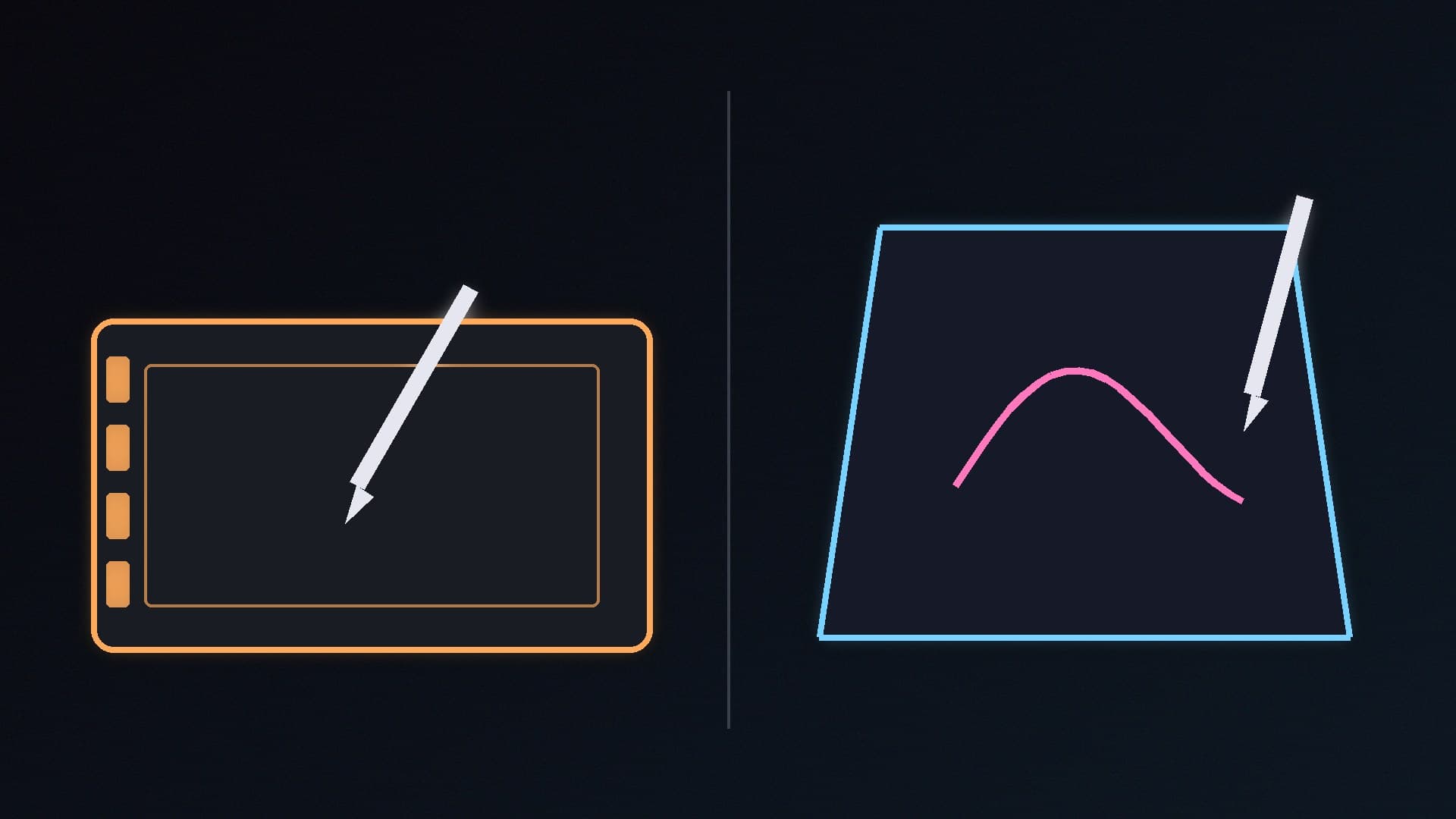
If you want to draw, retouch photos or sign documents with a pen on your PC, you'll choose between two kinds of device. A pen tablet (often called a graphics tablet) is a flat, screenless pad: you draw on the pad and watch the cursor move on your monitor. A pen display is a screen you draw on directly, so the line appears under the pen tip. To keep the comparison concrete, we've used two current Wacom models as examples, the Wacom Intuos pen tablet and the Wacom One 14 pen display, and quoted Wacom's own specifications. We haven't quoted prices because they move around a lot ahead of Black Friday on 27 November 2026.
The short answer
| Pen tablet (Wacom Intuos) | Pen display (Wacom One 14, DTC141) |
|---|
Screen | None; you look at your monitor | 14-inch 1920 x 1080 IPS, 98% sRGB (typ), per Wacom |
Active area | Small: 152 x 95mm; Medium: 216 x 135mm | 309 x 174mm |
Pen | Battery-free Wacom Pen 4K, 4,096 pressure levels | Battery-free Wacom One Standard Pen, 4,096 pressure levels, 60° tilt |
PC connection | USB, or Bluetooth on WL models | One USB-C cable with DisplayPort Alt Mode (or Thunderbolt 3 or later) |
Size and weight | 8.8mm thin; 250g (Small Bluetooth) | 201 x 336 x 10mm; 750g |
Best for | Beginners, photo retouching, small desks, laptops | Illustration, sketching and anyone who wants to draw on the image |
How a pen tablet works
On a pen tablet, the drawing surface maps to your monitor, so moving the pen across the pad moves the cursor across the screen. Your hand is on the desk and your eyes are on the monitor. That takes some getting used to at first, but it also means you keep a normal, upright posture and your hand never covers what you're drawing.
The Wacom Intuos shows what you get. Wacom says it uses EMR (electromagnetic resonance), so the pen needs no battery, and the pen has 4,096 pressure levels, two customisable buttons, and replacement nibs store inside the pen itself. The tablet is 8.8mm thin, comes in Small and Medium sizes with active areas of 152 x 95mm and 216 x 135mm, and has four ExpressKeys that you can map to shortcuts on Windows and Mac. Wacom quotes a pen resolution of 2,540 lpi and a reading speed of 133 points per second. It connects over USB, and the WL models (CTL-4100WL and CTL-6100WL) add Bluetooth with a built-in battery. It also works with Android phones and tablets running Android 6.0 or later, and with Chromebooks.
A pen tablet makes most sense if you're learning, mostly retouching photos, or short on desk space. It also uses your main monitor for colour, so if you've already invested in a good screen, everything you see stays on it.
How a pen display works
A pen display is a monitor with a pen digitiser built in. You draw directly on the glass, which feels closer to pen and paper. The trade-off is that it's a second screen to place on your desk, your hand covers part of the image, and you'll often lean over it unless you use a stand.
The Wacom One 14 (model DTC141) has a 14-inch 1920 x 1080 IPS screen with a 16:9 aspect ratio. Wacom quotes 285cd/m² typical brightness, 98% sRGB coverage (typical), a 1000:1 contrast ratio and a 16ms response time. The screen is directly bonded, which Wacom says reduces parallax (the gap between the pen tip and the line), and it has anti-glare, anti-fingerprint glass. Its pen is battery-free with 4,096 pressure levels, two side switches and 60 degrees of tilt support. The active area is 309 x 174mm, far larger than the Small or Medium Intuos.
Connecting to your PC: check your USB-C port
This is the detail that catches people out. The Wacom One 14 connects to a PC with a single USB-C cable for both video and data, but Wacom's requirement is a USB-C port with DisplayPort Alt Mode, or Thunderbolt 3 or later. Not every USB-C port carries video, especially on desktop motherboards. If your PC doesn't have a suitable port, Wacom says you'll need its Wacom Converter Kit, sold separately, an adapter with cables that connects PCs with HDMI and USB-A ports to USB-C-only displays. Wacom lists Windows 10 or later, macOS 13 or later and ChromeOS, and a 1.8m USB-C cable is included.
If you aren't sure what your ports support, our guides to checking USB port speed in Windows 11 and fixing USB-C problems explain what to look for. The Intuos is simpler: any USB port, or Bluetooth on the WL models.
A tip for either type: keep magnets away
Wacom notes that its pen tablets and pen displays use EMR, and recommends using them away from devices that contain magnets or motors to avoid drawing inaccuracies. Its examples include PC speakers, cooling fans in a PC or stand, and magnetic cover cases. If you get a jittery line, try moving the tablet away from your speakers or PC case.
Which should you buy?
Choose a pen tablet if: - you're new to digital drawing or mainly want a pen for photo editing - you have a small desk or want something you can slip into a laptop bag - you want to keep using your main, calibrated monitor for colour - you want wireless use (on Bluetooth models)
Choose a pen display if: - you draw or sketch a lot and want to see the line under the pen - you'd find the hand-on-desk, eyes-on-screen approach of a tablet frustrating - your PC has a USB-C port with DisplayPort Alt Mode, or you're happy to buy an adapter kit - you have room for a second screen on your desk
If you do a lot of colour-critical work on a pen display, remember that its screen is a separate display to your main monitor. Our guide on how to calibrate a monitor in Windows 11 explains how to get each screen looking right.
Our verdict
A pen tablet such as the Wacom Intuos is the simpler, more portable option: it has no screen, connects over USB or Bluetooth, works with Windows, Mac, Android and ChromeOS, and leaves your colour on your main monitor. A pen display such as the Wacom One 14 lets you draw directly on a 14-inch, 98% sRGB (typical) bonded screen with tilt support, which feels more natural for illustration, but it takes up more desk space and needs a USB-C port with DisplayPort Alt Mode or a separate adapter kit. Start with a pen tablet if you're learning or mostly editing photos; choose a pen display if you'll be drawing every day.