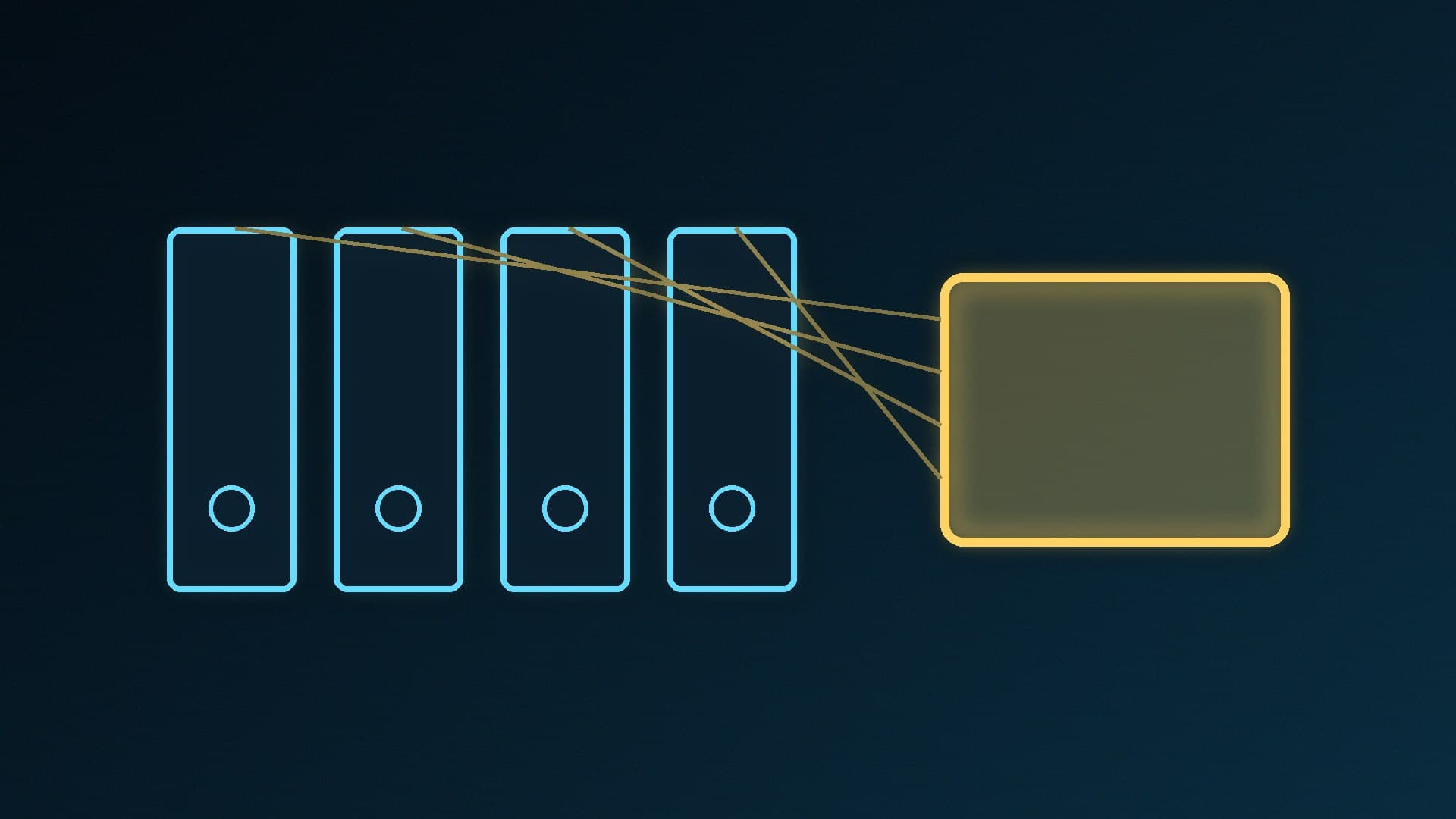
Storage Spaces is a free feature built into Windows 11 (and Windows 10) that combines several drives into one pool. From that pool you create virtual drives, called storage spaces, that can keep copies of your files on more than one disk. If a drive fails, a mirrored or parity space keeps your data available. Microsoft says you can add more drives to the pool later when you need more capacity. This guide follows Microsoft's own instructions; Forge PC hasn't tested Storage Spaces performance on specific drives.
Before you start
You need at least two extra drives, on top of the drive Windows is installed on. They can be internal or external hard drives or SSDs, connected over SATA, SAS or USB.
Back up anything on those drives first and use drives you're happy to dedicate to the pool.
Storage Spaces is not a backup. A mirror protects against a drive dying, not against deleting a file by mistake, ransomware or a PC being stolen. Keep a separate backup; see how to back up Windows 11.
Step-by-step: create a storage space
Connect or install the drives you want to group. If you're fitting a new SSD, see how to install an M.2 SSD.
Type Storage Spaces in the taskbar search box and select Storage Spaces.
Under Add a new Storage Pool, select Add.
Give the pool a name, choose the drives under Add disks, and select Create.
Type a name for the new storage space.
Choose a resiliency type: Simple (no resiliency), Two-way mirror (the default), Three-way mirror, Parity or Dual-parity.
Enter the maximum size the storage space can reach, and select Create.
Type a volume label, choose a drive letter, choose a file system from the File System dropdown, and select Format.
Which resiliency type should you choose?
Type | Protects against | Minimum drives | Good for |
|---|
Simple | Nothing: no protection from drive failure | 2 to be useful | Temporary files, scratch disks, render caches |
Two-way mirror | 1 drive failure | 2 | General storage, game libraries |
Three-way mirror | 2 drive failures | 5 | Important data on a bigger array |
Parity | 1 drive failure | 3 | Archives, music and video libraries |
Dual-parity | 2 drive failures | 7 | Large archives |
Microsoft describes simple spaces as designed for performance with no protection, mirror spaces as designed for performance and protection, and parity spaces as designed for storage efficiency, best for archival data and streaming media. For most home PCs, a two-way mirror (Windows' default) is the simplest protected option, needing just two drives. Microsoft also notes that formatting a mirror space with ReFS lets Windows automatically maintain data integrity.
Why your USB drive doesn't appear
Microsoft says external USB drives can work normally in File Explorer but still not appear in Storage Spaces. Storage Spaces only accepts disks that Windows recognises as eligible physical disks. Many USB enclosures and hubs report drives as removable, or hide several disks behind one device, which Storage Spaces excludes by design. To check, select the disk itself in Device Manager or Disk Management and see whether Windows reports it as Fixed or Removable. SATA drives connected directly are usually eligible. If you're choosing an enclosure, our best M.2 SSD enclosure guide covers the options.
Adding and removing drives later
When you add a drive to an upgraded pool, Windows offers a tick box to Optimize to spread existing data across all drives. If you skipped it, open Storage Spaces and select Optimize drive usage.
To remove a drive: open Manage Storage Spaces, select Physical drives, choose Prepare for removal on the drive, and wait until it's listed as Ready to remove, then select Remove drive. Windows copies that drive's data to the rest of the pool first, which can take hours. Microsoft suggests setting sleep to Never while you wait, and adding a drive at least as large as the one you're removing if there isn't enough free space in the pool.
Keep an eye on the drives' health too: see how to check SSD health.
Our verdict
Storage Spaces is a free, built-in way to turn two or more drives into one protected volume. Use a two-way mirror for most home setups, parity for big media archives, and simple only for data you can afford to lose. Connect drives directly (Microsoft says SATA drives connected directly are usually eligible), because many USB enclosures won't show up, and keep a proper backup: a mirror isn't one.