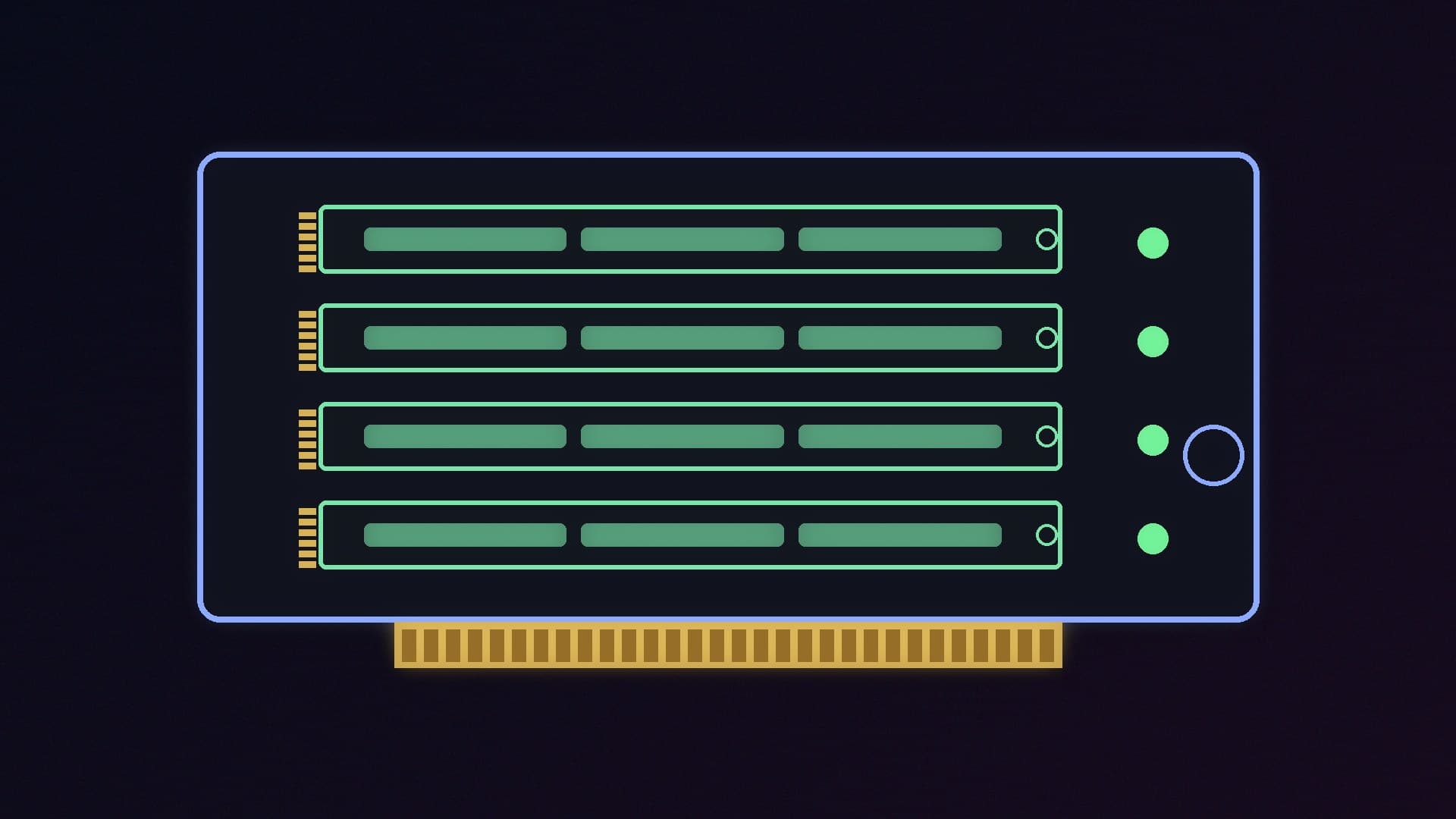
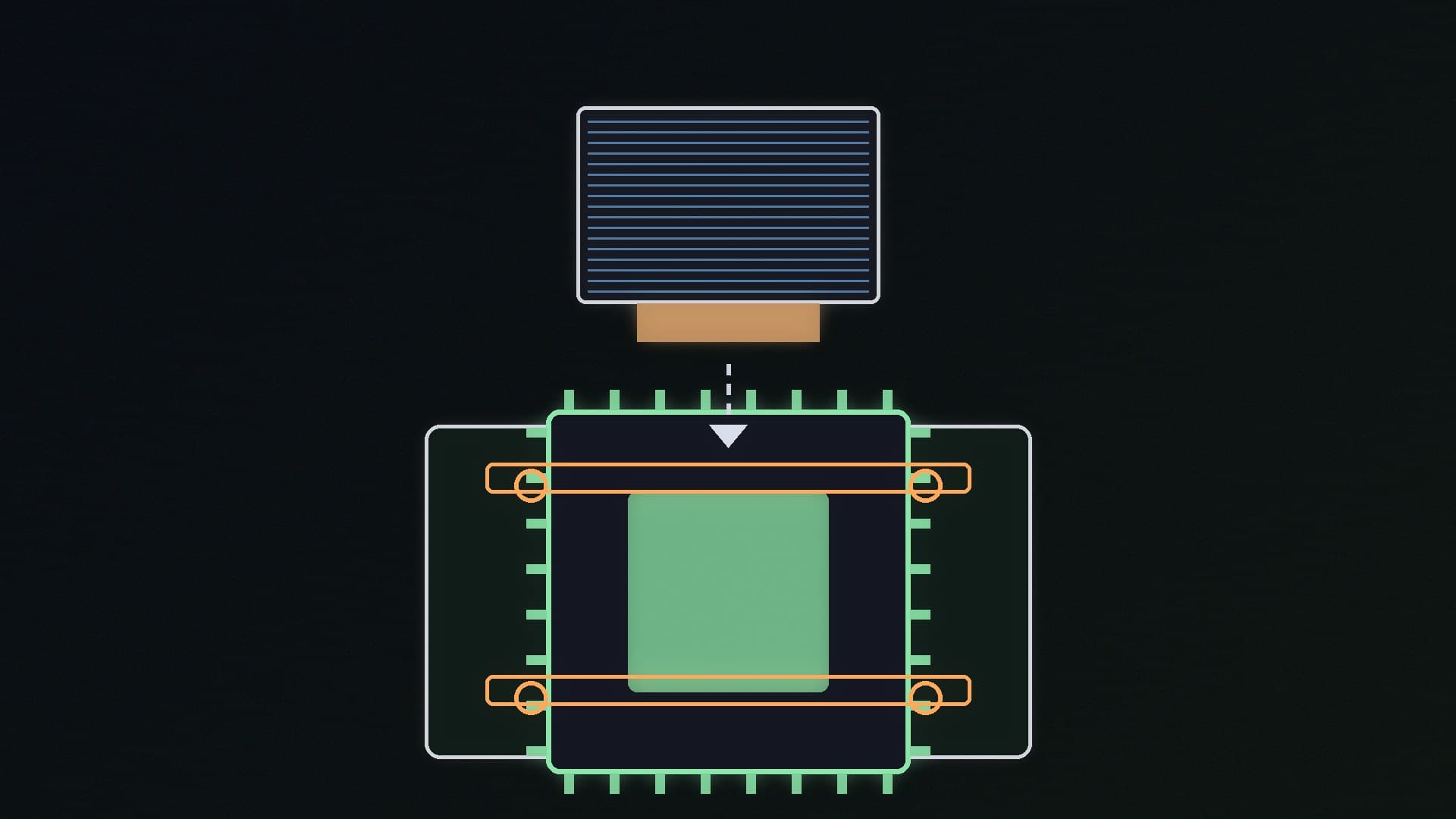
When every M.2 slot on your motherboard is full, a PCIe adapter card looks like an easy way to add more NVMe storage. Cards such as ASUS's Hyper M.2 x16 Gen 4 hold four M.2 drives and slot into a full-length PCIe slot. The catch is that it's possible to fit four drives, boot into Windows and find only one. The reason is PCIe bifurcation, and you need to check it before you buy, not after.
This guide is based on ASUS's Hyper M.2 x16 Gen 4 product and specification pages, ASUS's bifurcation compatibility FAQ (last updated 5 February 2026) and the PRIME Z790-A WIFI motherboard manual, all read on 24 November 2026. There are no invented speed figures here.
What you'll need
A multi-drive M.2 adapter card, such as the ASUS Hyper M.2 X16 Card Gen 4
NVMe M.2 SSDs (the ASUS card supports PCIe M.2 drives only, so M.2 SATA drives won't work in it)
A free PCIe x16 or x8 slot that your motherboard can bifurcate
Your motherboard manual and the latest BIOS for your board
A Phillips screwdriver
Why bifurcation matters
A full-length PCIe slot normally gives one device all 16 of its lanes. An NVMe SSD typically uses up to four lanes, so a four-drive card needs the slot split into four groups of four (often shown in the BIOS as x4/x4/x4/x4). That split is called bifurcation, and it has to be done by the motherboard and CPU. A simple quad card like the Hyper M.2 doesn't do the splitting itself; ASUS says the card works with other makers' motherboards "via PCIe bifurcation in BIOS setting".
If the slot isn't split, the system sees only one drive. If the slot can only split in half (x8/x8), you get two.
ASUS's own PRIME Z790-A WIFI is a useful example. Its manual says the board's CPU-connected x16 slot can identify one SSD on a Hyper M.2 card in x16 mode, or two SSDs in x8+x8 mode. In the two-drive case ASUS tells you to fit the drives in the card's M.2_1 and M.2_3 slots, not the first two. So on this board, a four-slot card can only ever use two drives.
Step 1: Check what your motherboard supports
Find the bifurcation table. Look in your motherboard manual's expansion-slot section for a bifurcation or "Hyper M.2" table. ASUS's PRIME Z790-A WIFI manual points to ASUS's FAQ page for full details; other makers usually list it in the manual or on the product's support page.
Check which slot supports it. Bifurcation support is listed per slot, and it may not be available on every slot. On the PRIME Z790-A WIFI, for example, ASUS's table covers the CPU-connected PCIEX16 slot.
Check your CPU. ASUS's FAQ says the maximum number of M.2 drives varies depending on the CPU. For Intel systems it tells you to check the processor's PCI Express lane count (Intel lists it on its ARK specification pages); for AMD systems it lists support by CPU model.
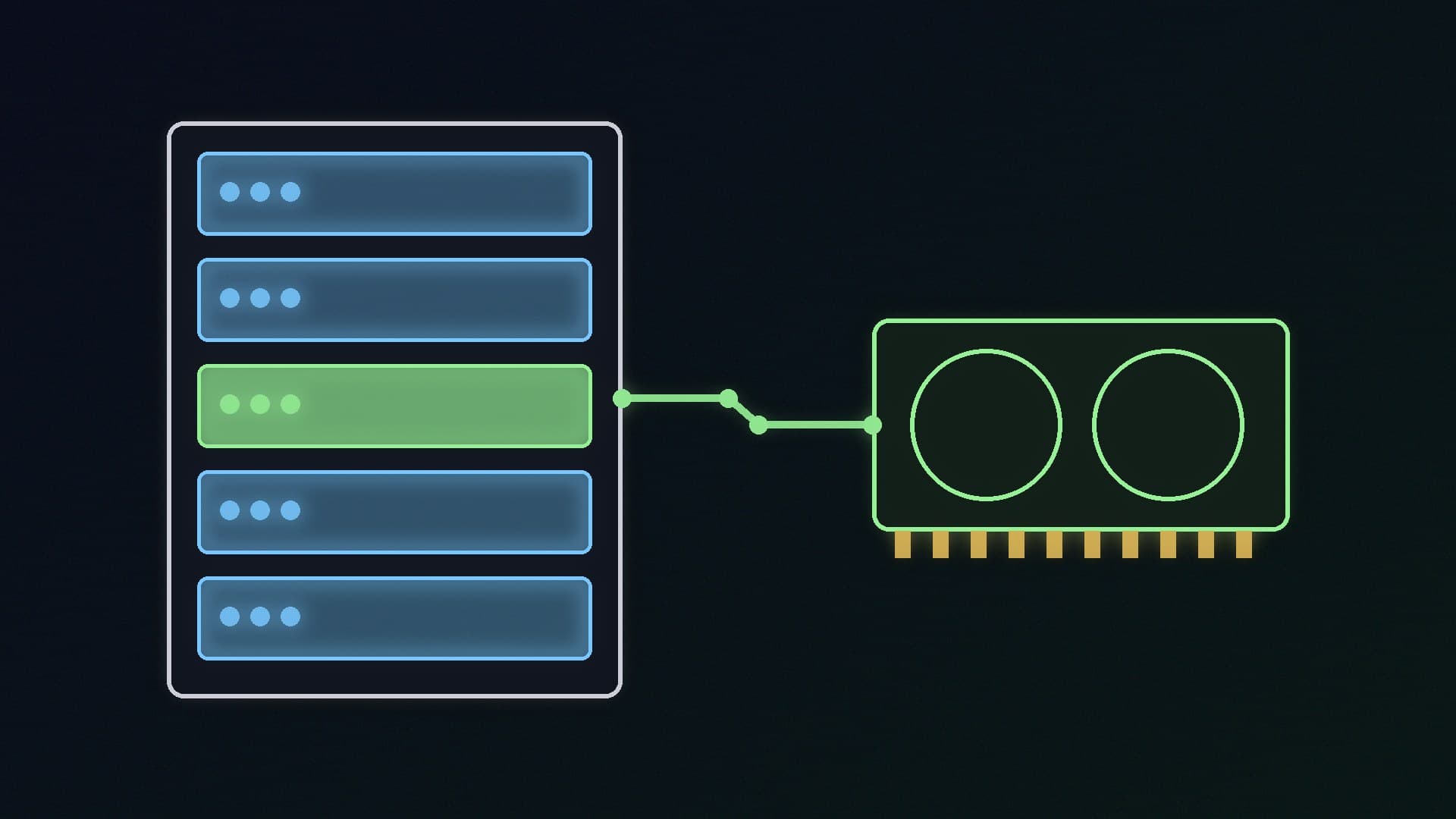
Think about your graphics card. If the slot you'd use for the card is the one your graphics card sits in, you can't have both there. ASUS's FAQ also shows how fitting a graphics card in one slot changes how many lanes are left for drives in another. Our explainer on PCIe x16 vs x8 for graphics cards covers what giving up lanes means for a GPU, and you can check your GPU's PCIe link speed after the change.
If your board can't split the slot four ways, consider a card with fewer drive slots or a single-drive adapter. A single-drive adapter generally doesn't need bifurcation, because there's only one device on the slot.
Step 2: Check the card's limits
ASUS's specification page for the Hyper M.2 x16 Gen 4 lists:
Spec | ASUS Hyper M.2 x16 Gen 4 |
|---|
Interface | PCIe 4.0/3.0 x16, compatible with x8 and x16 slots |
M.2 slots | 4 x M.2 Key M, type 2242/2260/2280/22110 |
Supported drives | PCIe M.2 storage devices only |
Bandwidth (ASUS figure) | Up to 256Gbps |
Cooling | Heatsink with an active fan and a fan power switch |
Indicators | 4 x M.2 access LEDs |
Power | Two-phase design, up to 14W output |
Size | 27 x 12.2 x 1.5cm |
ASUS also notes that the Gen 4 card supports PCIe 3.0 and PCIe 4.0, while the newer Hyper M.2 x16 Gen5 card supports PCIe 4.0 and 5.0. At 27cm long, it needs the same kind of space as a graphics card, so check your case before buying.
Any PCIe 4.0 NVMe drive in the 2280 size, such as the Crucial P310 1TB, matches the card's slot type. Drive speed is still limited by how many lanes your board gives each slot.
Step 3: Update the BIOS and set bifurcation
ASUS says to update to the latest BIOS and set up PCIe bifurcation before using the card's NVMe RAID function, and updating first is sensible even if you don't plan to use RAID. Our guide to updating your BIOS safely covers the process.
Then enter the BIOS and find the PCIe slot settings. Names vary by maker and board: look for "PCIe bifurcation", "PCIe slot configuration", "link width" or a Hyper M.2 option, often in an advanced or onboard-devices menu. Set the slot you're using to the mode your manual supports (for example x4/x4/x4/x4, or x8/x8 on boards like the Z790-A), then save and exit. ASUS's manual for the Z790-A puts it simply: adjust the PCIe bifurcation under BIOS settings.
Step 4: Install the drives and the card
Power down and unplug the PC, then switch off the PSU.
Open the card following its manual, and fit each SSD into an M.2 slot with its screw or latch. If you're fitting fewer drives than there are slots, follow the slot order in your motherboard manual or ASUS's FAQ, which gives specific slot positions for one, two and three drives.
Remove any protective film from thermal pads, if the card uses them, and refit the heatsink.
Fit the card in the slot you configured, secure its bracket and, if you use the fan, set the fan switch.
Boot up and check. Microsoft notes that a new disk isn't available in File Explorer until it has been initialised, so open Disk Management to see and set up the new drives. If one is missing, re-check the bifurcation mode and the slot positions first. Our SSD not showing up guide covers the other usual causes.
For a standard drive on the motherboard itself, our step-by-step guide to installing an M.2 SSD covers the basics, and checking your M.2 slot speed shows which onboard slots run at full speed.
About RAID
ASUS markets the card for NVMe RAID on AMD TRX40 and X570 and Intel's RAID-on-CPU function, and says the drives can form a bootable RAID array of up to four SSDs, depending on CPU and motherboard. Its FAQ adds platform-specific conditions for some older Intel chipsets, such as needing Intel RST version 16 or later on Z590, Z490, Z390 and Z370 boards, where only Intel SSDs can use the Intel RAID-on-CPU feature. You don't need RAID to use the card: with bifurcation set, each drive should appear as a separate disk in Windows.
Our verdict
A quad M.2 card is a good way to add NVMe storage, but your motherboard does the hard part. Before buying, check your manual's bifurcation table for the slot you'd use, the CPU you have and whether your graphics card needs that slot. If the board supports x4/x4/x4/x4, all four drives can work; if it supports only x8/x8, as ASUS's PRIME Z790-A WIFI does, you'll get two. Update the BIOS, set the slot mode and follow the maker's slot order, and the drives should appear as separate disks ready to initialise.