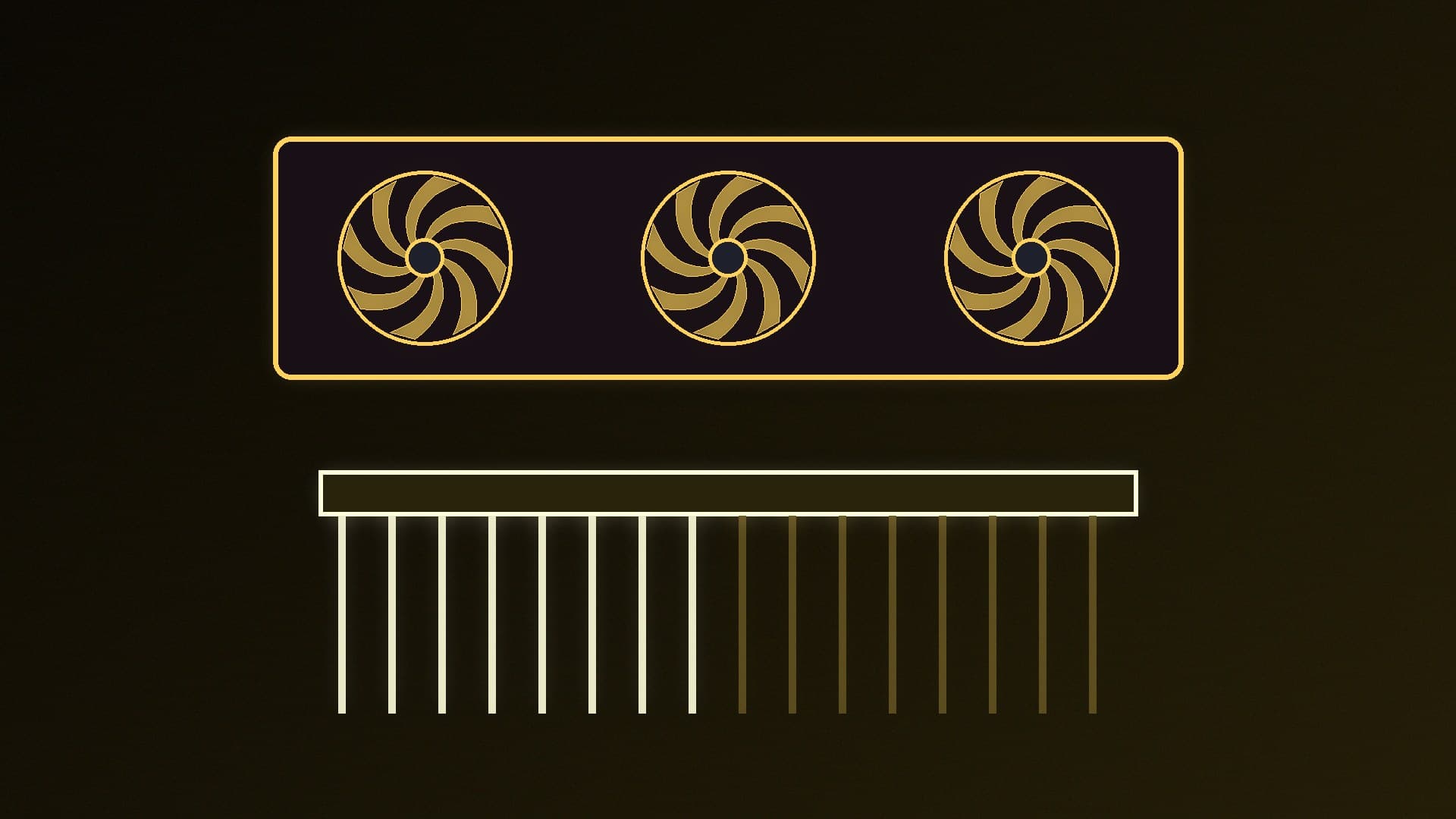
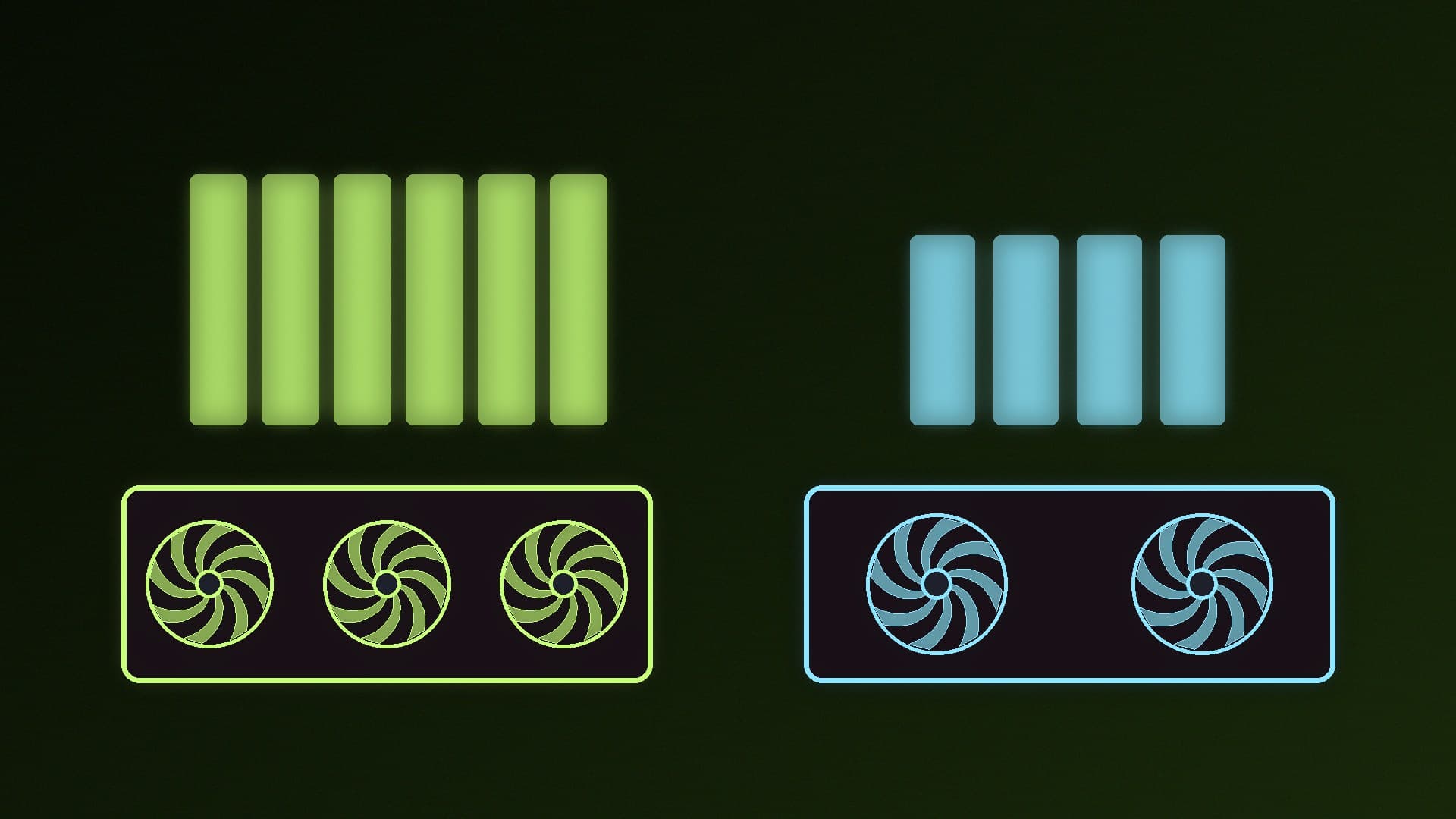
If a new graphics card performs far worse than expected, one easy thing to rule out is the PCIe link: how many lanes, and which PCIe generation, the card is actually using. Games publisher Nixxes says its support team has found severe performance problems caused by graphics cards running at an incorrect PCIe configuration.
The check takes a couple of minutes with the free GPU-Z utility. Forge PC hasn't tested how much a reduced link affects specific cards; the method below follows Nixxes's support advice and GPU-Z's documented features.
What you'll need
GPU-Z from TechPowerUp. It's free, supports NVIDIA, AMD and Intel graphics, and doesn't need installing. TechPowerUp lists "a GPU load test to verify PCI-Express lane configuration" among its features.
Your motherboard manual, to see which slot runs at full speed and what shares lanes with it.
Step 1: Read the Bus Interface field
Open GPU-Z and look at the Bus Interface field on the Graphics Card tab. Nixxes gives this example:
PCIe x16 4.0 @ x16 4.0
The part before the @ is what the card supports: here, 16 lanes of PCIe 4.0.
The part after the @ is what it's running at right now.
If the second value is lower, Nixxes says the GPU is using fewer lanes than it was designed for.
Step 2: Run the render test
Graphics cards save power at idle, so the link generation often drops (for example to 1.1) when you're on the desktop. That's normal. To see the real figure under load, click the ? button next to the Bus Interface field and start the render test, as Nixxes recommends. While it runs, check the value after the @ again.
What you want to see under load is the card's full width and generation, or the highest your motherboard slot supports. Note that some cards are designed with fewer than 16 lanes, which is why the figure before the @ matters: compare like with like.
Step 3: If it's running at x8, x4 or x1
Nixxes says values such as x1, x2 or x4 mean your GPU's bandwidth is being limited, which can have a major impact on performance. It lists three common causes:
The card is in the wrong slot. On many motherboards, only one slot is wired for the full x16, even if other slots look the same size. The manual's specifications page shows how each slot is wired; move the card if necessary. Our guide to installing a graphics card shows how.
Lanes are shared with M.2 SSDs or other cards. On some boards, using certain M.2 slots reduces the graphics slot to x8, or disables other slots. The manual's expansion slot or M.2 table shows which combinations do this. See our M.2 SSD install guide for slot choice.
BIOS settings. The slot's PCIe speed or lane split (bifurcation) may have been changed in the BIOS. Set it back to Auto, or load optimised defaults, and consider updating your BIOS.
Also check:
The card is fully seated. Power off, unplug, and reseat the card firmly until the slot latch clicks.
Risers. If you use a vertical-mount riser cable, check which PCIe generation it's rated for in the riser or case maker's documentation, and whether they recommend a BIOS setting for it.
A note on generation vs width
Each PCIe generation roughly doubles the bandwidth per lane, so running one generation lower than your card and board support (for example PCIe 4.0 instead of 5.0) roughly halves the link's bandwidth, about the same as dropping from x16 to x8. Running at x4 or x1 cuts it far more, which is why Nixxes singles those out. If your card and board both support a higher generation and the render test doesn't show it, check the BIOS settings and any riser first.
Nixxes notes GPU-Z is one tool for this check; system information tools such as HWiNFO, which many people already use for monitoring temperatures and FPS, can also show detailed hardware information. And while you're checking your graphics card's set-up, make sure Resizable BAR is enabled.
Our verdict
Open GPU-Z and read Bus Interface: the value before the @ is what your graphics card supports, and the value after the @ is what it's using. Click ? to run the render test, because the generation drops at idle to save power. If it shows x8, x4 or x1 under load when your card supports x16, move it to the main slot, check the manual for M.2 lane sharing, reset the slot's BIOS settings and reseat the card. Forge PC hasn't measured the performance impact on specific cards; the method follows Nixxes and TechPowerUp.