It's based on Macrium's knowledge base article on full, differential and incremental backups and Veeam's backup chain documentation, checked on 26 November 2026.
Open almost any backup tool's scheduling options and you'll be asked to choose between full, incremental and differential backups, often with little explanation. The choice matters: it decides how much disk space your backups eat, how long each run takes and, most importantly, what you need to have intact to get your files back. Here's how the three types differ and which to pick for a home PC.
The short answer
| Full | Differential | Incremental |
|---|
What it saves | Everything you selected | Everything changed since the last full backup | Everything changed since the last backup of any type |
Size and time per run | Largest and slowest | Starts small, grows with every run until the next full | Smallest and fastest |
What you need to restore | Just that backup | The full backup plus that one differential | The full backup plus every backup in the chain up to that point |
Main risk | Uses the most space | Later differentials get large | One missing or damaged file breaks every later restore point |
Full backups: the foundation
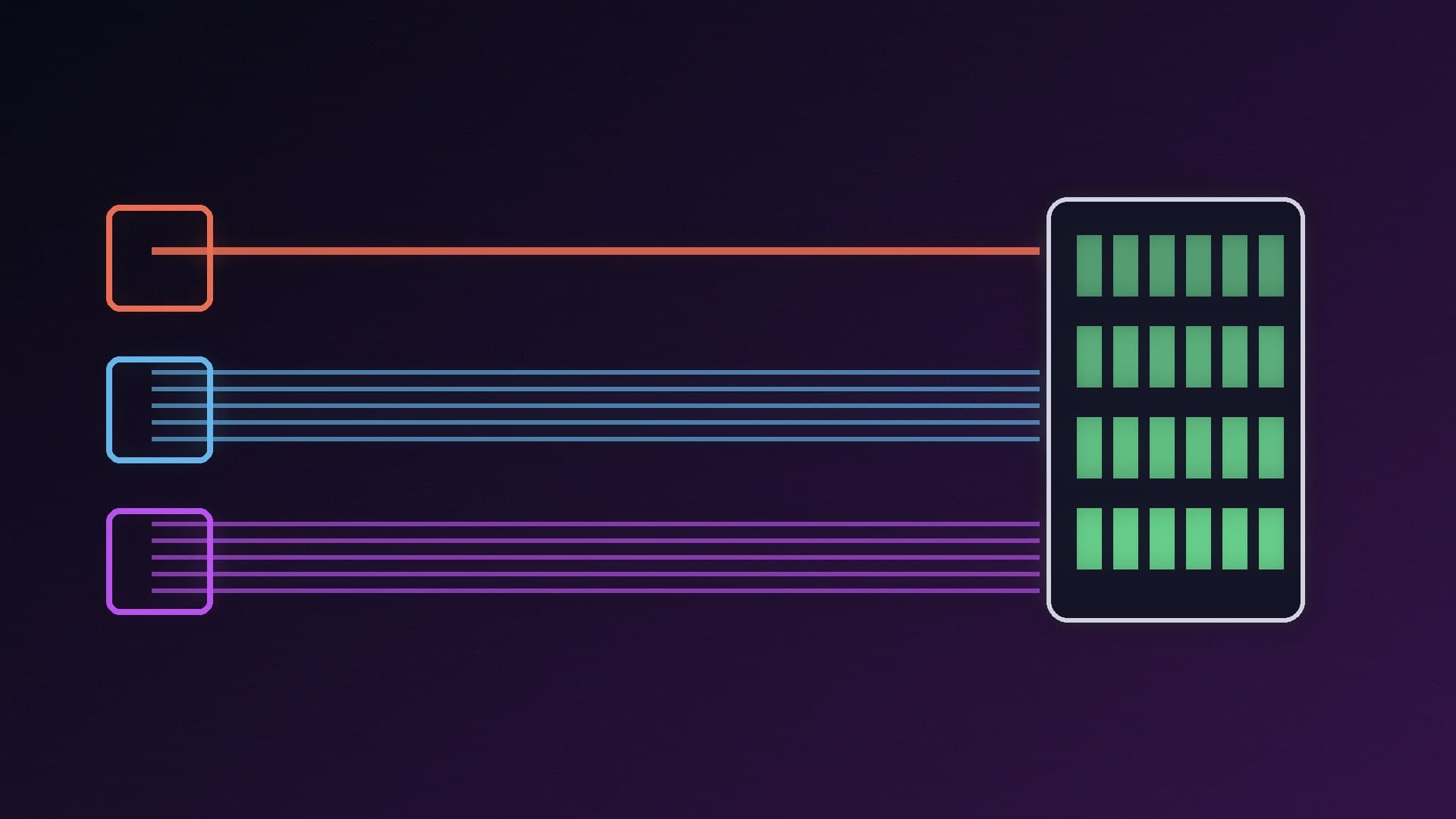
Macrium describes a full backup as containing all of the data in the selected partitions (for a disk image) or all of the selected files (for a file and folder backup). It has no dependencies, it's the largest type and it takes the longest to create. Its big advantage is independence: you can move or delete a full backup without affecting any other backup.
Every backup strategy starts with one. Macrium notes that a full backup must always be created before differential or incremental backups can be made, and Veeam's agent works the same way, creating a full backup on its first run.
Differential backups: simple to restore, but they grow
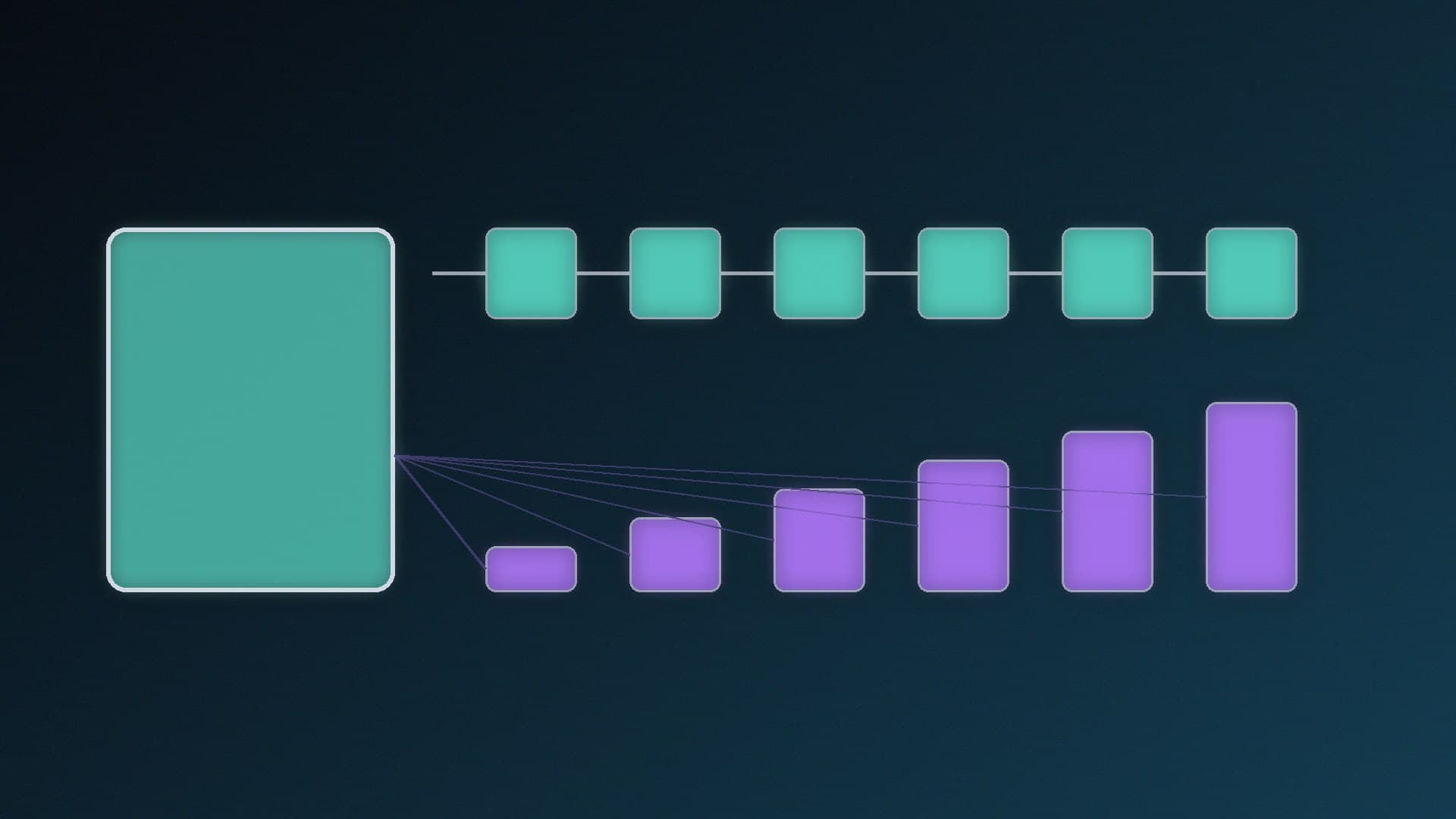
A differential backup contains everything that has changed since the last full backup. According to Macrium, the first differential after a full is small and quick, but each one after that gets larger and takes longer, because it keeps including every change made since that full backup.
The upside is a very simple restore. To get back to any differential restore point you only need two files: the full backup and the differential you want. None of the differentials in between matter, so deleting an older differential doesn't break a newer one.
An incremental backup contains only the changes made since the last backup of any type, whether that was a full, a differential or another incremental. Macrium says these are the smallest backup files and the fastest to create, which makes them ideal for frequent backups.
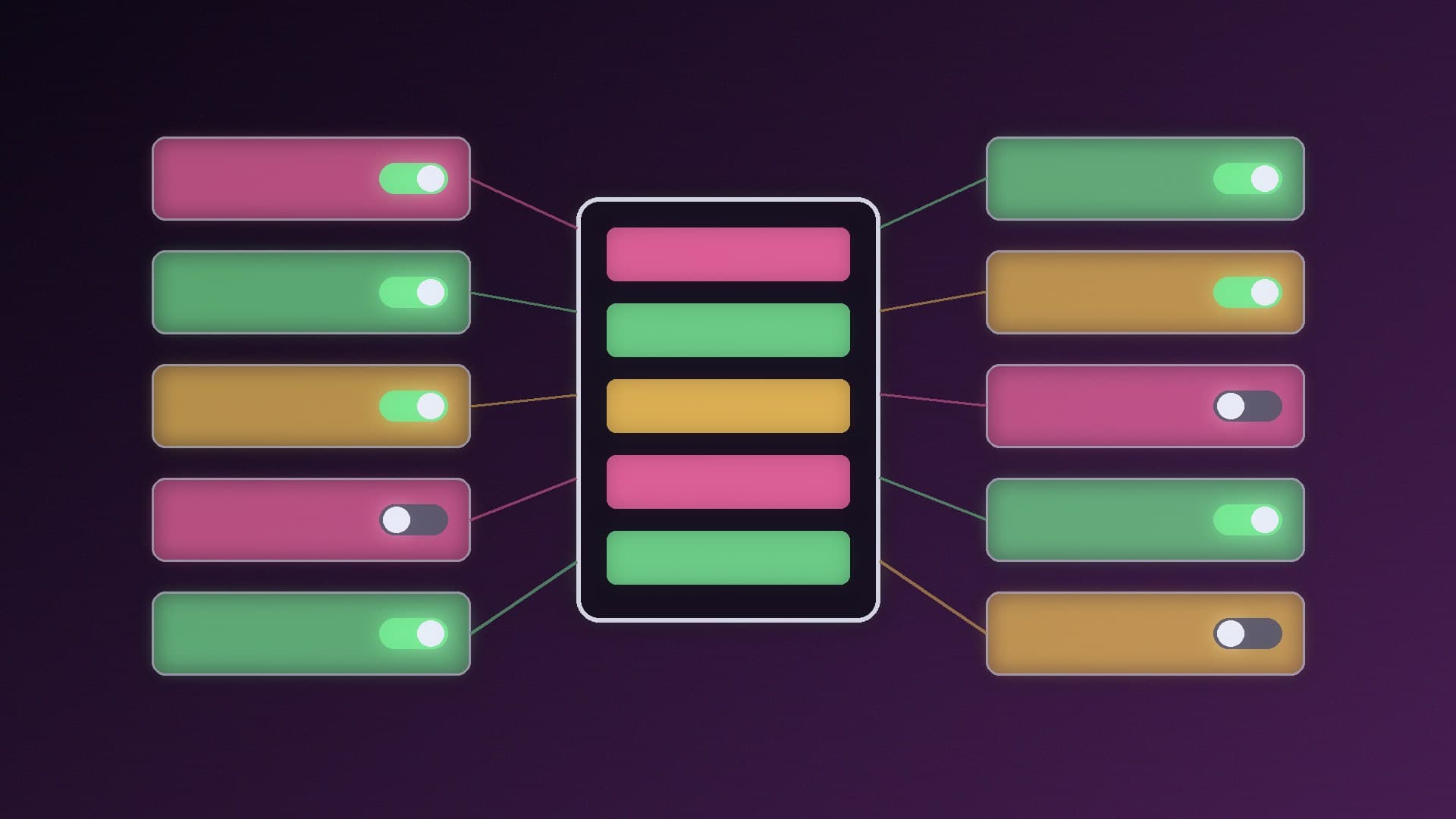
The catch is the chain. To restore an incremental backup, every earlier backup in the set must be available. Macrium's own example: if the third incremental in a set is deleted, the fourth, fifth and sixth can't be restored either. Veeam's documentation makes the same point about its agent's chain of a full backup followed by incrementals, and recommends that you don't delete individual backup files by hand.
Which should you use?
Choose incremental if you want frequent restore points (daily or more often) without filling your backup drive, and you're using backup software that manages the chain and retention for you. Just don't tidy up the backup folder by deleting files manually; let the software's retention settings do it.
Choose differential if you want the simplest possible restore and the fewest files that have to survive, and you don't mind each backup getting bigger until the next full. It suits people who back up less often, or who copy backups to a second drive and want each restore point to depend on as few files as possible.
Mix them if your software offers schedule templates. Macrium points out that combining backup types in a schedule lets you get the benefits of each while minimising the downsides, and its built-in templates include a "Grandfather, Father, Son" scheme that uses full, differential and incremental backups together.
Whatever you choose, start a fresh full backup now and then rather than relying on one full and an endless chain. Veeam's documentation describes active and synthetic full backups for this purpose.
What this means for a gaming PC
For a typical gaming PC, the files you can't replace (documents, photos, game saves that don't sync to the cloud, mod setups and config files) are small compared with your game libraries, which you can usually download again. That makes a file-and-folder backup with frequent incrementals, plus an occasional full disk image of the Windows drive, a sensible combination.
If you need a free tool to do it, our best free backup software for Windows guide covers the options, and Windows Backup vs File History explains what's built into Windows 11. Bear in mind that cloning a drive is a different job again: our guide to cloning an SSD with free tools covers that, and Clonezilla vs Rescuezilla compares two free imaging tools. Keep backups on a separate drive from the one you're protecting, such as one of the picks in our best external hard drive guide.
Our verdict
Incremental backups are the best default for most home PCs: they're the smallest and fastest, so you can back up often, as long as you let the backup software manage the chain and never delete individual files from it. Choose differential backups if you value a simpler restore that only needs the full backup plus one file, and accept that each differential grows until the next full. Either way, everything rests on a good full backup, so make a new one regularly.