It's based on Microsoft Support's documentation for Windows Backup and File History, read on 24 November 2026. Menu wording can change between Windows updates.
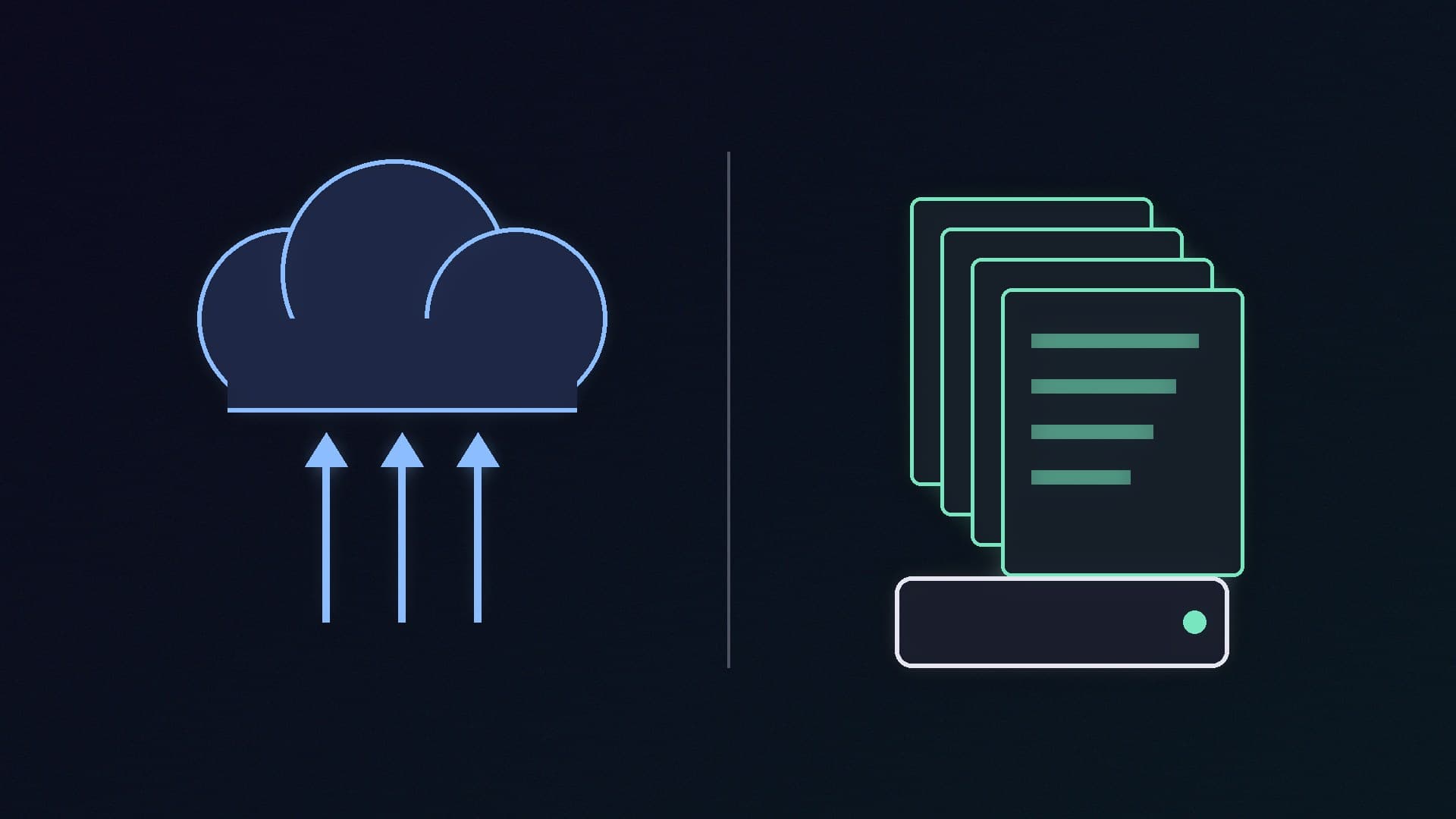
Windows 11 gives you two free, built-in ways to protect your files, and they're easy to confuse. Windows Backup is the newer app that backs up your folders, settings and app list to your Microsoft account and OneDrive. File History is the older Control Panel feature that copies your files to an external drive or network location and lets you roll back to earlier versions.
They don't do the same job, and for many people the right answer is to use both. Here's how they compare.
The short answer
Choose Windows Backup if you want the easiest way to move to a new PC or recover after reinstalling Windows, and you're happy for your files to live in OneDrive.
Choose File History if you want local, versioned copies of your files on a drive you control, without relying on cloud storage.
Use both if your files matter. One protects you if the PC is lost or replaced; the other gives you a local copy and earlier versions of files.
Side-by-side comparison
| Windows Backup | File History |
|---|
Where it lives | Windows Backup app, or Settings > Accounts > Windows backup | Control Panel > System and Security > Save backup copies of your files with File History |
Where backups go | Your Microsoft account and OneDrive | An external drive or a network location |
What it backs up | Desktop, Documents, Pictures, Videos and Music folders (each toggled on or off), plus installed apps list, accessibility, accounts/Wi-Fi/passwords, personalisation, language and other Windows settings | All your libraries (Documents, Pictures, Videos, Music and custom libraries); Microsoft's setup steps also mention Desktop. Add other folders by including them in a library |
Account needed | Personal Microsoft account; work or school accounts won't work | Microsoft's setup steps don't mention signing in to an account |
Storage cost | 5GB of OneDrive storage comes free with a Microsoft account; more is available to buy | Whatever drive or network storage you provide |
How it runs | Syncs chosen folders to OneDrive and works in the background | Continuously monitors your files and makes regular backups |
Restoring files | Sign in to OneDrive with the same Microsoft account | Restore previous versions in File Explorer, or open the File History window |
Restoring settings and apps | Offered when you set up a new PC or reinstall Windows and sign in with the same account | Not covered |
Earlier versions of a file | Not described in Microsoft's Windows Backup guide | Yes, browse and restore previous versions |
Windows Backup: built for moving to a new PC
Microsoft calls Windows Backup a "one-stop backup solution" that covers your files, themes and settings, many of your installed apps and your Wi-Fi information, and says it makes it easier to move to a new PC.
How it works
Windows Backup ties everything to your Microsoft account. When you back up your folders, they're synced to OneDrive, which Microsoft says makes them accessible on all the computers you use with that account. Settings and preferences are stored with the account as well.
To set it up:
Make sure you're signed in to Windows with a Microsoft account (Settings > Accounts > Your info). If you see Sign in with a Microsoft account instead, you're on a local account.
Search for backup from Start and open Windows Backup.
Expand Folders and toggle on the folders you want backed up: Desktop, Documents, Pictures, Videos and Music.
Expand the settings sections and toggle on the ones you want. Microsoft notes that some are backed up by default and will show as Backed up.
Select Back up.
Our guide to the Windows Backup app covers each screen in more detail.
Restoring
When you set up a new PC or reinstall Windows, Microsoft says you just sign in with the same Microsoft account. Windows will spot your backups and ask if you want to restore one. Pinned apps come back where you left them: Microsoft Store apps can be reinstalled by selecting their pin, while for other apps you're directed to the web to download the installer. Files can be restored at any time by signing in to OneDrive.
The catches
Storage. The free 5GB of OneDrive storage won't go far if you have a large photo or video library. Microsoft notes that more storage is available to buy, and that if you get a OneDrive error when backing up, insufficient storage is one possible cause. Personalisation settings aren't backed up if you don't have enough OneDrive storage.
It's sync, not a separate archive. Microsoft describes folder backup as syncing the folders you choose to OneDrive, so think of it as a synced copy in your Microsoft account rather than a separate offline archive.
Work and school accounts. Microsoft says Windows Backup is focused on consumer devices with personal Microsoft accounts, and work or school accounts won't work. Its KB5032038 notes add that Windows Backup isn't supported for Microsoft Entra ID or Active Directory users, and that it's a system component that can't be removed.
OneDrive folder sync. If you'd rather your Desktop didn't sync, see how to stop OneDrive backing up your Desktop.
File History: local copies and earlier versions
Microsoft describes File History as a way to protect your personal files and folders from accidental loss or damage. Its big strength is versions: if you delete a file, overwrite it, or make changes you didn't want, you can go back to an earlier copy.
How it works
File History automatically backs up all your libraries, including Documents, Pictures, Videos and Music and any custom libraries. Once it's on, Microsoft says it continuously monitors your files and makes regular backups to an external drive or network location. Folders stored elsewhere can be added by including them in a library.
To set it up:
Connect an external drive or set up a network location.
Open Control Panel and, under System and Security, select Save backup copies of your files with File History.
Select Turn on.
If no drive is selected, choose Select drive, pick your drive or network location and select OK.
To add more folders, right-click a folder and choose Show more options > Include in library.
Restoring
In File Explorer, go to the folder that used to contain the file.
Right-click the folder and select Restore previous versions.
Choose a version from before the file was lost or changed. You can preview it with Open > Open in File History.
Select Restore, or Restore to... if you don't want to overwrite the current version. Microsoft warns that a normal restore replaces the current file and can't be undone.
There's more in our File History guide.
The catches
It only covers files. Microsoft describes File History as protecting your personal files and folders. It doesn't cover settings, apps or Windows itself the way Windows Backup covers settings and your app list.
The drive has to be there. Backups go to an external drive or network location, so a drive that's usually unplugged won't receive new backups. That's our inference from how the feature works rather than something Microsoft spells out.
Local risk. If the backup drive sits next to the PC all the time, a fire, theft or flood could take both. Keep that in mind for anything irreplaceable.
Neither tool, as Microsoft describes them, makes a full image of your Windows installation that you can restore in one go. For that, or for cloning a drive, you need separate software: see our best free backup software picks.
Which drive for File History?
Any external drive or network location will do. If you want a compact USB drive for local backups, our specs database includes the Samsung Portable SSD T7 Shield in 1TB, 2TB and 4TB versions, and our best external SSD guide covers more options. Pick a capacity comfortably larger than the files you want to protect, so there's room for earlier versions too.
Our verdict
Windows Backup and File History solve different problems. Windows Backup is the easy, cloud-based option for keeping your folders, settings and app list tied to your Microsoft account, and it's the better choice for getting a new or reinstalled PC back to normal quickly. File History is the better choice for local, versioned copies of your files on a drive you control, without relying on OneDrive storage. If your files matter, use both: Windows Backup for convenience and off-site copies, File History for a local safety net and earlier versions. Neither replaces a full system image, so add dedicated backup software if you want one.