It's based on ASUS's official PG32UCDP specification page and Dell's official AW3225QF specification sheet, both read on 24 November 2026. Prices change constantly around Black Friday, so we've left them out; check current UK prices before you choose.
On paper these two monitors look almost identical: both are roughly 32-inch 4K OLED panels running at up to 240Hz, with a 0.03ms grey-to-grey response time quoted by their makers and a three-year warranty that covers burn-in. Dig into the specifications, though, and they're aimed at quite different people.
PG32UCDP vs AW3225QF at a glance
| ASUS ROG Swift OLED PG32UCDP | Alienware AW3225QF |
|---|
Panel | 31.5-inch WOLED | 31.6-inch QD-OLED |
Shape | No curvature listed | 1700R curve |
Resolution and refresh | 3840 x 2160 at 240Hz | 3840 x 2160 at 240Hz (DSC) |
Dual mode | Yes: 1920 x 1080 at up to 480Hz | Not listed |
Response time (maker's figure) | 0.03ms GtG | 0.03ms GtG minimum |
Peak HDR brightness (maker's figure) | 1,300 cd/m² (may vary) | 1,000 cd/m² |
HDR | HDR10, VESA DisplayHDR 400 True Black | Dolby Vision, VESA DisplayHDR True Black |
Colour | 99% DCI-P3, 10-bit | 99% DCI-P3, 1.07 billion colours, Delta E < 2 |
Screen surface | Anti-glare | Anti-reflection coating |
Adaptive sync | Adaptive-Sync, AMD FreeSync Premium Pro, G-SYNC Compatible | VESA AdaptiveSync, NVIDIA G-SYNC Compatible certification (FreeSync Premium listed as No) |
Video inputs | 1x DisplayPort 1.4 DSC, 2x HDMI 2.1 (FRL), 1x USB-C (DP Alt Mode) | 1x DisplayPort 1.4, 2x HDMI 2.1 FRL (one with eARC) |
USB | USB-C with 90W Power Delivery, 3x USB 3.2 Gen 1 Type-A | USB-B upstream, 3x USB 3.2 Gen 1 Type-A and 1x USB-C downstream |
Extras | KVM switch, proximity sensor, earphone jack, tripod socket | AlienFX lighting, Console Mode, eARC |
Stand | Tilt, swivel, 0-80mm height | Tilt, swivel, 110mm height |
Weight | 7.3kg with stand, 4.5kg without | 6kg panel only (for VESA mounting) |
Warranty | 3 years including panel burn-in | 3-year Advanced Exchange Service and Premium Panel Exchange, including OLED burn-in |
Panel type: WOLED vs QD-OLED
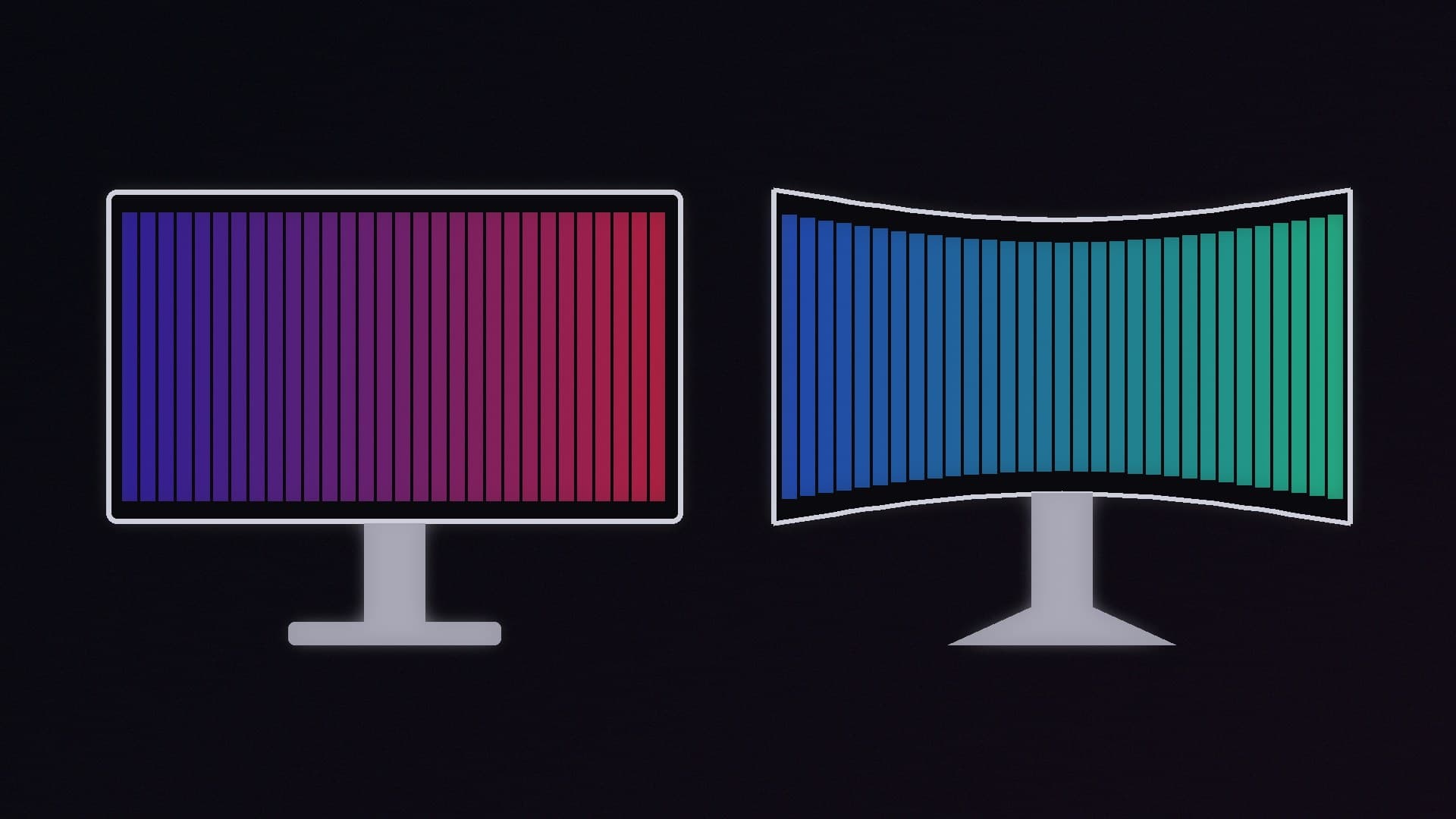
The biggest underlying difference is the panel. ASUS lists the PG32UCDP as WOLED and Dell lists the AW3225QF as QD-OLED. Both give per-pixel lighting with no backlight, but they differ in subpixel layout, how they handle ambient light and how colours hold up at high brightness. Rather than repeat it all here, our QD-OLED vs WOLED explainer covers the trade-offs.
The surfaces differ too. ASUS lists an anti-glare finish; Dell lists an anti-reflection coating. If your room is bright or you sit opposite a window, it's worth reading our glossy vs matte monitor guide before deciding.
Shape: curved vs flat
Dell's AW3225QF has a 1700R curve. That's a gentle curve, but on a 32-inch 16:9 screen it's something you'll either like or not, especially for productivity work with straight lines. ASUS doesn't list a curvature for the PG32UCDP. If you're torn, see our curved vs flat gaming monitor guide.
Refresh rate: the ASUS's 480Hz trick
Both monitors run at 4K and up to 240Hz. The PG32UCDP adds a dual mode: ASUS's signal-timing table shows a 4K mode at up to 240Hz and an FHD (1920 x 1080) mode at up to 480Hz, over HDMI, DisplayPort and USB-C. ASUS calls this Frame Rate Boost, and says you can switch it with a dedicated button or in the on-screen menu. It also says an optional Aspect Ratio Control can show the 1080p 480Hz image at a 24.5-inch or 27-inch size, which some competitive players prefer. That means you can drop to 1080p at 480Hz for fast competitive shooters, as long as your PC can produce frame rates that high, and switch back to 4K for everything else.
Dell's spec sheet doesn't list an equivalent mode for the AW3225QF, so it's 240Hz at its native resolution. For most people 240Hz at 4K will already be more than their graphics card can drive in demanding games, but if you play esports titles seriously, the ASUS's extra mode is a genuine point in its favour. Our 144Hz vs 240Hz monitor guide explains what higher refresh rates do and don't give you.
HDR: brighter peak vs Dolby Vision
ASUS quotes a higher peak HDR brightness of 1,300 cd/m² (with a note that peak brightness may vary because of colour pre-calibration). Dell quotes 1,000 cd/m².
The ASUS is certified VESA DisplayHDR 400 True Black and lists HDR10 support. The Alienware's spec sheet lists VESA DisplayHDR True Black certification and Dolby Vision support, which the ASUS doesn't list. Dell also highlights a Console Mode that uses source-based tone mapping for HDR on games consoles. If you'll watch a lot of Dolby Vision content or connect a console, that tips things towards the Alienware. Our guides to HDR10 vs HDR10+ vs Dolby Vision and DisplayHDR 400 vs 600 vs 1000 explain the labels, and how to set up HDR in Windows 11 walks through getting it right on a PC.
Connections: USB-C and KVM vs eARC
This is where the two diverge most for everyday use.
The PG32UCDP has a USB-C port with DisplayPort Alt Mode and 90W Power Delivery, so one cable can carry video to and charge many laptops. It also lists a built-in KVM switch, the feature that lets one keyboard and mouse plugged into the monitor's USB hub (three USB 3.2 Gen 1 Type-A ports) control two connected computers, such as a gaming PC and a work laptop. There's also an earphone jack, a proximity sensor and a tripod socket on top for a webcam or light.
The AW3225QF has no USB-C video input in Dell's connectivity list. Its USB-C port is a downstream port that supports BC1.2 charging, alongside three downstream USB-A ports and a USB-B upstream port. Its party piece is eARC on one of its HDMI 2.1 ports, so you can pass Dolby Atmos audio to a compatible soundbar or speakers. Dell's spec sheet lists no audio output.
Both have one DisplayPort 1.4 input and two HDMI 2.1 inputs. Dell's sheet says the HDMI ports support up to 4K 240Hz with VRR and also highlights 4K at 120Hz and ALLM (auto low latency mode) for next-generation consoles. ASUS lists its HDMI 2.1 ports as FRL. For help choosing a cable, see DisplayPort vs HDMI for gaming.
Adaptive sync
Both are certified G-SYNC Compatible, so NVIDIA graphics card owners are covered either way. The ASUS also lists AMD FreeSync Premium Pro. Dell's spec sheet lists VESA AdaptiveSync Display certification but marks AMD FreeSync Premium as "No". If you have an AMD graphics card and want the FreeSync Premium Pro badge, which AMD ties to low framerate compensation and HDR certification, the ASUS is the one that has it. Our G-SYNC vs FreeSync explainer covers what the different labels mean.
Burn-in protection and warranty
OLED burn-in is the main long-term worry with any OLED monitor. Both makers cover it: ASUS lists a three-year warranty including panel burn-in, and Dell lists three years of Advanced Exchange Service and Premium Panel Exchange including OLED burn-in coverage. ASUS also lists its OLED Care features. Either way, it's worth following the tips in our guide to preventing OLED burn-in.
Our verdict
Choose the ASUS ROG Swift OLED PG32UCDP if you want the most flexible monitor: its 1080p 480Hz dual mode suits competitive players, USB-C with 90W charging and a KVM switch make it a great shared work-and-play screen, and it carries AMD FreeSync Premium Pro as well as G-SYNC Compatible certification. Choose the Alienware AW3225QF if you prefer a curved QD-OLED screen, watch Dolby Vision content or want eARC to pass audio to a soundbar, and you don't need USB-C video.
For more options, see our best 4K gaming monitor and best OLED gaming monitor guides.