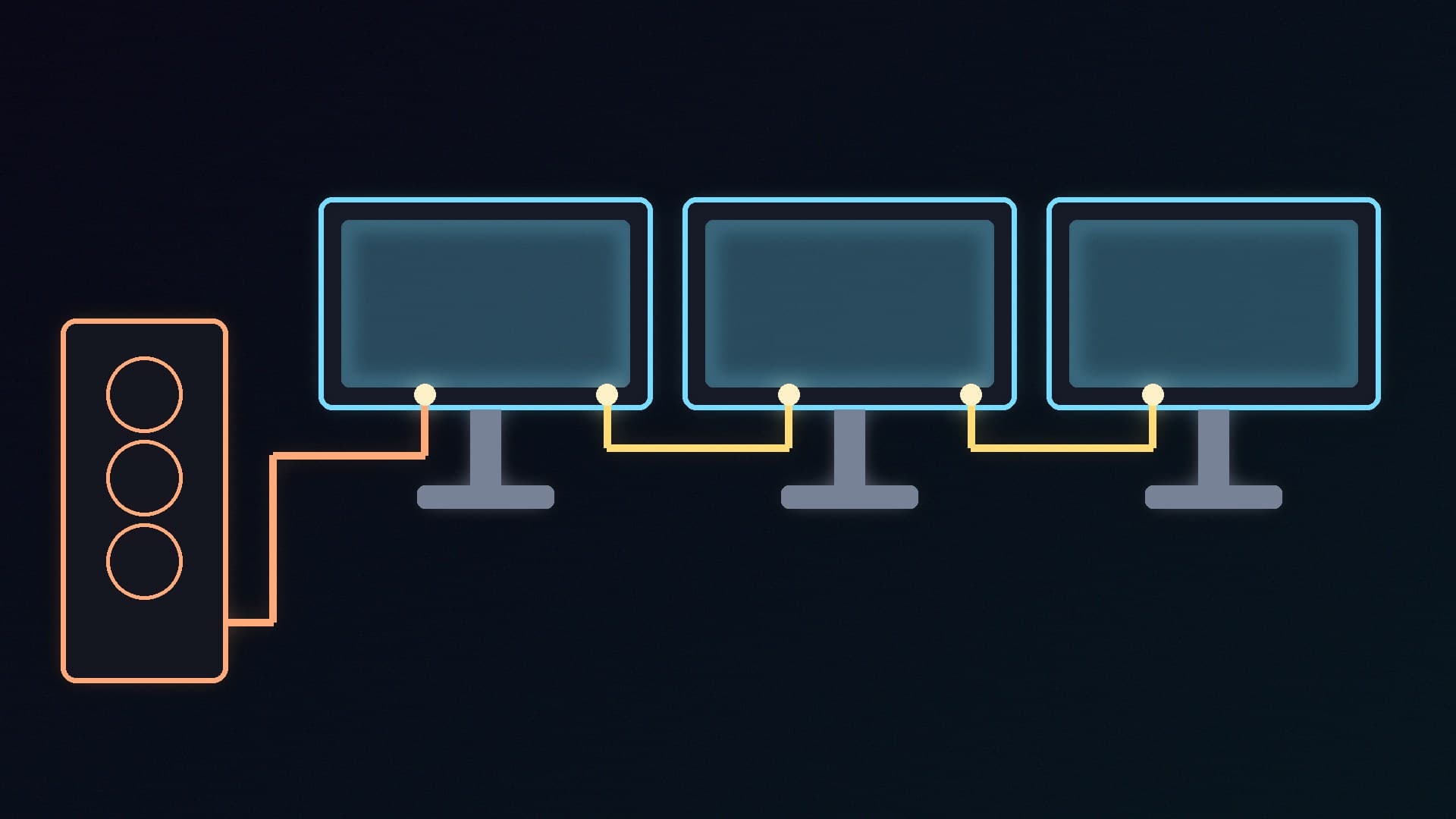
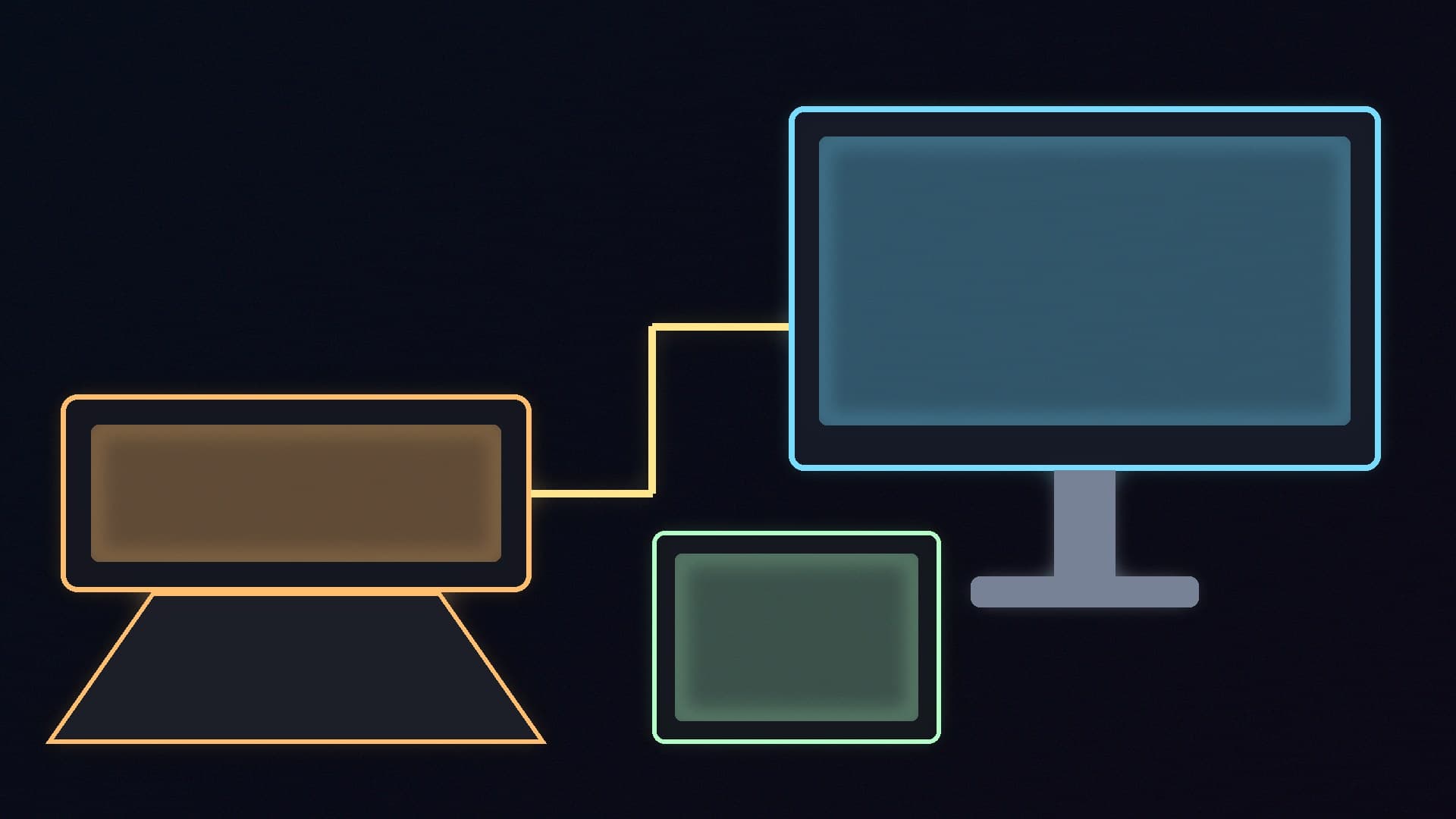
Daisy-chaining means running a video cable from your PC to the first monitor, then a second cable from that monitor to the next, instead of running a separate cable from the PC to every screen. It's especially handy on laptops and small PCs with few video outputs. On a desktop it can also keep a multi-monitor desk tidier. It only works with the right ports on both the PC and the monitors, so most of the work is checking compatibility before you buy cables.
It's based on Dell's daisy-chaining guide, Philips' monitor knowledge article, ASUS's daisy-chain FAQ, the DisplayPort FAQ from VESA and Dell's specifications for its P2725HE and P2425HE monitors, all read on 24 November 2026. Your monitor's user guide takes priority over anything here.
How daisy-chaining works
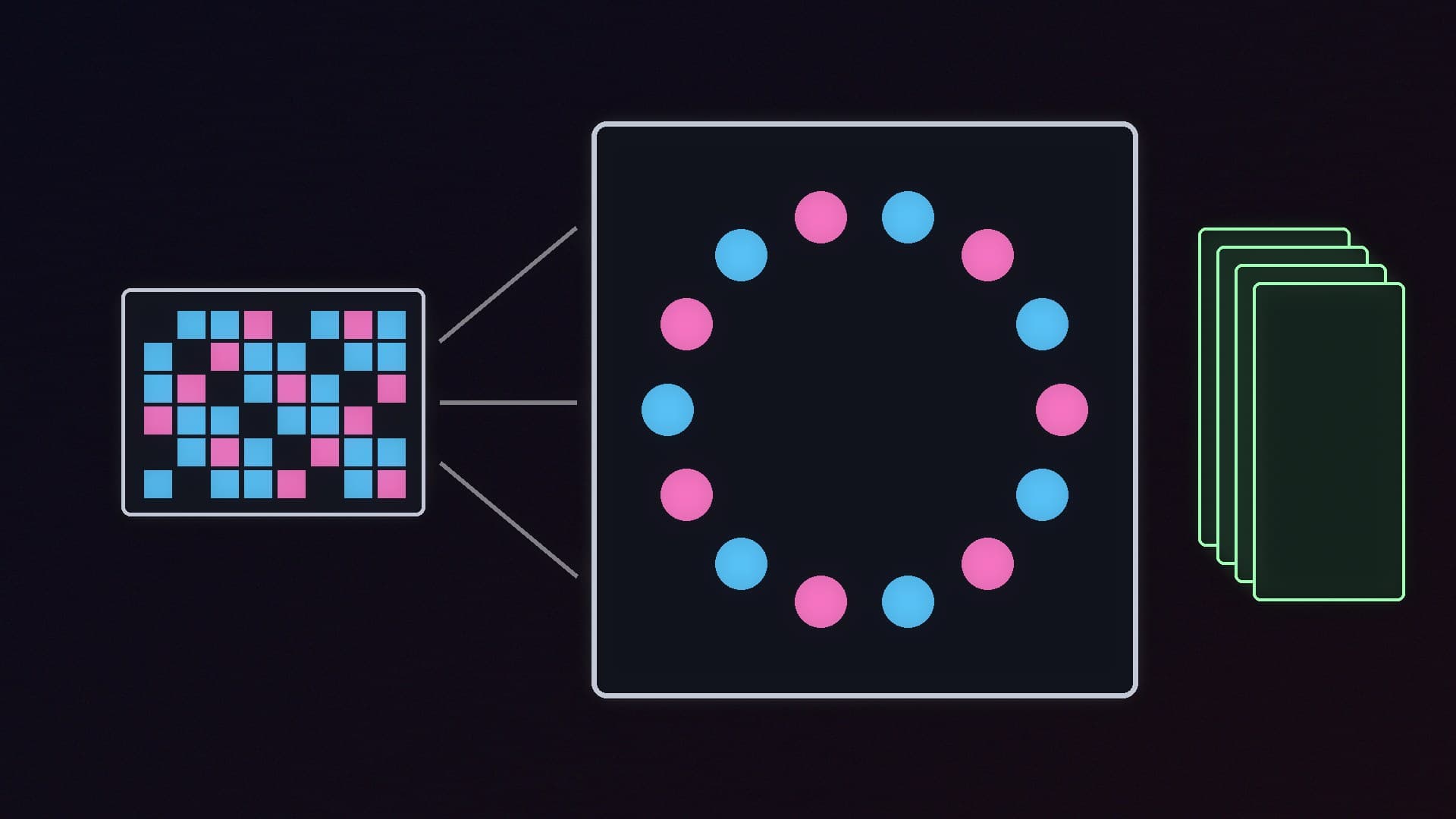
DisplayPort can carry several separate video streams down one cable using Multi-Stream Transport (MST). The first monitor in the chain takes the stream meant for it and passes the rest out of its DisplayPort Out port to the next monitor. The DisplayPort FAQ describes MST as one of DisplayPort's unique capabilities and says DisplayPort 2.1b improves support for multiple-display setups.
Dell lists three ways to daisy-chain monitors:
DisplayPort with MST (version 1.2 or higher)
USB-C with DisplayPort Alternate Mode
Thunderbolt (version 3 or higher), also using MST
HDMI can't be daisy-chained. Dell says daisy-chaining isn't supported over HDMI, or over a USB-C port that doesn't support DisplayPort Alt Mode or Thunderbolt.
What you need
Part of the chain | What it needs |
|---|
Your PC | A DisplayPort 1.2 or later output, a USB-C port with DisplayPort Alt Mode, or a Thunderbolt 3 or later port, plus a graphics card or processor that supports MST |
Monitor 1 | A matching input and a DisplayPort Out (or Thunderbolt downstream) port with MST support |
Middle monitors | A matching input and a DisplayPort Out port |
Last monitor | Just a matching input; Dell says it doesn't need MST support itself |
Cables | Cables rated for the DisplayPort version your ports use, plus a separate power cable for every monitor |
Two points trip people up:
Monitor 1 needs a DP Out port. Many monitors have DisplayPort inputs only. ASUS's FAQ notes that most of its ProArt monitors don't have a DisplayPort output, so they can only go at the end of a chain. Check the port list on the spec sheet for "DP Out" or "DP-out with MST". For example, Dell lists the Dell Pro 27 Plus P2725HE with a DP 1.4 input, a USB-C upstream port with DisplayPort 1.4 Alt Mode, and a DP-out (1.4) port with MST. The smaller Dell Pro 24 Plus P2425HE has the same set of video ports.
Each monitor needs its own power. Dell points out that DisplayPort can't power the monitors.
If your PC only has HDMI outputs, or you'd rather not chain, connect each monitor to the PC directly instead. Our guide to setting up dual monitors in Windows 11 covers that.
Step 1: Check that your PC's output supports MST
Look up your graphics card, laptop or motherboard spec sheet:
Desktop graphics card: you need a DisplayPort output. ASUS says the output must be DisplayPort 1.2 or later and that cards from 2014 onwards should normally have it, but check the manual.
Integrated graphics on a desktop: use the motherboard's DisplayPort or a USB-C port that the manual says supports DisplayPort output.
Laptop: use a USB-C port marked for DisplayPort Alt Mode or a Thunderbolt port.
Install the latest graphics driver before you start. Dell lists out-of-date drivers as a common cause of daisy-chain problems.
Step 2: Connect the PC to monitor 1
Connect your PC to monitor 1's DisplayPort In, USB-C upstream or Thunderbolt upstream port. Dell recommends making the highest-resolution monitor the first one in the chain. Philips suggests the same approach in reverse: if bandwidth gets tight, put your best screen first and use lower resolutions further down the chain.
Step 3: Turn on MST on monitor 1
On many monitors the DP Out port does nothing until MST is switched on in the on-screen menu. Dell says MST isn't enabled by default on its monitors, and on some older Dell models you have to enable it before the chain will work. The setting is often called "MST", "DP Out Multi-Stream" or similar. Philips describes a "DP Out Multi-Stream" option with Clone and Extend choices. Your monitor's manual will show where it is.
Step 4: Connect monitor 1 to monitor 2
Run a cable from monitor 1's DisplayPort Out (or Thunderbolt downstream) to monitor 2's input. Dell's connection table lists the combinations that work, for example:
PC output | Monitor 1 input | Monitor 1 output | Monitor 2 input |
|---|
DisplayPort | DisplayPort In | DisplayPort Out | DisplayPort In |
USB-C with DP Alt Mode | USB-C upstream | DisplayPort Out | DisplayPort In |
Thunderbolt | Thunderbolt upstream | Thunderbolt downstream | USB-C with DP Alt Mode or Thunderbolt upstream |
ASUS suggests a longer cable from the PC to the first monitor and shorter cables between monitors, to avoid a mess of spare cable.
Step 5: Add more monitors
To add a third screen, turn on MST on monitor 2 (if it has the option) and connect its DP Out to monitor 3's input. Repeat for further screens. Philips says that, depending on the graphics card, you can chain three to six monitors. But DisplayPort bandwidth is limited, so adding more than two monitors can mean lowering resolution further down the chain.
Step 6: Set up the displays in Windows
Go to Start > Settings > System > Display. Drag the monitor boxes so they match their physical layout, choose Extend these displays or Duplicate these displays, and set each screen's resolution. Then set each screen's refresh rate under Advanced display. Our guide to changing monitor refresh rate shows where that setting is.
On a Mac it's different. Dell says macOS only extends a daisy chain over Thunderbolt, and only on certain Apple chips. Over plain DisplayPort or USB-C, a Mac will only duplicate the same image.
How many monitors, and at what resolution?
There's no single answer, because the limit depends on the total bandwidth. Dell lists the main factors:
Graphics capability. Integrated graphics usually supports fewer screens than a discrete graphics card.
Port version and cable. Use cables rated for the DisplayPort version your ports use. Dell's example is that a DP 1.4 (HBR3) connection needs a DP 1.4 cable.
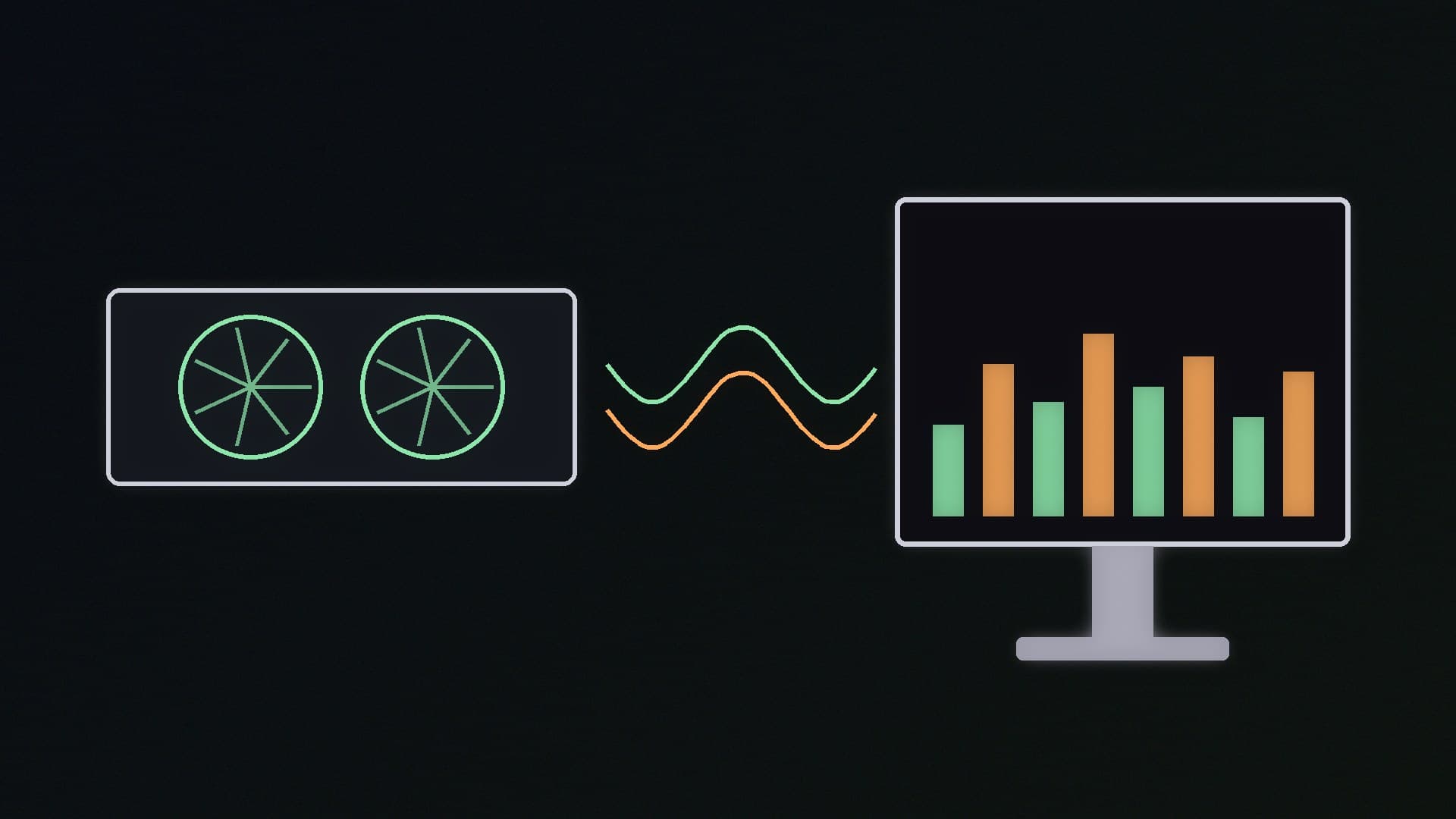
Resolution, refresh rate and colour depth. Each one increases the bandwidth each screen needs, so higher settings leave room for fewer monitors.
Display Stream Compression (DSC). Dell describes DSC as "virtually lossless" compression that lets more monitors, or higher resolutions, fit into the same link.
USB versus video priority. On USB-C hub monitors you can sometimes give more bandwidth to video by reducing USB data speeds.
Daisy-chaining is mainly useful for desktop work: documents, spreadsheets, browsers and chat. For a high-refresh-rate gaming monitor, connect it directly to the graphics card so it doesn't share bandwidth with the rest of the chain. Our DisplayPort vs HDMI for gaming guide explains the bandwidth of each connection.
Troubleshooting: the second monitor stays blank
Work through these in order. Most come straight from Dell's troubleshooting list:
Check that MST is on in monitor 1's on-screen menu. Without it, monitor 1 may only clone its own image or send nothing out of DP Out.
Check the cables. Make sure monitor 1's DP Out goes to monitor 2's DP In, not into a second input, and that every connector is pushed in fully.
Check the monitor list. Make sure monitor 1 actually has MST on its DP Out port, and that your PC's port supports DisplayPort output.
Update the graphics driver, then restart the PC and power-cycle every monitor.
Reduce the load. Lower the resolution or refresh rate on the later screens, or remove a monitor. Dell notes that some PCs support only two or three displays in total, and a laptop's built-in screen counts towards that limit.
Try monitors from the same maker. Dell recommends matching brands for the best compatibility.
If the first monitor shows nothing either, it's a general signal problem rather than a daisy-chain one. Our no display or no signal fix guide covers that.
Our verdict
Daisy-chaining is a tidy way to run two or three office monitors from one cable. It needs a DisplayPort 1.2 or later output, a USB-C port with DisplayPort Alt Mode, or a Thunderbolt 3 or later port on your PC, plus a first monitor with DisplayPort Out and MST. It won't work over HDMI. Put your highest-resolution screen first, turn on MST in its menu, connect DP Out to the next screen's DP In and arrange the screens in Windows display settings. Keep gaming monitors on their own cable to the graphics card, and expect bandwidth to limit resolution and refresh rate as the chain gets longer.