It's based on Magpie's GitHub README, FAQ and v0.13.0 release notes and on the Lossless Scaling Steam store page, all read on 24 November 2026.
Plenty of games either don't offer a modern upscaler, run at a fixed low resolution, or look blurry when you stretch them across a 1440p or 4K monitor. Two Windows apps get around that by capturing the game's window and redrawing it full screen with a better scaling algorithm: Magpie and Lossless Scaling. They started out doing much the same job, but they've grown in different directions.
Magpie vs Lossless Scaling at a glance
| Magpie | Lossless Scaling |
|---|
Developer | Blinue and open-source contributors (GitHub) | THS (Steam) |
Price | Free | £5.89 on Steam UK (approximate, checked 24 November 2026) |
Licence | Open source, GPL-3.0 | Proprietary, paid |
Latest version (24 Nov 2026) | v0.13.0, released 17 October 2026 | Not listed on the store page |
Main focus | Upscaling and filters, including Anime4K, FSR and CRT shaders | Frame generation (LSFG 3) plus scaling (LS1, FSR, NIS, Integer, XBR, Anime4K) |
Frame generation | No | Yes: Fixed and Adaptive modes |
Second-GPU offload | Not mentioned in its docs | Yes, per the store page |
Per-game profiles | Yes (profiles, with launch and delete shortcuts added in v0.13.0) | Yes (Game Profiles that apply when the game's executable is detected) |
Windows version | Windows 10 v1903 or later, or Windows 11; DirectX feature level 11 | Windows 10 version 2004 or later (Windows 11 24H2 recommended); DirectX 11 |
ARM64 build | Yes (v0.13.0 ships x64 and ARM64 zips) | Not stated |
Linux | Not supported (Windows 10 and 11 only) | LSFG via a community-driven port (lsfg-vk), per the store page |
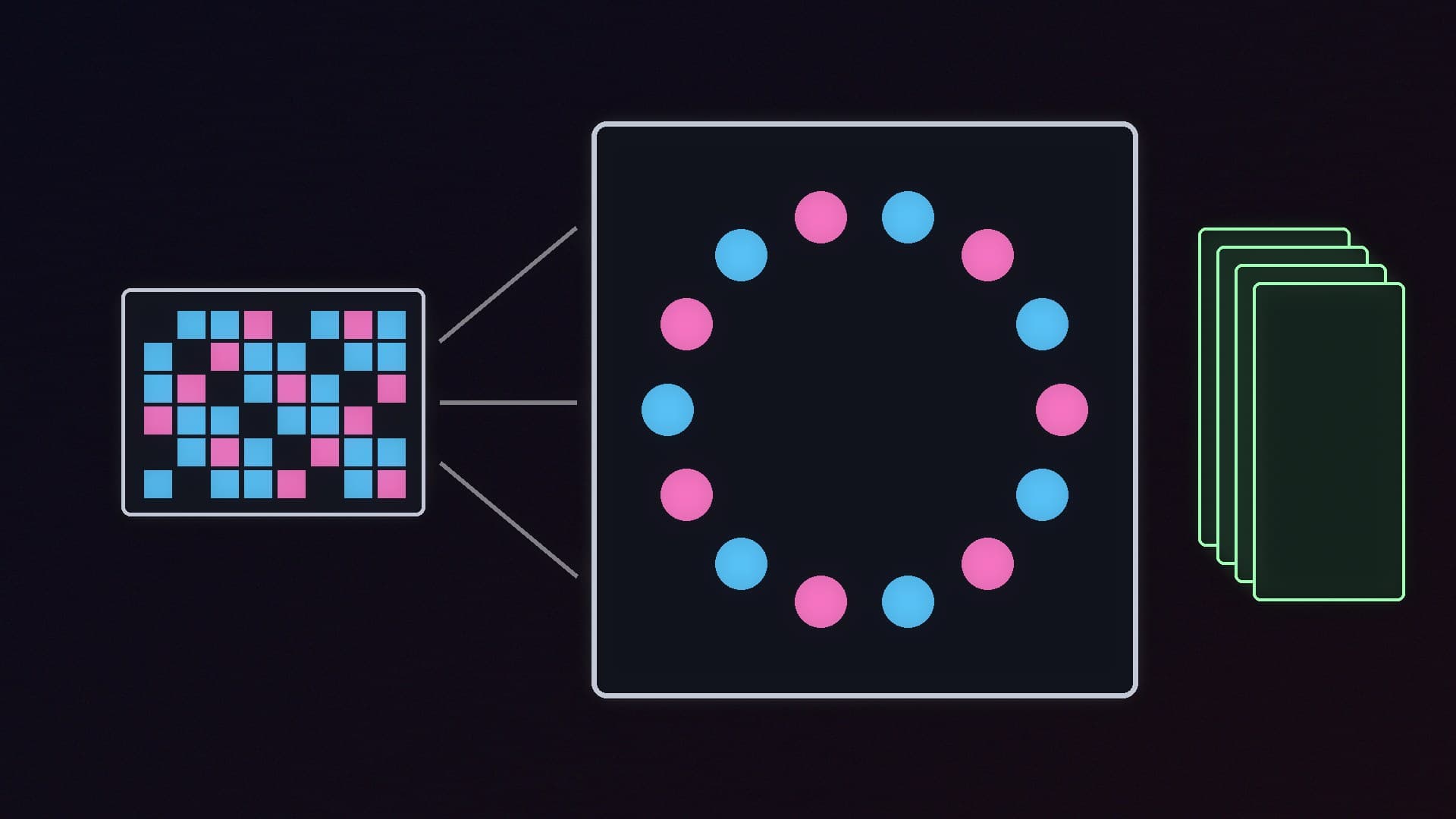
Both apps work on games that run in a window. You run the game windowed (or borderless), start scaling from the tool, and it captures that window and draws an upscaled copy across your display. That's why neither needs the game to support it, and why both work with older titles, emulators and pixel-art games that have no proper fullscreen mode.
The catch is that the game has to be in a window first. Lossless Scaling's store page says only windowed and borderless fullscreen modes are supported, and that exclusive fullscreen "may work only if the Lossless Scaling output is configured for a second display". If you're not sure which mode your game uses, our guide to fullscreen vs borderless windowed explains the difference.
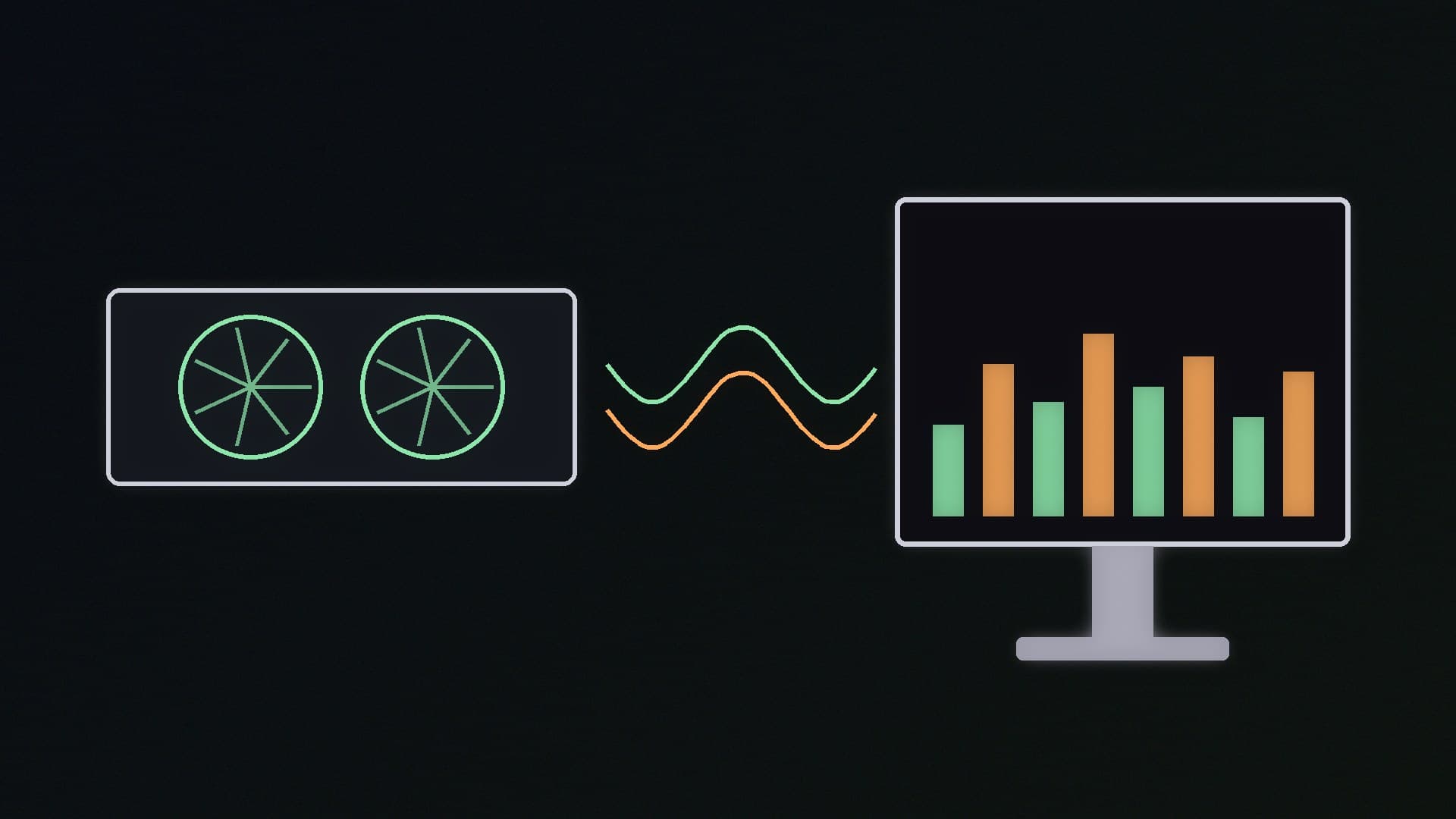
Both tools also share your graphics card with the game. Lossless Scaling's own requirements note that "free GPU resources are preferred, otherwise Lossless Scaling will affect the game's original frame rate". The same logic applies to any shader you run in Magpie: heavier effects cost GPU time.
Magpie: free, open source and filter-heavy
Magpie describes itself as "a lightweight window upscaling tool that comes equipped with a variety of efficient scaling algorithms and filters". According to its README it supports both fullscreen and windowed scaling, includes built-in algorithms such as Anime4K, AMD's FSR and CRT shaders, has a WinUI interface with light and dark themes, and supports multiple monitors.
Version 0.13.0, released on 17 October 2026, added:
SGSR, a port of Snapdragon Game Super Resolution v1, which the release notes call "a very lightweight upscaling algorithm designed for 3D content".
Two more anime-style upscalers (k7_modernAnime_FHD_x2 and Ani4Kv2_ArtCNN_C4F32_i).
A screenshot hotkey (Alt+Shift+S by default) with customisable filenames.
An option to change output alignment when there are black borders in fullscreen scaling, and one to keep the display awake while scaling.
It also removed the deprecated CuNNy family of effects and, the notes say, improved the performance of several effects and the reliability of windowed-mode scaling.
Magpie's FAQ has a few practical tips worth knowing before you start:
Old games and DPI scaling. If you use Windows display scaling and the game doesn't support high DPI, the README recommends opening the game's compatibility settings and setting "High DPI scaling override" to "Application".
The frame rate Magpie shows is its own. Because Magpie is non-intrusive, it can't see the game's frame rate; the FAQ recommends a tool such as RivaTuner Statistics Server (RTSS) for that.
Double overlays. If you see two RTSS on-screen displays, the FAQ says to add Magpie to RTSS's blacklist.
3D game mode changes cursor and overlay behaviour for 3D games and is recommended when scaling them.
Disable DirectFlip is there for unexpected lag, abnormally low frame rates or a frozen screen while streaming.
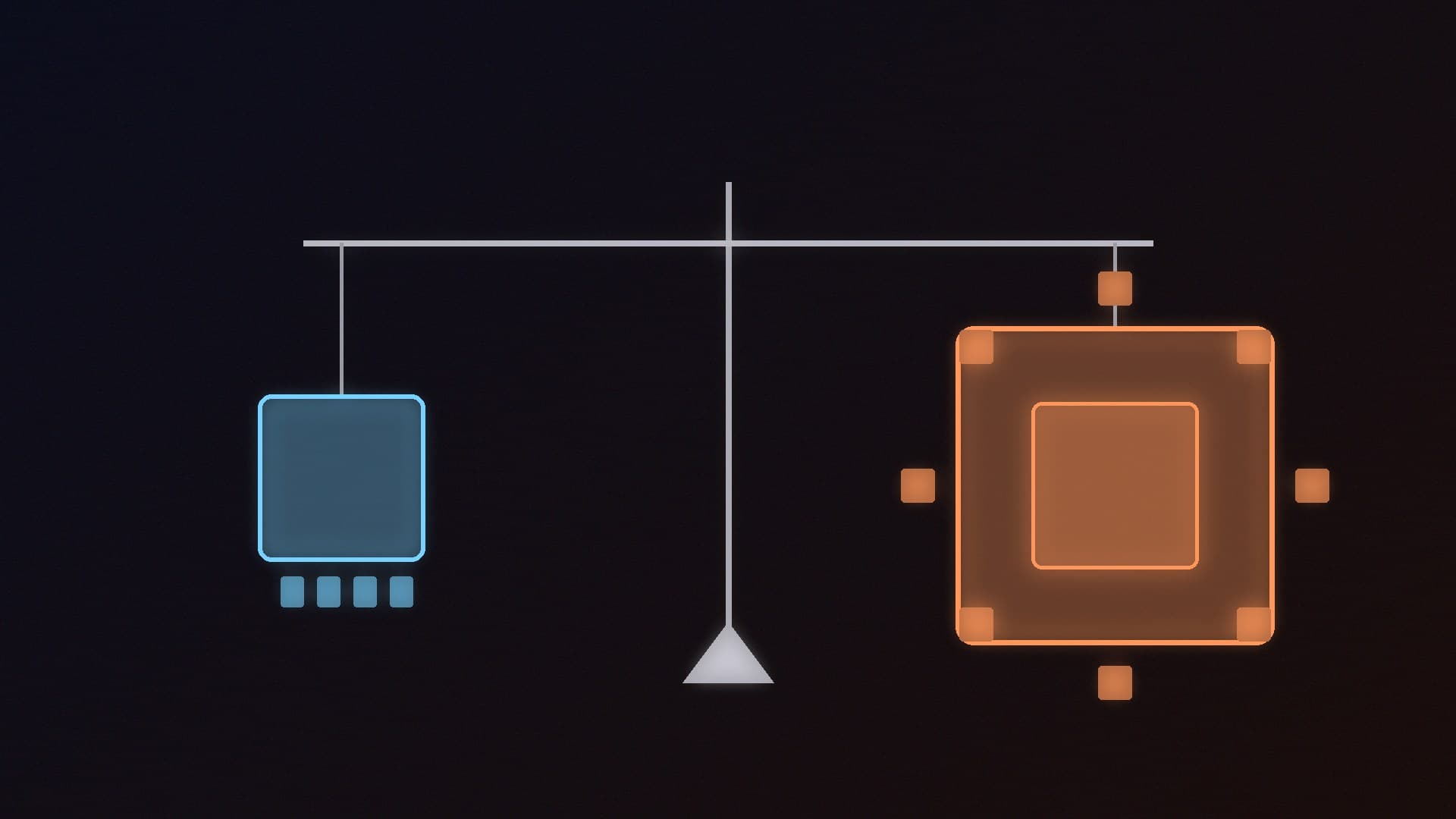
What Magpie doesn't do is generate extra frames. Its FAQ is candid about the relationship: Magpie "focuses on usability and supporting more scaling algorithms, while Lossless Scaling primarily aims to improve 3D game performance".
Lossless Scaling: frame generation for almost any game
Lossless Scaling, by developer THS, has been on Steam since 28 December 2018. Its store page now leads with LSFG 3 frame generation, which it describes as a proprietary machine-learning model "developed from scratch specifically for Lossless Scaling" that creates extra frames to make games look smoother. There's a separate performance model for low-power GPUs. Fixed mode multiplies the original frame rate, while Adaptive mode lets you set a target frame rate that doesn't have to be a multiple of the original.
Frame generation makes motion look smoother, but the generated frames don't come from the game itself. Our explainer on DLSS and FSR frame generation covers the general trade-offs, which apply here too.
On scaling, the store page says LS1 (its own machine-learning upscaler), FSR and NIS "are well-suited for modern games", Integer and XBR are "ideal for pixel art games", and Anime4K suits cartoons and anime. Scaling can be used to improve performance by lowering the game's resolution and upscaling it.
Two other features stand out:
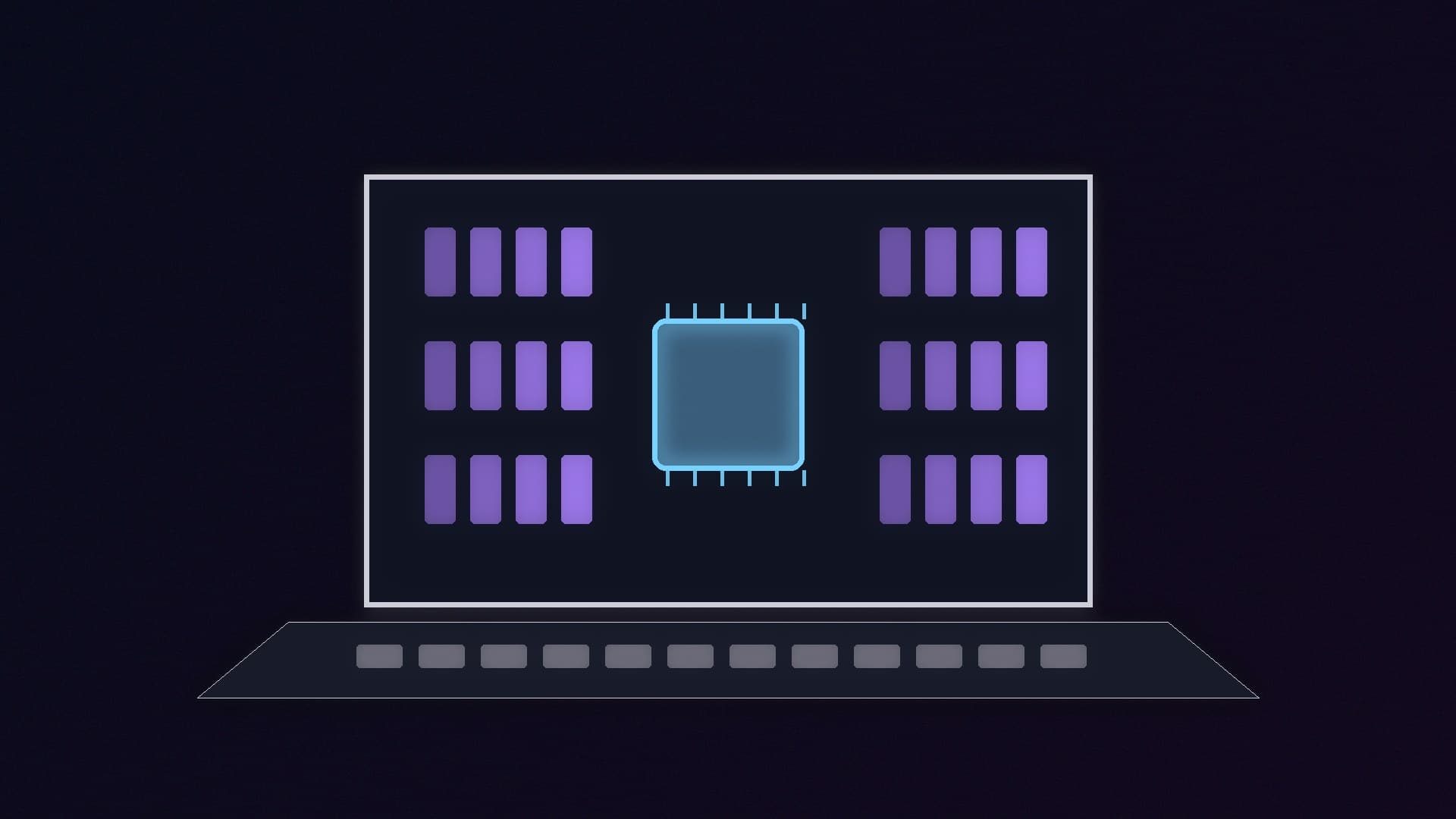
Dual GPU support. You can offload frame generation or scaling to a second GPU, which the developer says means those effects "won't affect the game's original frame rate and may reduce latency".
Game Profiles. Settings can be saved per game and applied automatically when the game's executable is detected.
Steam lists the minimum as a 64-bit Windows 10 (version 2004) PC with "modern integrated graphics" and DirectX 11, and recommends Windows 11 24H2 with a GeForce RTX 30 series, Radeon RX 6000 series or Intel Arc graphics card.
Online games and anti-cheat
Neither developer can promise that their tool is safe with every online game's anti-cheat. Lossless Scaling's page says the community "has found Lossless Scaling to be safe to use with online games that have built-in anti-cheat systems. However, this cannot be guaranteed and should be used with user discretion." Magpie's FAQ says it is "designed to be non-intrusive, so it is unlikely to be detected as a cheating tool", that there have been no reports of bans, and that "you should be aware of the risks". If a competitive game matters to you, check its own rules first.
Which should you choose?
Choose Magpie if:
You mainly want a sharper image from an old, low-resolution or windowed-only game or emulator.
You like experimenting with filters such as CRT shaders, Anime4K or SGSR.
You want something free and open source, or you're on a Windows on Arm PC (there's an ARM64 build).
Choose Lossless Scaling if:
You want smoother motion in a game that has no built-in frame generation, or you're stuck on a frame-rate cap. If your game already supports DLSS, FSR or XeSS frame generation, try that first.
You have a second GPU (or integrated graphics) you'd like to put to work.
You want frame generation on Linux through the community lsfg-vk port.
Before reaching for either, check what your graphics driver already offers. NVIDIA owners can try Smooth Motion and AMD owners can use Fluid Motion Frames, both of which work at driver level. If you want to cap your frame rate so generated frames are paced evenly, see our guide to capping FPS on NVIDIA and AMD.
There's nothing to stop you trying both: Magpie costs nothing, and Lossless Scaling is a small one-off purchase on Steam.
Our verdict
Magpie and Lossless Scaling both upscale games that run in a window, but they're now aimed at different jobs. Magpie is the free, open-source choice for making old, low-resolution or windowed-only games look sharper, with a big library of filters. Lossless Scaling costs about £5.89 on Steam (checked 24 November 2026) and is the one to get if you want frame generation in games that don't offer it, Adaptive frame-rate targets or offloading to a second GPU. Neither works with exclusive fullscreen on a single display, and neither can guarantee that online anti-cheat won't object.