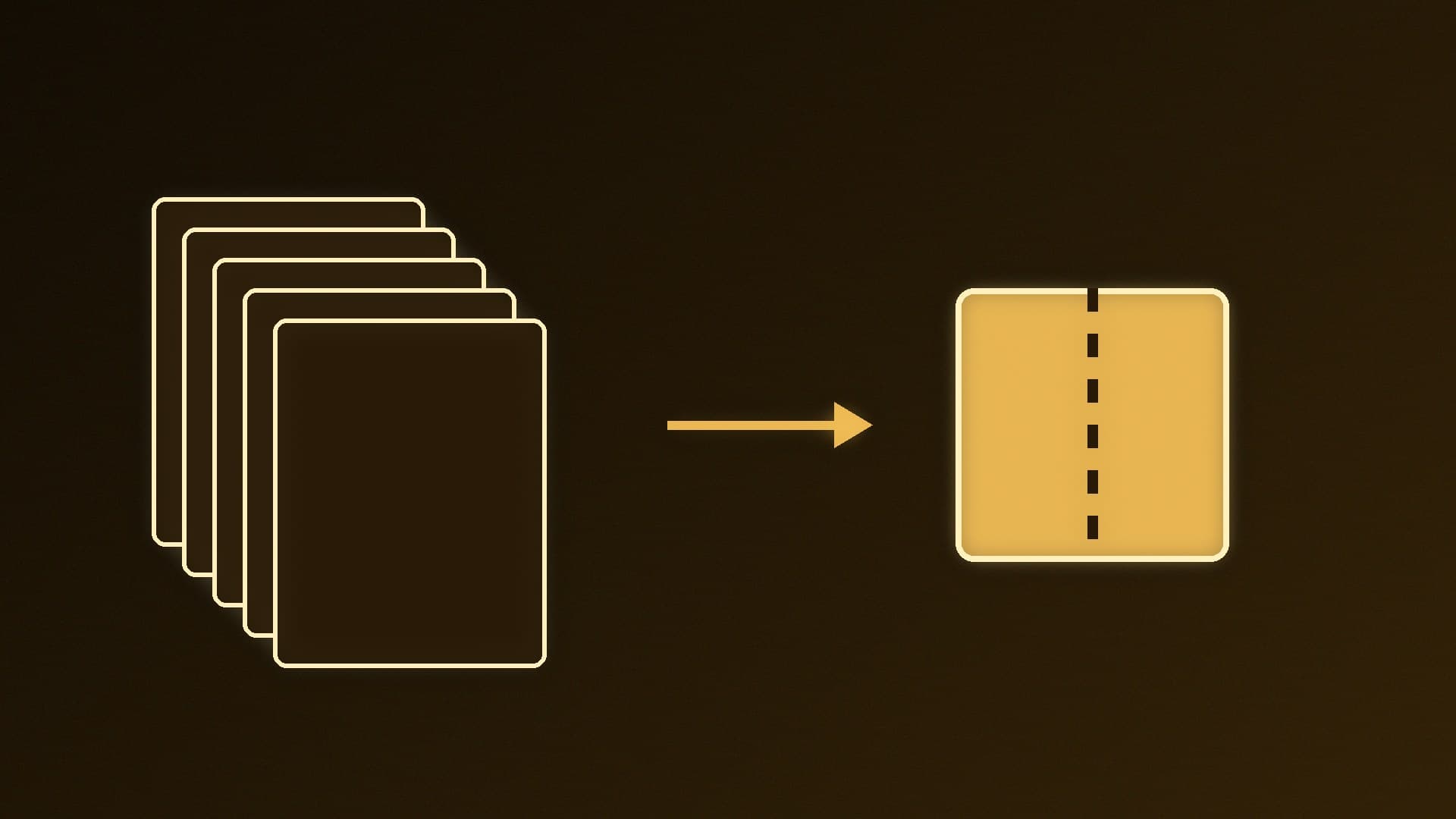
DLSS Frame Generation only works in games that build it in. NVIDIA Smooth Motion is the driver's answer for everything else: NVIDIA describes it as a driver-based AI model that infers an extra frame between each pair of rendered frames, for games without DLSS Frame Generation support. You switch it on per game in the NVIDIA app. Forge PC hasn't tested Smooth Motion across games, so we don't quote frame rates or latency figures; the steps and requirements below come from NVIDIA's own announcements and NVIDIA app release notes.
What you need
A GeForce RTX 50 Series or RTX 40 Series graphics card. NVIDIA launched Smooth Motion on RTX 50 Series cards first, then added support for all GeForce RTX 40 Series GPUs. NVIDIA's announcements don't list RTX 30 Series or older desktop cards.
An up-to-date NVIDIA app and Game Ready Driver. NVIDIA says both updates are needed for RTX 40 support. Update the driver from the app's Drivers tab; our driver update guide has more detail.
A supported game. NVIDIA says Smooth Motion works with compatible DirectX 11, DirectX 12 and Vulkan games. Its first release notes listed DirectX 11 and DirectX 12 only, with Vulkan named in the later RTX 40 announcement.
If a game already has DLSS Frame Generation (or DLSS Multi Frame Generation on RTX 50 cards), use the in-game option instead. Smooth Motion is aimed at titles that don't support it.
How to turn on Smooth Motion
Open the NVIDIA app.
Go to Graphics > Program settings.
Select the game from the list.
Scroll down the list of options on the right to Driver Settings.
Switch Smooth Motion on.
Launch the game. NVIDIA says Smooth Motion works with games running at native resolution, with DLSS Super Resolution, or with other scaling techniques.
NVIDIA app release notes also mention a Smooth Motion option under Global Settings (an update fixed it going missing there). Per-game is the safer choice, because you can see the effect in each title and turn it off where you don't like it.
To turn it off, return to the same game's Driver Settings and switch Smooth Motion off.
When it's worth using
Smooth Motion adds inferred frames between the ones your card actually renders; it doesn't make the game render more real frames. As our DLSS, FSR and frame generation explainer explains, generated frames aren't the same as rendered ones and frame generation can add latency, so how worthwhile it is will vary from game to game.
As general guidance:
Try it in slower-paced single-player games, older DirectX 11 titles or games capped at a low frame rate, if you want smoother motion on a high-refresh monitor.
Leave it off in competitive multiplayer games where responsiveness matters most. Our guide to reducing input lag has better settings for those.
Check your frame counter. NVIDIA fixed an issue in one release where FPS readings were incorrect with Smooth Motion enabled, so keep the app and driver updated if numbers look odd.
If you use an FPS cap, see how to cap FPS on NVIDIA and AMD and test the combination in each game.
Smooth Motion vs AMD's equivalent
AMD offers a similar driver-level feature for Radeon cards: see how to enable AMD Fluid Motion Frames. If you use both brands or are choosing between them, our NVIDIA app vs AMD Software comparison covers both control panels.
Our verdict
On an RTX 50 or RTX 40 card with the latest NVIDIA app and Game Ready Driver, open Graphics > Program settings, pick a DirectX 11, DirectX 12 or Vulkan game, scroll to Driver Settings and switch Smooth Motion on. Use it in games without DLSS Frame Generation, preferably slower single-player titles, and leave it off in competitive shooters. Forge PC hasn't tested it across games; the steps follow NVIDIA's documentation.