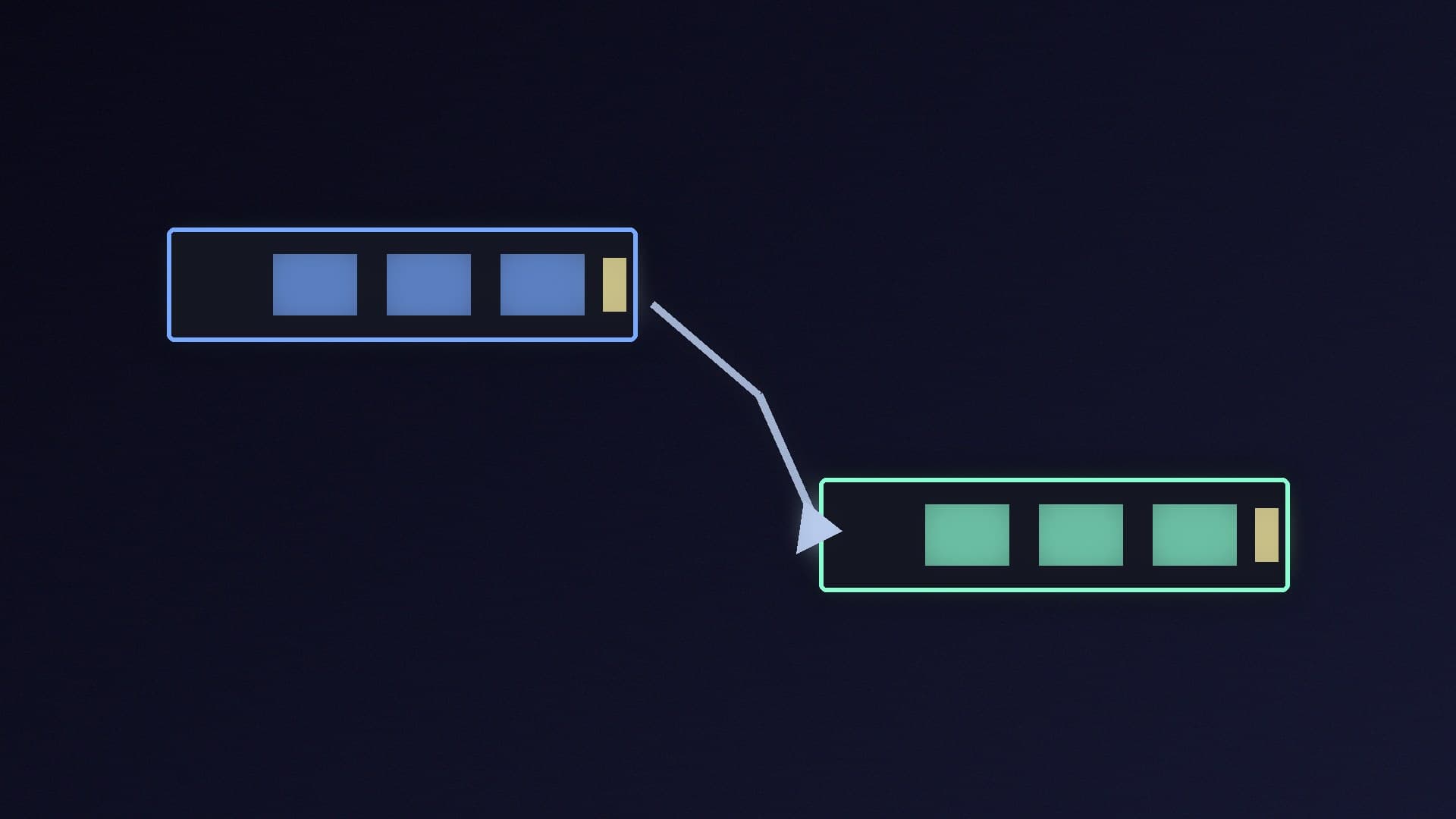
Upgrading from a full 500GB or 1TB drive to a 2TB NVMe SSD is one of the most noticeable upgrades you can make to an older gaming PC. Cloning copies your whole Windows installation, apps and files to the new drive, so the PC boots exactly as before, just with more space.
Forge PC has not tested these cloning tools for this article. The steps and limitations come from the developers' own documentation, read on 13 November 2026. Cloning writes over the target drive, so back up anything important first.
Which free tool should you use?
The right tool depends mostly on which brand of SSD you are moving to.
Tool | Cost | Works with | Notes |
|---|---|---|---|
Samsung Magician (Data Migration) | Free | Cloning to a Samsung SSD | Runs inside Windows |
Acronis True Image for SanDisk | Offered for the drive | WD_BLACK and SanDisk SSDs, e.g. the SN8100 | SanDisk's datasheet lists it for migration |
Clonezilla Live | Free, open source (GPL) | Any brand | Boots from USB; source must not be in use |
Macrium Reflect Free | No longer available | n/a | End of life; no updates since 2024 |
Samsung Magician
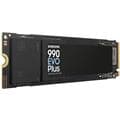
Samsung says the Data Migration feature in Magician moves your operating system, applications and user data from an existing HDD or SSD to a new Samsung SSD. Samsung lists Windows 10 support for Magician 9.0; macOS and Android versions exist, but Samsung says internal SSDs are not supported on those. The catch is in its name: it is built for Samsung drives, and Samsung says features vary or are unsupported on non-Samsung SSDs. If your new drive is, for example, a Samsung 990 EVO Plus 2TB, this is the simplest route.
Acronis True Image for SanDisk
SanDisk's datasheet for the WD_BLACK SN8100 says you can migrate data from your previous drive with Acronis True Image for SanDisk. Other SSD makers may offer their own migration tools, so check your new drive's support page before you download anything third-party.
Clonezilla
Clonezilla is a free, open-source disk imaging and cloning program licensed under the GPL. Clonezilla Live boots from a USB stick or disc, so it does not care which brand of SSD you use. Its developers list some important limits:
The destination partition must be the same size as the source partition or larger.
Online cloning is not implemented, so the source has to be unmounted. That is why you boot Clonezilla from USB rather than running it inside Windows.
It supports both MBR and GPT disks and boots on BIOS or UEFI machines.
Clonezilla Live needs an x86 or x86-64 processor and only 196MB of RAM.
Clonezilla is less point-and-click than Magician, but it works with almost any drive.
What happened to Macrium Reflect Free?
Macrium Reflect Free was the go-to recommendation for years. Macrium's support policy now says the Free edition is end of life. Version 8.0 was the last to get feature, compatibility or bug-fix updates, and security patches stopped on 1 January 2024. You can keep using a copy you already have, but it can no longer be downloaded, and Macrium says it supports Windows 10 and 11 only up to version 22H2. Because it does not support later Windows updates, we would not rely on it for a Windows 11 PC today.
Before you start
Check the space. The new SSD should be at least as large as the data on the old one. For Clonezilla, the destination partition must be the same size as the source or larger.
Connect the new drive. Use a spare M.2 slot if you have one, or a USB NVMe or SATA enclosure. Our PC upgrade guide covers fitting an M.2 drive.
Back up. Cloning copies everything onto the target, overwriting whatever is there, and a wrong click can wipe the wrong disk. Keep a separate backup of your documents and photos.
Update firmware and Windows first. Get the system into a known-good state before you copy it.
How to clone with Samsung Magician
Install Magician from Samsung's site and open it with the new Samsung SSD connected.
Open Data Migration.
Select the source drive (your current Windows drive) and confirm the target is the new Samsung SSD.
Start the migration, and leave the PC alone until it finishes.
Shut down, then either swap the drives or set the new SSD as the first boot device in the BIOS.
How to clone with Clonezilla
Download Clonezilla Live from clonezilla.org and write it to a USB stick.
Boot the PC from the USB stick.
Choose the mode that clones one local disk directly to another local disk.
Select the source disk carefully, then the target. Double-check the model names and sizes; this is the step where people wipe the wrong drive.
Confirm the prompts, wait for it to finish, then shut down and boot from the new SSD.
After cloning
Check that it boots. If the PC does not start from the new drive, check the boot order in the BIOS first. Our PC won't boot guide covers the other common causes.
Use the extra space. If you cloned to a larger drive and Windows does not show the full capacity, extend the C: partition in Disk Management.
Keep the old drive until you're sure. Once the new SSD has worked for a few days, you can wipe the old drive and reuse it for game storage.
Clone or clean install?
Cloning keeps everything, including any problems. If your Windows install is old, slow or unstable, a fresh install on the new SSD may be the better upgrade. Our Windows 11 installation guide walks through it. For which drive to buy, see our best SSD guide.
Our verdict
If you are moving to a Samsung SSD, use Samsung Magician's Data Migration. It is free, runs inside Windows and is designed for exactly this job. If your new drive's maker bundles a free tool, such as SanDisk's Acronis edition for WD_BLACK drives, use that. For anything else, Clonezilla Live is free, works with any brand, and only asks that you boot from USB and pick the right disks. Do not start a new clone with Macrium Reflect Free: it is end of life and no longer downloadable. We have not tested these tools ourselves; the details come from the developers' own pages.