Most Wi-Fi motherboards and PCIe Wi-Fi cards come with an external antenna, and most of those antennas end up wherever the cable lets them fall: behind the PC, under the desk, next to a metal case panel. That's often the worst place for them. This guide explains how to position a desktop PC's Wi-Fi antennas, using motherboard maker MSI's installation guidance and router maker TP-Link's published antenna placement advice.
If you haven't added Wi-Fi to your desktop yet, start with how to add Wi-Fi to a desktop PC, or see whether a Wi-Fi or non-Wi-Fi motherboard makes more sense for your build.
How Wi-Fi antennas radiate
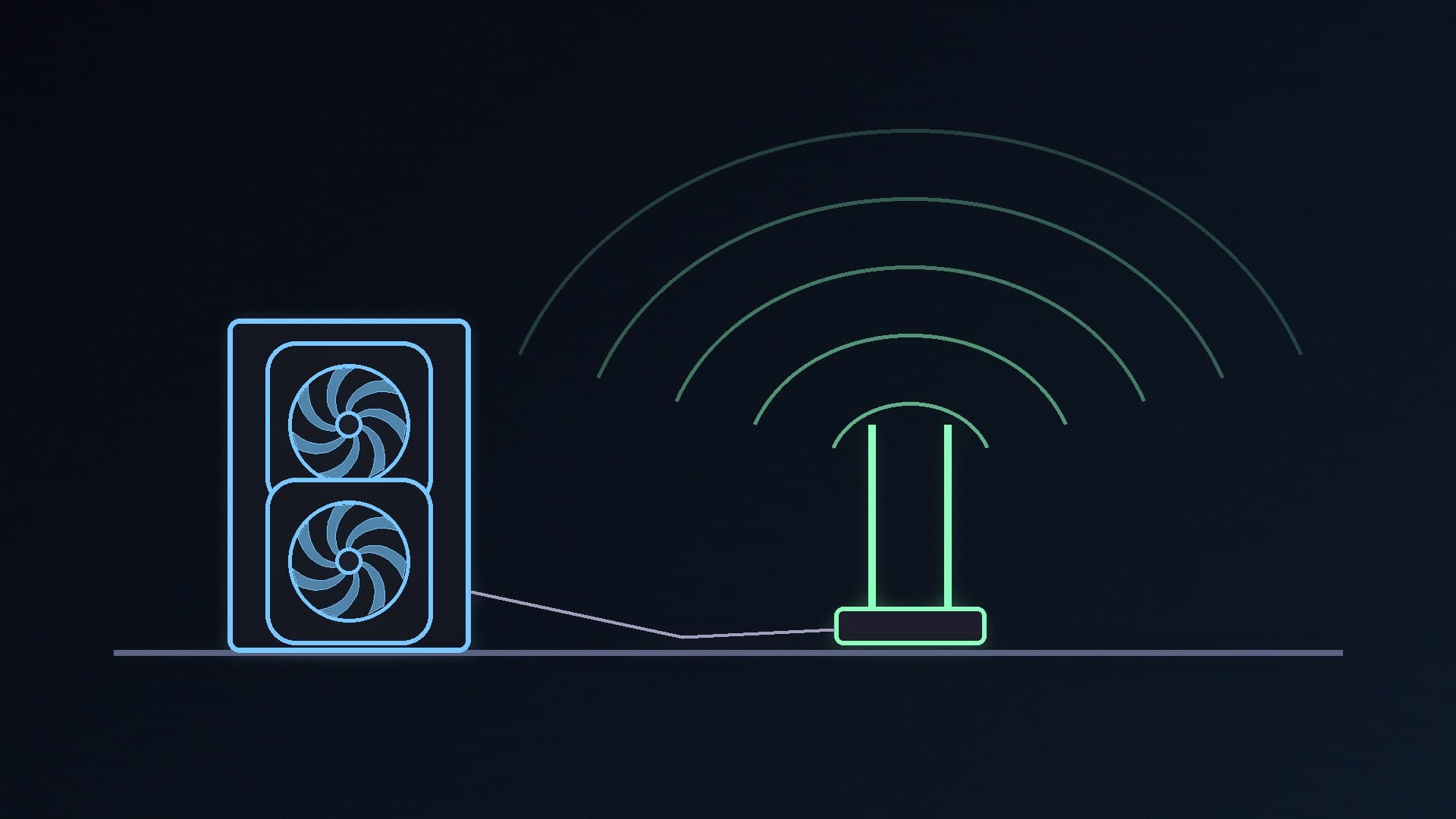
Understanding the antenna's pattern explains almost every tip below. TP-Link says the omnidirectional antennas found on home Wi-Fi products radiate horizontally in all directions, but produce a weaker signal above and below the antenna. Because antennas transmit weakly at the base, TP-Link also advises against putting a client device directly below a router or access point.
The small stalk antennas supplied with most desktop Wi-Fi motherboards and cards are generally the same omnidirectional type, so in our view the same principle applies in reverse: your PC's antenna "hears" best in the horizontal plane around it, and worst directly above and below. In practice that means:
An antenna standing upright will pick up signals from routers on the same floor best.
A router directly above or below your PC is in the antenna's weak zone.
Height and clear sight lines help more than turning the antenna to "point" at the router.
Step 1: Use the antenna base, not bare screw-on stalks
Many motherboards and Wi-Fi cards come with a separate antenna base on a cable, rather than (or as well as) stalks that screw directly onto the rear I/O. Use the base where you can. It lets you move the antenna away from the back of the case, where metal panels, cables and the wall behind the desk can all get in the way.
MSI's installation steps for the PRO Z890-A WIFI motherboard are typical: combine the antenna with its base, plug the two antenna cables tightly into the Wi-Fi antenna connectors, then "place the antenna as high as possible for a better signal".
Two connection tips:
Connect both cables. The PRO Z890-A WIFI, like the other MSI boards whose manuals we checked, has two Wi-Fi antenna connectors. If one cable is loose or unplugged, you lose half the antenna setup.
Tighten them properly. MSI says to plug the cables in "tight". On screw-type connectors, finger-tight is enough.
Step 2: Put the antenna high and in the open
TP-Link recommends placing a router on a table or shelf at a moderate height, roughly 1 to 1.5ft (about 30 to 45cm), so the signal is on the same horizontal plane as most devices. Combined with MSI's advice to place the antenna as high as possible, the practical answer for a desktop PC is:
Top of the desk, not the floor. If your PC lives under the desk, run the antenna base up onto the desk surface or a shelf.
Top of the case can work. Some bases are magnetic and sit on top of a steel case, which gets the antenna higher and clear of the rear I/O. If the signal is poor there, try the desk instead.
Don't box it in. TP-Link warns that placing a router inside a cabinet blocks the signal. The same goes for an antenna tucked into a desk cubby or a closed PC cabinet.
Step 3: Point the antennas the right way
TP-Link's advice for its routers' adjustable antennas is:
TP-Link shared its own test of a wall-mounted router with a phone in the same horizontal plane: signal strength was -26 with the antennas vertical, -35 tilted forward at 45 degrees and -39 fully horizontal (a figure closer to zero means a stronger signal). That's one test on one router, but it shows that orientation can matter.
For a desktop PC, start with the antennas vertical. If your router is upstairs or downstairs, try angling one or both of them at about 30 degrees. Many PC antenna bases have hinged stalks you can adjust.
TP-Link lists several sources of interference and signal loss:
Physical barriers such as walls, floors and partitions, especially those containing metal or dense materials.
Devices using the same frequency band, such as microwave ovens, cordless phones and Bluetooth devices.
RF noise sources such as microwaves, monitors, electric motors and copiers.
On a desk, that means don't sandwich the antenna between your monitor and a metal monitor arm, and don't bury it behind a steel desk frame or a speaker. Moving it a short distance to a clearer spot is worth trying before you buy anything new.
Step 5: Check the result
After moving the antenna, check whether it helped. Our how to check Wi-Fi signal strength in Windows 11 guide shows how to read the signal bars and more precise readings. Move the antenna, wait a few seconds and check again. Testing a few positions is better than guessing.
If the connection still drops out, try the steps in how to fix Wi-Fi disconnecting in Windows 11. Router placement matters too; TP-Link's main advice is to put the router in a central, elevated spot rather than against an outside wall or inside a cabinet.
Can I buy a better antenna?
Be careful here. MSI says the Wi-Fi antenna connector on its motherboards uses an MSI-designed specification and does not support other antenna types, so you can't simply buy a third-party antenna for its boards. Other motherboard makers may use different connectors, so check your manual and the maker's support pages before buying an aftermarket antenna or extension cable.
If your motherboard antenna is lost or broken, contact the motherboard maker for a replacement. If you're adding Wi-Fi from scratch, a PCIe card such as the ASUS PCE-BE6500 Wi-Fi 7 Adapter comes with its own antenna; see our best Wi-Fi 7 PCIe card and best USB Wi-Fi adapter guides.
6GHz and Wi-Fi 7 points
Wi-Fi 7 and Wi-Fi 6E add the 6GHz band. MSI's manual for the PRO Z890-A WIFI says 6GHz support "may depend on every country's regulations" and that Wi-Fi 7 "will be ready in Windows 11 version 24H2", so keep Windows up to date. Our band comparison explains the range trade-offs between the three bands. See 2.4GHz vs 5GHz vs 6GHz Wi-Fi and Wi-Fi 7 vs Wi-Fi 6E for a gaming PC for more.
When to give up on Wi-Fi
If your PC is several rooms or a floor away from the router and the signal is still poor after you've moved the antenna, the antenna probably isn't the problem. Options include a mesh system with a node near the PC (see mesh Wi-Fi vs Wi-Fi extender) or a wired connection. For gaming in particular, our Wi-Fi vs Ethernet vs Powerline guide explains the trade-offs.
Our verdict
For the best Wi-Fi signal on a desktop PC, connect both antenna cables firmly, use the antenna base rather than the rear I/O, and put it as high and as open as you can: on the desk or the top of the case, not on the floor behind the PC. Start with the antennas vertical, angle them at about 30 degrees if the router is on another floor, and keep them away from metal, monitors and microwaves. Check the signal after each move, and don't buy third-party antennas without checking they are compatible, because MSI says its motherboard connectors don't support other antenna types.