It's based on each developer's official pages, checked on 25 November 2026, and device support changes often, so always check the supported-devices list for your exact parts.
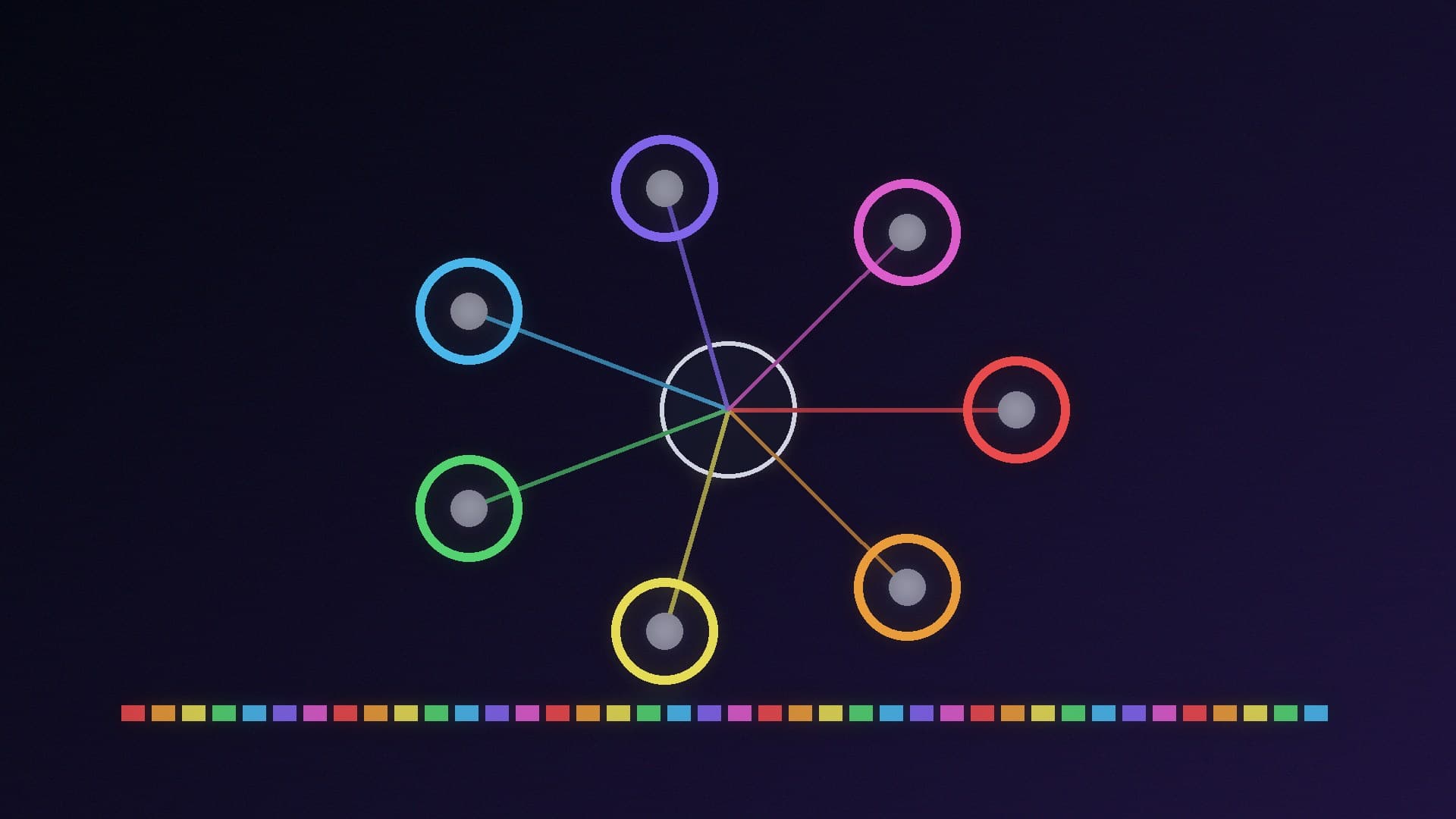
RGB lighting is easy to buy and surprisingly annoying to control. A motherboard from one brand, fans from another and a keyboard from a third can mean three apps running in the background, each wanting to own the lights. OpenRGB's own website sums up the problem: every manufacturer has its own app, and if you mix and match devices you end up with a pile of conflicting, functionally identical apps competing for system resources.
The good news is that every option below is free to download and use. Here's which to pick.
Quick picks
Pick | Best for | Platforms | Cost |
|---|
OpenRGB | Mixed-brand builds, no accounts, low overhead | Windows, Linux, macOS | Free, open source |
SignalRGB (free tier) | Effects, game integrations and a polished app | Windows | Free; optional Pro subscription |
Windows Dynamic Lighting | Simple setups with compatible keyboards and mice | Windows 11 | Built in |
Your brand's own suite | Single-brand setups and device-specific features | Windows | Free |
1. OpenRGB: best overall for mixed-brand builds
OpenRGB's aim is in its tagline: open source RGB lighting control that doesn't depend on manufacturer software. Its developers say it aims to replace every piece of proprietary RGB software with one lightweight app.
Free and open source under the GNU General Public License version 2.
Runs on Windows, Linux and macOS, which is unusual in a world of Windows-only RGB apps. The project says it has been tested on x86, x86-64, ARM32 and ARM64 processors, including the Raspberry Pi.
Lightweight: the developers say its simple interface is light on RAM and CPU use.
SDK and plugins: a network-based SDK lets other software control your lights for game integrations, music visualisation and ambient lighting, and a plugin interface adds features. The SDK client can even sync lighting across several PCs on a network.
No accounts: the project specifically criticises apps that need online accounts.
The trade-off is polish. The interface is functional rather than flashy, and support depends on your exact devices, so check the supported-devices list on the OpenRGB site first. The current release listed on its homepage is version 1.1.
Choose it if you have RGB from several brands, use Linux, or simply want one small app instead of three heavy ones.
2. SignalRGB (free tier): best for effects and game integrations
SignalRGB pitches itself as one free app to control and sync RGB across brands, and its website claims support for more than 6,000 devices. The free version includes hundreds of customisable RGB effects plus basic fan control, PC monitoring, LCD screen control and macros.
According to SignalRGB's pricing page, the free tier comes with the standard content library, five built-in fan curves, basic system monitoring, two macros and a limited number of LCD blocks per screen. SignalRGB Pro, a paid subscription, unlocks the full library (SignalRGB lists 45+ game integrations, 250+ effects and 20+ audio visualisers), custom multi-point fan curves, unlimited macros, customisable monitoring dashboards and ad removal.
Choose it if you want the most eye-catching effects and a modern app, and don't mind upsell prompts. SignalRGB's website offers it as a Windows download.
We compare the top two in depth in OpenRGB vs SignalRGB.
3. Windows 11 Dynamic Lighting: best built-in option
You may not need to install anything. Microsoft describes Dynamic Lighting as a Windows 11 feature for controlling RGB/LED devices such as keyboards and mice directly from the Settings app, without multiple vendor apps. It supports the open HID LampArray standard.
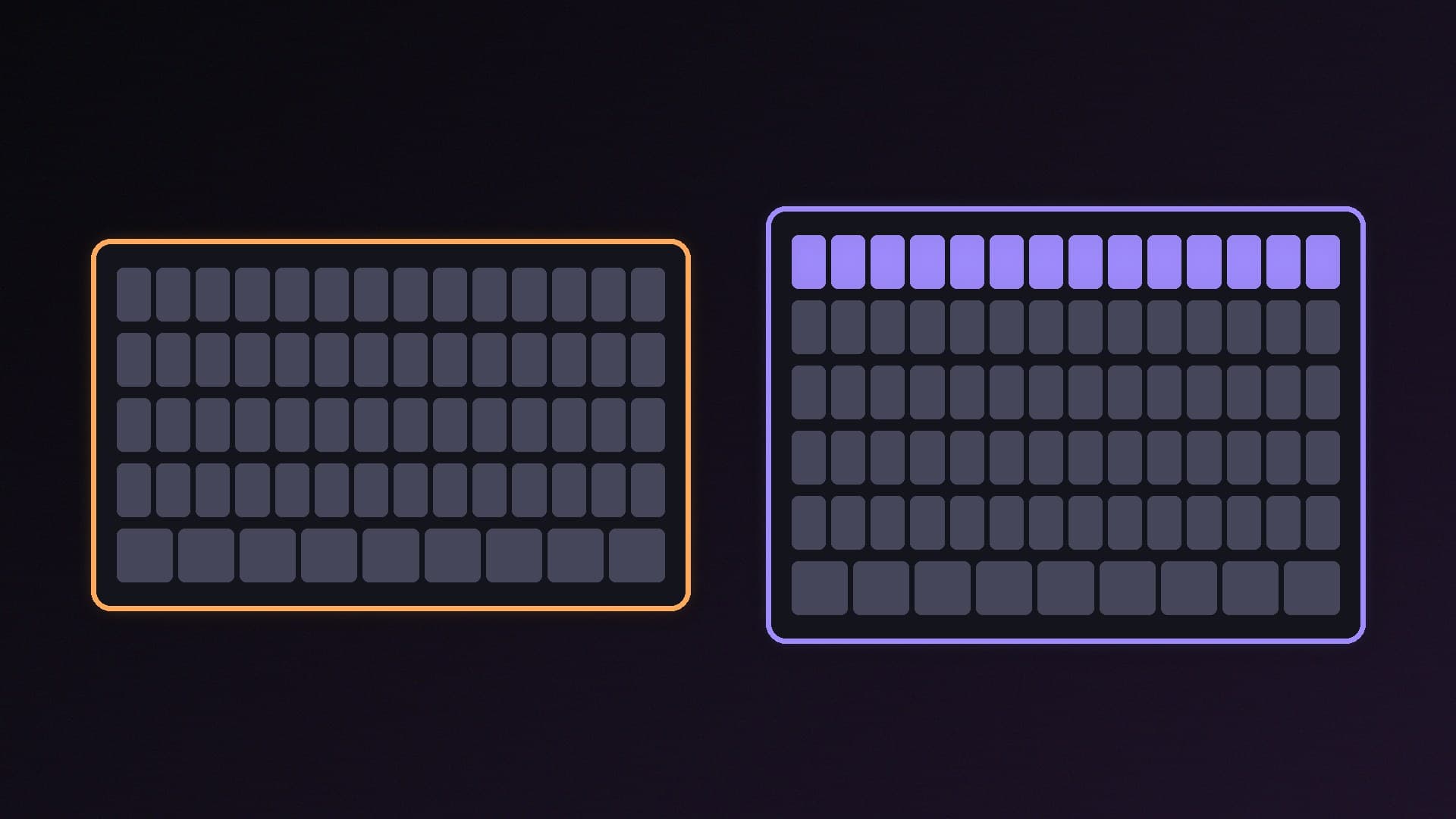
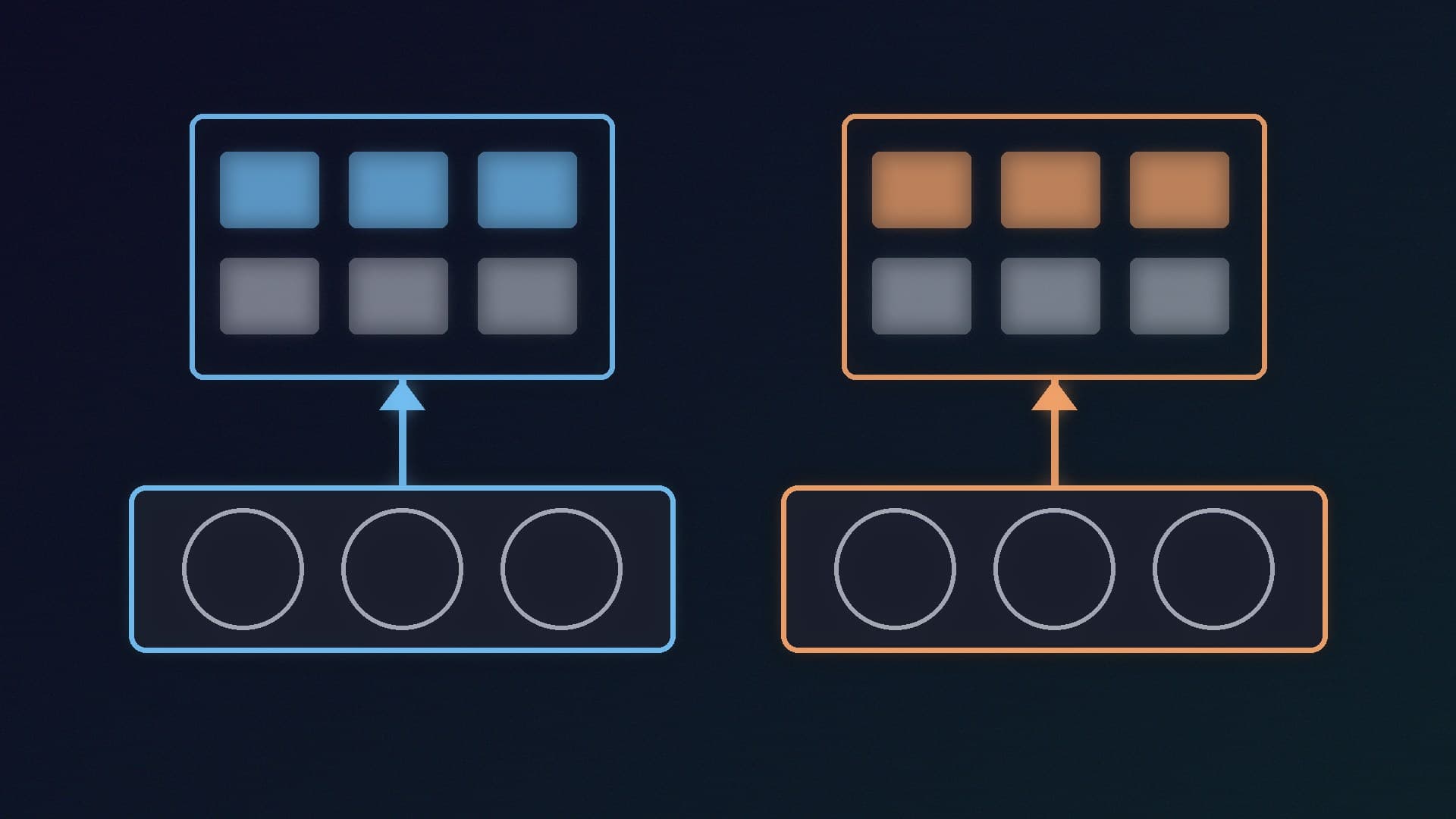
Find it in Settings > Personalization > Dynamic Lighting. Compatible devices appear as cards along the top. You can set brightness, colours and effects for everything at once, or per device, and a device's own settings override the global ones. There's also an option to let compatible apps in the foreground, such as a game, take control of the lights while you're using them.
The catch is compatibility: it only works with devices that support it, and Microsoft keeps a list of compatible devices. If the sliders do nothing, Microsoft says another RGB app is probably taking priority; check Background light control and drag the Dynamic Lighting background controller to the top. ASUS also publishes a Windows Dynamic Lighting FAQ for Armoury Crate users, which is worth reading if you have ASUS gear.
Choose it if your keyboard and mouse support it and you just want tidy, matching lighting with nothing extra installed.
4. Your hardware brand's own app: best for single-brand setups
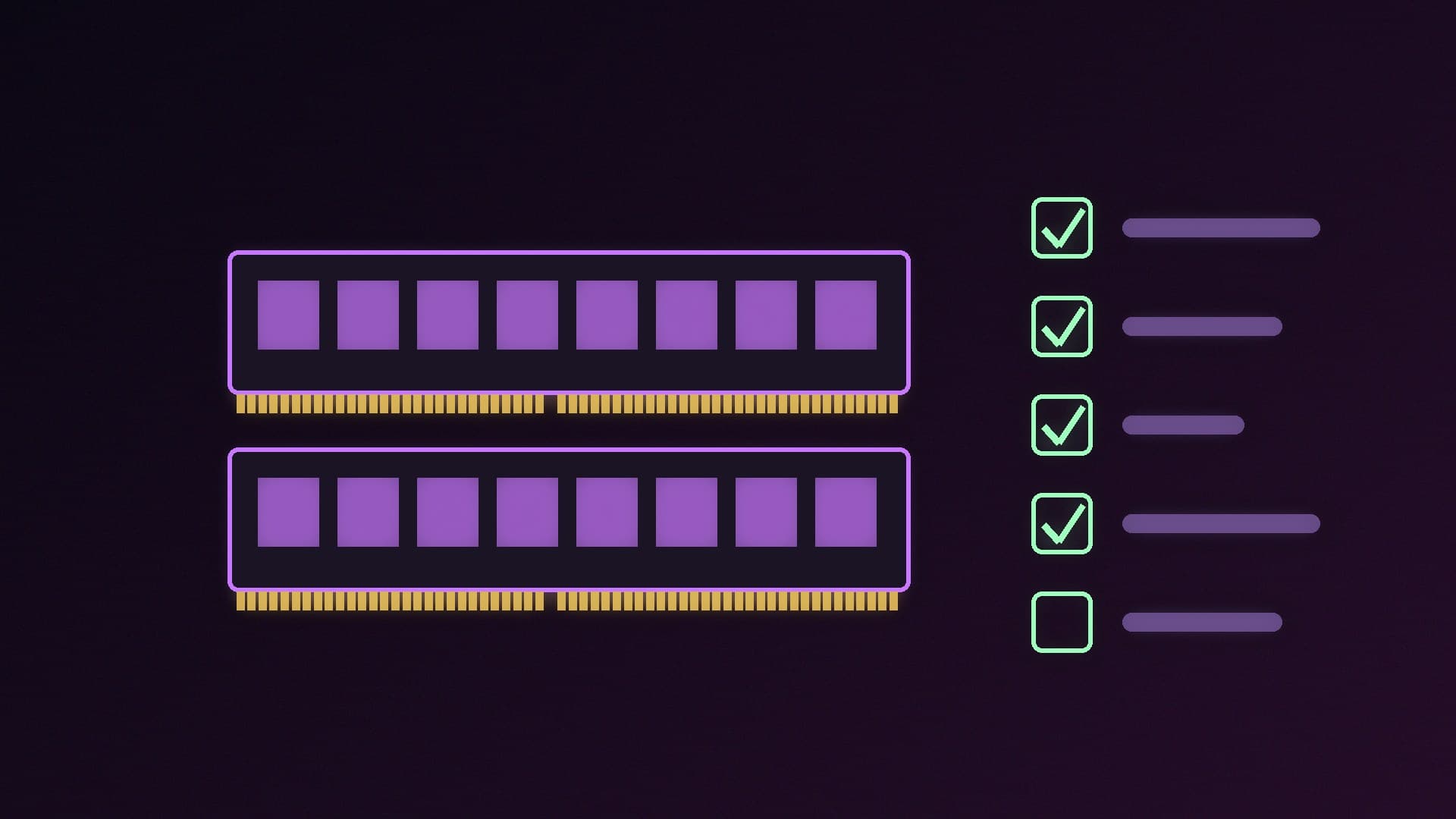
If most of your RGB comes from one maker, its own free software is usually the most complete for those devices, because it can also handle settings that third-party apps can't. Corsair's iCUE is a good example: Corsair says it offers synchronised lighting effects, game integrations and iCUE Murals, works with compatible Corsair devices and supports third-party motherboards (including RGB integration with select ROG graphics cards and motherboards) and Philips Hue, Nanoleaf and Govee lights. It also goes well beyond lighting, with temperature monitoring, custom fan curves, DRAM profiles, mouse DPI, macros and audio equaliser settings.
Other brands, including ASUS (Armoury Crate), MSI, Gigabyte, Razer and Logitech, have their own suites. The downside is that these apps tend to be large, and running two or more at once is exactly what causes lighting conflicts. If one has become more trouble than it's worth, see how to uninstall Armoury Crate, and for peripherals, our Logitech G HUB vs Razer Synapse comparison.
Choose it if your build is mostly one brand, or you need that brand's non-RGB features, such as fan curves, DRAM profiles or mouse DPI settings.
Tips for avoiding RGB software conflicts
Run one controller at a time. Two apps writing to the same device is the commonest cause of flickering or ignored settings. If you switch to OpenRGB or SignalRGB, stop the brand app from starting with Windows (or uninstall it) once you've confirmed your devices work.
Check the header type before blaming software. 12V RGB and 5V ARGB are different; see ARGB vs RGB headers.
Still dark? Our ARGB lighting troubleshooting guide covers cabling, controllers and BIOS settings.
Fan control too? Several of these apps also manage fans, but dedicated tools are often better; see our best free fan control software.
Our verdict
For most mixed-brand builds, OpenRGB is the best free RGB software: it's open source, lightweight, needs no account and runs on Windows, Linux and macOS. Pick SignalRGB's free tier if you want flashier effects and a more polished app, and try Windows 11's built-in Dynamic Lighting first if your keyboard and mouse support it. Stick with your brand's own suite, such as Corsair iCUE, if your setup is mostly one maker or you need its fan and device settings. Whatever you choose, run only one RGB controller at a time.