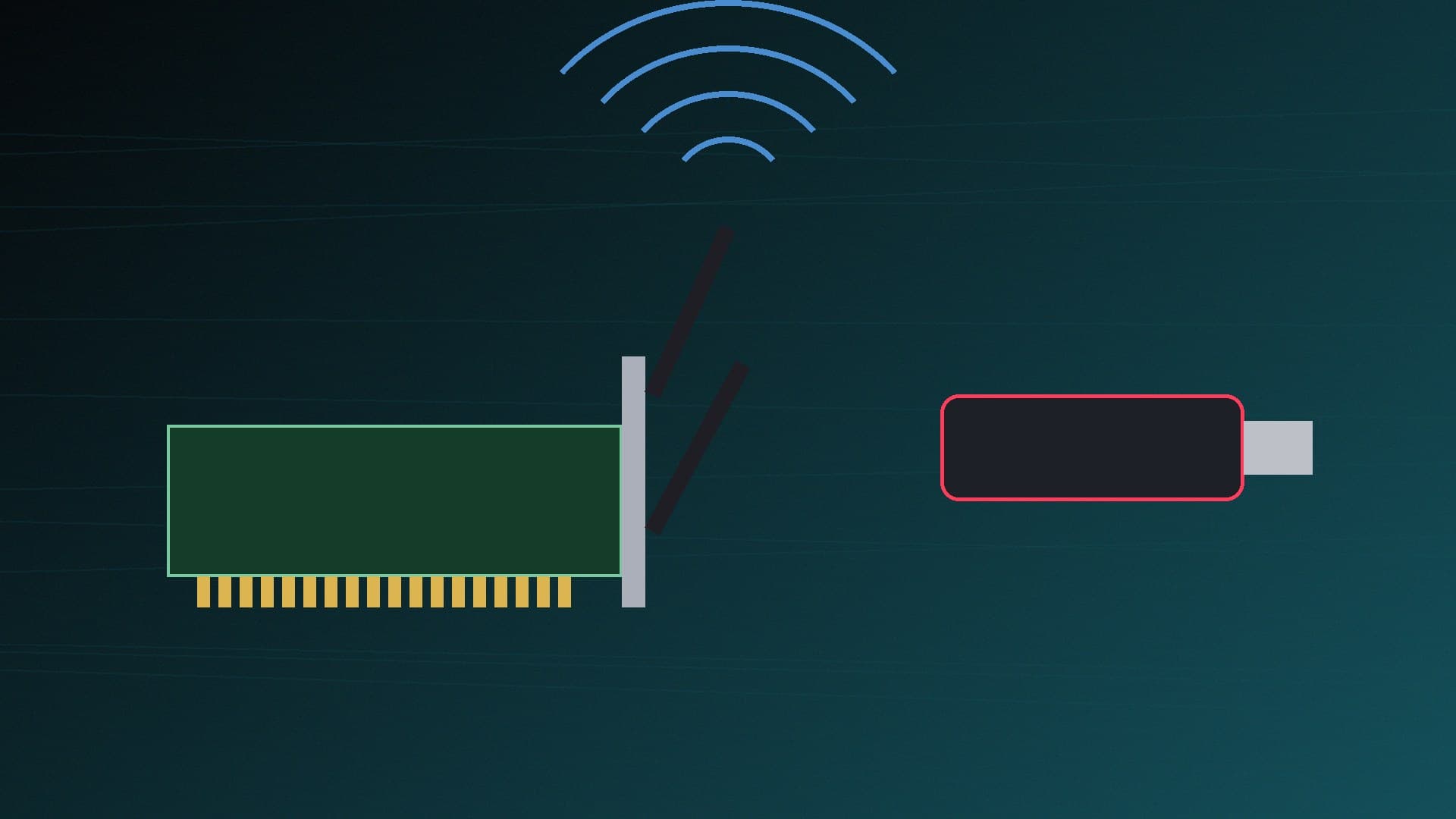
If your desktop has no Wi-Fi, or only an old standard, you have two main ways to add it: a USB adapter that plugs into a spare port, or a PCIe card that goes into an expansion slot inside the case. Both can now deliver Wi-Fi 7, but they differ in installation, antenna placement, Bluetooth and compatibility.
The short version
| USB adapter | PCIe card |
|---|
Installation | Plug in, no tools | Open the case, fit in a slot |
Antennas | Usually built in | Usually external, often on a movable base |
Bluetooth | Often not included | Commonly included |
Moves between PCs | Easily, including laptops | Desktop only |
Compatibility to check | USB port, drivers | Free slot, platform support |
Installation
A USB adapter is the easy option. ASUS describes its ROG USB-BE92 as plug-and-play with a built-in driver, and it supports both USB Type-A and Type-C connections, so it works with older desktops and newer laptops alike. ASUS lists Windows 10 and 11 support. Because it isn't tied to one machine, you can move it to another PC or a laptop later.
A PCIe card means opening the case and fitting it into a spare slot. That's a five-minute job for most people, but check you have a free slot of the right type. ASUS says its PCE-BE6500 only supports PCI Express x1 and should go in an x1 slot. Our how to add Wi-Fi to a desktop PC guide walks through the process.
Antennas and signal
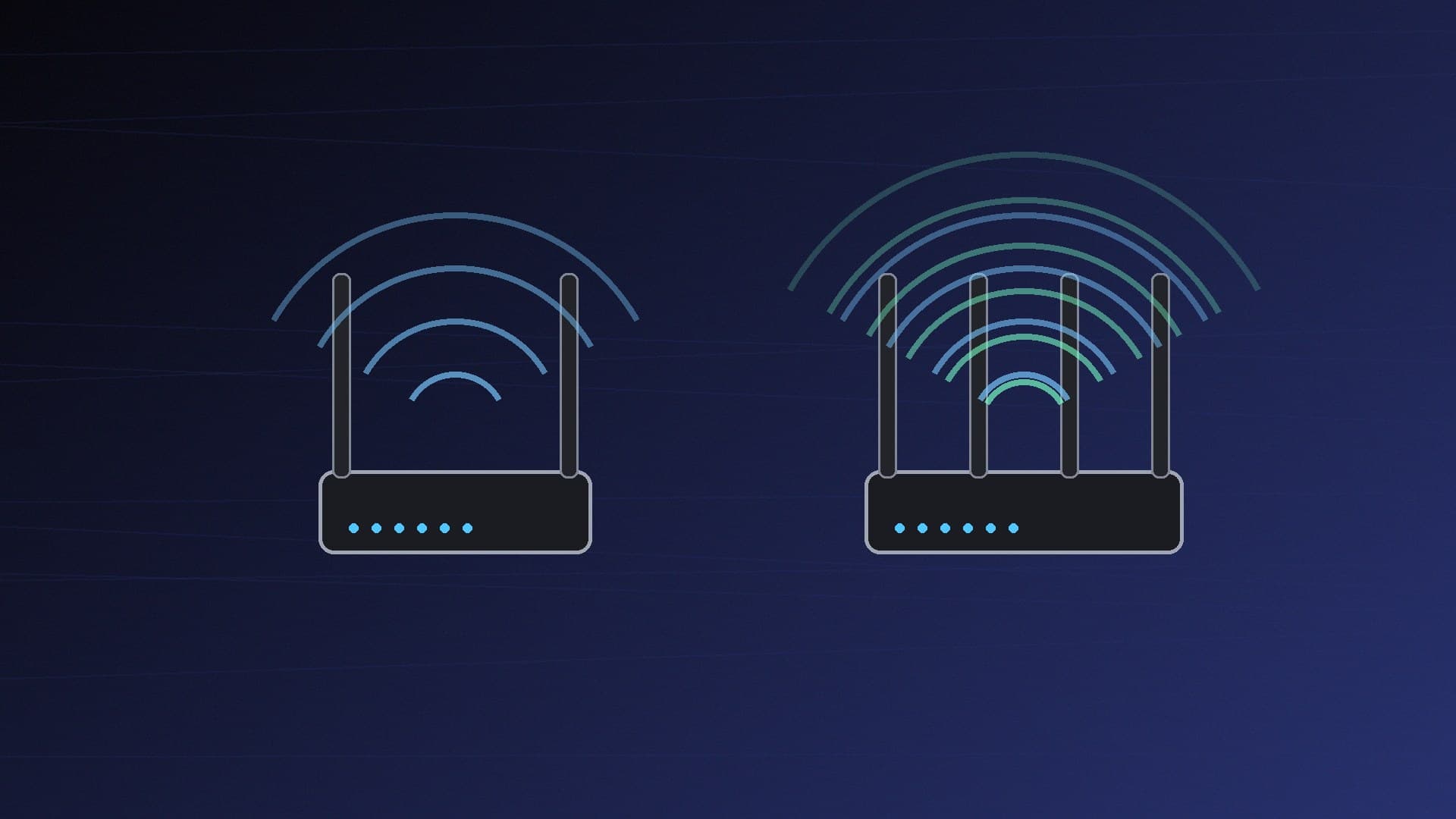
This is where PCIe cards usually have the edge. The PCE-BE6500 comes with two external, adjustable antennas, and the PCE-BE92BT uses an external transceiver on a cable with a magnetised base, which ASUS says lets you position the antennas outside the chassis and angle them for better reception.
A USB stick usually relies on antennas inside its casing and sits wherever your USB port is, which on a desktop is often at the back of the case, close to a metal panel and near the floor. If you go USB, a short USB extension cable to lift the adapter onto your desk can help. Our Wi-Fi antenna positioning guide applies to both types.
Speed and Wi-Fi 7 features
Both types can be fast, but the headline numbers depend on channel width. ASUS rates the ROG USB-BE92 as a 2x2 tri-band Wi-Fi 7 adapter with up to 688Mbps on 2.4GHz, 2,882Mbps on 5GHz and 2,882Mbps on 6GHz, using 160MHz channels on 6GHz. ASUS quotes the PCE-BE6500 at up to 2.8Gbps on 6GHz, and its speed comparison is based on a 2x2 160MHz card. The PCE-BE92BT supports 320MHz channels on the 6GHz band, which ASUS says allows up to 5.7Gbps, but only if the rest of your setup supports 320MHz too.
In practice, your router, distance and walls usually limit speed long before the adapter does. The wider 320MHz channels only help with a router that supports them; our 160MHz vs 320MHz Wi-Fi 7 and Wi-Fi 7 vs Wi-Fi 6E explainers cover when that matters. ASUS also notes that full Wi-Fi 7 support needs Windows 11 24H2 or later, whichever adapter type you choose.
Bluetooth
PCIe Wi-Fi cards commonly add Bluetooth as well. ASUS lists Bluetooth 5.4 on both the PCE-BE6500 and the PCE-BE92BT. On many cards, the Bluetooth part needs a cable to an internal USB header on the motherboard, so check the card's manual and make sure you have a free header. ASUS's ROG USB-BE92 page doesn't list Bluetooth, so if you need it with a USB Wi-Fi adapter, plan on a separate dongle; see our best Bluetooth adapter for PC picks.
Compatibility gotchas
Read the small print on Wi-Fi 7 PCIe cards. ASUS says the PCE-BE92BT works with Windows 11, needs an Intel 13th-generation or later CPU and is only compatible with Intel motherboards, so it's not a choice for an AMD build. For more on Intel's own Wi-Fi 7 modules, see our Intel BE200 vs BE201 explainer. USB adapters have fewer platform restrictions, but check driver support for your operating system.
Also consider whether you need an adapter at all. Many motherboards now include Wi-Fi (see Wi-Fi vs non-Wi-Fi motherboard), and for gaming, a cable is still the most consistent option, as our Wi-Fi vs Ethernet vs powerline comparison explains.
Which should you buy?
Choose USB if you don't want to open your PC, need to move the adapter between machines, or have a small-form-factor PC with no free slot.
Choose PCIe if you want the best antenna placement, need Bluetooth in the same card, and have a free slot (and, for some Wi-Fi 7 cards, the right platform).
Our verdict
For a desktop that stays put, a PCIe Wi-Fi card is usually the better choice: external antennas you can position away from the case and built-in Bluetooth are real advantages, as long as you have a free slot and a compatible platform. Check the platform requirements carefully, because some Wi-Fi 7 cards, such as ASUS's PCE-BE92BT, only work with Intel motherboards.
A USB adapter is the right call if you can't or don't want to open your PC, or if you'll move it between machines. Give it a clear line of sight with a short extension cable. For model recommendations, see our best USB Wi-Fi adapter and best Wi-Fi 7 PCIe card guides.