This guide is based on the manufacturers' official specification pages, ASUS's press release for its UGen Arc Pro B70 card and Tom's Hardware's launch report on Intel's Arc Pro B70 and B65, all read on 24 November 2026. We've left out prices because they vary widely between UK retailers and change week to week.
If you run language models, image generators or AI coding assistants on your own PC, video memory (VRAM) is usually the first thing you run out of. Many gaming cards top out at 16GB, which is plenty for 7B to 14B models but tight for anything larger. Once a model and its context don't fit in VRAM, apps such as Ollama and LM Studio push part of the work onto system memory and the CPU, and speed falls sharply.
In 2026 there's a small group of 32GB cards from all three GPU makers, and they suit very different budgets and software setups.
Why 32GB matters for local AI
A model's weights take up most of the memory. At 4-bit quantisation, the most common format for local LLMs, each parameter needs about half a byte, so a 27B model needs roughly 14GB to 16GB just for its weights once you add the format's overheads. The context window (the conversation and documents the model is working with) sits on top of that in the KV cache, and long contexts can add many gigabytes more. Our guides to how context length uses VRAM and GGUF quantisation explain the maths.
That's why 32GB is a useful step up from 16GB or 24GB. It gives you room to run mid-sized models at decent quality with a generous context, or to keep a chat model and an embedding or image model loaded at the same time. ASUS, for example, says a single 32GB UGen Arc Pro B70 supports most models under 27 billion parameters. Treat that as a manufacturer's guide rather than a guarantee, because the real limit depends on the quantisation and context length you choose.
Memory capacity isn't everything. When a model fits, generation speed mostly depends on memory bandwidth, which is why a card with faster memory can produce text noticeably quicker than one with the same capacity. Our explainer on memory bandwidth and LLM speed covers this in more detail.
At a glance
Card | VRAM | Memory bus | Bandwidth (official) | Power (official) |
|---|
NVIDIA GeForce RTX 5090 | 32GB GDDR7 | 512-bit | Not listed on NVIDIA's UK spec page | 575W total graphics power |
AMD Radeon AI PRO R9700 | 32GB GDDR6 (ECC on Linux only) | 256-bit | 640GB/s | 300W total board power |
Intel Arc Pro B70 | 32GB GDDR6 (19Gbps) | 256-bit | 608GB/s (Tom's Hardware) | 160W to 290W depending on design (Tom's Hardware); ASUS UGen version 310W |
NVIDIA RTX PRO 6000 Blackwell (step up) | 96GB GDDR7 with ECC | Not listed | 1,792GB/s | 600W max |
Best overall: NVIDIA GeForce RTX 5090
Why it's here: the RTX 5090 is the only mainstream GeForce card with 32GB, and it pairs that memory with fast GDDR7 on a 512-bit bus, double the width of the other 32GB cards here. NVIDIA lists 3,352 AI TOPS, 575W total graphics power and a required system power of 1,000W, with either four 8-pin PCIe cables via the included adapter or one 600W PCIe Gen 5 cable.
Software: this is where NVIDIA still has the biggest advantage. Ollama's hardware documentation lists the RTX 5090 among its supported compute capability 12.0 cards, and CUDA is widely supported across local AI tools such as llama.cpp, vLLM and ComfyUI. If you want things to work with the least fuss on Windows or Linux, this is the safest choice.
Things to weigh up: it's by far the most power-hungry consumer card, it's large, and it's expensive. You'll want a quality 1,000W or larger power supply; our guide to choosing a PSU for a local AI PC explains what to look for. It's also a gaming card first, so you're paying for gaming performance as well as memory.
Product page: NVIDIA GeForce RTX 5090 Founders Edition
Best for AMD and Linux: AMD Radeon AI PRO R9700
Why it's here: the Radeon AI PRO R9700 gives you the same 32GB capacity in a much more modest power envelope. AMD's spec page lists 32GB of GDDR6 on a 256-bit bus with 640GB/s of peak bandwidth, 64 compute units, a 300W total board power, a 750W minimum PSU recommendation and a single 12V-2x6 power connector. ECC memory is supported, but AMD notes that's on Linux only.
Software: Ollama's documentation lists the R9700 as supported through ROCm on Linux, but it isn't in Ollama's ROCm list for Windows. On Windows, Ollama's extra GPU support comes from its Vulkan backend instead. If you plan to run this card in a Linux AI box, it's a strong fit; on Windows, check that the specific apps you want to use support it. Our CUDA vs ROCm vs Vulkan explainer covers the differences.
Things to weigh up: its GDDR6 memory on a 256-bit bus is a much narrower, slower setup than the RTX 5090's 512-bit GDDR7, so expect slower text generation on models that fit both cards. For a detailed comparison, including independent benchmark results, see our Radeon AI PRO R9700 vs RTX 5090 piece.
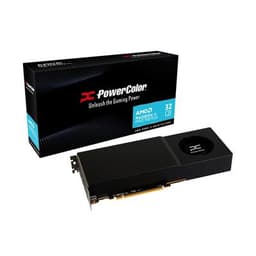
Product page: PowerColor AI PRO R9700 32GB
Best Intel option: Arc Pro B70 (and the cheaper B65)
Why it's here: Intel's Arc Pro B70 is the first card to use a larger version of its Battlemage graphics chip. According to Tom's Hardware's launch report, it has 32 Xe cores and 32GB of 19Gbps GDDR6 on a 256-bit bus for 608GB/s of bandwidth, with a power range of 160W to 290W so that card makers can build different designs. Tom's Hardware also reported that Intel's own version started at $949 in the US at launch; we haven't seen a confirmed UK price for Intel's reference card.
ASUS's UGen Arc Pro B70 is one partner version aimed squarely at local AI. ASUS says it has 32GB of ECC GDDR6 and 310W power consumption, and that four cards can be combined for 128GB of VRAM. ASUS lists support for Intel LLM Scaler and vLLM XPU, llama.cpp (SYCL and Vulkan), Ollama, OpenVINO and oneAPI, PyTorch XPU and ComfyUI.
The cheaper alternative: the Arc Pro B65 keeps the B70's 32GB and 608GB/s of bandwidth but drops to 20 Xe cores, according to Tom's Hardware. Because LLM text generation leans heavily on memory bandwidth, it may be the better-value Intel card for chat models, although prompt processing and image generation lean more on compute. We covered one version in our ASRock Arc Pro B65 Creator 32GB news story.
Things to weigh up: Intel's AI software support is improving but is still less mature than NVIDIA's, and some tools need specific Intel builds or backends. Our guide to running local AI on an Intel Arc GPU shows what to expect. These are workstation cards, and Tom's Hardware notes the B70 isn't aimed at gaming.
There's no Arc Pro B70 or B65 in the Forge PC product database yet, so we haven't linked a product page.
Step up: NVIDIA RTX PRO 6000 Blackwell (96GB)
If 32GB still isn't enough, the next single-card step is a big one. NVIDIA's RTX PRO 6000 Blackwell Workstation Edition has 96GB of GDDR7 with ECC, 1,792GB/s of memory bandwidth and a 600W maximum power consumption in a dual-slot card. That's enough memory for much larger models on one GPU, but it's priced as a professional workstation card. We compare it with the RTX 5090 in RTX PRO 6000 vs RTX 5090 for local AI.
Product page: NVIDIA RTX PRO 6000 Blackwell Workstation Edition 96GB
How to choose
You use Windows and want the widest app support: the RTX 5090 is the simplest choice, provided your budget, case and power supply can take it.
You're building a Linux AI server: the Radeon AI PRO R9700 gives you 32GB with lower power draw and ROCm support in Ollama on Linux.
You want the most VRAM per pound and don't mind some tinkering: look at the Arc Pro B70 or B65, but check software support for the apps you rely on first.
You're thinking of two cards: two 16GB or 24GB cards can also add up to 32GB or more, but splitting a model across GPUs has its own trade-offs. See our guide to running a local LLM on two GPUs.
You're not sure you need 32GB: our how much VRAM do you need guide and our wider best GPU for local LLMs picks may point you to a cheaper 16GB card.
Our verdict
For most people who want 32GB of VRAM for local AI, the GeForce RTX 5090 is the best all-round choice: it combines 32GB with fast, wide GDDR7 and the most mature software support, as long as you can live with its 575W power draw and high price. The Radeon AI PRO R9700 is the sensible pick for a Linux AI box, offering the same capacity at 300W, while Intel's Arc Pro B70 and B65 are the ones to watch if you want 32GB for less and are comfortable checking software support first. If you genuinely need more than 32GB on a single card, the 96GB RTX PRO 6000 Blackwell is the step up, at a workstation price.