When online games stutter, downloads crawl or a video call keeps freezing, it's tempting to blame your broadband provider and reboot the router. Sometimes that's right. But the problem could just as easily be weak Wi-Fi, a cable that's only linking at 100Mbps, a background app saturating your upload or one bad hop on your provider's network. The tools below help you find out which, and they're all free. Our picks are based on each developer's official pages and documentation, checked on 26 November 2026, and on what each tool is designed to do.
Quick picks
Tool | Best for | Type |
|---|
pathping | Finding which hop is losing packets | Built into Windows, command line |
TCPView | Seeing which app is connected to what | Free Microsoft Sysinternals app |
iperf3 | Testing the real speed of your home network | Free, open source, command line |
Trippy | A live, updating traceroute and ping view | Free, open source, terminal app |
Wireshark | Inspecting the traffic itself | Free, open source |
Nmap | Finding every device on your network | Free, open source |
These tools answer different questions, so you don't need all six. Most people will only ever need the first three.
1. pathping: best for finding where packet loss starts
pathping is already on your PC, so it's the first thing to try when you're getting lag spikes or rubber-banding. Microsoft describes it as a command that shows network latency and packet loss at the intermediate hops between your PC and a destination. It first works out which routers are on the path, then pings each of them periodically and works out statistics from the replies.
By default it sends 100 queries to each router, waits 250 milliseconds between pings and checks up to 30 hops, so it isn't instant: Microsoft's example run spends 125 seconds computing statistics. Adding /n stops it trying to look up router names, which Microsoft says might speed up the display of results. Microsoft's documentation also explains how to read the results: loss shown on the links between hops points to congestion that's dropping forwarded traffic, while loss shown against a router itself may just mean that router is busy, and doesn't necessarily affect traffic passing through it.
That distinction is the key to using pathping well: loss reported against a single router isn't necessarily a problem, while loss on the links, which Microsoft attributes to congestion, is the more significant result and the one worth showing your provider if it starts beyond your router. Our guide on how to fix high ping and packet loss walks through a full pathping test step by step.
Good to know: pathping runs in Command Prompt, PowerShell or Windows Terminal. No install is needed.
2. TCPView: best for seeing which app is using your connection
If your connection feels slow and you suspect something on your PC, TCPView shows you what's talking to the network. Microsoft says it lists all the TCP and UDP endpoints on your system, including local and remote addresses and the state of TCP connections, along with the name of the process that owns each one. Microsoft describes it as a more informative and conveniently presented version of part of what Windows' own netstat command does.
The display updates every second by default. Endpoints that change state are highlighted in yellow, deleted ones in red and new ones in green, so it's easy to spot an app that suddenly opens lots of connections. You can also close an established connection from the right-click menu and save the list to a file. The download includes Tcpvcon, a command-line version.
TCPView is a small download (Microsoft lists 1.5MB) from Microsoft's Sysinternals site, and the current version is 4.19. For a closer look at how it compares with the built-in command, see TCPView vs netstat, and for more free Microsoft utilities, see our pick of the best Sysinternals tools.
Good to know: Windows' own Resource Monitor also has a Network tab showing per-process network activity, as we explain in Task Manager vs Resource Monitor.
3. iperf3: best for testing your home network's real speed
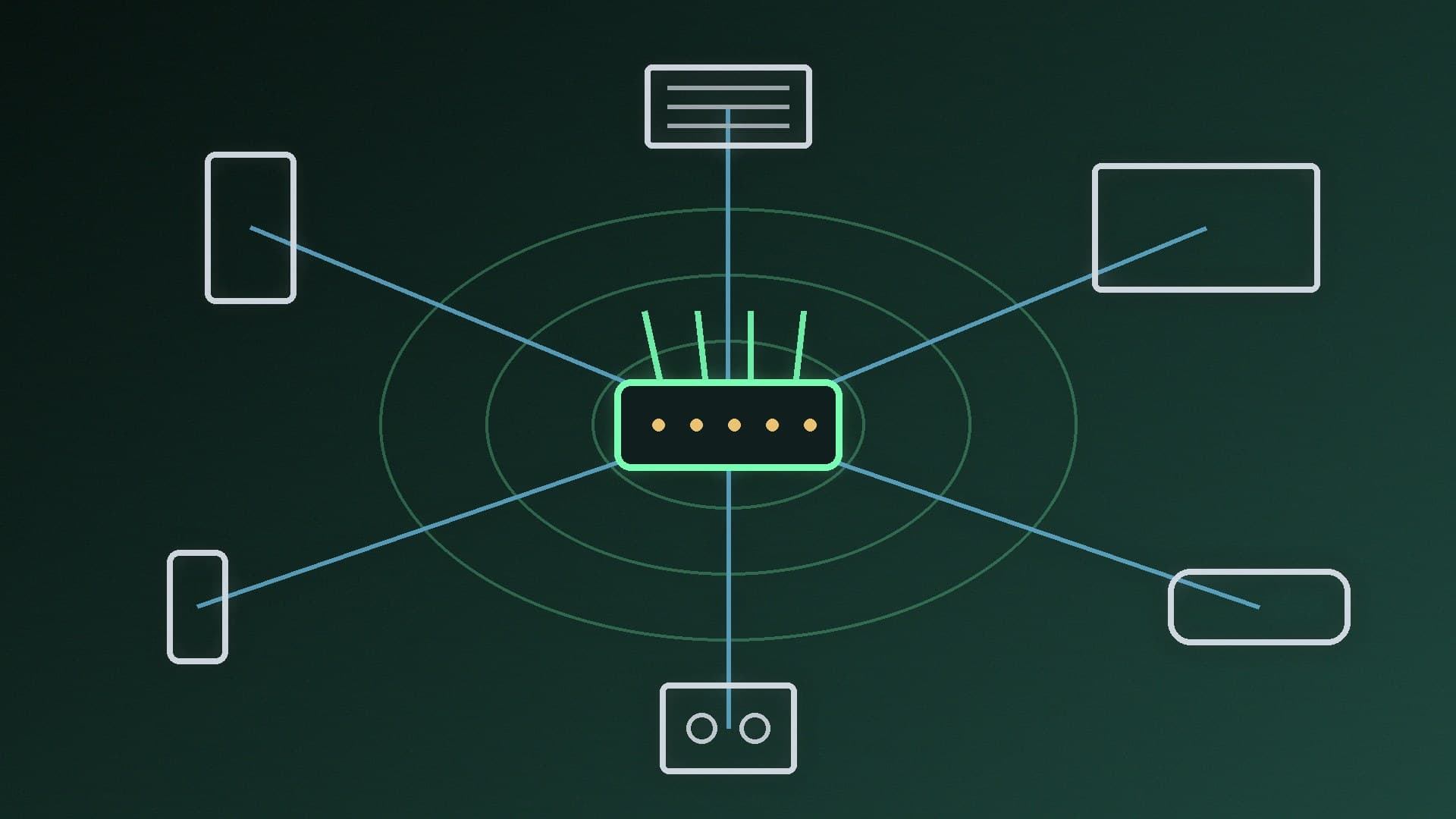
Online speed tests measure your whole connection, from your PC out to a server somewhere on the internet. If you want to know whether your Wi-Fi, powerline adapters, switch or cabling is the bottleneck, you need to test between two devices on your own network, and that's what iperf3 does.
The official iPerf site describes iperf3 as a tool for measuring the maximum achievable bandwidth on IP networks, with support for TCP, UDP and SCTP over IPv4 and IPv6. It reports bandwidth for each test, and in UDP mode it can also measure packet loss and delay jitter. It runs on Windows, Linux, macOS, Android and several BSDs, so you can test between a desktop and a laptop, or between your PC and a home server. You run it as a server on one machine (iperf3 -s) and as a client on the other.
iperf3 is principally developed by ESnet and released under a BSD licence. Its latest release, 3.22.1, was published on GitHub on 20 November 2026. One limitation is that an iperf3 server accepts a single client at a time. Our guide on how to test network speed with iperf3 covers the setup in detail.
Good to know: if a wired test shows a figure close to 100Mbps on a gigabit network, the link may have negotiated a lower speed. See how to fix Ethernet stuck at 100Mbps.
4. Trippy: best for a live view of every hop
pathping gives you a report at the end. Trippy keeps tracing while you watch. Its developer describes it as combining the functionality of traceroute and ping to help analyse networking issues. Its terminal interface shows per-hop statistics including sent and received packets, loss percentage, last, average, best and worst round-trip times and jitter, along with round-trip-time history charts for each hop. You can freeze the display, reset the stats and adjust the refresh rate, and it can also export reports in JSON, CSV or table formats.
That makes it useful for intermittent problems. Leave it running while you play and you can look back at each hop's history, rather than hoping a one-off test catches the moment latency or loss jumps.
Trippy is open source under the Apache 2.0 licence and runs on Windows, Linux, macOS and BSD. On Windows you can install it with winget install trippy (see our guide on how to install apps with winget) or with Scoop or Chocolatey, then run it with the trip command followed by an address. The project's basic example runs it with elevated privileges; it also lists an unprivileged mode, with a separate guide to privileges and one for allowing incoming ICMP traffic through Windows Defender Firewall. The latest release is version 0.13.0.
Good to know: Trippy is a keyboard-driven terminal app rather than a windowed program, so it suits people who are comfortable with the command line.
5. Wireshark: best for looking at the traffic itself
Wireshark is the tool to reach for when the others tell you something is wrong but not why. Its developers call it the world's leading network protocol analyser, and say it lets you dive deep into your network traffic. It's free and open source.
For most home troubleshooting that's more than you'll need, and making sense of a capture takes some networking knowledge. But when the simpler tools have narrowed a problem down, it lets you see the actual traffic rather than a summary of it.
The current stable release is 4.6.10, with Windows installers for x64 and Arm64 PCs and a portable x64 version. Each Windows package includes the latest stable release of Npcap, which Wireshark needs for live capture.
Good to know: only capture traffic on networks and devices you own or have permission to monitor.
6. Nmap: best for finding every device on your network
If your network feels busy and you're not sure what's connected to it, Nmap can tell you. The Nmap project describes it as a free and open-source utility for network discovery and security auditing, and says many administrators also use it for network inventory and monitoring whether hosts and services are up.
On Windows, Nmap comes as a self-installer that includes its dependencies and the Zenmap graphical interface, so you don't have to use the command line. The project supports Nmap on Windows 7 and newer, and the latest stable release is 7.993.
Good to know: as with Wireshark, only scan networks you own or have permission to scan.
Which one should you choose?
Lag, rubber-banding or packet loss in games: start with pathping, then leave Trippy running if the problem comes and goes.
Slow connection and you suspect something on your PC: TCPView shows which apps are connected; Resource Monitor shows how much they're using. If Windows Update is the culprit, Windows' Delivery Optimization settings let you cap how much bandwidth it uses, and you can also set your connection as metered.
Wi-Fi, powerline or a new network card not as fast as it should be: iperf3, between two machines on your own network. If you're upgrading, see our pick of the best PCIe network cards.
Unknown devices on your network: Nmap, with Zenmap if you'd rather not use the command line.
You need to see exactly what's on the wire: Wireshark.
If nothing points to a problem inside your home, our guides on fixing Wi-Fi disconnects and resetting network settings in Windows 11 are worth working through before you call your provider.
Our verdict
Start with the free tools that cover most problems. pathping is built into Windows and shows where packet loss begins, TCPView shows which apps are using your connection, and iperf3 tells you whether your home network is delivering the speed it should. Add Trippy for intermittent lag, Nmap to check what's connected and Wireshark when you need to look at the traffic itself, and only use the last two on networks you own.