It's based on Microsoft's official Windows Terminal documentation on Microsoft Learn, read on 23 November 2026, and features and default shortcuts can change with updates.
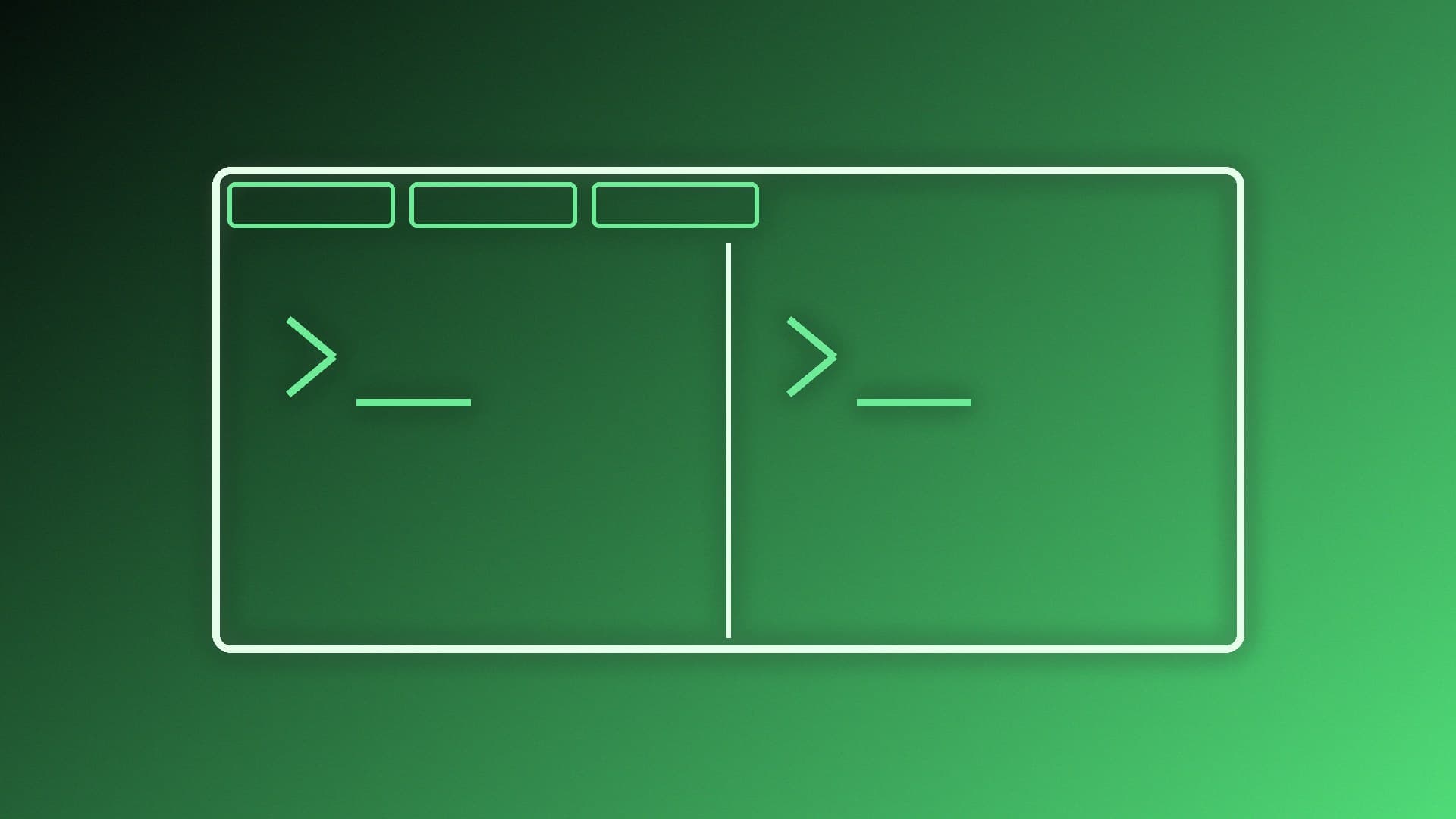
If you build or tweak PCs, sooner or later you'll end up at a command line. You might be installing apps with winget, copying big folders with Robocopy, checking drivers in PowerShell or running a local AI tool inside Linux. Opening a separate window for each of those gets messy fast. Windows Terminal is Microsoft's answer: one app that holds all your command-line shells in tabs and split panes.
This guide explains what Windows Terminal is, how to open it, and the features and shortcuts that make it worth using every day.
What Windows Terminal is
Microsoft describes Windows Terminal as a modern host application for the command-line shells you already use, such as Command Prompt, PowerShell and bash through Windows Subsystem for Linux (WSL). In other words, Terminal isn't a shell itself. It's the window that your shells run inside.
Its main features, according to Microsoft, are:
Feature | What it means for you |
|---|
Multiple tabs | Keep PowerShell, Command Prompt and WSL open side by side in one window |
Panes | Split a single tab into several command lines you can see at once |
Profiles | Run any command-line app, from PowerShell to a WSL distribution such as Ubuntu |
Unicode and UTF-8 support | Display emoji and characters from many languages |
GPU-accelerated text rendering | Microsoft says this gives better performance than the default Windows command line experience |
Themes and customisation | Change colours, text, backgrounds (including images and GIFs) and shortcuts |
Command-line arguments | Launch Terminal straight into a chosen layout with the wt command |
How to open Windows Terminal
Select Start and type Terminal. If it isn't on your PC, Microsoft's Windows Terminal documentation has an Install Windows Terminal link to get it.
Terminal opens with your default profile, and you can open other profiles, such as Command Prompt or PowerShell, in new tabs.
Profiles: one window for every shell
Microsoft says you can run any application with a command-line interface inside Windows Terminal. That covers everything from PowerShell and Command Prompt to Azure Cloud Shell and any WSL distribution.
This is the feature that makes Terminal so handy for PC enthusiasts. A typical setup might be:
PowerShell for Windows admin jobs, such as using winget to install or update apps
Command Prompt for older commands and batch files you already rely on
Ubuntu on WSL for Linux tools, including local AI projects that expect a Linux environment
Each runs in its own tab, so you can keep them all open without juggling separate windows.
Tabs and tab tearout
Tabs work much like a web browser. Microsoft lists these default shortcuts:
You can also tear out tabs to create new windows, and drag and drop tabs into existing windows. That's useful on a multi-monitor setup: drag a long-running task, such as a big copy job, onto your second screen and keep working in the main window.
Split panes: several command lines at once
Panes let you run several command-line apps next to each other in the same tab, so you can see multiple prompts at once without switching tabs. Microsoft's default shortcuts are:
Shortcut | What it does |
|---|
Alt + Shift + plus (+) | New vertical pane of your default profile (opens to the right) |
Alt + Shift + minus (-) | New horizontal pane of your default profile (opens below) |
Alt + Shift + D | New pane split automatically in the direction that gives the squarest panes |
Microsoft explains that splitting vertically opens the new pane to the right of the focused pane, and splitting horizontally opens it below. You can also set up splits that open up or to the left by editing the splitPane action in your settings.
A practical example: run a long command in one pane and keep another pane free for checking files or running quick commands while you wait.
Copying text and custom shortcuts
In Windows Terminal, Microsoft says the default shortcut to copy text from the command line is Ctrl + Shift + C. If you don't like a particular shortcut, you can change it. Microsoft's own examples include changing copy to Ctrl + 1, or changing the new-tab shortcut to Ctrl + 2. Custom shortcuts are set through Terminal's actions, which Microsoft covers on its Actions documentation page.
If you change a shortcut, make sure it doesn't clash with a key combination a program inside the terminal relies on.
Themes, colours and backgrounds
Windows Terminal lets you change colour schemes, text, backgrounds and shortcuts. Microsoft says you can even use background images and GIFs in the Terminal window, set up per profile.
A sensible approach is to give each profile a different colour scheme, for example one colour for PowerShell and another for an admin profile. It's an easy way to see at a glance which shell you're typing into before you run something important.
Launch a ready-made layout with the wt command
Windows Terminal supports command-line arguments, so you can start it with a chosen profile, starting folder, split panes and focused tab. Microsoft gives this example for opening Terminal from PowerShell with three panes: Command Prompt on the left, and the right side split between Windows PowerShell and WSL:
wt -p "Command Prompt" `; split-pane -p "Windows PowerShell" `; split-pane -H wsl.exe
The backticks are there because the example is run from PowerShell. You could save a command like this in a shortcut so your favourite layout opens in one click. Microsoft's Command line arguments page covers the full set of options.
What to do next
Once Terminal is set up, it's the natural home for many of the command-line jobs we cover elsewhere on Forge PC. Try our guides to installing apps with winget, copying large folders with Robocopy and setting up WSL2 with GPU support for local AI.
Our verdict
Windows Terminal is the best way to work with the command line on a Windows PC. It runs PowerShell, Command Prompt and WSL shells in one window, with tabs (Ctrl + Shift + T), split panes (Alt + Shift + plus or minus) and shortcuts you can change. Use separate colour schemes for each profile so you always know which shell you're in, and use the wt command to open your favourite layout in one go. All details are from Microsoft's official documentation, not our own testing.