When your PC suddenly slows down, fans spin up or the drive light won't stop flickering, Windows 11 gives you two free tools to find out why: Task Manager and Resource Monitor. They overlap, but they're built for different jobs. Task Manager is the quick, everyday tool for spotting and dealing with a misbehaving app. Resource Monitor is the more detailed one for working out exactly which process is hammering your disk or network.
At a glance
| Task Manager | Resource Monitor |
|---|
How to open | Ctrl + Shift + Esc | Search for Resource Monitor, or run resmon |
Best for | Quick checks, closing apps, startup apps | Tracing which process uses which resource |
Views | Processes, Performance, Startup apps, Details and more | Overview, CPU, Memory, Disk and Network tabs |
Can it change things? | Yes: end tasks, disable startup apps, Efficiency mode | Mostly for viewing and filtering |
Network detail | Summary view | Per-process activity plus the IP addresses involved |
Task Manager: the everyday first stop
Microsoft's own performance advice starts with Task Manager. Press Ctrl + Shift + Esc, and on the Processes tab you can right-click and close apps you're not using. Microsoft also suggests reviewing the Performance and Startup apps pages to see what's using a lot of resources.
That's where Task Manager is strongest: it shows the problem and lets you act on it in the same window.
Startup apps. Task Manager lists the same startup apps as Settings, but adds a startup impact rating. Microsoft defines High impact as more than one second of total CPU time or more than 3MB of disk activity at startup, and Low impact as under 300 milliseconds of CPU and under 292KB of disk. Right-click an app and choose Disable to stop it launching with Windows.
Efficiency mode. Select a process on the Processes or Details page and choose Efficiency mode to lower its base priority and run it in Windows' power-saving EcoQoS mode, so it interferes less with what you're doing in the foreground. If the option is greyed out, Microsoft says it's a core Windows process that shouldn't be throttled.
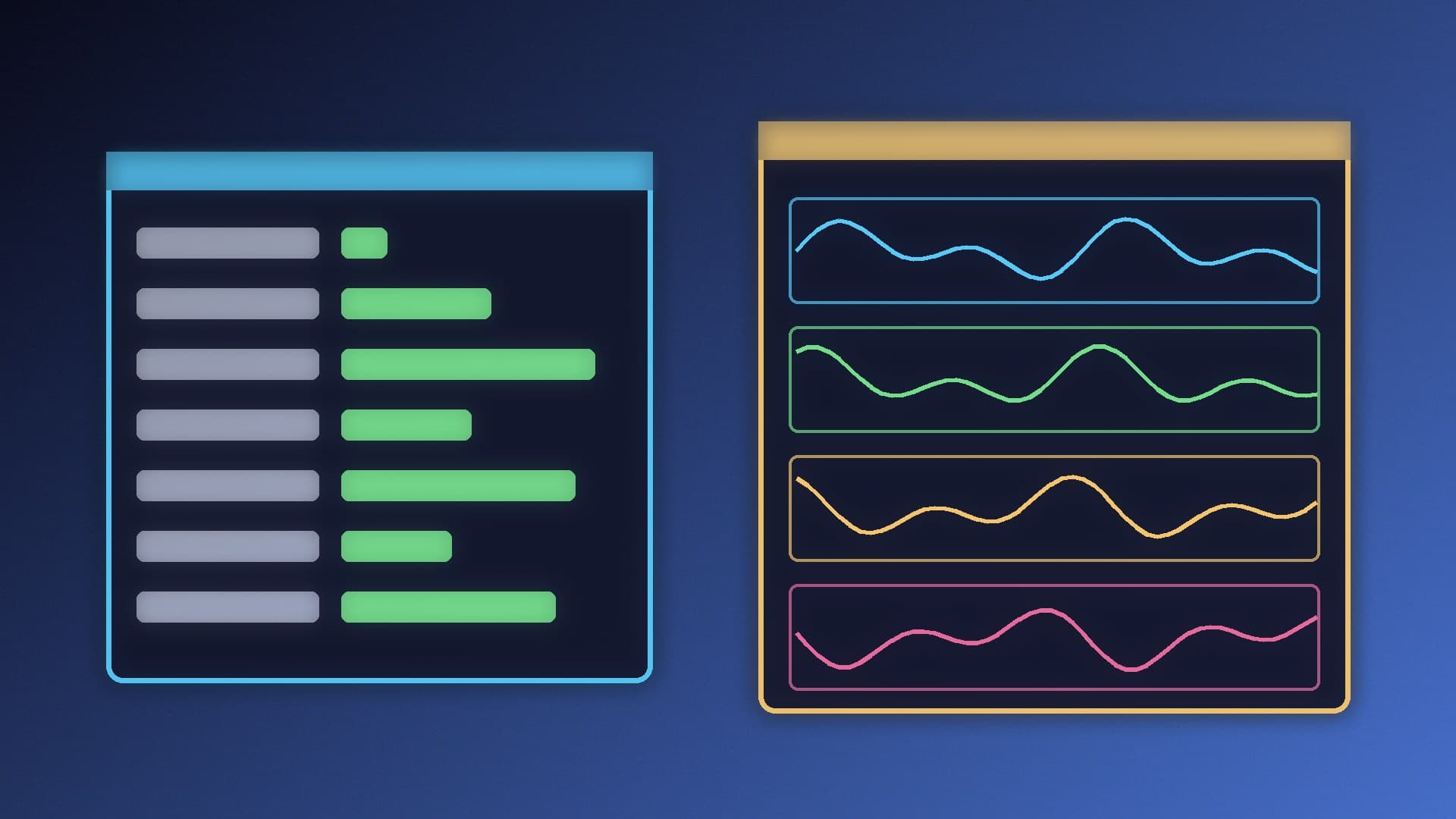
Performance graphs. The Performance page shows live graphs of how hard your hardware is working, which Microsoft suggests checking alongside the Processes tab.
For a full walkthrough, see our guide on how to use Task Manager in Windows 11.
Use it when: something is slow or frozen and you want to find and close the culprit, or you want to cut down what starts with Windows.
Resource Monitor: the detail behind the numbers
Resource Monitor has been part of Windows since Windows Vista. Microsoft describes it as tracking CPU, disk, network and memory use in real time so you can find resource conflicts and bottlenecks. According to Microsoft's Performance team, it's built on the same performance counter data as Performance Monitor, combined with Windows event tracing.
It has five tabs: an Overview, plus CPU, Memory, Disk and Network. Its most useful trick is filtering. Tick the box next to a process and Resource Monitor shows only that process's activity in the lower panes, and the selection follows you across every tab. That makes it much easier to answer questions such as "which program is writing to my SSD?" than Task Manager's summary view.
Two other details stand out in Microsoft's write-up:
The Network tab shows not just which process is generating traffic, but the IP address it's connected to.
The Memory tab has a graph of what your physical RAM is being used for, including memory that's hardware reserved and not available to Windows.
Microsoft also warns that Resource Monitor shows a moment in time, which may not represent how your PC usually performs. Watch it for a while, and while the problem is actually happening, before drawing conclusions.
Our Resource Monitor guide explains each tab in more depth.
Use it when: Task Manager shows high disk or network use but not clearly why, or you need to follow one process across CPU, memory, disk and network.
If neither tool goes deep enough, Microsoft's free Process Explorer offers a much more detailed process view than Task Manager; see Process Explorer vs Task Manager. For logging performance over hours or days rather than watching it live, Performance Monitor is the tool built for that.
Our verdict
Start with Task Manager. Press Ctrl + Shift + Esc, check the Processes and Performance pages, close what you don't need and disable unnecessary startup apps. It solves most everyday slowdowns. Open Resource Monitor when you need to know exactly which process is using your disk or network, which IP addresses it's talking to and how a single program behaves across every resource. They're complementary rather than rivals, and both are already on your PC.