It's based on Microsoft's official Process Explorer page on Microsoft Learn, Microsoft Support's guide to startup apps and Microsoft's Performance and Diagnostics blog post on Task Manager's Efficiency mode, all read on 23 November 2026. Features can change with Windows and tool updates.
When your PC feels slow, a game stutters or a program won't close, the first question is usually "what is actually running?" Windows 11 gives you Task Manager for that, built in and one right-click away. Microsoft also offers Process Explorer, a free tool from its Sysinternals collection that goes a lot deeper. They overlap, but they're built for different jobs.
The short answer
Task Manager is the right first stop for almost everyone. It's built into Windows, shows what's using your CPU and other resources, lets you end or throttle apps, and is where you control which apps start when you sign in.
Process Explorer is the tool to reach for when Task Manager can't answer the question. Its standout trick is showing which files, folders and other handles a process has open, and which DLLs it has loaded, so you can find out what's locking a file or track down DLL-version problems.
What Task Manager does
Task Manager comes with Windows 11. Microsoft Support says you can open it by right-clicking Start and selecting Task Manager. For most PC owners, the most useful parts are:
Processes tab. Lists running apps and background processes, grouped by app. Microsoft says you can expand an app's group to see its individual processes.
Efficiency mode. Microsoft announced this in February 2022. It lets you rein in a process that's hogging the CPU without killing it. According to Microsoft's Performance and Diagnostics blog, turning it on lowers the process's base priority to low and sets it to use EcoQoS, which runs it in the most power-efficient way. You can apply it from the Processes tab or the Details tab. If the option is greyed out, it's a core Windows process, and Microsoft says throttling that process may affect the system. A Microsoft product manager said in 2022 that the setting wasn't saved across reboots.
Startup apps tab. Microsoft Support says Task Manager shows the same list of startup apps as Settings > Apps > Startup, but adds a startup impact rating for each one. You can enable or disable each app from here.
Task Manager's startup impact ratings are defined by Microsoft as follows:
Rating | What it means (per Microsoft) |
|---|
Low impact | Total CPU time under 300 milliseconds and total disk use under 292KB |
Medium impact | CPU time between 300 milliseconds and 1 second, or disk use between 292KB and 3MB |
High impact | CPU time over 1 second or disk use over 3MB |
Not measured | No data yet, and the app is enabled |
None | The startup app is disabled |
For a full walkthrough, see our guide on how to use Task Manager in Windows 11.
What Process Explorer does
Process Explorer is a free download from Microsoft's Sysinternals pages on Microsoft Learn. There's nothing to install: Microsoft says you simply run procexp.exe, and you can also run it straight from Sysinternals Live. The download is listed at 3.7MB, and Microsoft lists Windows 11 and Windows Server 2019 or later as supported.
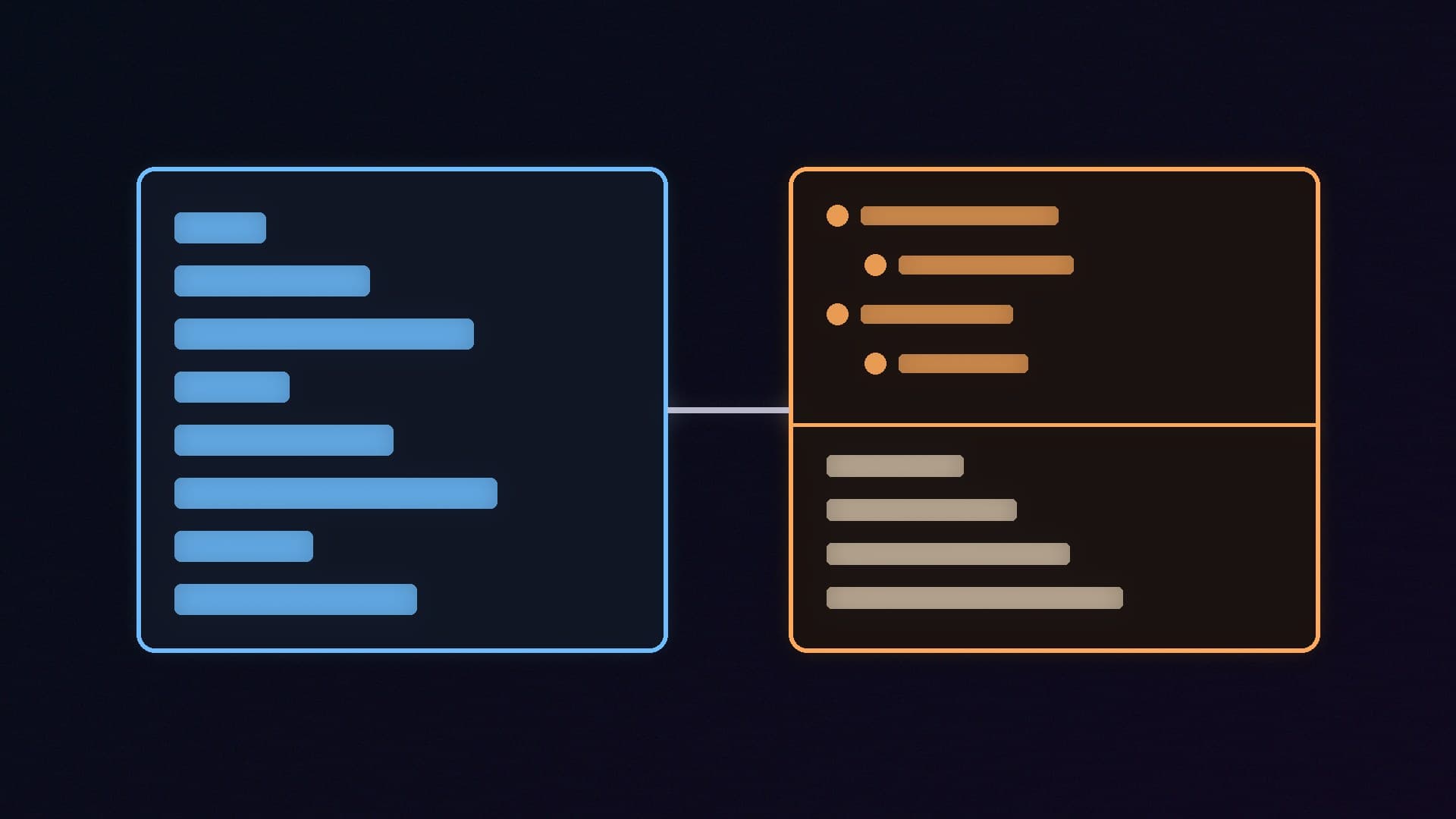
Microsoft describes its window as two parts:
The top pane always lists the currently active processes, including the names of the accounts that own them.
The bottom pane changes with the mode you pick. In handle mode it shows the handles the selected process has opened, such as files and folders. In DLL mode it shows the DLLs and memory-mapped files that process has loaded.
It also has a search that, in Microsoft's words, will "quickly show you which processes have particular handles opened or DLLs loaded". That's what makes it so handy when Windows says a file is in use and won't let you delete or move it: search for the file name and Process Explorer shows which program has it open.
Microsoft says Process Explorer's capabilities make it useful for tracking down DLL-version problems or handle leaks, and for getting insight into how Windows and applications work. Our guide on how to use Process Explorer in Windows 11 covers setting it up.
Head to head
| Task Manager | Process Explorer |
|---|
Cost | Free, built into Windows 11 | Free download from Microsoft Sysinternals |
Install | None, open from the Start right-click menu | None, run procexp.exe |
List running processes | Yes, grouped by app | Yes, with owning account names |
Find which process has a file open | Not covered in Microsoft's Task Manager guidance | Yes, via handle search |
See loaded DLLs | Not covered in Microsoft's Task Manager guidance | Yes, in DLL mode |
Throttle a process without ending it | Yes, Efficiency mode | Not covered on Microsoft's Process Explorer page |
Manage startup apps | Yes, with impact ratings | Not covered on Microsoft's Process Explorer page |
Best for | Everyday checks, ending or throttling apps, startup | Locked files, DLL problems, deeper troubleshooting |
Which should you use?
Start with Task Manager. If an app is using too much CPU, freezing or slowing down your boot, Task Manager can end it, throttle it with Efficiency mode or stop it from starting with Windows, all without downloading anything.
Switch to Process Explorer when you need to see inside a process. The classic case is a file or folder that Windows won't let you delete because it's "in use". Microsoft's Task Manager guidance doesn't cover finding which program is holding a file, but Process Explorer's handle search is built for exactly that. It's also the better tool if you're chasing a DLL conflict in a game or app.
If you want to go further still, Microsoft's Sysinternals tools work well together. Process Monitor records file, Registry and process activity as it happens, and our guide on how to use Autoruns in Windows 11 covers Microsoft's dedicated startup tool. Only download any of them from Microsoft's own Sysinternals pages.
Our verdict
Task Manager and Process Explorer aren't really rivals. Task Manager is the everyday tool: it's built in, shows what's using your PC's resources, can throttle a busy app with Efficiency mode and manages startup apps with impact ratings. Process Explorer is a free, no-install download from Microsoft that you reach for when you need more detail, especially to find which program has a file open or which DLLs a process has loaded. Use Task Manager first and keep Process Explorer ready for the problems it can't solve.