The only speed figures quoted are example results published in the llama.cpp project's own documentation. It's based on NVIDIA's technical guide to LLM inference, the llama-bench README and Ollama's documentation, all read on 27 November 2026.
Ask a local language model a one-line question and the answer starts almost immediately. Paste in a long report, or point a coding assistant at a big project, and there can be a long pause before the first word appears, even though the answer then streams at a normal pace. That's not a fault. Running a model has two distinct phases, they stress different parts of your PC, and benchmark tools report them separately. Once you understand the difference, it's much easier to read speed figures and to work out which upgrade would actually help.
Phase one: prompt processing (prefill)
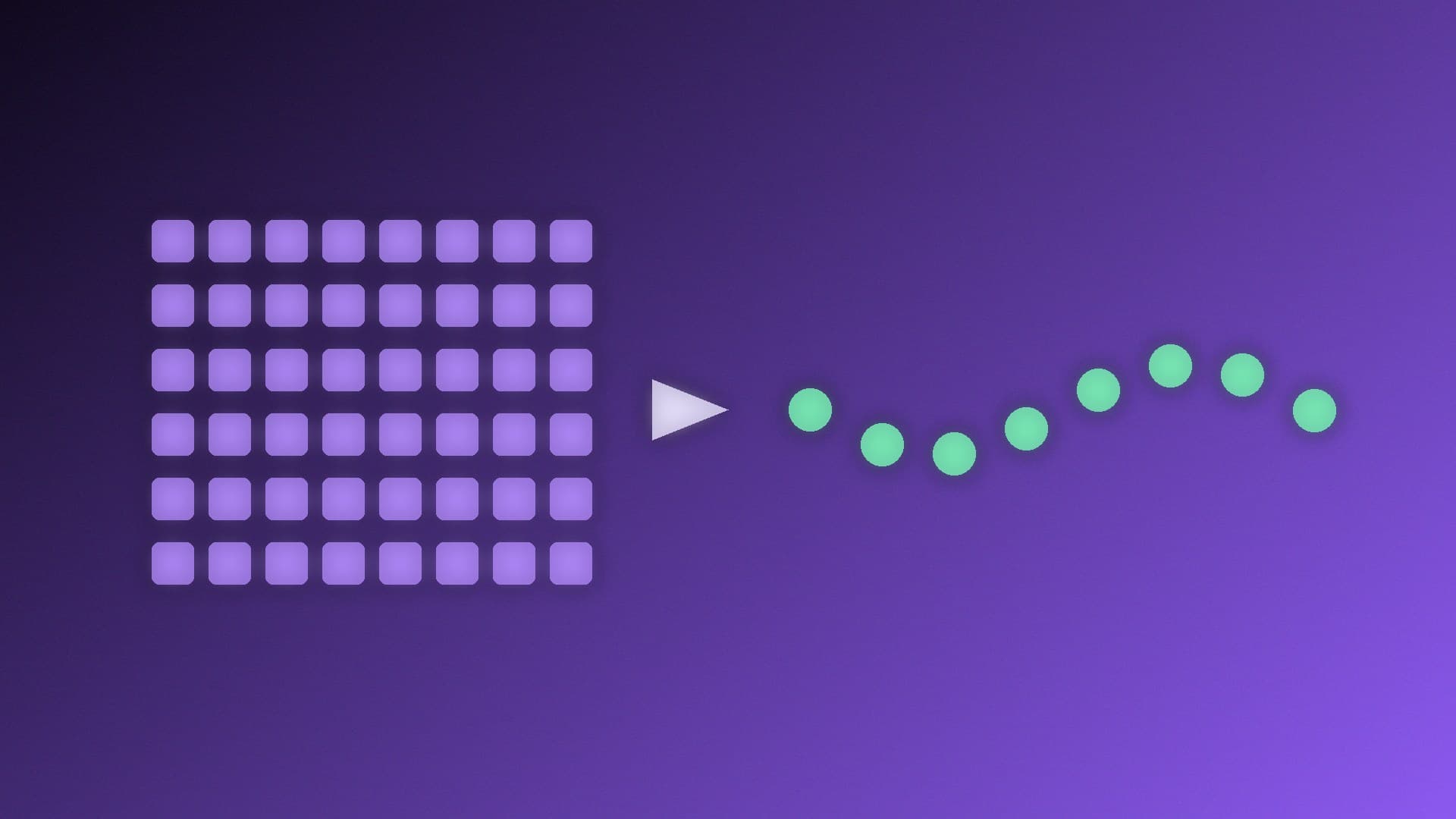
NVIDIA's guide calls the first phase "prefill". The model reads everything you've sent it, which is your message plus any system prompt, documents and earlier conversation, and builds its internal state from it. Because the whole input is known in advance, the tokens can be processed in parallel. NVIDIA describes it as a highly parallel matrix-matrix operation that "effectively saturates GPU utilization".
In practice, prefill time is the wait before the first token appears. It grows with the length of the input, which is why document chat, retrieval (RAG) and coding agents that send large chunks of code feel slower to start than simple chat. Because prefill keeps the GPU's processing units busy, it broadly benefits from raw compute, which is where a GPU's matrix hardware, such as NVIDIA's Tensor Cores, comes in. Our Tensor Cores vs CUDA cores explainer covers what those units do.
Phase two: token generation (decode)
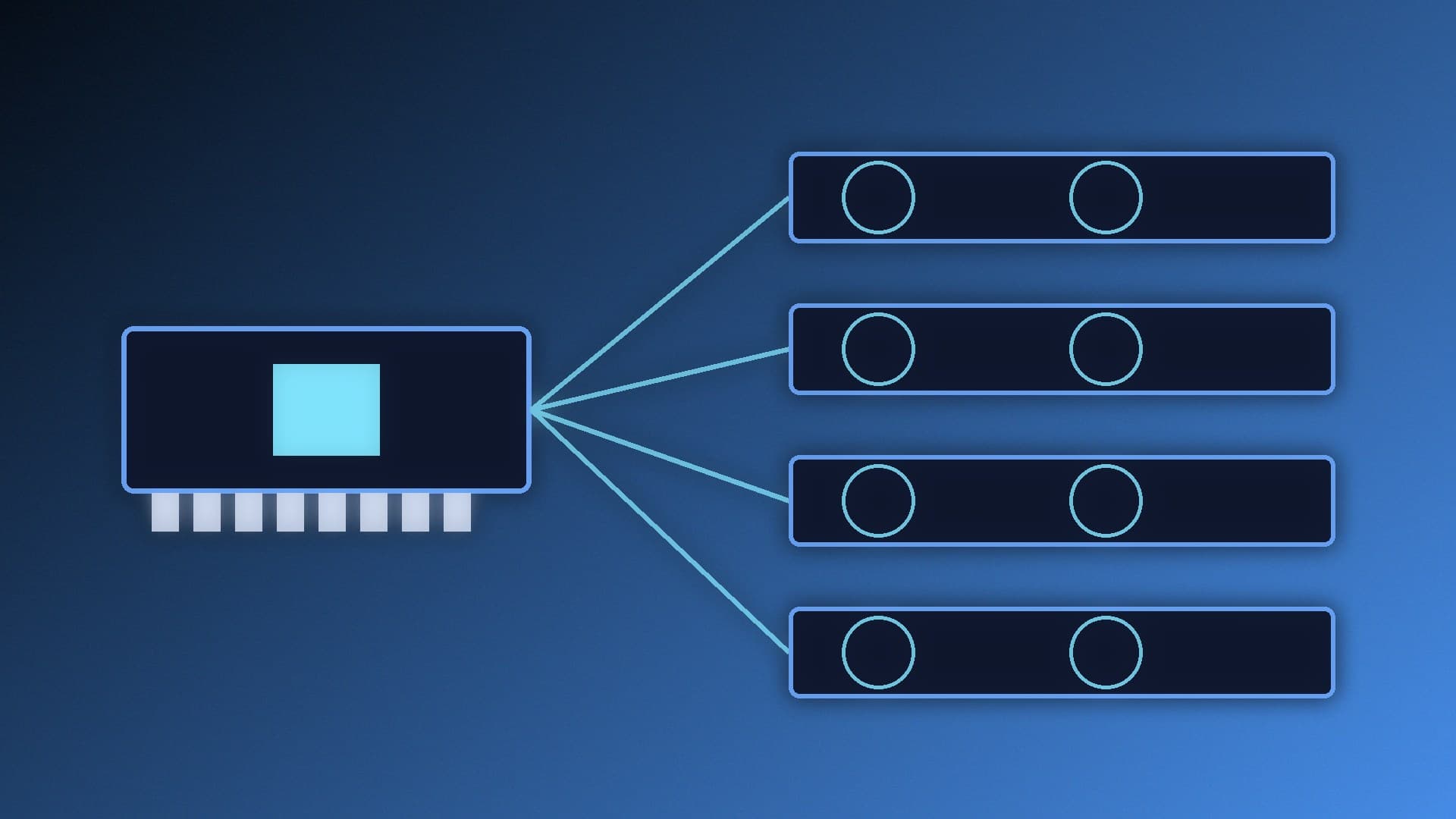
The second phase is "decode". The model writes its answer one token at a time, and each new token depends on all the ones before it. NVIDIA describes this as more like a matrix-vector operation that underuses the GPU's compute, and says the speed at which data (weights, keys, values and activations) is moved from memory "dominates the latency". In other words, decode is memory-bound.
This is the tokens-per-second figure people usually quote, and it's why memory bandwidth matters so much for local AI. Our memory bandwidth explainer goes into that in detail. In principle, a card with lots of compute but comparatively slow memory can process prompts quickly yet generate answers more slowly than its compute figures suggest.
The two phases side by side
| Prompt processing (prefill) | Token generation (decode) |
|---|
What happens | The model reads your whole input | The model writes the answer one token at a time |
How it runs | In parallel; NVIDIA says it saturates the GPU | Sequentially; NVIDIA says it's memory-bound |
What you notice | The delay before the first word | How fast the answer streams |
Takes longer when | The input is longer | The answer is longer |
Hardware that helps most | GPU compute | Memory bandwidth |
llama-bench test name | pp (for example pp512) | tg (for example tg128) |
Ollama usage fields | prompt_eval_count, prompt_eval_duration | eval_count, eval_duration |
How big is the gap?
The llama-bench README includes example results that show how different the two numbers can be. For a Qwen2 7B model at Q4_K_M quantisation on the CUDA backend, its example table lists 7,340.20 tokens per second for prompt processing (pp512) and 120.60 tokens per second for text generation (tg128). The README doesn't say which GPU produced them, so don't compare them with your own card; the point is the ratio. In that example, reading the prompt was about 60 times faster per token than writing the answer.
The same README example also shows both numbers falling as the context fills. With 512 tokens already in the context (the -d 512 option), its table shows prompt processing at 6,425.91 tokens per second and generation at 116.71 tokens per second. That's why long chats get gradually slower.
How to measure both on your own PC
With llama.cpp: the llama-bench tool runs both tests. By default it processes a 512-token prompt (-p 512) and generates 128 tokens (-n 128), and reports the average tokens per second for each, labelled pp512 and tg128. Add -d to test with context already filled, for example:
llama-bench -m model.gguf -d 0,4096
Our guide to benchmarking local LLM speed walks through a full test, and running llama.cpp on Windows covers installing it.
With Ollama: Ollama's documentation lists the usage figures its API returns with responses:
prompt_eval_count: how many input tokens were in the prompt
prompt_eval_cached_count: how many prompt tokens were read from the cache
prompt_eval_duration: how long it took to evaluate the uncached prompt tokens
eval_count and eval_duration: how many output tokens were generated and how long that took
All timings are in nanoseconds, so generation speed is eval_count ÷ eval_duration × 1,000,000,000. Ollama's own example response has an eval_count of 18 and an eval_duration of 52,479,709ns, which works out at roughly 343 tokens per second. Make a non-streaming request to see the figures:
curl http://localhost:11434/api/generate -d '{"model": "gemma4", "prompt": "Why is the sky blue?", "stream": false}'
Prompt processing speed is calculated the same way, but only count the uncached tokens: prompt_eval_count minus prompt_eval_cached_count, divided by prompt_eval_duration.
Why repeat prompts can be faster
Ollama's prompt_eval_cached_count field hints at an important shortcut. When part of a prompt has been processed before, for example the earlier turns of a conversation, it can be read from a cache instead of being processed again. NVIDIA's guide describes the related key-value (KV) cache, which stores data from earlier tokens so the model doesn't recompute it at every step, at the cost of memory that grows with the length of the context. That memory cost is why long contexts need more VRAM; our KV cache quantisation guide shows one way to reduce it.
What this means when you buy or tune
Mostly short chats? Generation speed is what you'll feel, so prioritise memory bandwidth and make sure the whole model fits in video memory.
Document chat, RAG or coding agents? You send long prompts all the time, so prompt processing matters as well. Check pp results, not just tg, when you compare cards.
Long first-token waits? Shorten system prompts and attached context where you can, and keep conversations going rather than restarting them, so cached tokens can be reused. Our guide to speeding up Ollama has more tuning options, and enabling Flash Attention is worth trying in LM Studio and llama.cpp.
Reading reviews? A single "tokens per second" figure usually means generation speed. Look for both pp and tg numbers, and for the context length they were measured at.
Our verdict
Local AI speed has two numbers because running a model has two phases. Prompt processing (prefill) reads your input in parallel and keeps the GPU's compute busy, so it benefits most from compute; it decides how long you wait for the first word. Token generation (decode) writes the answer one token at a time and is memory-bound, so it depends on memory bandwidth; it decides how fast the answer streams. Measure both with llama-bench (pp and tg) or Ollama's usage fields, and weigh them according to how you use AI: generation speed for chat, prompt processing as well for documents and coding.