Working through dozens of graphics options in every new game takes time, and it's easy to end up with settings your PC can't hold steady. If you have a GeForce graphics card, the NVIDIA App can do the first pass for you: its Optimize button applies NVIDIA's recommended settings for your hardware, and a slider lets you lean towards performance or quality. This guide is based on NVIDIA's official NVIDIA App pages, checked on 27 November 2026. Menu positions may move slightly between app versions.
What the Optimize feature does
NVIDIA says the app lets you optimise in-game settings "by tapping into the power of the NVIDIA cloud data center to deliver personalized graphics settings based on your system's GPU, CPU, and display." It's the successor to GeForce Experience's Optimal Playable Settings (OPS), which NVIDIA says could auto-configure all of a game's settings and enable NVIDIA technologies, including DLSS and Reflex, with one click. If you're coming from the old app, our NVIDIA App vs GeForce Experience comparison explains what moved where.
Not every game is covered. In its launch article in November 2024, NVIDIA said recommendations were "available for over 1,200 titles", and it publishes a supported games list on its website showing which titles get Optimal Game Settings. Our tip: check that list before you go looking for the slider in a smaller or older game.
Before you start
Install the NVIDIA App from NVIDIA's website if you haven't already, and keep your graphics driver up to date. The steps are the same whether you've just fitted a new card such as the ASUS RTX 5060 8GB Dual OC or you're using an older GeForce card.
Our advice: install the latest patch for the game and launch it once before you try to optimise it, then close it again before you press Optimize.
How to optimise a game's settings
Open the NVIDIA App. The Library section on the Home tab shows your recently opened games and apps. Hover over a game to open it or reach its game settings and driver settings.
Alternatively, go to the Graphics tab and select the game from the list of programs.
At the top of the game's page, set your resolution and screen options first. NVIDIA says its recommended settings are personalised to your system's GPU, CPU and display.
To accept NVIDIA's recommended settings for your system, press Optimize.
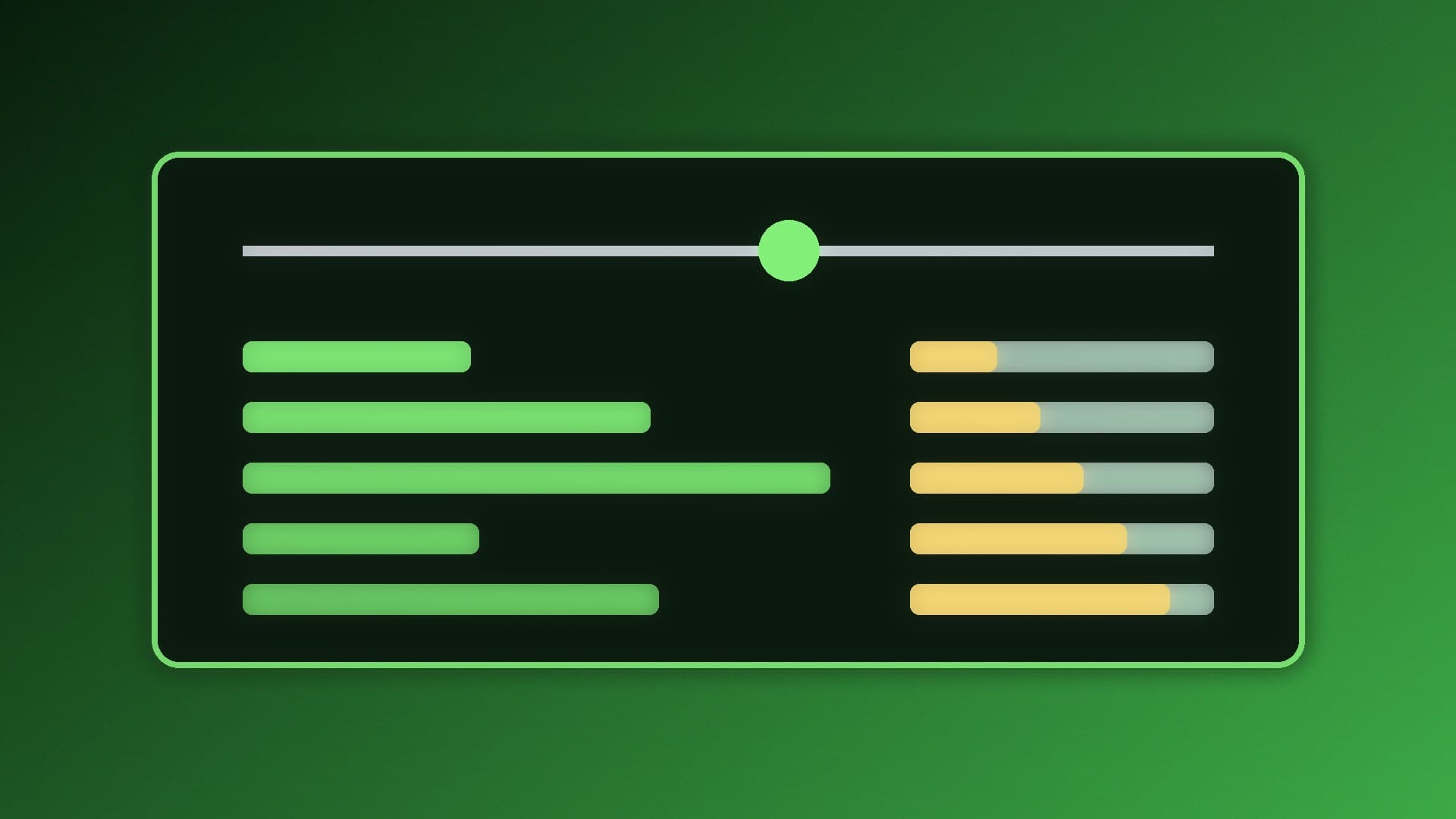
To change the balance first, move the slider between Performance and Quality, then press Optimize. NVIDIA says the changes show in real time in the list of In-Game Settings below the Optimize panel, so you can see what each step of the slider changes before you apply it.
Launch the game and check how it feels. If it isn't smooth enough, come back and move the slider towards Performance; if you have headroom, move it towards Quality.
Our view: treat the result as a starting point, not a final answer. NVIDIA's settings are based on your hardware, not on how much you care about frame rate versus detail in that particular game. To check what you're actually getting, use a frame rate counter; NVIDIA's overlay can show FPS, FPS 1% Low, and GPU and CPU utilisation.
How to change driver settings for one game
Below the in-game settings, the game's page has a Driver Settings panel. NVIDIA says these are the settings from the NVIDIA Control Panel's 3D Settings section that still apply to modern games. To use it:
Scroll down to Driver Settings on the game's page in the Graphics tab.
Hover over a setting and click the i icon to read NVIDIA's description of it.
Click the setting to see its options and choose one.
This is also where you'll find newer driver features. NVIDIA says the app can update games to the latest DLSS 4 features and models with DLSS Override, and improve frame rates with Smooth Motion on GeForce RTX 50 and 40 Series cards. We cover both in detail in how to use DLSS Override in the NVIDIA App and how to use NVIDIA Smooth Motion. If you want to limit frame rate as well, see how to cap your frame rate on PC.
How to change settings for every game
To apply a driver setting to all games and apps at once, click Global Settings at the top of the Graphics tab. Per-game settings sit alongside global ones, so our advice is to use Global Settings for things you want everywhere and set exceptions on individual games.
Settings that NVIDIA no longer considers relevant to modern games aren't in the app. NVIDIA points users who want to tweak legacy games to NVIDIA Profile Inspector instead. For how the app's options map to the old control panel, see NVIDIA Control Panel vs NVIDIA App.
Missing games, hidden games and resetting
A game isn't listed: click the three dots on the right of the Graphics tab to add a program manually, or to point the app at another folder to scan for programs. That's useful if you install games on a second drive.
Hiding a game: the separate three dots just above the Optimize button let you hide a program from the list or open its folder.
Unhiding a game: click the Sort and Filter button, select Hidden and click Done, then use the rightmost three dots to unhide it.
Undoing your changes: the three dots on the right of the Graphics tab also include an option to restore settings to default.
Our verdict
Open the game in the NVIDIA App's Graphics tab, set your resolution, choose a point on the Performance-Quality slider and press Optimize. It's a quick, sensible starting point for supported games, but check the result with a frame rate counter and adjust the slider if needed. Use Driver Settings for per-game driver options, Global Settings for everything else, and restore defaults if a change makes things worse.