Some monitors, mostly larger and wider models, can show two video sources at once, such as your gaming PC and a work laptop, using modes called Picture-in-Picture (PIP) and Picture-by-Picture (PBP). This guide explains what each mode does, how to set it up and what you give up while it's on, using Samsung's and Dell's own manuals as worked examples. Menu names vary between brands and models, so check the manual for your exact monitor.
PIP vs PBP: what's the difference?
Samsung's support page puts it simply:
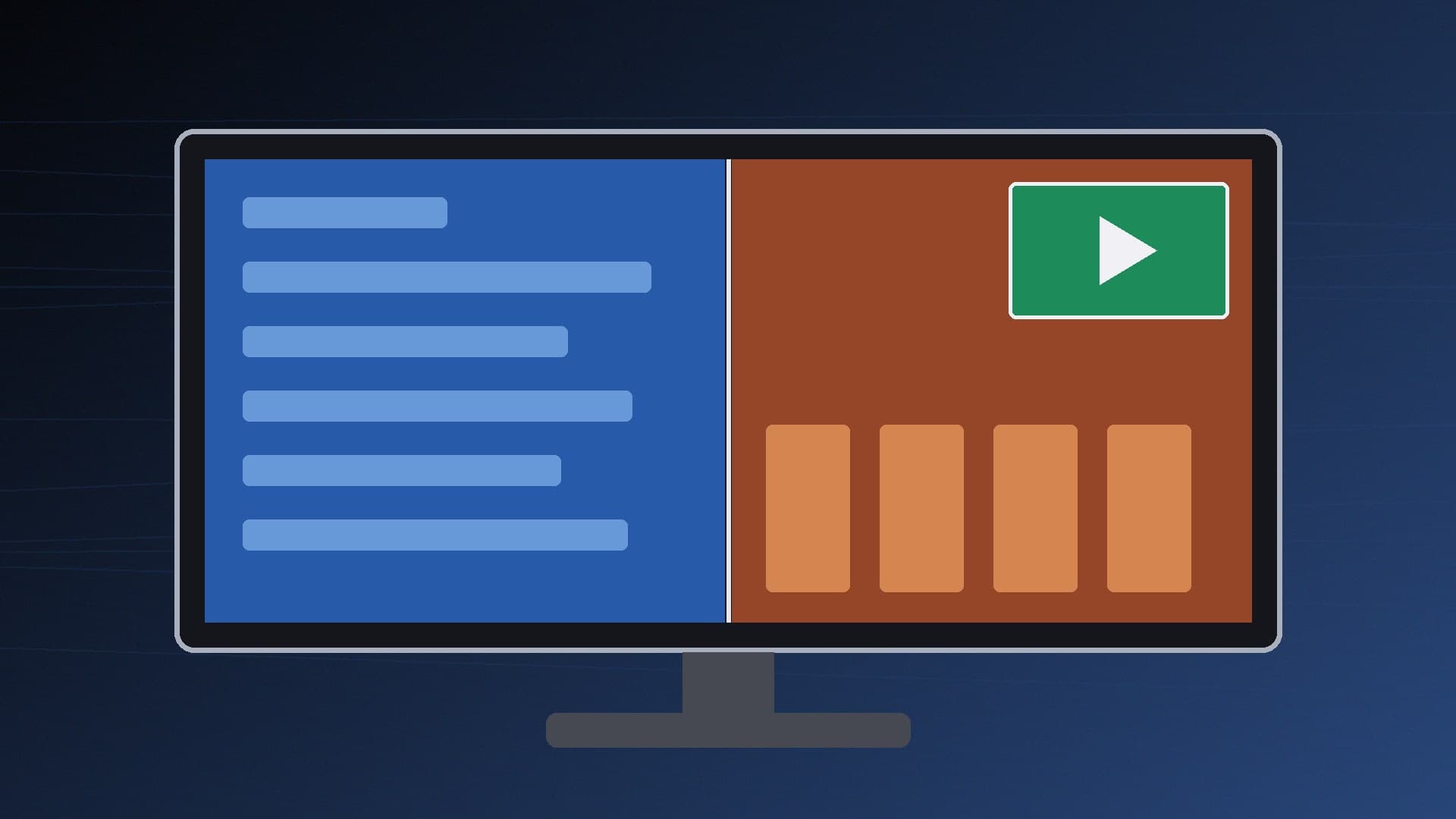
PIP (Picture in Picture) shows one source on the main screen while a second source appears in a smaller inset window.
PBP (Picture by Picture) splits the screen in half, showing two different sources side by side on the left and right.
PIP suits keeping an eye on something, such as a second machine's progress, while you work full-screen on the main one. PBP is closer to having two monitors, so in our view it's most useful on wide or high-resolution screens, where each half is still a usable size. If you're still deciding between one wide screen and two separate ones, see our ultrawide vs dual monitors comparison.
PIP and PBP only show two pictures. They don't share your keyboard and mouse between the two machines. For that, you need a monitor with a built-in KVM switch or a separate KVM, which we cover in our guide to connecting two PCs to one monitor.
Check your monitor supports it
Not every monitor has PIP or PBP. Look for "PIP/PBP" in the spec sheet or the on-screen display (OSD) menu. Dell's S3221QS manual, for example, lists support for both modes among the monitor's features, and Samsung's manual for its C34H890 ultrawide gives PIP/PBP its own chapter.
Also check which inputs can be combined. On the Dell S3221QS, which has one DisplayPort and two HDMI inputs, Dell's manual says that when either HDMI input is the main picture, the PIP/PBP sub-window can only show the DisplayPort source. Samsung's manual notes that in PBP mode the left and right screens can't use the same input.
How to set up PIP or PBP
The exact menus differ, but the process is the same on both monitors.
Connect both sources to different inputs. For example, connect your desktop PC by DisplayPort and a laptop by HDMI or USB-C. Our DisplayPort vs HDMI for gaming guide explains which to use for your gaming PC.
Open the monitor's menu with its joystick or buttons and find the PIP/PBP section. Samsung's C34H890 manual describes a set of PIP/PBP settings, and on the Dell S3221QS there's a PIP/PBP item in the main menu.
Turn on PIP/PBP Mode and pick the layout. Samsung's monitor has a Size setting where you choose the PBP split or one of several PIP window sizes, plus a Position setting for the PIP window. Dell's has a PIP/PBP Mode setting, with PIP Size (Small or Large) and PIP Location (top-left, top-right, bottom-right or bottom-left) for the inset window.
Choose the source for each picture. Dell calls this PIP/PBP (Sub); Samsung calls it Source. Dell also has a Video Swap option to swap the main and sub pictures.
Choose which source you hear. Samsung's Sound Source and Dell's Audio setting let you pick the audio from the main or sub picture, which matters if both machines send their sound to the monitor.
Samsung warns that the screen may flicker briefly or take a moment to appear when you turn PIP/PBP on or off or change the size. It says this has nothing to do with the monitor's performance and is mainly down to delays in the video signal, depending on the graphics card.
Set the right resolution on each PC
This is the step people miss. In PBP mode, each source only gets part of the screen, so for a sharp picture each PC should send a resolution that matches its half.
Samsung's manual for the C34H890, a 3440 x 1440 ultrawide, says the optimum resolution for each side in PBP mode is 1720 x 1440. Each of its PIP size options lists an optimum resolution for the inset window: 720 x 480, 1280 x 720 or 1720 x 720.
Dell's S3221QS manual lists 1920 x 2160 at 60Hz among the supported display modes when PBP is enabled, which is half of the monitor's 3840 x 2160 panel.
Samsung also says the monitor can't automatically switch to the optimum resolution and refresh rate when PIP/PBP is on, Its fix is to turn PIP/PBP Mode off, or to restart the monitor and then set the resolution yourself in Windows, so expect to set it on each PC. In Windows 11, go to Settings > System > Display and pick the resolution under Display resolution. If the screen goes blank in PIP/PBP mode, Samsung's advice (written for Windows 7) is to make Windows detect the display again and, if it's still blank, to change the resolution to 1280 x 1024. When you turn PIP/PBP off, set each PC back to the monitor's full resolution. Our guide to changing your monitor's refresh rate covers the related Windows settings.
Samsung adds that PIP/PBP may not work at all depending on the graphics card in use. Its manual, which predates Windows 11, lists PIP/PBP mode as compatible with Windows 7, Windows 8 and Windows 10.
What you give up while it's on
Splitting the screen turns some features off. Dell's S3221QS manual says:
FreeSync is turned off when PIP/PBP is enabled.
Smart HDR is turned off when PIP/PBP is enabled.
Dark Stabilizer is turned off when PIP/PBP is enabled.
The wide aspect ratio setting is disabled in PIP/PBP mode.
Samsung's C34H890 manual similarly marks a range of picture settings as unavailable while PIP/PBP Mode is on.
So PIP/PBP is best for work, monitoring and multitasking rather than gaming. If you want variable refresh rate (VRR) or HDR in a game, turn PIP/PBP off first, then check VRR is back on with our guide to turning on variable refresh rate in Windows 11.
Our verdict
PIP and PBP are a handy, free way to see two machines on one screen if your monitor supports them. Connect each source to a different input, turn the mode on in the monitor's menu, pick the layout, sources and audio, and then set each PC to the resolution the manual recommends for its part of the screen. Expect features such as FreeSync and HDR to switch off while it's running, as they do on Dell's S3221QS, so turn it off for gaming. If you also want one keyboard and mouse to control both machines, see our guide to connecting two PCs to one monitor.