Skip to content

VersusMonitor

Backlight Strobing vs VRR: ULMB 2, DyAc and ELMB vs G-SYNC and FreeSync

Motion blur reduction modes like NVIDIA ULMB 2, BenQ ZOWIE DyAc and ASUS ELMB fix a different problem from G-SYNC and FreeSync, and most monitors won't run both at once. We explain what backlight strobing and VRR each do, their trade-offs, and which to use for competitive and single-player games.

By , Senior Hardware Editor

5 min read

Backlight Strobing vs VRR: ULMB 2, DyAc and ELMB vs G-SYNC and FreeSync

Gaming monitor menus often include two features that sound like they do the same job: a motion blur reduction mode such as NVIDIA ULMB 2, BenQ ZOWIE DyAc or ASUS ELMB, and variable refresh rate (VRR) such as G-SYNC, FreeSync or Adaptive-Sync. They solve different problems, and on most monitors you can't use both at once. This guide explains what each one does, using NVIDIA, BenQ ZOWIE, ASUS and Blur Busters documentation, so you can decide which to turn on.

The short version

Backlight strobing (ULMB 2, DyAc, ELMB)

VRR (G-SYNC, FreeSync, Adaptive-Sync)

What it fixes

Motion blur you see when your eyes follow moving objects

Screen tearing and stutter when frame rate doesn't match refresh rate

How

Switches the backlight off between refreshes so you don't see pixels changing

Monitor refreshes when each new frame arrives

Best when

Frame rate is high and steady, at or near the refresh rate

Frame rate moves around below the refresh rate

Trade-offs

Lower brightness; possible double images and flicker

Doesn't remove motion blur

Together?

Usually not; ASUS ELMB Sync is an exception

What backlight strobing does

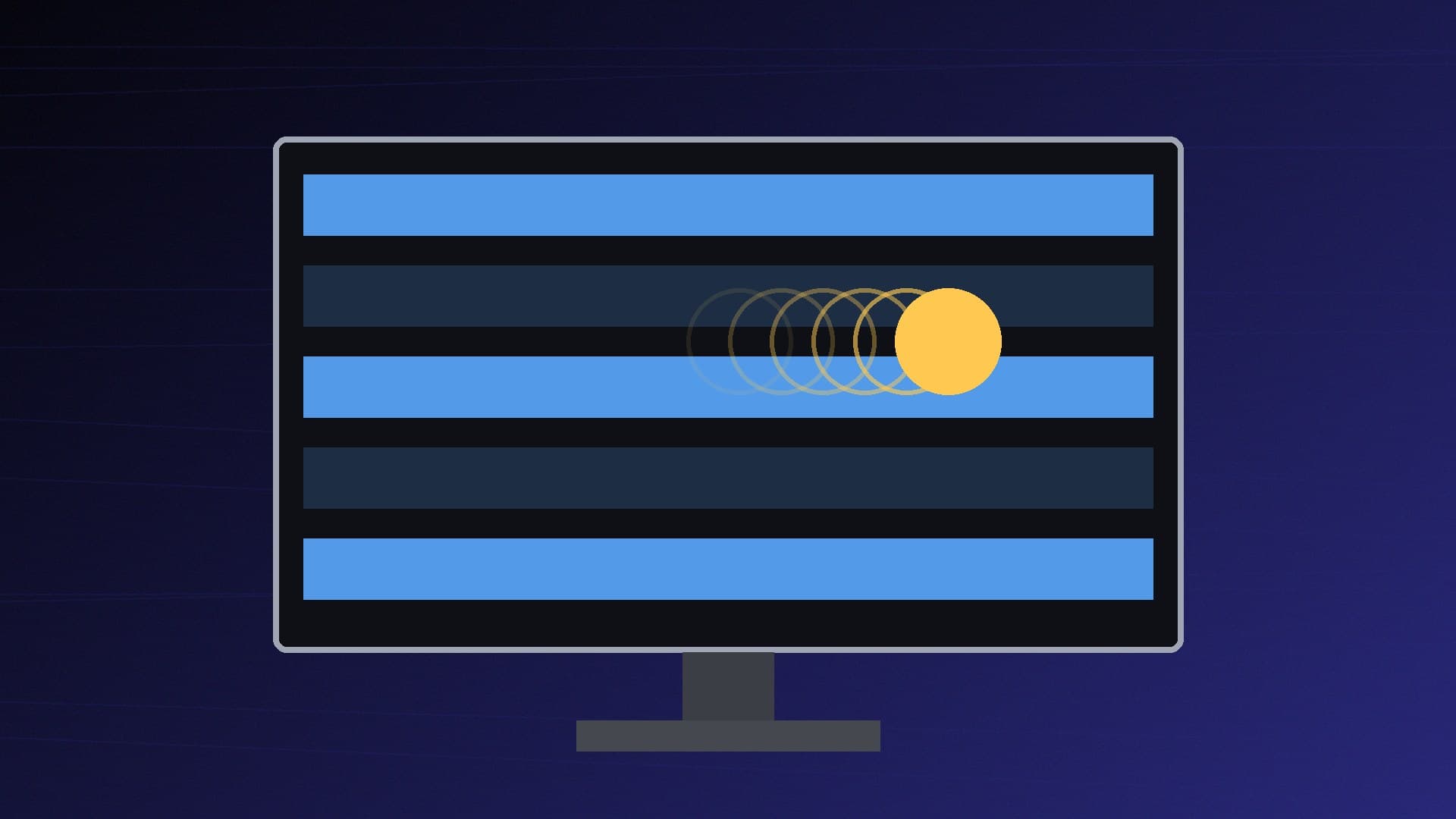
An LCD's backlight is normally on all the time, so you see each pixel while it changes colour, and each frame is held on screen until the next one. NVIDIA says the combination of that "hold" and the visible transition is what causes display motion blur, which isn't the same thing as a game's motion blur setting. Strobing switches the backlight on only once the pixels have reached their new colour. BenQ ZOWIE describes DyAc in the same way: the backlight turns off while waiting for pixel transitions, then on when the frame is ready.

NVIDIA's figure for how clear this looks is "effective motion clarity", which it calculates as refresh rate multiplied by one over the duty cycle. NVIDIA says a 360Hz monitor with ULMB 2 has an effective motion clarity of 1440Hz. That's NVIDIA's calculation, not a Forge PC measurement. Blur Busters, which fact-checked the claim, says it holds for display persistence when your eyes are tracking motion, but only under four conditions: strobe pulses of 1ms or less, frame rate matching refresh rate and strobe rate, no visible strobe crosstalk, and motion you're actually following with your eyes.

The catches

  • Brightness: the backlight is off for much of each refresh. NVIDIA says the original ULMB disabled the backlight 75% of the time. ULMB 2 is "nearly 2x" brighter than the original, and NVIDIA quotes over 250 nits. BenQ ZOWIE says DyAc cuts brightness by roughly 50% on its 144/165Hz XL2411K and XL2731K, but not on its 240Hz-and-above DyAc models.

  • Double images: Blur Busters says strobing shows double images if your frame rate falls below the refresh rate, and that strobe crosstalk (incomplete pixel transitions between flashes) can cause doubling even when frame rate matches refresh rate. It's usually worst at the top and bottom of the screen.

  • Flicker: Blur Busters notes that low-refresh strobing, such as 60Hz, is a problem for many people, although some find motion blur more tiring than flicker.

  • Frame rate: BenQ ZOWIE says DyAc works best when your system can run above 100Hz and stay above 100fps. ASUS says original ELMB only works at fixed refresh rates.
What VRR does

VRR matches the monitor's refresh to the frames your graphics card delivers. BenQ ZOWIE sums it up as reducing stuttering and tearing when there's a big gap between frame rate and refresh rate, or when both are low. That makes VRR the better default for demanding single-player games where frame rate moves around. Our G-SYNC vs FreeSync guide covers the differences between the VRR brands, and how to enable G-SYNC or FreeSync walks through setting it up.

Why you usually can't run both

  • NVIDIA ULMB 2: NVIDIA's steps are to disable G-SYNC variable refresh rate in the NVIDIA Control Panel, then enable ULMB 2 in the monitor's on-screen menu.

  • BenQ ZOWIE DyAc: BenQ says DyAc isn't compatible with VRR. Turning VRR on switches DyAc off, so turn VRR off in your graphics control panel first.

  • ASUS ELMB: ASUS says plain ELMB can't be enabled with Adaptive-Sync or FreeSync.

  • ASUS ELMB Sync is the exception. ASUS says it works at the same time as G-SYNC, FreeSync or Adaptive-Sync. It recommends running above 120Hz, says it can't be used with HDR, and warns that it greatly reduces overall brightness.

ULMB 2 vs DyAc vs ELMB

NVIDIA ULMB 2

BenQ ZOWIE DyAc / DyAc+ / DyAc 2

ASUS ELMB / ELMB Sync

Works with VRR

No (disable G-SYNC VRR first)

No

ELMB: no. ELMB Sync: yes

Notable details

Full refresh rate strobing; Vertical Dependent Overdrive tunes response by screen position; launched for 1440p 360Hz G-SYNC monitors via firmware

DyAc 2 uses a dual-backlight design; BenQ says DyAc adds no input lag

ELMB Sync can't run with HDR

Maker guidance

Disable G-SYNC VRR, enable ULMB 2 in the OSD

Best above 100Hz and 100fps

ELMB Sync recommended above 120Hz

NVIDIA says Vertical Dependent Overdrive is what sets ULMB 2 apart, because it adjusts pixel response depending on where the screen's vertical scan is, so pixels are ready when the backlight flashes. Blur Busters says it's unlikely generic panel vendors will easily use overdrive algorithms this advanced.

Which should you use?

  • Competitive shooters at high, steady frame rates: try strobing. BenQ's guidance is above 100fps, and Blur Busters stresses matching frame rate to refresh rate. Cap your frame rate at the refresh rate and look for double images at the top and bottom of the screen.

  • Single-player games, ray tracing and anything with variable frame rates: use VRR. Strobing below the refresh rate produces double images, according to Blur Busters.

  • HDR: stick with VRR. ASUS says ELMB Sync can't be used with HDR.

  • If strobing looks dim or flickery to you: switch it off. Blur Busters notes that people vary a lot in how they react to flicker.

If motion clarity matters more than anything else, our GtG vs MPRT response time explainer explains how strobing relates to MPRT figures, and our best esports monitor guide covers high-refresh models.

Our verdict

Leave VRR on as your everyday setting, because it handles the uneven frame rates most games produce. Turn on backlight strobing (ULMB 2, DyAc or ELMB) only for competitive games where you can hold a frame rate at or above the refresh rate, and expect a dimmer picture. ASUS ELMB Sync is the main way to get both at once, at the cost of brightness and HDR.

The bottom line

Leave VRR on as your everyday setting, because it handles the uneven frame rates most games produce. Turn on backlight strobing (ULMB 2, DyAc or ELMB) only for competitive games where you can hold a frame rate at or above the refresh rate, and expect a dimmer picture. ASUS ELMB Sync is the main way to get both at once, at the cost of brightness and HDR.

Sources

  1. 01NVIDIA, Introducing G-SYNC Ultra Low Motion Blur 2
  2. 02Blur Busters, NVIDIA Announces ULMB 2 - Improved Motion Blur Reduction
  3. 03ASUS ROG, NVIDIA ULMB 2 brings even more motion clarity to the ROG Swift 360Hz PG27AQN
  4. 04ASUS Support, What are ELMB and ELMB Sync?
  5. 05BenQ ZOWIE, What is DyAc/DyAc+/DyAc 2
  6. 06BenQ ZOWIE, XL2536 FAQ

About the author

Callum Reid

Senior Hardware Editor

Callum leads GPU, CPU and platform architecture coverage at Forge PC. Before joining the editorial desk, he spent nine years specifying, assembling and stress-testing custom gaming and workstation systems in the UK, with a focus on PCIe bandwidth, VRM thermal design, DDR5 memory tuning and 1440p/4K frame-time consistency.

More from Callum Reid

Read next

Best ASUS ROG Monitor 2026: Four Picks From 1080p 540Hz to 4K OLED

Best Picks

Best ASUS ROG Monitor 2026: Four Picks From 1080p 540Hz to 4K OLED

Which ASUS ROG monitor should you buy? We compare four current ROG Swift and Strix models on ASUS's official UK specs: the 4K 240Hz PG27UCDM QD-OLED, the 1440p 480Hz PG27AQDP, the 1080p 540Hz XG259QWPG Ace for esports and the 4K 160Hz XG27UCS IPS.

Hannah Vance4 min

Best Dell and Alienware Monitor in 2026: Five QD-OLED and Esports Picks

Best Picks

Best Dell and Alienware Monitor in 2026: Five QD-OLED and Esports Picks

Which Dell or Alienware monitor should you buy? We compare five current models on Dell UK's official specs, from the 1440p 240Hz AW2726DM QD-OLED and 4K 240Hz AW3225QF to the AW3423DWF ultrawide, the 360Hz AW2523HF and the S3225QC 4K QD-OLED with 90W USB-C.

Hannah Vance5 min

How to Fix "Input Not Supported" or "Out of Range" on a PC Monitor

How-To

How to Fix "Input Not Supported" or "Out of Range" on a PC Monitor

"Input Not Supported" or "Out of Range" means your monitor is receiving a resolution or refresh rate it can't display. This guide follows Microsoft, ASUS and Dell's advice: try another port or cable, boot Windows in low-resolution mode, pick a supported mode, remove custom resolutions and fix the driver.

Marcus Thorne4 min

Best LG UltraGear Gaming Monitor 2026: Which Model Should You Buy?

Best Picks

Best LG UltraGear Gaming Monitor 2026: Which Model Should You Buy?

LG's UltraGear range runs from a 180Hz 1080p IPS screen to a 1000Hz esports panel and a 45-inch 5K2K curved OLED. Using LG UK's official specs, we compare the 27GX790B, 32GS95UE, 45GX950A, 25G590B and 24GS65F on panel, refresh rate, HDR and connections to pick the best for each kind of gamer.

Hannah Vance4 min