Gaming mouse listings are full of huge numbers: tens of thousands of DPI, 8,000 Hz polling, weights quoted to the gram. Some of those specs matter a lot, and some barely matter at all. This guide walks through what to look at, in the order we think it matters, so you can narrow down a shortlist before Black Friday deals tempt you into the wrong mouse.
1. Start with shape and grip
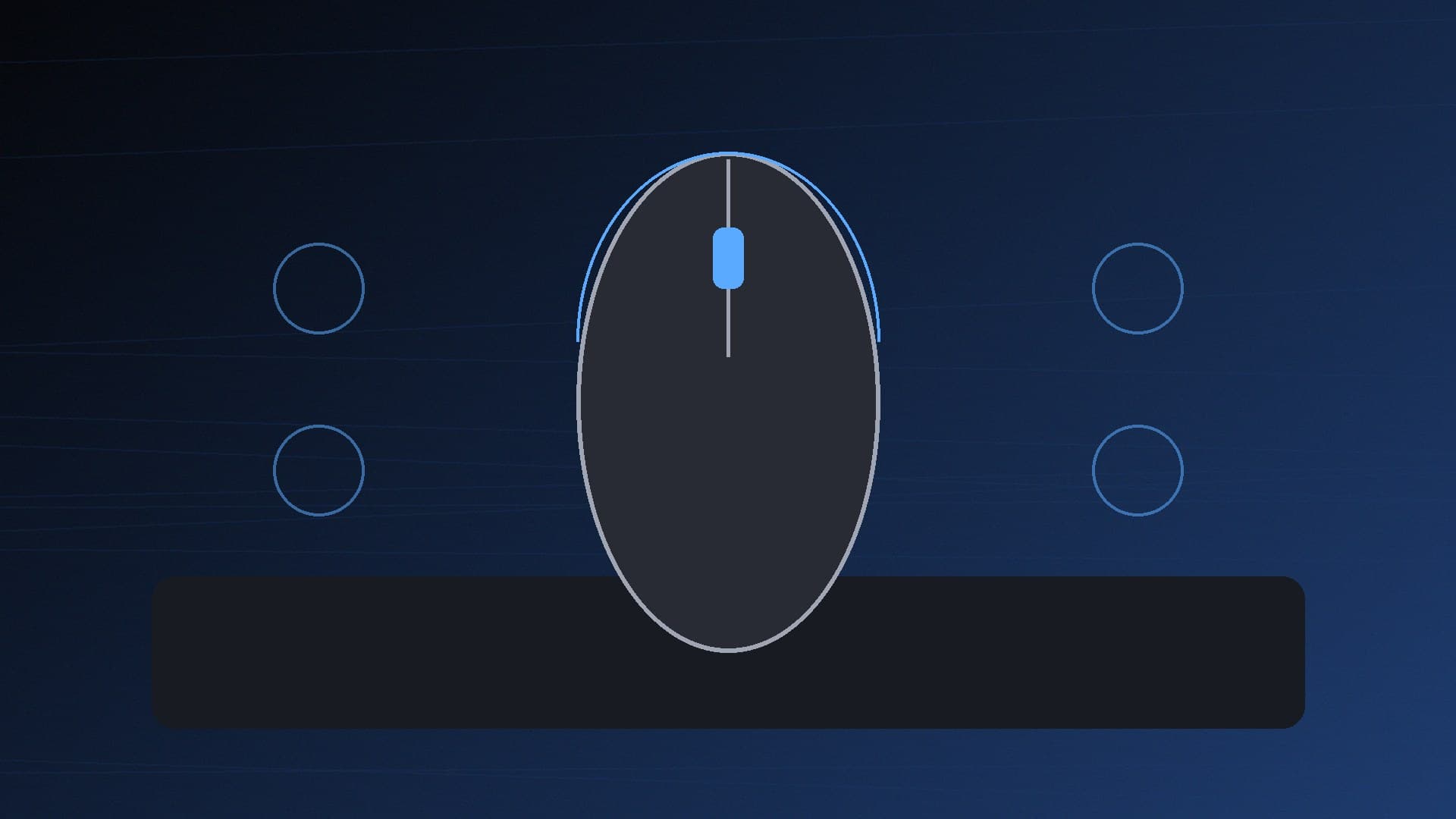
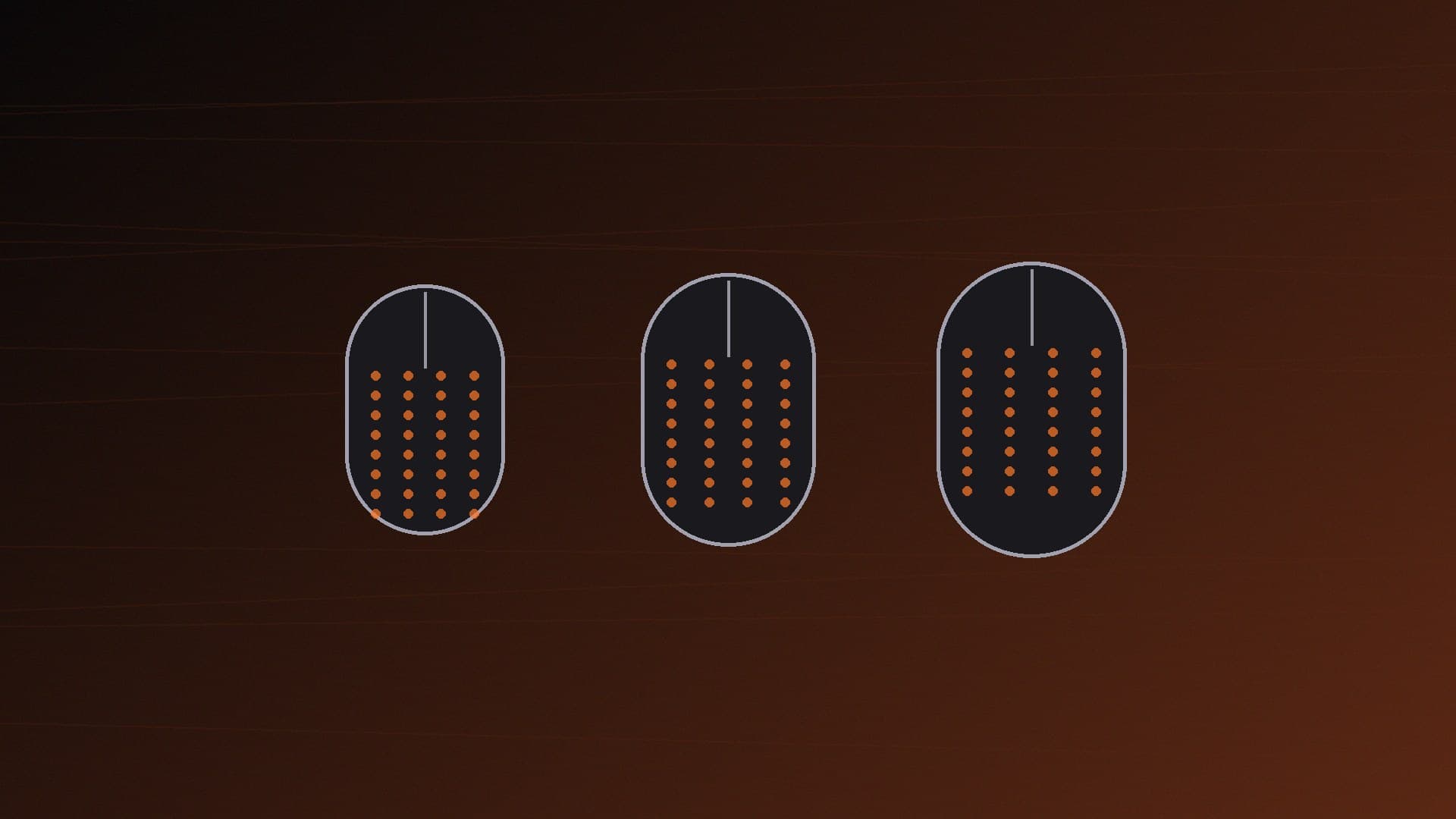
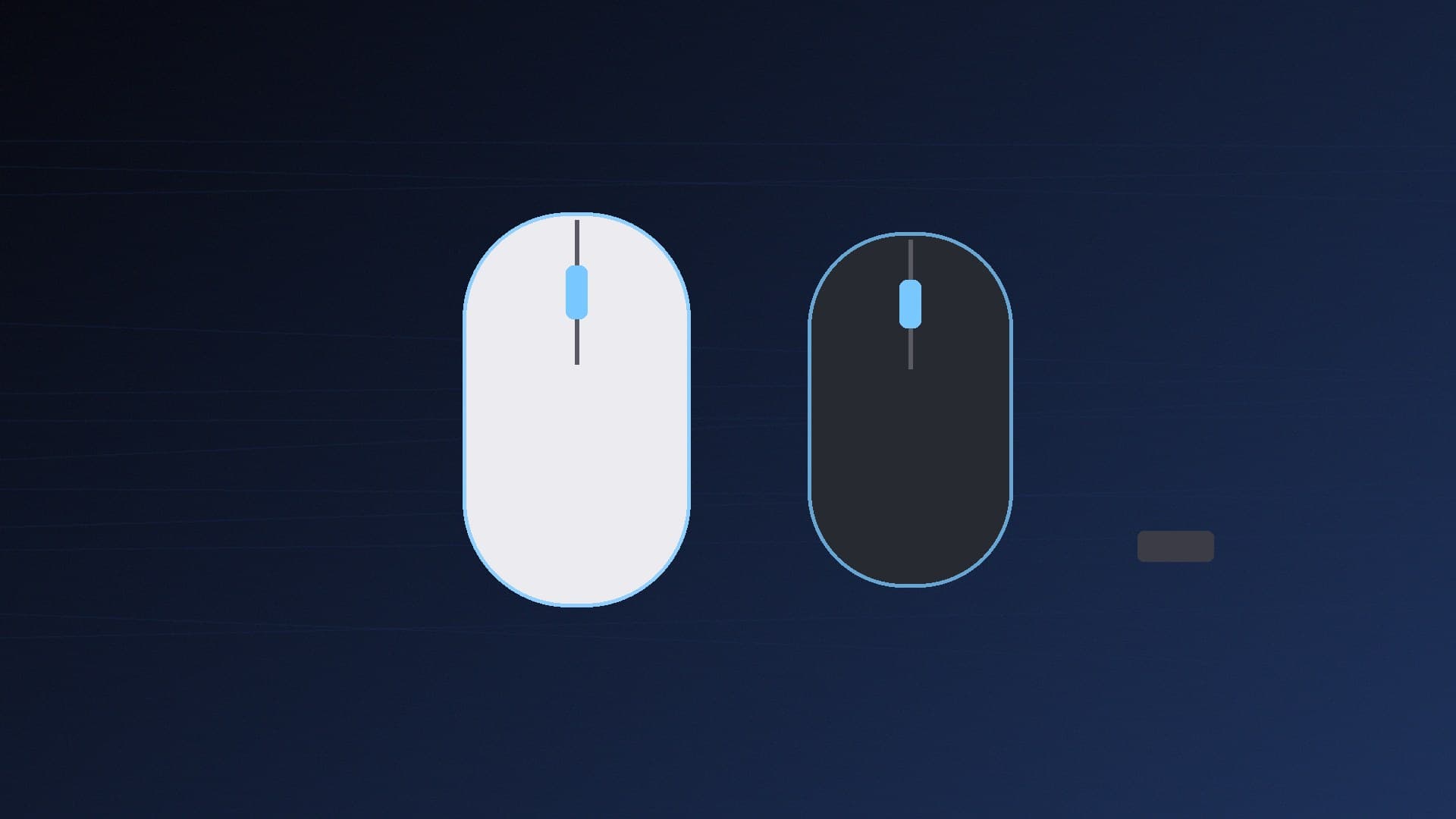
Shape matters more than any spec, because a mouse that doesn't fit your hand will be uncomfortable however good its sensor is. Most people hold a mouse in one of three ways:
Palm grip: your whole hand rests on the mouse. Larger, taller mice with a pronounced hump tend to suit this.
Claw grip: your palm touches the back of the mouse and your fingers arch. Medium-sized mice with a rear hump often work well.
Fingertip grip: only your fingertips touch the mouse. Smaller, lighter mice are usually easier to control this way.
Then decide between ergonomic shapes (sculpted for the right hand, often more comfortable for palm grip) and symmetrical shapes (the same on both sides). Manufacturers sometimes say which grip they designed for: Razer, for example, describes the Viper V3 Pro as a right-handed symmetrical shape best suited to claw and fingertip grip.
Measure your hand from wrist crease to fingertip and compare it with the mouse's length and width on the spec sheet, and if you can, try a shape in a shop before buying online. Left-handed? Our best left-handed mouse guide lists true left-handed and ambidextrous options. If you have wrist discomfort, see our best ergonomic mouse guide.
2. Decide how light you want it
Lighter mice are easier to flick and stop, which is why competitive shooter players favour them. Logitech describes the PRO X Superlight 2 as a 60g mouse, and Razer lists the Viper V3 Pro at 54 g. Heavier mice with more buttons, like many MMO and productivity mice, can feel more planted and suit slower-paced games.
There's no single right weight. If you play mostly fast shooters at low sensitivity, a light mouse makes sense; for strategy, MMOs and general use, comfort and buttons matter more than a few grams.
3. Wired or wireless?
Gaming-focused wireless mice use their own dedicated wireless connection through a USB receiver (Logitech calls its version LIGHTSPEED and says it's designed for tournament play), so wireless is now a realistic choice even for competitive players. The trade-offs are charging and price. Battery life varies widely: Razer quotes up to 95 hours for the Viper V3 Pro, and running a higher polling rate can shorten it. Wired mice are usually cheaper and never need charging.
We cover the pros and cons in detail in wired vs wireless gaming mouse, and our best wireless gaming mouse guide has picks.
4. Don't overpay for DPI
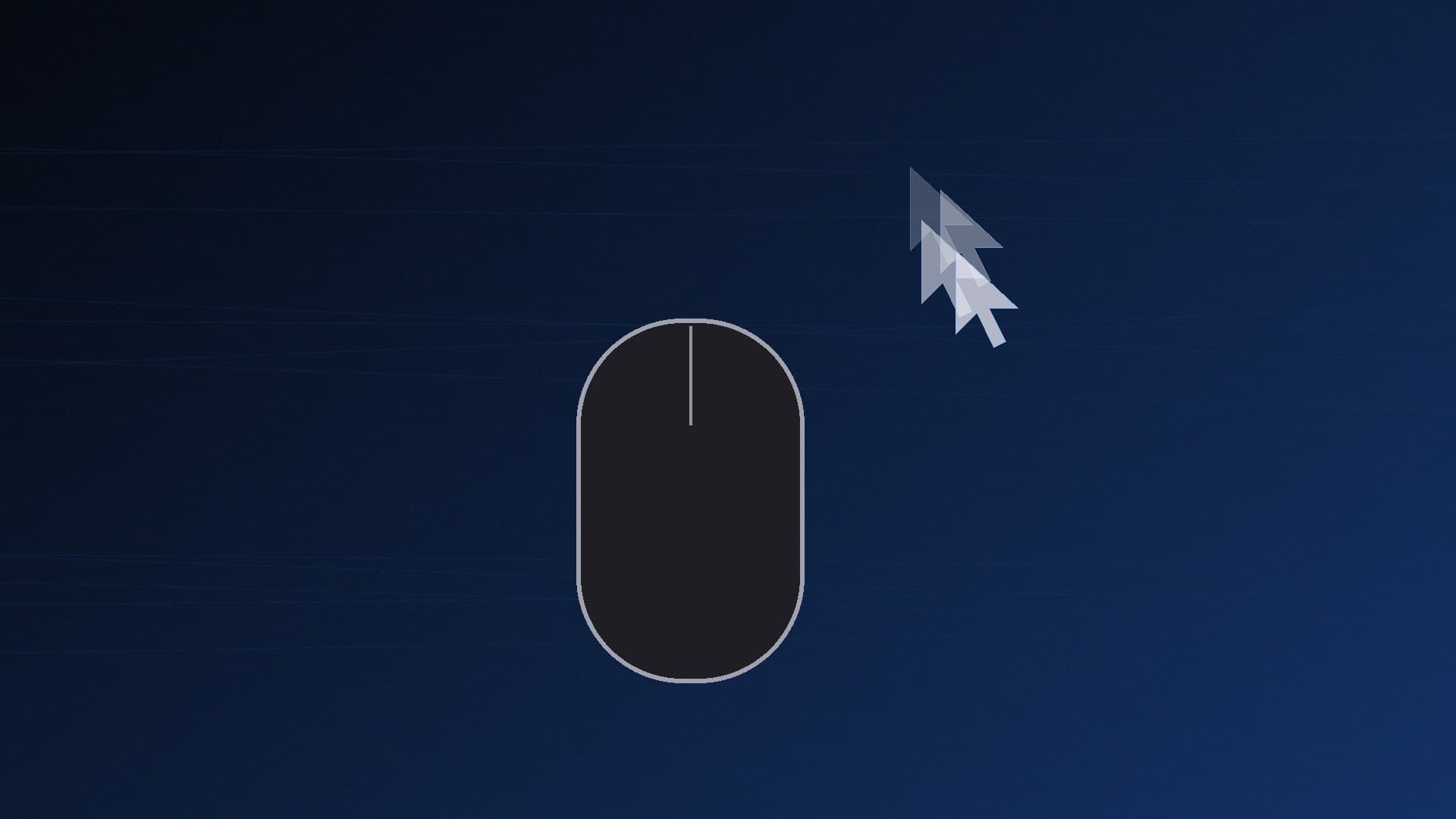
DPI (or CPI) is how far the cursor moves for each inch you move the mouse. Flagship sensors now advertise enormous maximums: Logitech says the PRO X Superlight 2's HERO 2 sensor supports up to 44,000 DPI, and Razer lists 35,000 DPI for the Viper V3 Pro. You're very unlikely to need anywhere near those maximums; most people settle on a far lower DPI and fine-tune with in-game sensitivity.
What matters more is that the sensor tracks reliably at the settings you use and that the software lets you set DPI in fine steps. Logitech highlights independent X and Y adjustment and adjustable lift-off distance on the PRO X Superlight 2, and Razer says the Viper V3 Pro lets you set lift-off and landing distances from up to 26 levels. Features like these are more useful in practice than a headline number. Our guide to changing mouse DPI and sensitivity shows how to find your setting.
5. Polling rate: nice to have, not essential
Polling rate is how often the mouse reports its position to the PC. Many gaming mice poll at 1,000 Hz; high-end mice now go much higher, with Logitech quoting up to 8 kHz on the PRO X Superlight 2 and Razer quoting 8000 Hz HyperPolling for the Viper V3 Pro. Higher rates can make motion smoother on high-refresh monitors, but they can add CPU load and, on wireless mice, reduce battery life. Our guide to changing mouse polling rate explains how to test whether it helps on your system.
Switches: mechanical switches have a familiar click but can develop double-clicking problems over time; optical switches are designed to avoid that failure. Some mice, like the PRO X Superlight 2, use what Logitech calls a hybrid optical-mechanical switch. See optical vs mechanical mouse switches.
Buttons: shooter mice usually have two side buttons; MMO mice can have a dozen. Only pay for what you'll use.
Feet: PTFE feet glide more smoothly, and they're replaceable when they wear; see our mouse skate replacement guide.
7. Software and onboard memory
Check whether the mouse needs its software running all the time or can store settings on the mouse itself. Onboard memory means your DPI and button settings follow you to another PC. Our guide to using onboard memory on Logitech G mice shows how that works on one popular range.
8. Set a budget
You don't need a flagship. A good budget mouse with a shape that suits you will serve most players well; flagship models mostly add lower weight, higher polling rates and longer battery life. Our best budget gaming mouse and best gaming mouse guides cover both ends, and don't forget a decent surface: see our best mouse pad guide. We haven't included prices because they're changing daily over Black Friday.
Example mice in our database
Our verdict
Choose shape first, weight second and everything else after. Work out your grip, find a shape and size that suits your hand, then decide how light you want the mouse and whether wireless is worth the extra cost to you.
Treat headline DPI and polling-rate figures as tie-breakers, not reasons to buy: any current gaming mouse from a major brand has more sensor than you need. Spend your money on the shape that fits, good software, and switches and feet you'll be happy with for years.