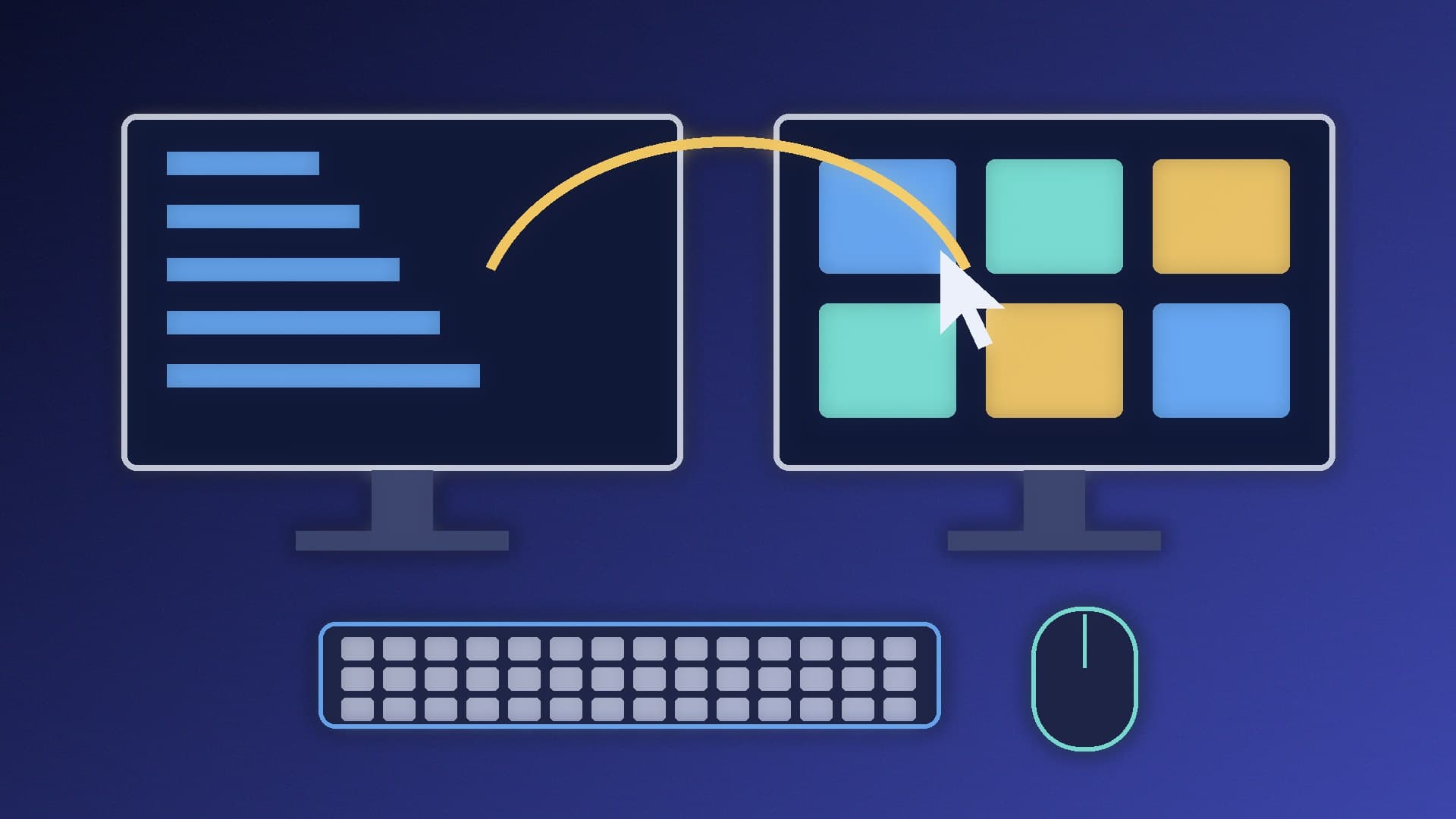
If you have a gaming PC and a work laptop, or a main rig plus a small home server, on the same desk, you don't need a second keyboard and mouse. Software KVM tools let you slide the pointer off the edge of one screen and onto the next computer, with your keyboard following along. Deskflow and Microsoft's Mouse Without Borders are two free options worth comparing. Deskflow is an open-source, cross-platform app, while Mouse Without Borders is part of PowerToys for Windows. It's based on Deskflow's GitHub project and release notes and Microsoft's PowerToys documentation and release notes, checked on 27 November 2026.
Neither app sends video. Each computer still needs its own monitor. If you want one monitor shared between two PCs, see our guide to connecting two PCs to one monitor or a hardware KVM such as those in our best TESmart KVM switch guide.
Quick comparison
| Deskflow | Mouse Without Borders |
|---|
Made by | Deskflow open-source project (sponsored by Synergy) | Microsoft, as part of PowerToys |
Price and licence | Free, GPL-2.0 (with an OpenSSL exception) | Free, PowerToys is MIT-licensed |
Operating systems | Windows 10 (1809 or later), macOS, Linux and FreeBSD | Windows 10 (2004 or later) and Windows 11 |
How many computers | No limit stated in its README | Up to four |
Clipboard sharing | Yes | Yes |
File transfer | Not listed as a feature | Single files up to 100MB via copy and paste or drag and drop |
Encryption and pairing | TLS encryption on by default | Shared security key between machines |
Works with other apps | Network-compatible with Input Leap, Barrier and Synergy 1 | Mouse Without Borders only |
Latest version | 1.27.0 (1 October 2026) | PowerToys 0.102.3101 (6 November 2026) |
Deskflow describes itself as a free, open-source keyboard and mouse sharing app. You use the keyboard, mouse or trackpad of one computer to control nearby computers, and its developers call it "like a software KVM (but without the video)". Its roots go back a long way. The project says it was first created as Synergy in 2001, and today the commercial Synergy app is a downstream fork that sponsors Deskflow with money and code.
Its biggest strength is platform support. Deskflow runs on Windows, macOS, Linux and FreeBSD, and supports Wayland, the display protocol designed to succeed the X Window System on Linux. That makes it the one to pick if your desk mixes a Windows gaming PC with a MacBook or a Linux machine. Clipboard sharing is built in, and the developers call it a cornerstone feature. TLS encryption is turned on by default, so traffic between your computers is encrypted.
It also plays nicely with older tools. According to the README, Deskflow is network-compatible with Input Leap and Barrier as either server or client, and it can work with Synergy 1. The newer Synergy 3 isn't compatible yet. So if you already have an old Barrier or Input Leap set-up, you don't have to switch every machine at once.
There are a few set-up quirks to know about. On Windows you need Microsoft's Visual C++ Redistributable installed first. Deskflow's macOS builds aren't notarised by Apple, so macOS reports the app as damaged until you clear its quarantine flag. The README gives the exact command, and you also need to give Deskflow Accessibility permission in Privacy & Security. Version 1.27.0, released on 1 October 2026, comes as an MSI installer or a portable ZIP for x64 and Arm64 Windows. The release notes list improved connection stability, clipboard support on Wayland, link-local connections and an option to run a command when the pointer enters or leaves a computer.
Mouse Without Borders: the easy Windows option
Mouse Without Borders is part of PowerToys, Microsoft's free collection of Windows utilities. If you already use PowerToys (see our Microsoft PowerToys guide), it's already listed in PowerToys Settings and just needs setting up. Microsoft says it lets you control up to four computers from one machine, share the clipboard and transfer files.
Set-up is simple. Open Mouse Without Borders in PowerToys Settings on the first PC and select New Key to generate a security key. On the second PC, enter that key and the first computer's name, then select Connect. You can then drag the devices around in the layout to match where the screens sit on your desk, either in a single row or a two-by-two grid.
It has some features Deskflow doesn't advertise. You can copy a file on one PC and paste it on another, or drag and drop it, although Microsoft lists limits: one file at a time, up to 100MB, no folders or multiple files (zip them first), and drag and drop doesn't work with network files. Keyboard shortcuts let you jump straight to a machine with Ctrl+Alt plus its number, or F1 to F4. You can lock every machine at once, or send the same input to all of them together. An optional service mode lets it control the lock screen and apps running as administrator on the other PCs. Microsoft warns that this adds security risk, so only turn it on if you need it.
For gamers, one setting stands out. Disable easy mouse when an application is in fullscreen stops the pointer from sliding onto another PC while a full-screen game is running on the host, and you can add exceptions for specific apps. You can also make switching require holding Shift or Ctrl, or block switching at screen corners.
Microsoft's own known issues include a keyboard that might not follow the mouse away from a focused full-screen Remote Desktop or virtual machine window, and an invisible pointer on a PC with no physical mouse attached. PowerToys 0.102.3101, released on 6 November 2026, fixed a pairing failure that could show an untrusted-signature error, so update both PCs before you start. If computers won't connect, Microsoft's checklist is the same network, the correct key and computer name, and a firewall rule. There's a button in Settings that adds the rule for you.
Which should you choose?
All your computers run Windows: Mouse Without Borders is the easier pick. It comes with PowerToys, pairs with a simple security key and adds file transfer and handy shortcuts.
You mix Windows with macOS or Linux: Deskflow is the only one of the two that works, and it supports Wayland.
You have more than four computers, or an existing Barrier, Input Leap or Synergy 1 set-up: Deskflow is the better fit.
You game on the main PC: either works. Mouse Without Borders' option to block switching while a full-screen app is running is a useful safeguard.
Our best free keyboard and mouse sharing software round-up also covers Input Leap and Barrier, and explains why Barrier isn't a good choice for new set-ups. If you want to see the other PC's screen rather than share your peripherals with it, look at our best free remote desktop software picks instead.
Our verdict
Mouse Without Borders is the best choice if every computer on your desk runs Windows. It comes free with PowerToys, pairs with a simple security key, controls up to four PCs and can move files up to 100MB as well as your clipboard. Deskflow is the one to use when your set-up includes a Mac or a Linux machine, when you need more than four computers, or when you already use Barrier, Input Leap or Synergy 1. It's open source, encrypts its traffic by default and works across every major desktop operating system. Neither shares video, so each PC still needs its own screen.