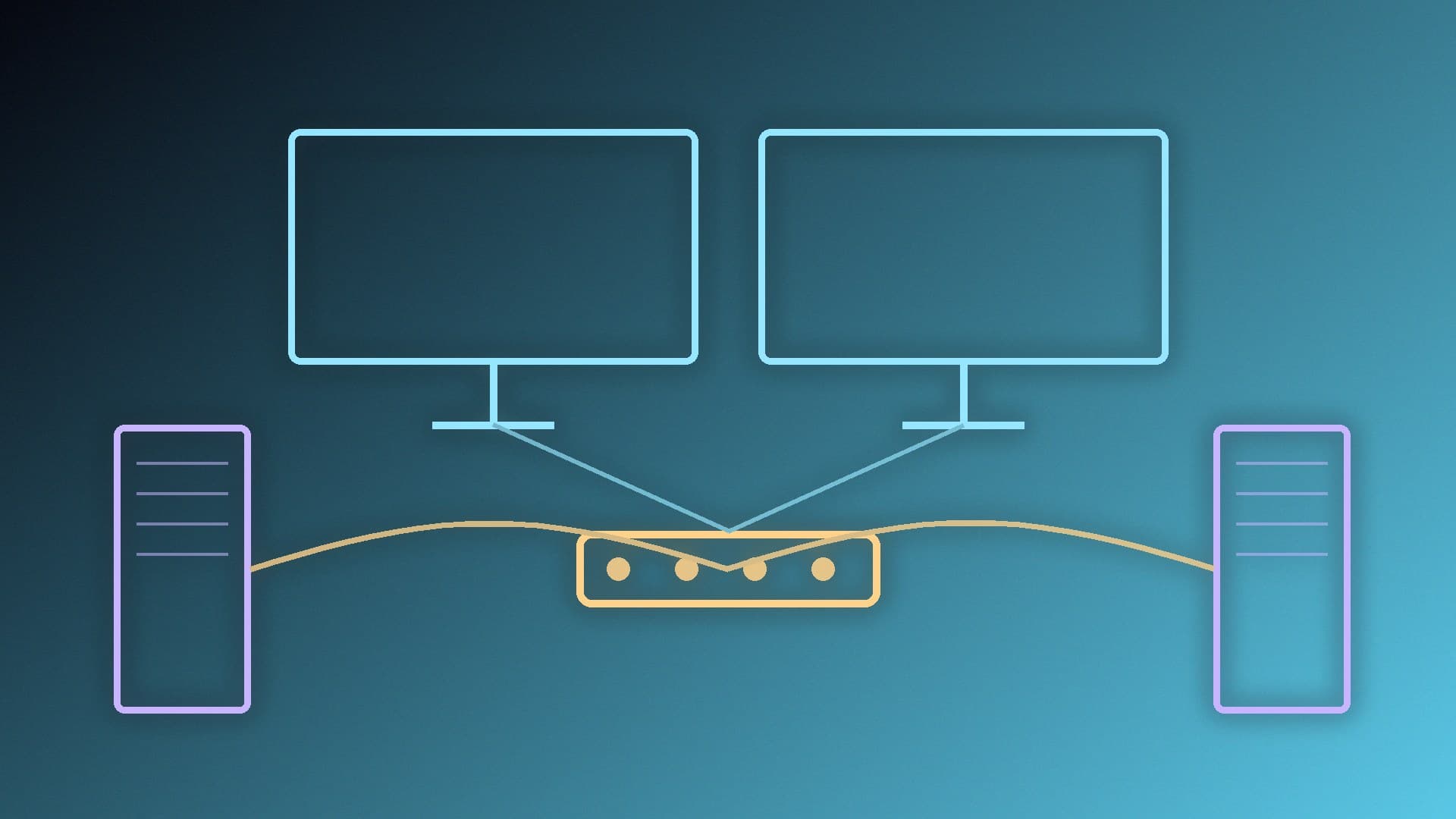
If you have a gaming PC and a work laptop, or a main rig and a home server, swapping cables every time you change machine gets old fast. A KVM (keyboard, video, mouse) switch fixes that. Your monitors, keyboard, mouse and often your USB devices plug into the switch, each computer connects to it, and a button, hotkey or remote moves everything across in one go.
TESmart makes a large range of KVM switches, and its own online store advertises free UK shipping. This guide picks five of its current models for different setups. Every spec here comes from TESmart's official product listings, checked on 23 November 2026. We haven't included prices because they change often. If you only want to share a keyboard and mouse between PCs that each keep their own monitor, free software may be enough. See our keyboard and mouse sharing software picks first.
What to check before you buy
Number of computers and monitors. For example, TESmart's HKS201-M24 handles 2 computers and 1 monitor, while the HKS202-M24 handles 2 computers and 2 monitors. Count the screens on your desk now, and the ones you might add.
Connection type. Match the switch to the outputs on your PCs and the inputs on your monitors. HDMI 2.1, DisplayPort 1.4 and USB-C models handle high refresh rates very differently.
Refresh rate at your resolution. A switch that says "8K" may only reach a high refresh rate at lower resolutions or with DSC compression. Look for your exact resolution and refresh rate in the supported modes list.
EDID emulation. Without it, a PC can "lose" its monitor when you switch away. Windows then rearranges your desktop or drops the resolution. All five picks here list EDID emulation.
Extras. These can include USB 3.0 ports for webcams and storage, shared Ethernet, and USB-C charging for a laptop.
Best for one monitor and a high refresh rate: TESmart HKS201-M24
The HKS201-M24 is a 2-computer, 1-monitor HDMI 2.1 switch. It suits most gamers who want to share a single fast monitor between a desktop and a second machine. TESmart lists support up to 7680×4320 at 60Hz (with DSC). Its supported modes include 3840×2160 at 240Hz and 5120×1440 at 120Hz (both with DSC), plus 3440×1440 at 144Hz, 2560×1440 at 240Hz and 1920×1080 at 240Hz. TESmart also lists VRR support.
It goes beyond a basic switch. TESmart lists EDID emulation, USB 3.0 for peripherals, audio switching (with an option to switch audio separately), a built-in 1000Mbps network connection, an adjustable fan and RGB lighting. It also has pass-through and legacy emulation modes, which TESmart says help with many mechanical and gaming keyboards. You can switch with hotkeys, the mouse wheel, the front buttons or an infrared remote.
Choose it if: you have one high-refresh monitor and two computers with HDMI 2.1 outputs.
Best for two monitors: TESmart HKS202-M24
The HKS202-M24 is the dual-monitor version of the idea: 2 computers and 2 monitors over HDMI 2.1. TESmart lists support up to 7680×4320 at 60Hz with 4:4:4 colour. Compatible modes include 3840×2160 at 60Hz, 2560×1440 at 120Hz, 3440×1440 at 100Hz and 1920×1080 at 240Hz. The product title also advertises dual 4K at 144Hz, VRR, ALLM and HDR. TESmart lists EDID emulation, a shared gigabit Ethernet connection for both computers, a front USB-C port for charging a phone, USB 3.0 and customisable RGB lighting. Switching works by shortcut keys, mouse, buttons or remote.
Choose it if: you run two screens and want both to follow you from one PC to the other.
Best for three DisplayPort monitors: TESmart DKS203-M24
Triple-monitor desks are where cheap switches struggle, and the DKS203-M24 is built for them. It connects 2 PCs to 3 displays over DisplayPort 1.4. TESmart lists 8K at 60Hz across three displays (using DP 1.4 with DSC 1.2a) and 4K at 144Hz for gaming. It also lists 12-bit colour, G-Sync, FreeSync, FEC and DSC support, and says it works with both NVIDIA and AMD graphics cards. There are two display modes (extended or split desktop), EDID emulation, hot-plugging and four ways to switch: hotkeys, mouse wheel, front button and IR remote.
Choose it if: your graphics cards and monitors use DisplayPort and you run three screens. Make sure each PC has three DisplayPort outputs free.
Best for a laptop plus a desktop: TESmart HDC202-P23
If one of your two machines is a laptop, a USB-C dock-style switch saves a pile of adapters. The HDC202-P23 supports 2 computers and 2 monitors through HDMI and DisplayPort outputs, with USB-C inputs that support MST for Windows laptops and MacBooks. TESmart lists 4K at 60Hz with 4:4:4 colour, 2560×1440 at 120Hz and 1080p at 240Hz. It also lists up to 36W of USB-C charging, 100Mbps Ethernet and EDID emulation.
TESmart's notes add some important caveats. Laptops without 20V DC charging may only get 7.5W, and some ThinkPad models (Yoga and T-series) may not support 36W. MacBooks with M1, M2 or M3 chips natively support only one extended display. The 4K limit is 60Hz, so this is a productivity pick rather than a high-refresh gaming one.
Choose it if: you dock a work laptop next to a desktop and mainly need 4K at 60Hz.
Best for four computers: TESmart HKS401-M23
Home lab owners and multi-console gamers may need more than two inputs. The HKS401-M23 has four HDMI 2.1 inputs and one output, so it connects 4 computers (or consoles) to 1 monitor. The listing advertises 8K at 60Hz and 4K at 144Hz in its title, lists HDR10 and Dolby Vision, and lists modes including 2560×1440 at 120Hz, 3440×1440 at 100Hz and 1920×1080 at 240Hz. It has a shared USB 3.0 hub with two ports for peripherals such as a webcam or game controller. The front USB 3.0 port supports 7.5W (5V 1.5A) charging. TESmart pitches it at people with several machines who don't use them heavily in parallel.
One caution: parts of the listing contradict each other. The description also says "up to 3840x2160 at 60Hz" with 4:4:4 colour. Check TESmart's support pages or ask TESmart about your exact resolution and refresh rate before you buy.
Choose it if: you switch between three or four machines on one screen.
Tips for a trouble-free setup
Use good-quality, certified cables that match the switch's rating. HDMI 2.1 and DisplayPort 1.4 high-refresh modes need cables rated for the bandwidth.
Plug gaming mice and keyboards into the port the manual recommends. TESmart's pass-through and emulation modes exist because some gaming peripherals behave differently through a switch.
If you'd rather run a single cable to a laptop, a Thunderbolt dock may be a better fit. See our Thunderbolt 5 dock picks. For other ways to share one screen, see how to connect two PCs to one monitor.
Our verdict
For most gamers sharing one fast monitor between two PCs, the HKS201-M24 is the pick: HDMI 2.1, VRR, high-refresh modes up to 240Hz and EDID emulation. Two-screen desks should look at the HKS202-M24, and triple-DisplayPort setups at the DKS203-M24. For a laptop and a desktop, the HDC202-P23 adds USB-C with charging, but it's limited to 4K at 60Hz. Whichever you choose, check your exact resolution and refresh rate against TESmart's supported modes list before you buy.