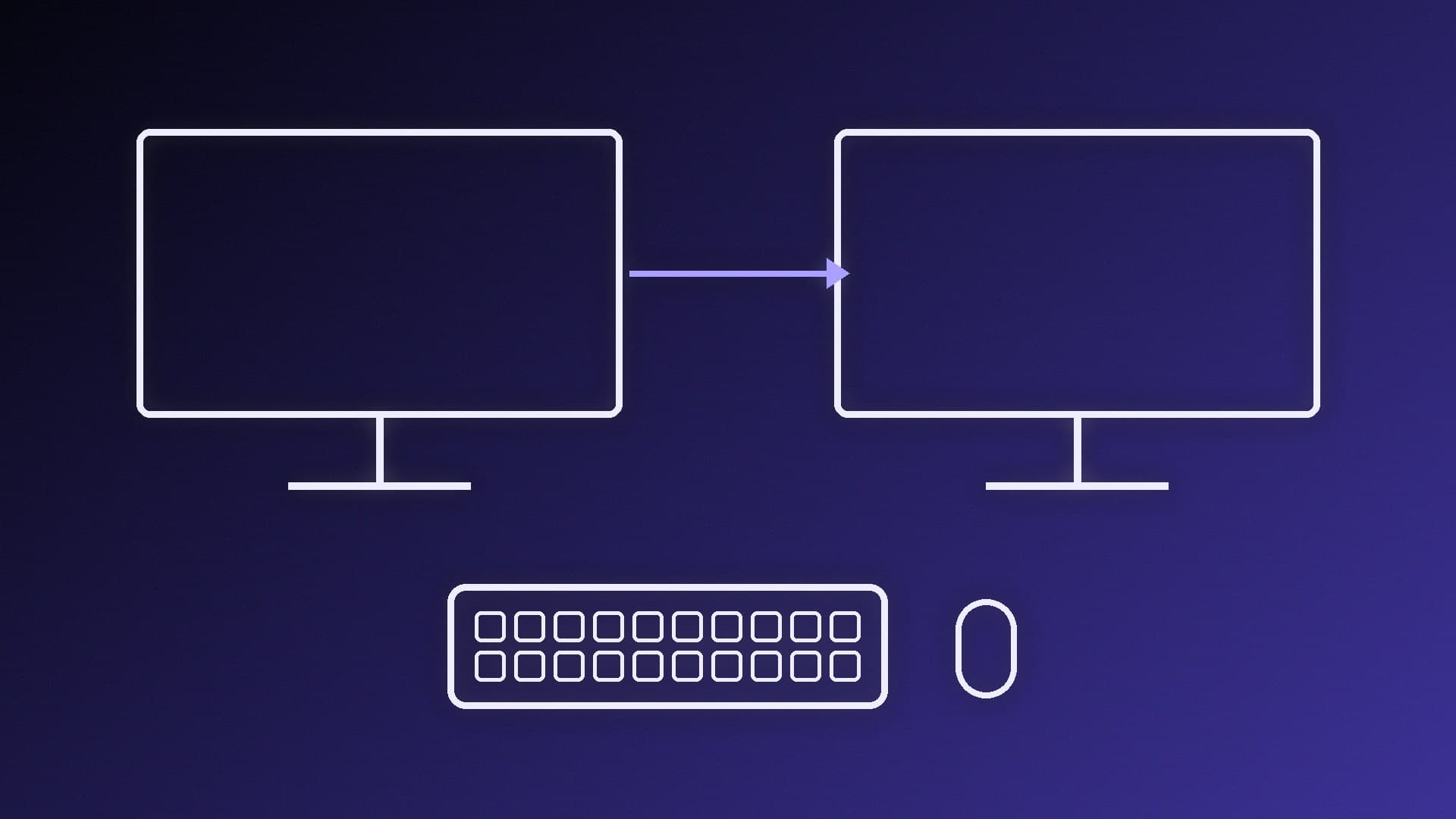
If you have a gaming PC and a work laptop on the same desk, or a second PC running a stream or a home server, juggling two keyboards and mice gets old quickly. Software "KVM" tools fix that: move your cursor off the edge of one screen and it appears on the next computer, with your keyboard following. Unlike a hardware KVM switch, they work over your network and don't switch monitors, so each computer keeps its own display.
Quick picks
App | Best for | Platforms (per the project) | Clipboard | Status |
|---|
Deskflow | Most people, mixed Windows/Mac/Linux | Windows, macOS, Linux, FreeBSD | Yes | Actively developed |
Mouse Without Borders (PowerToys) | Windows-only setups | Windows (part of PowerToys) | Yes, plus file transfer | Part of PowerToys |
Input Leap | Existing users | Windows, macOS, Linux, BSD | Yes (not Linux/Wayland) | Described as inactive by Deskflow |
Barrier | Not recommended for new setups | Windows, macOS, Linux | Yes | Considered unmaintained |
Deskflow: best overall
Deskflow describes itself as a free and open source keyboard and mouse sharing app: "like a software KVM (but without the video)". It's licensed under GPL-2.0, and its documentation lists support for Windows, macOS, Linux and BSD-derived systems, with Windows 10 v1809 or later required on Windows. TLS encryption is on by default, clipboard sharing is supported, and the project says Wayland is supported on Linux.
Deskflow is also the upstream project for Synergy, which the Deskflow page describes as a downstream commercial fork that sponsors Deskflow and contributes code. Synergy is the commercial version. Deskflow also says it has network compatibility with Synergy, Input Leap and Barrier (from Deskflow v1.17.0.96), so it can work alongside a machine still running one of those.
On Windows, Deskflow's download page notes you'll need the Microsoft Visual C++ Redistributable installed.
Mouse Without Borders: best for Windows-only setups
If every machine runs Windows, Microsoft's Mouse Without Borders is the simplest choice. It's built into PowerToys, Microsoft's free set of Windows utilities, and Microsoft says it lets you control up to four computers from the same machine. You can share the clipboard and transfer files between them.
Setup is done in PowerToys Settings: generate a security key on the first computer, then enter that key and the first computer's name on the second. Once connected, you move between machines by pushing the cursor past the edge of the screen, and you can rearrange the layout by dragging the device icons.
Two settings matter for gamers. Easy Mouse controls whether the cursor switches machines at the screen edge, and Microsoft offers an option to disable it when an application is running full screen, so you don't slide off your game mid-match. There's also a shortcut to toggle Easy Mouse. A service mode lets you control the lock screen and elevated apps on other machines; Microsoft notes this brings additional security risks, so only use it if you need it.
Input Leap started as a fork of Barrier by Barrier's active maintainers. Its documentation lists Windows 10 and 11, macOS 10.12 and newer, Linux, FreeBSD and OpenBSD. You install it on every machine, make the computer with the keyboard and mouse the server, arrange the client screens on a grid and connect the clients by IP address. Clipboard sharing is supported except on Linux with Wayland, and the project notes that an active Scroll Lock stops the mouse switching screens.
However, Deskflow's page describes Input Leap as inactive. If you're starting fresh, Deskflow is the safer choice.
Barrier: not recommended for new setups
Barrier was forked from Synergy 1.9 and once filled the same role. Input Leap's documentation says Barrier is considered unmaintained, so we don't recommend it for new installs. If you already run it, Deskflow can talk to Barrier machines while you switch over.
Tips for gaming PCs
Our verdict
Deskflow is our pick for most people: it's free and open source, actively developed, covers Windows, macOS, Linux and BSD, encrypts traffic by default and can work alongside Synergy, Input Leap and Barrier. If every machine runs Windows, Microsoft's Mouse Without Borders in PowerToys is the easiest option, with clipboard sharing, file transfer and up to four computers. Avoid starting new setups on Barrier, which is considered unmaintained.