Skip to content

VersusGPU

DirectML vs Windows ML: Which Matters for Local AI on Windows?

DirectML vs Windows ML explained from Microsoft's documentation: DirectML is the low-level DirectX 12 GPU API now in maintenance, while Windows ML is the ONNX Runtime-based framework that reaches NPUs, GPUs and CPUs through Windows-managed execution providers on Windows 11 24H2.

By , Senior Hardware Editor

3 min read

DirectML vs Windows ML: Which Matters for Local AI on Windows?

If you run local AI apps on a Windows PC, you'll see two Microsoft names come up: DirectML and Windows ML. They're related, but Microsoft has changed which one it's focusing on. This explainer sets out what each is, how they use your hardware and what the change means for you. It's based on Microsoft's documentation.

The short version

DirectML

Windows ML

What it is

A low-level, DirectX 12-style API for machine learning

Microsoft's local AI inferencing framework for Windows, built on ONNX Runtime

Hardware

Any DirectX 12-compatible GPU

NPUs, GPUs and CPUs, through execution providers

Who uses it directly

Developers wanting fine control, such as game engines

App developers wanting the best hardware chosen automatically

Status

Still supported, but new feature development has moved to Windows ML

Where Microsoft says new development is happening

What DirectML is

Microsoft describes DirectML as a low-level hardware abstraction layer that lets you run machine learning workloads on any DirectX 12-compatible GPU. It arrived in Windows 10 version 1903. Developers can call it directly, in the style of Direct3D 12, or use it indirectly through ONNX Runtime, where DirectML is one execution provider alongside others such as CPU, CUDA and TensorRT.

Microsoft says DirectML's operators give developers a single, vendor-agnostic interface. Its DirectML page now notes that DirectML continues to be supported, but new feature development has moved to Windows ML for Windows-based ONNX Runtime deployments. Some apps are reacting: we covered ComfyUI dropping DirectML support.

What Windows ML is

Microsoft calls Windows ML the unified local AI inferencing framework for Windows. It's the Windows-supported and maintained copy of ONNX Runtime, so apps written for ONNX Runtime can use it. The key difference for PC owners is hardware access: Windows ML can reach NPUs, GPUs and CPUs through execution providers that Windows installs and keeps up to date, so an app doesn't have to bundle a separate build for each chip maker.
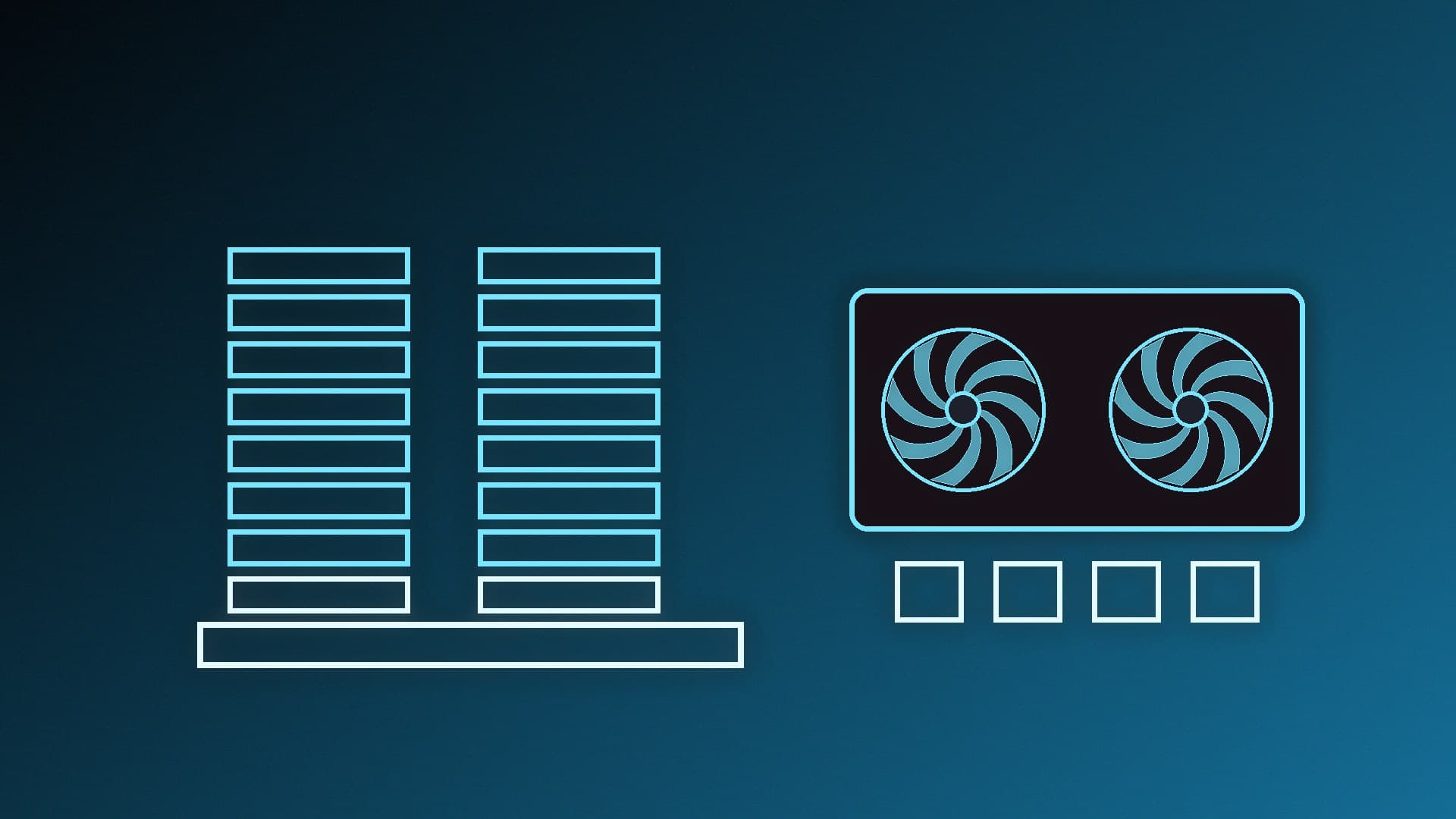
Microsoft describes the three hardware classes this way:

  • NPU: battery-efficient, sustained on-device inference, with the most powerful NPUs on Copilot+ PCs.

  • GPU: high-throughput work such as image, video and generative AI, generally fastest on discrete GPUs.

  • CPU: a universal fallback, with chip-maker optimisations.

Microsoft says CPU and GPU support (via DirectML) is available on all supported Windows versions, while hardware-optimised execution providers for NPUs and specific GPUs need Windows 11 version 24H2 (build 26100) or later. It also claims Windows ML performance on NPUs and GPUs is on par with dedicated SDKs such as TensorRT for RTX; that is Microsoft's claim and results vary by hardware and model.

What it means for your PC

  • Keep Windows 11 up to date. The NPU and GPU-specific acceleration needs 24H2 or later.

  • NPU owners benefit most. If you have a Copilot+ PC, Windows ML is the route for apps to use the NPU; see what an NPU is and NPU vs GPU for local AI.

  • You don't choose between them. App developers decide; you'll mostly notice it in an app's settings or release notes, and you can check NPU usage in Task Manager to see what's being used.

Our verdict

DirectML is the older, low-level GPU route that made vendor-neutral AI acceleration possible on Windows; it's still supported but no longer where Microsoft is adding features. Windows ML is the newer framework built on ONNX Runtime that can use your NPU, GPU or CPU through Windows-managed execution providers. For PC owners, the practical takeaway is to stay on Windows 11 24H2 or later and expect AI apps to move towards Windows ML over time.

The bottom line

DirectML is the older, low-level GPU route that made vendor-neutral AI acceleration possible on Windows; it's still supported but no longer where Microsoft is adding features. Windows ML is the newer framework built on ONNX Runtime that can use your NPU, GPU or CPU through Windows-managed execution providers. For PC owners, the practical takeaway is to stay on Windows 11 24H2 or later and expect AI apps to move towards Windows ML over time.

Sources

  1. 01Microsoft Learn, What is Windows ML?
  2. 02Microsoft Learn, Introduction to DirectML

About the author

Callum Reid

Senior Hardware Editor

Callum leads GPU, CPU and platform architecture coverage at Forge PC. Before joining the editorial desk, he spent nine years specifying, assembling and stress-testing custom gaming and workstation systems in the UK, with a focus on PCIe bandwidth, VRM thermal design, DDR5 memory tuning and 1440p/4K frame-time consistency.

More from Callum Reid

Read next

HBM vs GDDR7: Why AI GPUs Use Different Memory

Versus

HBM vs GDDR7: Why AI GPUs Use Different Memory

HBM vs GDDR7 compared on Micron, Samsung, AMD and NVIDIA specs: HBM stacks DRAM dies with through-silicon vias for over 1TB/s per stack (HBM3E) and around 3TB/s (HBM4), while GDDR7 uses PAM3 signalling on individual chips in consumer cards like the RTX 5090.

Callum Reid3 min

How to Use AMD HYPR-RX for One-Click Performance

How-To

How to Use AMD HYPR-RX for One-Click Performance

How to use AMD HYPR-RX and HYPR-RX Eco in AMD Software: Adrenalin Edition: the AFMF 2, RSR, Anti-Lag and Boost features it switches on, the extra FSR settings in HYPR-Tune games, and AMD's requirement of a Radeon RX 7000 Series GPU or newer.

Marcus Thorne2 min

How to Work Out What Wattage PSU You Need

How-To

How to Work Out What Wattage PSU You Need

How to work out what wattage power supply you need: start with your graphics card maker's required system power figure, run your parts through a be quiet!, Seasonic or Cooler Master calculator, add headroom for the 50-80% efficiency sweet spot and check connectors.

Marcus Thorne3 min

How to Fix USB-C Warnings and Problems in Windows 11

How-To

How to Fix USB-C Warnings and Problems in Windows 11

What Windows 11's USB-C notifications mean and how to fix them, following Microsoft's guidance: USB4 and Thunderbolt functionality might be limited, Slow charger, Display connection might be limited, and finding a USB device's error code in Device Manager.

Marcus Thorne3 min