Windows 10 support ended on 14 October 2025, so if you're still running it, the first question is whether your PC can move to Windows 11 at all. Microsoft's free PC Health Check app gives you a yes or no and tells you why. A failed check doesn't always mean you need new hardware, though: on many self-built PCs, the problem is a setting in the BIOS rather than a missing part. This guide is based on Microsoft's official support and requirements pages, checked on 27 November 2026. Menu names in your BIOS will vary by motherboard maker.
Windows 11's minimum hardware requirements
Microsoft lists these minimum requirements for installing or upgrading to Windows 11:
Part | Minimum requirement |
|---|
Processor | 1GHz or faster with two or more cores on a compatible 64-bit processor or system on a chip (SoC) |
Memory | 4GB or more |
Storage | 64GB or more available disk space |
Graphics card | Compatible with DirectX 12 or later, with a WDDM 2.0 driver |
System firmware | UEFI, Secure Boot capable |
TPM | Trusted Platform Module (TPM) version 2.0 |
Display | High definition (720p) display, 9" or greater monitor, 8 bits per colour channel |
Internet | Needed for updates and some features; Windows 11 Home needs an internet connection and a Microsoft account to complete setup on first use |
Microsoft also notes there might be more storage requirements over time for updates and to enable specific features. If you don't know what's in your PC, our guide to checking your PC specs in Windows 11 works on Windows 10 too, and CPU-Z will show your exact processor model.
Step 1: Open or install PC Health Check
Use Search on the taskbar to search for PC Health Check, then select it from the results.
If it isn't installed, Microsoft says you can get it from aka.ms/GetPCHealthCheckApp and follow the prompts to download and install it.
If the app offers an update, install it so you're checking against the latest version.
Step 2: Run the eligibility check
In PC Health Check, find the Windows 11 section and select Check now.
Read the result. Microsoft says you'll get info on why your device is or isn't eligible, plus info on what you can do if it doesn't meet the requirements.
Two things the result won't tell you. First, Microsoft's Windows 11 specifications page says PC Health Check doesn't check the graphics card or display, "as most compatible devices will meet those requirements". Second, even an eligible PC may not be offered the upgrade straight away: Microsoft says that if a compatibility issue is found that would disrupt your experience, it will temporarily delay the upgrade until the issue is resolved. Microsoft calls these compatibility safeguard holds, and says they help when critical apps or drivers are not yet compatible.
Step 3: If it fails on TPM 2.0
This is one of the most common failures on home-built PCs, and it's often easy to fix. Microsoft says most PCs shipped in the last five years are capable of running TPM 2.0, and that "most retail PC motherboards used by people building their own PC" ship with TPM turned off by default, even though it can almost always be enabled.
To check your TPM in Windows:
Press Windows key + R, type tpm.msc and choose OK.
If you see "Compatible TPM cannot be found", your TPM may simply be disabled.
If it says the TPM is ready to use, check Specification Version under TPM Manufacturer Information. It needs to be 2.0.
Alternatively, open Windows Security > Device Security. If there's no Security processor section, the TPM may be disabled; if there is, select Security processor details and check the specification version.
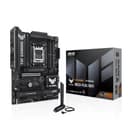
To turn it on, you need your PC's UEFI BIOS. On Windows 10, go to Settings > Update & Security > Recovery > Restart now, then choose Troubleshoot > Advanced options > UEFI Firmware Settings > Restart. Microsoft says the TPM setting is sometimes in a sub-menu labelled Advanced, Security or Trusted Computing, and the option itself may be called Security Device, Security Device Support, TPM State, AMD fTPM switch, AMD PSP fTPM, Intel PTT or Intel Platform Trust Technology. So on an AMD board such as the ASUS AM5 TUF Gaming B850-Plus WiFi, look for an fTPM option; on Intel boards, look for PTT.
Our step-by-step guide to enabling Secure Boot and TPM covers the BIOS side in more detail. Our advice: change one setting at a time, save and exit, then run PC Health Check again.
Step 4: If it fails on Secure Boot or UEFI
Windows 11 needs firmware that is UEFI and Secure Boot capable. If your PC is set to boot in legacy or CSM mode, the check can fail even on a modern motherboard. Our tip: don't just flip your BIOS from legacy to UEFI on a working Windows install. Read MBR vs GPT first and, if your system drive uses MBR, follow how to convert MBR to GPT in Windows 11 before changing the boot mode. Updating the BIOS can also help on older boards; see how to update your BIOS safely, and check your BIOS version first.
Step 5: If it fails on the processor
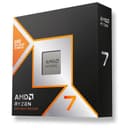
If the app says your processor isn't supported, there's no BIOS setting that fixes it. Microsoft publishes lists of supported AMD and Intel processors. Note how Microsoft describes them: the lists represent processor models that meet the minimum floor for the supported generations, they're aimed at manufacturers building new Windows 11 devices, and later generations that meet the same principles "will be considered as supported, even if not explicitly listed". A current desktop chip such as the AMD Ryzen 7 9800X3D is the kind of newer CPU that may not appear by name for that reason, so trust the PC Health Check result over a manual search of the list.
If your CPU genuinely isn't supported, the choice is between a platform upgrade and staying on Windows 10, which no longer gets free security updates. Our explainer on Windows 10 security updates (ESU) covers the paid route.
Other useful checks in PC Health Check
Microsoft's support page says the app also shows Windows Update status (with an Open Windows Update button), how full your main drive is (with Manage storage settings to turn on Storage Sense), your startup time (with Manage your startup programs), battery capacity on laptops, and options to back up and sync settings with a Microsoft account and OneDrive.
Once you pass
When PC Health Check gives you the all-clear, you can upgrade through Windows Update, or make a USB installer with our guide to creating a Windows 11 installation USB if you'd prefer a clean install. Back up your files first whichever route you take.
Our verdict
Install PC Health Check, select Check now and read why your PC passes or fails. A TPM or Secure Boot failure on a self-built PC is usually a BIOS setting rather than missing hardware: enable fTPM or PTT, and check your drive is GPT before switching to UEFI. A processor failure can't be fixed in the BIOS, so that means a platform upgrade or staying on unsupported Windows 10.