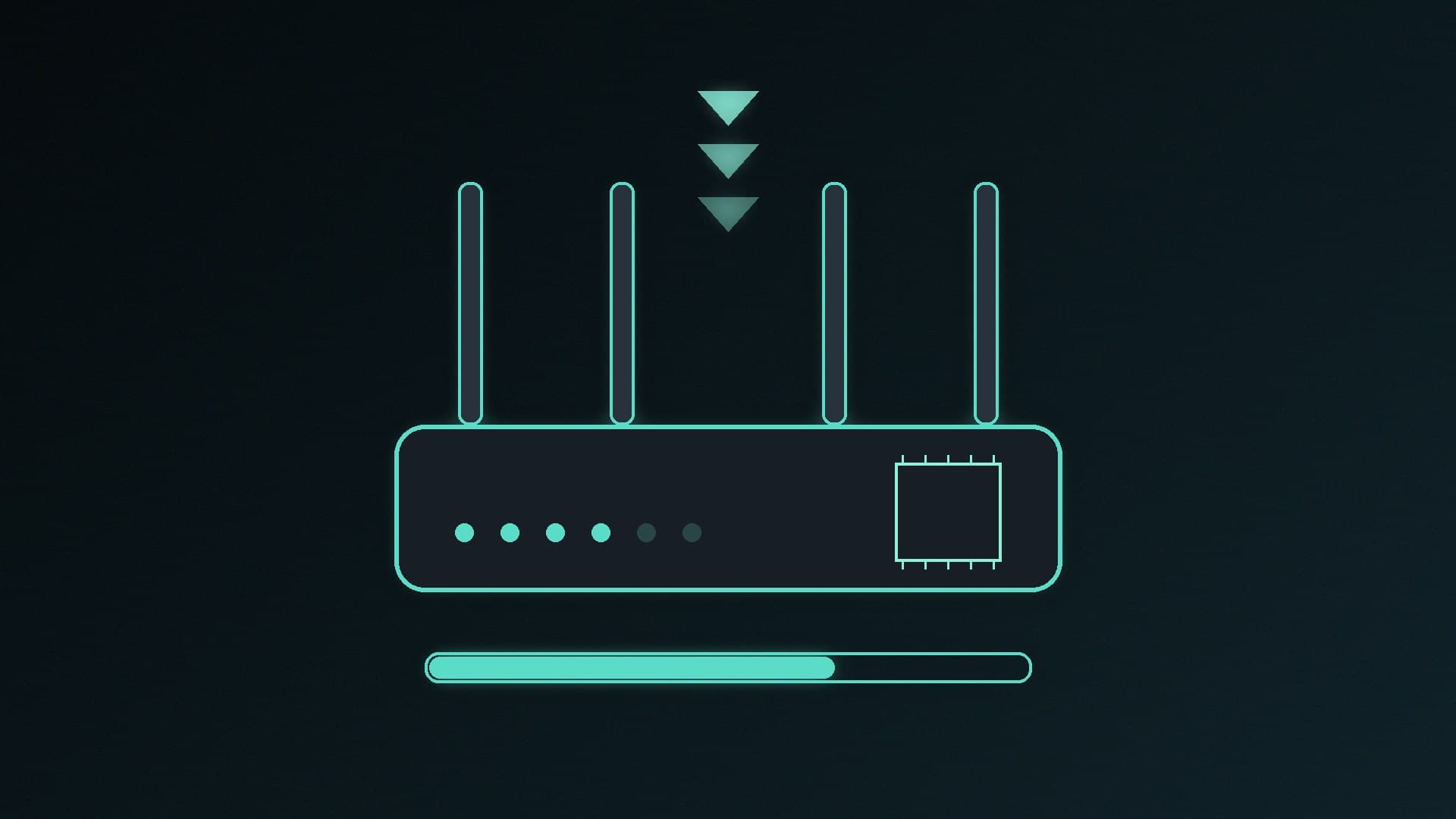
Your router sits between every device in your home and the internet, yet it's often the one piece of kit nobody updates. ASUS says to update firmware regularly to get the latest updates for your router, and both ASUS and TP-Link offer automatic updates on supported models. This guide explains how to update safely, using ASUS's and TP-Link's official instructions as worked examples, plus what UK product security law requires makers to tell you.
Before you start
A few checks prevent most problems:
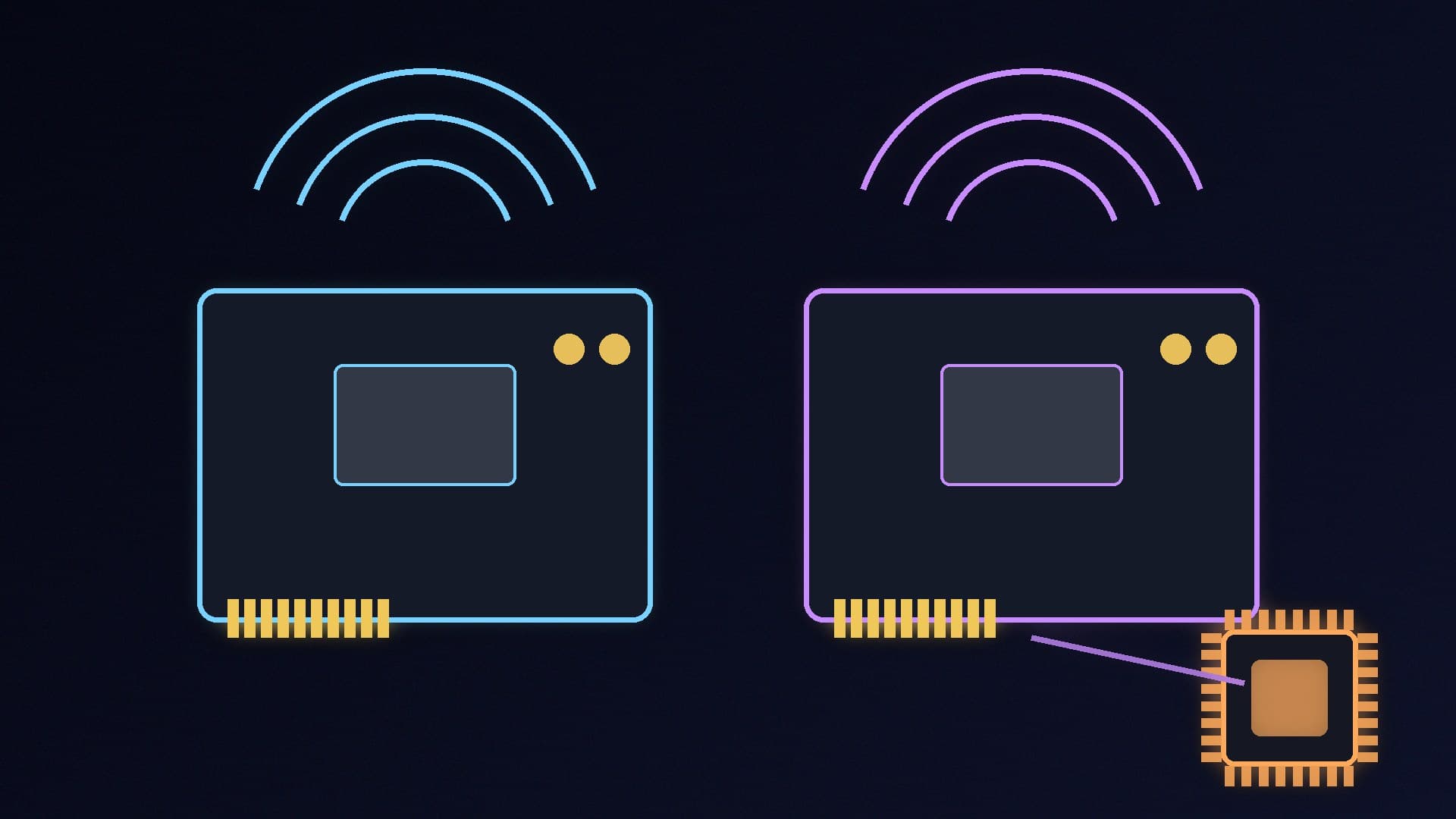
Find your exact model and hardware version. TP-Link warns that using the wrong firmware file "can damage the device and void the warranty". On TP-Link routers, the hardware version is printed on the label underneath as "Ver: X.Y" and shown at the bottom of the web management page.
Download firmware only from the maker's site for your region. TP-Link says EU and US firmware files "are different and are not interchangeable", and that you should use the official site for the country where you bought the router.
Back up your settings. TP-Link recommends backing up the configuration, or writing down any settings you've changed, so you can restore them afterwards. On TP-Link routers, that's under Advanced > System > Backup & Restore.
Use a wired connection for manual updates. TP-Link says not to upgrade over Wi-Fi unless the device has no Ethernet port.
Pick a quiet time. The router will restart and your internet will drop during the update. ASUS recommends scheduling automatic updates for a time when you're not using the network.
If your router was supplied by your broadband provider, check the provider's help pages first to see how updates work for that model; the steps below are for ASUS and TP-Link routers.
Option 1: Turn on automatic updates
This is the easiest option, and the one most people should use if their router supports it.
ASUS: sign in to the router's web interface (ASUS uses http://www.asusrouter.com or the router's LAN IP address), go to Administration > Firmware Upgrade, enable Auto Firmware Upgrade and choose an upgrade time. ASUS also notes that when a new firmware version contains important fixes, it can become the required version for that model and the router will upgrade to it automatically. ASUS recommends its Router app for updates as well.
TP-Link: routers that support TP-Link Cloud can update online. TP-Link's instructions are to log in at http://tplinkwifi.net, click the Update icon in the top-right corner when it appears, and then click Upgrade. In the Tether app, it's More > System > Firmware Update. TP-Link has a Cloud compatibility list to check whether your model supports this.
Option 2: Update from the web page or app
If you'd rather control when updates happen, check manually:
Connect a computer to the router, preferably with an Ethernet cable.
Open the router's web interface and sign in.
Look for a firmware or update notice. On ASUS routers, a pop-up appears in the top-right corner when new firmware is available; click Update now, then Firmware Upgrade. On TP-Link Cloud routers, use the Update icon.
Read the release notes. TP-Link specifically advises checking them, because if an update mentions a reset, your settings will return to factory defaults and you'll need to set the router up again.
Start the update and wait. Don't switch off the router or unplug cables until it has restarted.
Option 3: Install a firmware file manually
You need this method if the router can't reach the maker's update server, or if it doesn't support online updates. ASUS also recommends a manual update if you haven't updated for a while.
Download the firmware for your exact model (and, for TP-Link, hardware version and region) from the maker's support site, then unzip it.
Sign in to the router over a wired connection.
On ASUS routers, go to Administration > Firmware Upgrade and click Upload. On TP-Link routers, go to Advanced > System > Firmware Upgrade, click Browse and select the extracted file (usually a .bin file).
Confirm and wait. TP-Link says its routers reboot automatically and to allow about three minutes.
Sign back in and check the firmware version shown matches the one you downloaded.
After the update
Check that your devices reconnect and that any custom settings, such as port forwarding or the QoS rules from our router QoS for gaming guide, are still in place.
ASUS recommends restoring factory defaults after a firmware update and then setting the router up again with its Quick Internet Setup. That's more work, so if everything works normally after an update you may choose to keep your settings, but if you see odd behaviour after updating, a reset is ASUS's first suggestion. ASUS also says that if an upgrade fails, you should restore the router and try again, and use its Firmware Restoration utility (Rescue Mode) if it still fails.
If your connection is unreliable after an update, our guides on fixing Ethernet not working in Windows 11 and fixing high ping and packet loss can help narrow it down.
How long will your router get updates? The UK rules
Since 29 April 2024, the UK's Product Security and Telecommunications Infrastructure (PSTI) regime has applied to consumer connectable, or "smart", products: products that can connect to the internet or a network, unless they're specifically excepted. According to the government's guidance, manufacturers of those products must:
use passwords that are unique per product or set by the user, not easily guessable defaults;
tell people how to report security issues; and
publish the minimum security update period, meaning the minimum length of time security updates will be provided, with an end date, in a way that someone without technical knowledge can understand.
That last point is useful when you're buying any connected device, including a new router, including in the Black Friday sales. Look for the maker's statement of the security update period before you buy, and favour models with a long one. When your current router's period ends, it's a good reason to replace it. Our best Wi-Fi 7 router guide is a good place to start, and if coverage is the problem, see mesh Wi-Fi vs a Wi-Fi extender.
Our verdict
Turn on automatic firmware updates if your router supports them, and schedule them for a time you're not online. For manual updates, use a wired connection, download the file for your exact model, hardware version and region from the maker's site, back up your settings, read the release notes and never power off mid-update. Under the UK's PSTI rules, makers must publish how long they'll provide security updates, so check that date and plan to replace a router once it stops getting them.