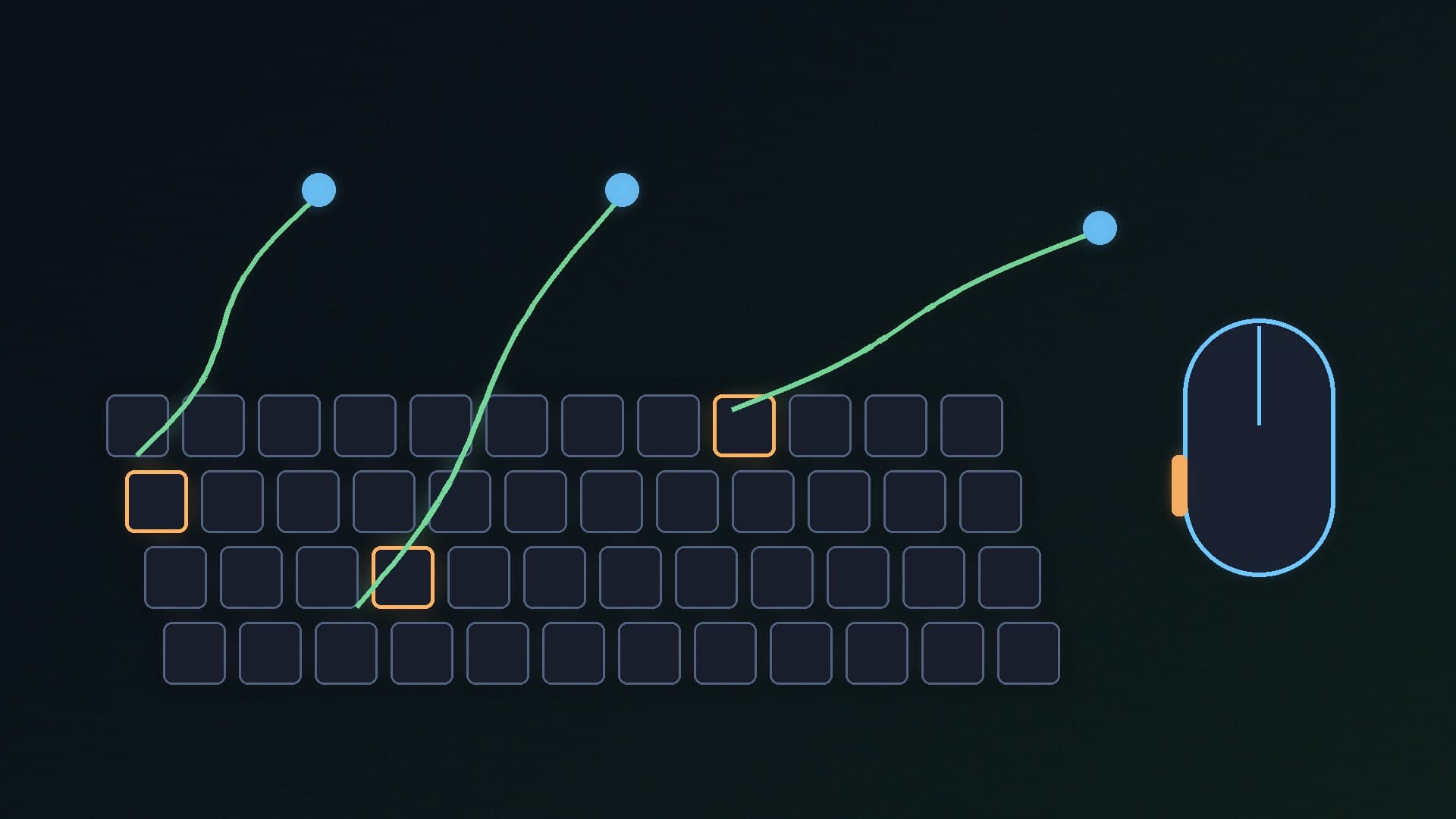
You press a key once and get "hhello" or "tthe". Or a key fires again a moment after you let go. That's keyboard chatter, a fault that affects mechanical switches. The good news is that it's often fixable without buying a new keyboard. This guide uses guidance from the QMK firmware documentation, Keychron's support pages and AbilityNet's Windows 11 accessibility guide.
What causes chatter
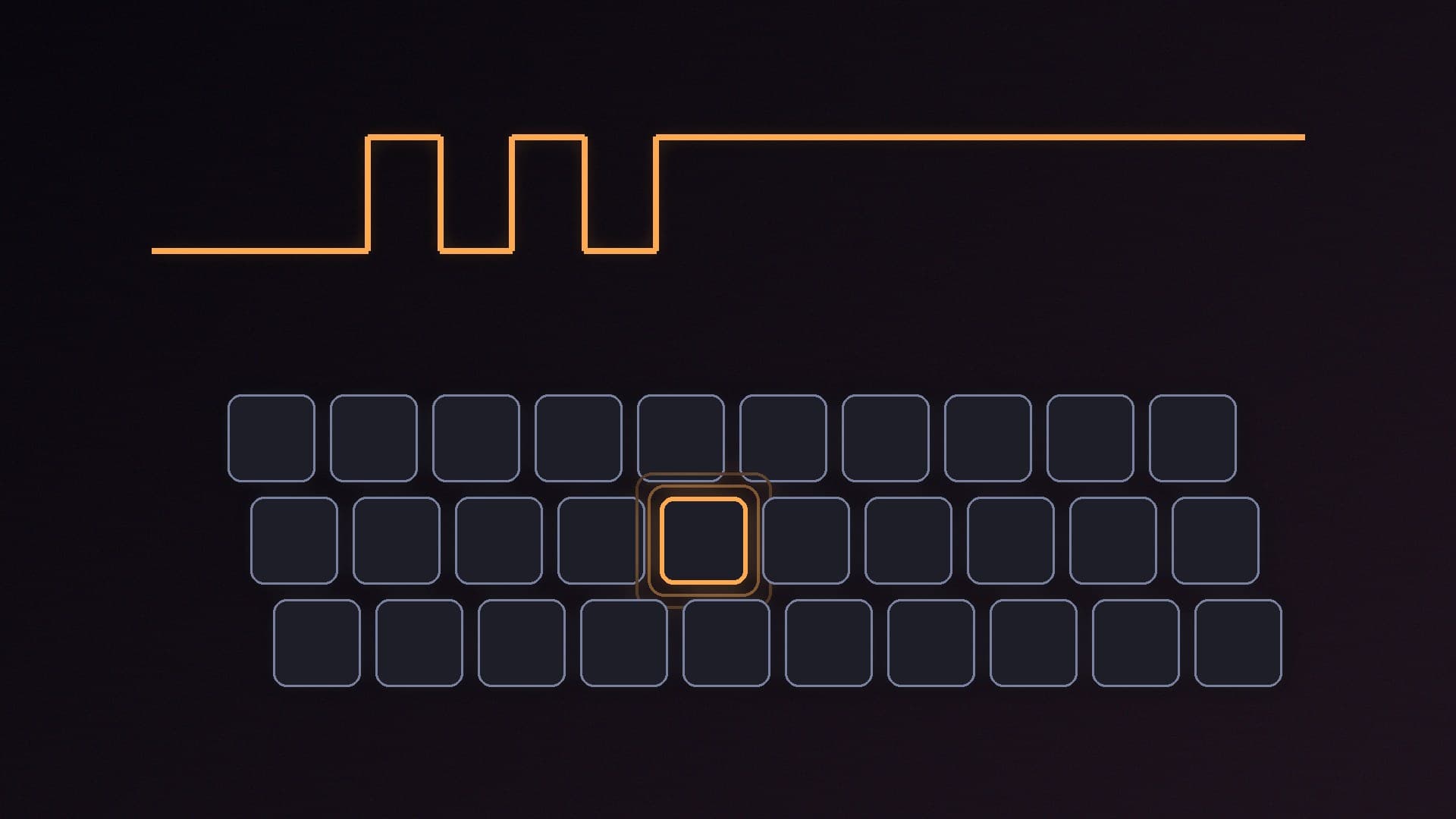
A mechanical switch closes two metal contacts when you press it. The QMK firmware documentation explains that switches "often don't have a clean single transition" between pressed and released: the contacts bounce, so the keyboard briefly sees several presses and releases before the signal settles. QMK adds that the settling time "might vary with switch type, age, and even pressing technique".
Keyboards handle this with debouncing, which means ignoring extra changes for a few milliseconds after a press. QMK's default debounce time is 5 milliseconds. If a switch's contacts bounce for longer than the debounce window, because of dirt, wear or a fault, the extra bounce gets through as a second keystroke. That's chatter.
There's a related problem QMK describes as noise, where short random signals appear even though the key isn't changing state. Some debounce methods also filter noise; we cover that below.
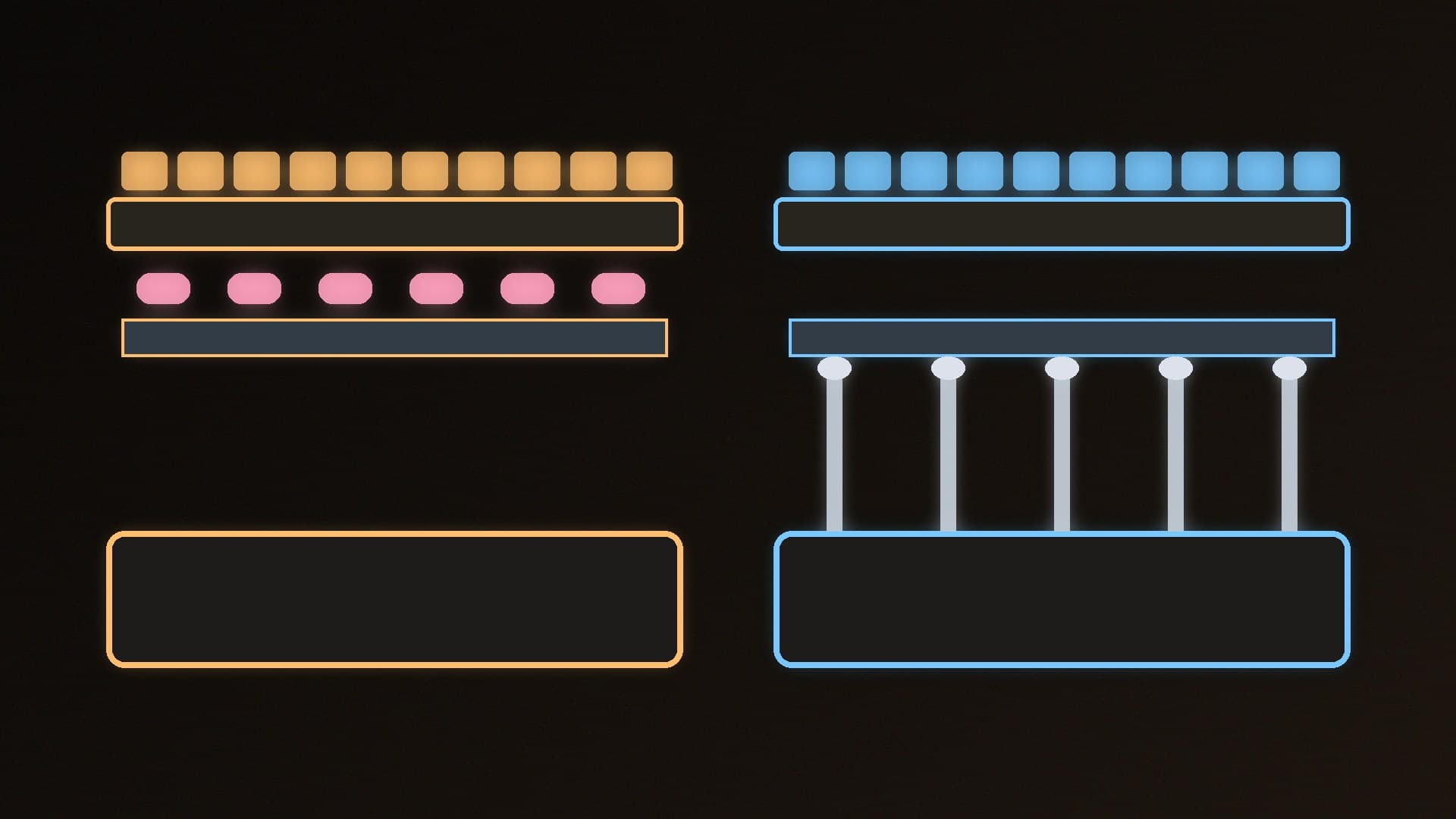
Magnetic (Hall effect) keyboards are different. Keychron notes that magnetic switches don't have the mechanical vibration of contact switches and don't need debounce, so on those boards a repeating key points to a different cause. See our Hall effect vs mechanical keyboard comparison for how they work.
Step 1: Make sure it's the keyboard, not the PC
Before taking anything apart, rule out software:
Try the keyboard on another PC or laptop. If the same key still doubles, it's the keyboard.
Try a different keyboard on your PC. If that one is fine, it's the keyboard.
Check whether it's one key or many. Chatter usually affects one or a few keys. If every key repeats or lags, especially on a wireless board, work through our guide on fixing a wireless mouse or keyboard that isn't working first.
Test in a plain text box. Type the key slowly, one press at a time, in Notepad. Note how often it doubles so you can tell later whether a fix worked.
Keychron's support page for a single key that repeats randomly says the problem can occur in both wired and Bluetooth mode, which is another reason to treat it as a hardware fault rather than a connection issue.
Step 2: Clean the switch
Dust and debris are a common cause, and cleaning is free. Keychron's first suggestion is to "pop the keycap off and shoot some air in and around" the switch, since "maybe it is just a dust/debris-caused issue".
Unplug the keyboard, or switch it off if it's wireless.
Remove the keycap from the affected key with a keycap puller.
Blow compressed air into and around the switch from a few angles.
Refit the keycap, reconnect and test again in Notepad.
If the keyboard has had a spill, a quick blast of air may not be enough. Our guide on how to clean a mechanical keyboard covers a deeper clean.
Step 3: Reset or update the keyboard
Keychron's next suggestion is a factory reset, which on its keyboards means holding Fn + Z + J for four seconds (other makers use different key combinations, so check your manual). A reset clears any custom settings that might be causing odd behaviour. It's also worth checking the maker's website for a firmware update.
Step 4: Increase the debounce time
If your keyboard runs QMK or VIA-compatible firmware, or the maker's software has a debounce setting, a slightly longer debounce window can hide a marginal switch.
Keychron Launcher: Keychron's guide says to connect the keyboard (wired, or with the 2.4GHz receiver), open the Launcher in Chrome, Opera or Edge, click Advance Mode, then choose a debounce mode and drag the response-time slider. Keychron recommends the "Eager per key" mode, and notes that times under 10ms need a low-latency option enabling first.
Custom QMK firmware: QMK lets you set the debounce time with a #define DEBOUNCE line in config.h and choose an algorithm with DEBOUNCE_TYPE in rules.mk.
Which mode to pick? QMK explains that "eager" algorithms report a key change immediately and then ignore further input for the debounce period, while "defer" algorithms wait until the input has been stable before reporting it. QMK says eager algorithms are not noise-resistant and defer algorithms are, so if your problem looks like random phantom presses rather than doubled letters, a defer mode is the one to try.
Increase the time in small steps and retest each time. Because debouncing ignores further changes on a key for the debounce period, a much longer window could also swallow genuine very fast repeat presses, so don't go higher than you need. If you want to change other keyboard behaviour while you're in there, our guide on how to remap your keyboard with VIA covers the basics.
Step 5: Use Windows Bounce Keys as a stopgap
If your keyboard has no debounce setting, Windows 11 has a built-in workaround. AbilityNet's guide explains how to turn it on:
Press Windows key + U to open Accessibility settings, then choose Keyboard.
Turn on Filter keys and click the arrow next to it for more options.
Turn on Ignore unintended keystrokes (Bounce keys) and set the delay from the drop-down list.
AbilityNet explains that Bounce Keys makes Windows wait for a set time before accepting a repeated keystroke. Because it applies to every key, a long delay may also get in the way when you deliberately press the same key twice quickly, so start with a short delay. Treat it as a workaround until you can fix the switch. AbilityNet also notes these options may be locked if your PC is managed by an IT department.
Step 6: Replace the switch
If cleaning and debounce changes don't help, the switch itself is probably worn or faulty.
Hot-swappable keyboard: Keychron's advice is to swap the faulty switch for a working one. Pull it out with a switch puller and fit a replacement of the same type, or move a switch from a key you rarely use to confirm the diagnosis. If the chatter moves with the switch, you've found the culprit.
Soldered switches: replacing one means desoldering it. Keychron says customers who are confident soldering can contact it for replacement switches; otherwise, use the warranty or a repair service.
Not sure which type you have? Our hot-swappable vs soldered keyboard comparison explains how to tell.
Step 7: Use the warranty
If the keyboard is still under warranty, contact the maker before opening anything. Keychron asks customers to record a video of the faulty key with the keycap off when contacting support, which is a sensible thing to have ready for any maker. If you bought it recently, you may also have rights against the retailer; our guide to refund rights for faulty PC parts explains them.
Mice suffer from the same problem. If your mouse is double-clicking, see our guide on how to fix mouse double-clicking.
Our verdict
Keyboard chatter happens when a switch's contacts bounce for longer than the keyboard's debounce window, so one press registers twice. Confirm it's the keyboard by testing on another PC, then clean the switch with compressed air, reset or update the firmware, and increase the debounce time if your keyboard allows it. Windows Bounce Keys is a useful stopgap, but a switch that keeps chattering needs replacing: easy on a hot-swappable board, otherwise a warranty or soldering job.