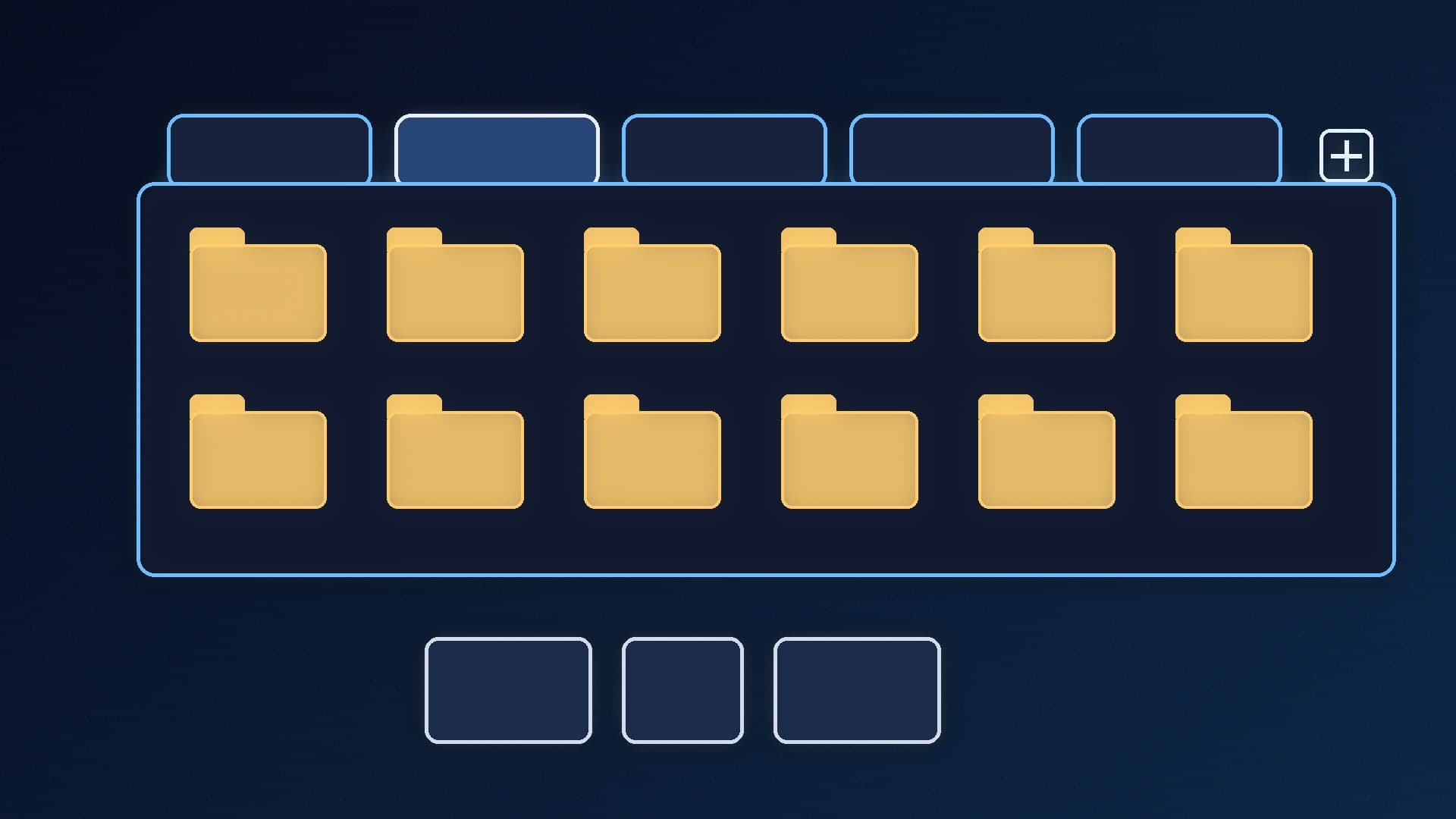
Menu names can vary slightly between Windows 11 builds.
If you still open a new File Explorer window every time you need another folder, you're missing one of Windows 11's most useful additions. Tabs let you keep your Downloads folder, a game library on a second SSD and a backup drive open in one window, then flick between them the way you would in a browser.
Which versions of Windows 11 have tabs?
Microsoft added tabs to File Explorer in Windows 11, version 22H2. They first arrived in an optional update in October 2022 (Build 22621.675, KB5019509) and were made broadly available to all editions of version 22H2 in the November 2022 security update. Microsoft described the aim as helping you organise File Explorer sessions "like you do in Microsoft Edge".
If you don't see a + next to the folder name at the top of File Explorer, open Settings > Windows Update and install the latest updates. Any supported version of Windows 11 should have tabs.
How to open a new tab
There are three quick ways:
Press Ctrl+T. Microsoft lists this File Explorer shortcut as "Open a new tab and switch to it".
Click the + (new tab) button next to your open tabs at the top of the window.
Open a folder in a new tab by right-clicking it and choosing Open in new tab, or by clicking it with your mouse's middle button (scroll-wheel click). Pureinfotech's tabs guide notes that both also work on locations in the left navigation pane.
If Open in new tab or middle-click has stopped working, check whether you've used a registry tweak to bring back the old Windows 10 right-click menu. A Microsoft Community support specialist has said that such a tweak may affect opening folders in new tabs, and that there's no official setting to have both.
A new tab opens to your File Explorer start page, which is Home by default (Microsoft says Quick access was renamed File Explorer Home in version 22H2). If you'd prefer This PC, Microsoft's support page explains how: on the ribbon, select See more (...) > Options, then under Open File Explorer to choose This PC and select Apply.
How to switch between tabs
Click a tab to switch to it, or use the keyboard. Microsoft's list of File Explorer shortcuts includes:
Shortcut | What it does |
|---|
Ctrl+T | Open a new tab and switch to it |
Ctrl+W | Close the active tab (closes the window if only one tab is open) |
Ctrl+Tab | Move to the next tab |
Ctrl+Shift+Tab | Move to the previous tab |
Ctrl+1 to Ctrl+9 | Move to that tab number |
Ctrl+N | Open a new window |
Ctrl+1 to Ctrl+9 are especially handy if you keep the same folders open in the same order each day.
How to close tabs
Hover over a tab and click its X.
Press Ctrl+W to close the tab you're in.
Right-click a tab for more options. Pureinfotech's guide says this menu lets you close or duplicate tabs, and you can also drag tabs in and out of the window.
Closing the last tab closes the window.
How to move files between tabs
Tabs are most useful when you're moving files, for example from Downloads to a folder on another drive. The most reliable method uses the keyboard:
Open the source folder in one tab and the destination folder in another (Ctrl+T, then browse to it).
In the source tab, select the files and press Ctrl+C to copy or Ctrl+X to cut them.
Press Ctrl+Tab (or Ctrl+ the tab's number) to switch to the destination tab.
Press Ctrl+V to paste.
If you change your mind straight away, Ctrl+Z undoes the last action. For very large transfers, a dedicated tool is safer than Explorer; see our Robocopy guide.
Make tabs work harder
Pin your most-used folders. Right-click a folder and choose Pin to Quick access, so every new tab can reach it in one click.
Use tabs with Snap layouts. Tabs are great for switching, but sometimes you need to see two folders at once. Open two File Explorer windows and snap them side by side; our Snap layouts guide explains how.
Show extensions and hidden files. Microsoft's File Explorer page shows how: select View > Show, then choose File name extensions or Hidden items. That helps when you're sorting installers, archives and game files.
Combine with clipboard history. Press Windows key+V to see recent items you've copied; see our clipboard history guide.
Try virtual desktops if you have so many tabs that one window isn't enough. Our virtual desktops guide shows how to keep work and gaming separate.
When to use a different file manager
File Explorer's tabs cover most everyday needs, but it still has no built-in dual-pane view, column view or tagging. If you want those, our best free file managers for Windows 11 guide covers free alternatives such as Files and OneCommander that run alongside Explorer.
Our verdict
Tabs are the easiest way to make File Explorer less cluttered in Windows 11. Learn three shortcuts, Ctrl+T to open, Ctrl+W to close and Ctrl+Tab to switch, and use middle-click or Open in new tab on folders (if those stop working, an old-style context menu tweak is a likely cause). Pair tabs with Quick access pins and Snap layouts and you may not need a third-party file manager at all.