The steps are based on LM Studio's official LM Link documentation and product page, read on 25 November 2026. LM Link is a preview feature, so menus and limits may change.
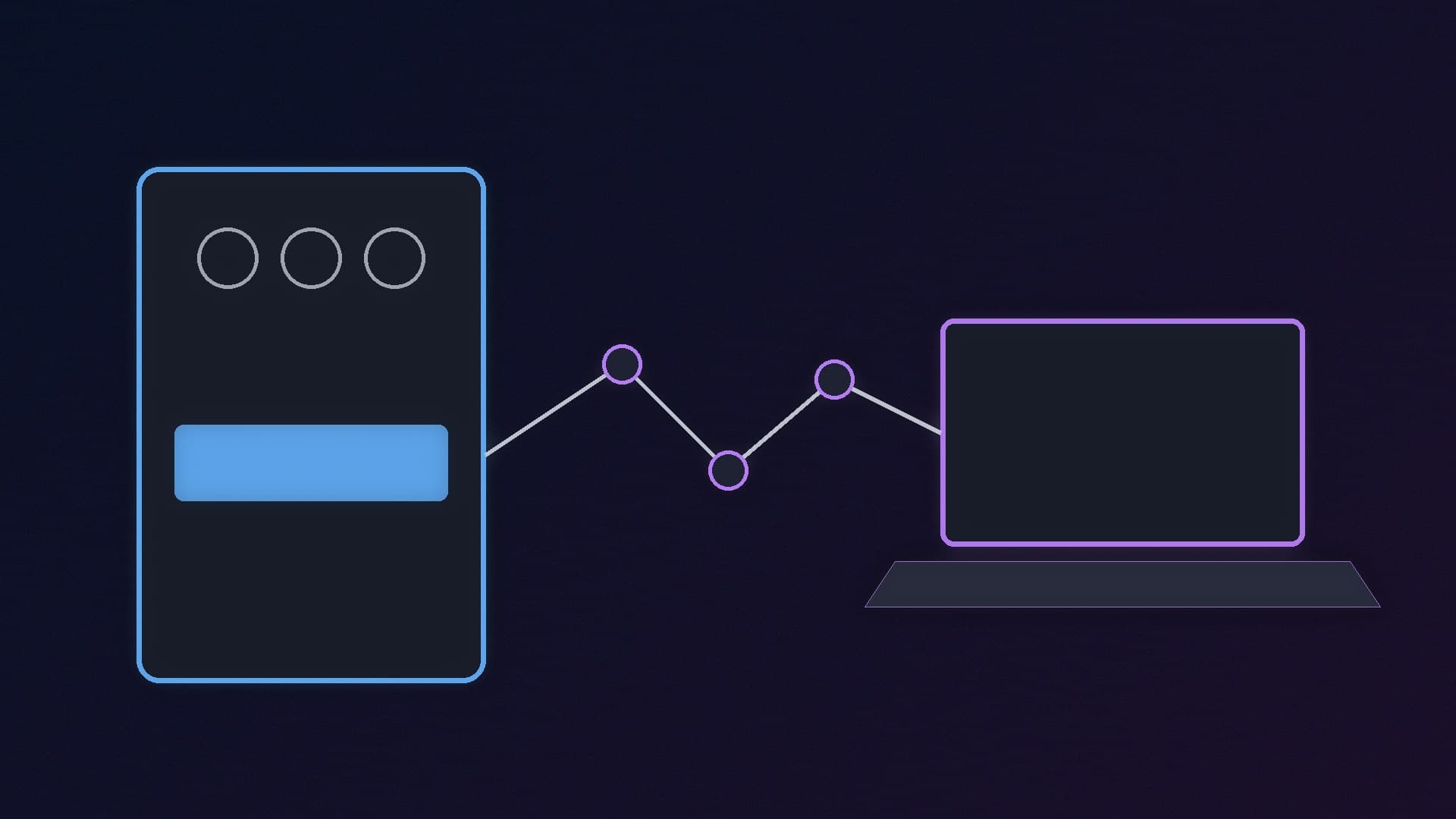
Most people's best GPU lives in a desktop that stays at home, while the computer they actually carry is a thin laptop. LM Link, a feature in LM Studio, is designed for exactly that: you load a large model on the powerful machine and use it from your other devices as if it were running locally.
What LM Link is
According to LM Studio, LM Link connects devices that have LM Studio, or its headless version llmster, installed. It's built on custom Tailscale mesh VPNs, so traffic between your devices is end-to-end encrypted and, LM Studio says, no ports are opened to the internet. LM Studio's servers only see your device list, which they use for discovery; your chats stay on your own devices.
LM Studio says LM Link is free during the preview, and that there will be both free and paid plans when it reaches general availability. Access is being rolled out in batches, so you may not see it straight away.
What you need
LM Studio installed on each device you want to link, or llmster on a headless machine such as a home server.
An LM Studio account, because LM Link needs you to sign in so it can associate devices with you.
A machine with enough VRAM to run the model you want. If you're planning one, our best PC for local AI guide is a good place to start.
Step 1: Turn on LM Link on your main PC
Open LM Studio on the machine with the powerful GPU.
Find the LM Link icon in the sidebar, just above the Settings gear.
Sign in when asked. LM Studio automatically provisions a link for you the first time you use the feature.
Step 2: Add your laptop or another PC
Download and install LM Studio on the second device from lmstudio.ai/download.
Click LM Link in the sidebar and follow the steps to enable it, signing in with the same account.
The devices should connect to each other automatically.
Step 3: Add a headless machine (optional)
If your AI box has no screen, you can use llmster from a terminal instead. LM Studio's docs give these steps for a headless machine:
Install llmster with curl -fsSL https://lmstudio.ai/install.sh | bash
Run lms login and follow the instructions in the terminal.
Run lms link enable.
The headless machine should then appear on the LM Link page of your other devices. Our guide to running LM Studio headless with llmster covers llmster itself in more detail.
Step 4: Load a remote model
Open the model loader on your laptop. With LM Link on, it shows both local models and models on linked devices, and you can filter to see only local, only remote, or everything. Remote models load with the same controls as local ones, either in the app or with lms in the terminal. If the same model is on more than one device, each copy appears as a separate entry with the device name.
Step 5: Use remote models in other apps
LM Studio says any tool that already talks to your local LM Studio server can use remote models too, simply by pointing at localhost:1234 as usual. That includes coding tools such as Claude Code, Codex and OpenCode. If you haven't used the server before, see our guide to using LM Studio's server.
When you load models through the API or SDK and the same model exists on several devices, set a preferred device. In the app, open the LM Link page, select the device and turn on Set as preferred device; on a headless machine, run lms link set-preferred-device. The setting is per machine, so each device chooses its own preference.
Troubleshooting
A device shows as "disconnected": LM Studio says the device may have crashed without reporting to the discovery server. Check that LM Studio or llmster is actually running on it.
Worried about your existing Tailscale setup: LM Studio says LM Link is a separate, self-contained use of Tailscale and won't interfere with it.
Turning it off: go to Settings, LM Link, and switch Enable LM Link off, or run lms link disable with llmster.
If you'd rather not use an account-based service, you can still share a model over your home network the traditional way; see our guide to sharing Ollama on your local network.
Our verdict
Based on LM Studio's documentation, LM Link looks like one of the simplest ways to use a big desktop GPU from a laptop: sign in on both machines, enable the link and remote models appear in the loader, with tools on localhost:1234 working unchanged. It's still a preview with batch rollouts and future pricing to be confirmed, so treat it as a convenience rather than something to build critical work around just yet.