It's based on Ollama's announcement, its decision model documentation, its CLI reference and the Nimble model page, all read on 25 November 2026.
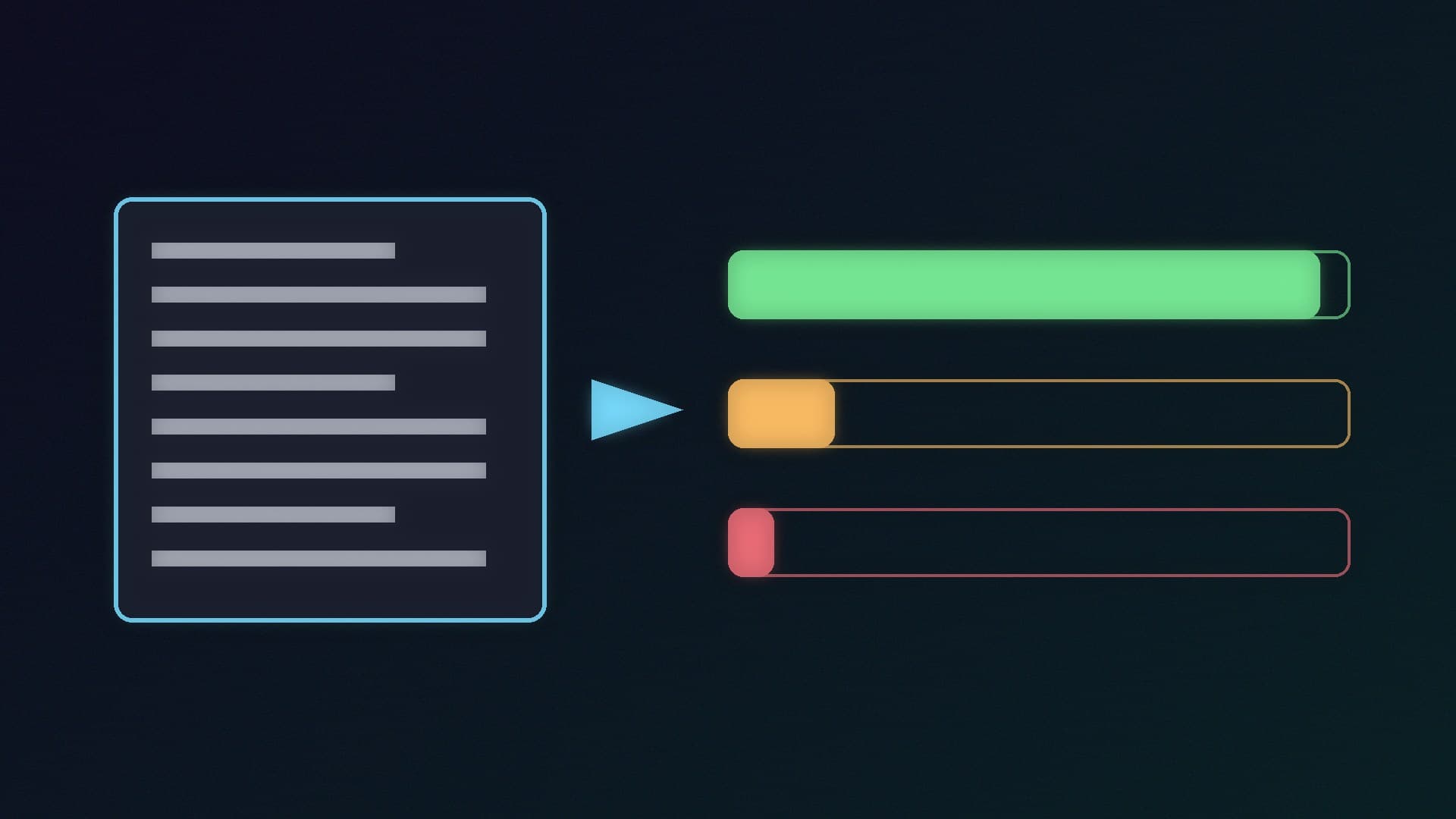
Chat models are a clumsy tool for simple yes-or-no jobs. Ask one whether a support ticket is about a refund and you get a paragraph back that you then have to parse. Decision models, added in Ollama 0.35, take a different approach: you give them some text and a set of named questions, and they return typed answers with a probability for every option.
What decision models are
Ollama's 29 September 2026 announcement says decision models are based on TypeSafe's Jev API and use a new /v1/systemone endpoint. They can answer three kinds of question:
Yes/no (the API type is noul), returning a probability.
Choice, picking one label from a list you define.
Score, rating text on an ordered scale such as Routine, Soon and Urgent.
Ollama suggests uses such as ticket triage, routing requests between models and content or safety moderation. Because they run locally, there's no per-request cost.
The models listed in Ollama's documentation are Nimble, a 9B model from Bespoke Labs, Tev1, an experimental model from Together AI in 4B and 0.8B sizes, plus Clef and Clef Flash, which can also judge images and need Ollama 0.35.1 or later. Nimble's default download is 9.3GB on Ollama's model page, so a graphics card with more VRAM than that is the comfortable target; smaller Tev1 versions suit more modest hardware.
Ollama quotes Nimble averaging 91ms per decision in a demo on an Apple M5 Max MacBook Pro. That's Ollama's own figure on Apple hardware, not a PC result.
Step 1: Update Ollama and download a model
You need Ollama 0.35.0 or later. On Windows, our guide to updating Ollama explains how. Then download Nimble:
ollama pull nimble
Step 2: Ask questions from the terminal
Save some text to a file, such as a customer email in ticket.txt, then ask a yes/no question:
ollama run nimble --ask "Is a refund being requested?" < ticket.txt
To choose between labels, add --choice options:
ollama run nimble --ask "Which team should handle this?" --choice billing="Payments and refunds" --choice technical="Software problems" < ticket.txt
To score on a scale, list levels from lowest to highest with --level:
ollama run nimble --ask "How urgent is this?" --level "Routine" --level "Soon" --level "Immediate" < ticket.txt
You can combine several --ask questions in one command. Each answer prints on its own line, showing the likeliest answer and its probability; scores also show where the text sits on the scale. Add --format json to see the full response. If you run ollama run nimble with no input, it opens an interactive prompt where your first message is the text and each following line is a yes/no question about it.
Step 3: Call the API from your own scripts
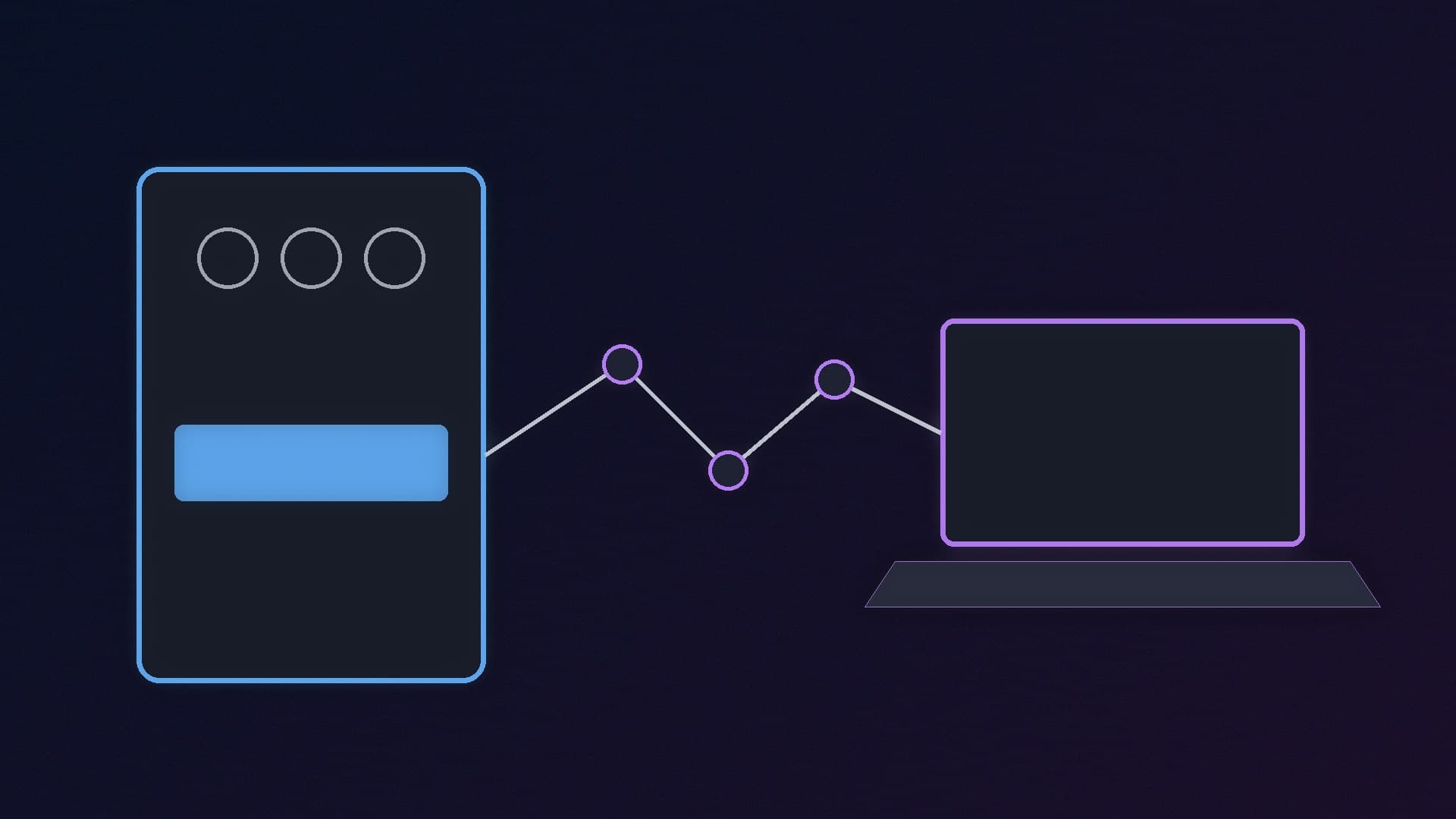
The same thing works over Ollama's local API. Send a POST request to http://localhost:11434/v1/systemone with JSON containing the model, the state (your text, or a JSON object) and a questions object. Each question has a name, a type of noul, choice or score, instructions, and, for choices and scores, criteria listing the options.
The response contains an answers object keyed by your question names. A choice answer includes the chosen label, a probability for every label and a confidence value; a yes/no answer gives the probability of yes. Ollama's Python and JavaScript libraries include a systemone function for the same endpoint, so if you already script Ollama (see our Ollama Python guide), it slots straight in.
Tips
Use probabilities, not just the top answer. Set a threshold, for example only auto-routing tickets when the chosen label is very likely, and send uncertain ones to a person.
Write questions clearly. Keep each question about one thing, and describe each label in plain words in the criteria.
Use structured outputs for extraction. Decision models answer questions about text; if you need to pull fields out of text instead, structured outputs in Ollama are the better tool.
Our verdict
Decision models are one of the most practical additions to Ollama this year. Instead of coaxing a chatbot into giving a one-word answer, you get typed yes/no, label and score answers with probabilities from a single local request. Nimble is a sensible first model if your GPU has room for its 9.3GB download, and Tev1's smaller versions are there for lighter hardware.