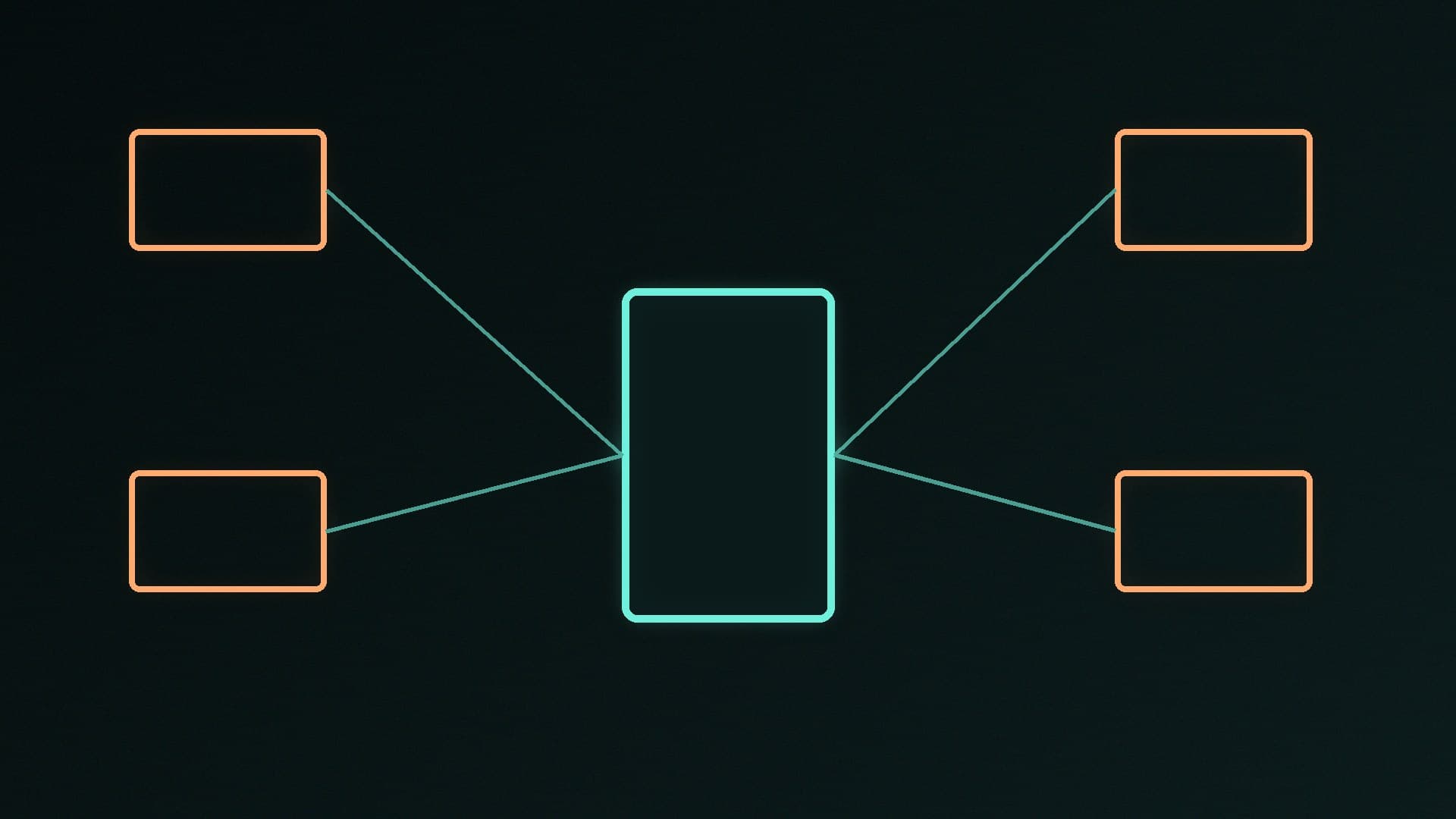
If your desktop has a capable graphics card, it can serve local AI models to a laptop, a second PC or a front end such as Open WebUI running elsewhere in the house. Ollama makes this possible with a single environment variable.
Forge PC hasn't tested every network set-up. These steps follow Ollama's official FAQ; you'll need Ollama already installed (see our guide to running AI models locally).
Why it doesn't work out of the box
Ollama's FAQ says it binds to 127.0.0.1 on port 11434 by default. 127.0.0.1 means "this computer only", so other devices on your network can't reach it. To change that, you set the OLLAMA_HOST environment variable to listen on all network interfaces: 0.0.0.0:11434, the value used in Ollama's own examples.
Step 1: set OLLAMA_HOST on Windows
Ollama's FAQ explains that on Windows it inherits your user and system environment variables:
Quit Ollama from its icon in the taskbar.
Open Settings and search for environment variables, then choose Edit environment variables for your account.
Create a new variable named OLLAMA_HOST with the value 0.0.0.0:11434.
Click OK to save, then start Ollama again from the Start menu.
On Linux, Ollama's FAQ says to add Environment="OLLAMA_HOST=0.0.0.0:11434" to the systemd service with systemctl edit ollama.service, then reload and restart it.
Step 2: find your PC's local IP address
On the Ollama PC, open Settings > Network & internet, select your Ethernet or Wi-Fi connection and note the IPv4 address, for example 192.168.1.50. Giving the PC a reserved address in your router's settings stops it changing later.
Step 3: connect from another device
On the laptop or second PC, point your app at http://192.168.1.50:11434 (using your own address):
Open WebUI and similar front ends: enter that address as the Ollama URL. Our Open WebUI guide covers the set-up.
Coding tools: extensions such as Continue and Aider can use a remote Ollama server; see our Continue guide.
Apps that speak the OpenAI API: use the same address with Ollama's compatible endpoint, as in our OpenAI API guide.
If it doesn't connect, check that Windows Defender Firewall allows Ollama on private networks and that your PC's network profile is set to Private, not Public.
Keep it on your home network
Listening on 0.0.0.0 makes Ollama reachable by any device on your local network, so only do this on a network you trust. Don't forward port 11434 on your router to the internet. If you need remote access or extra control, Ollama's FAQ shows how to put it behind a proxy server such as Nginx, or use tunnelling tools such as ngrok or Cloudflare Tunnel; treat those as advanced options and secure them properly.
Wired is better
Text responses are tiny, so any decent home network will do, but a wired connection to the Ollama PC avoids Wi-Fi drop-outs. See Wi-Fi vs Ethernet vs powerline for options.
Our verdict
To share Ollama with other devices, quit it, set the OLLAMA_HOST environment variable to 0.0.0.0:11434, restart it, and point your laptop or front end at your PC's local IP address on port 11434. Allow it through the firewall on private networks only, and never expose the port to the internet without a properly secured proxy. Forge PC hasn't tested every network; the steps follow Ollama's official FAQ.