The steps follow Microsoft's official support page on fixing Ethernet connection problems in Windows, read on 23 November 2026. Menu names can change slightly between Windows 11 updates, so use them as a guide.
A wired connection should be the dependable one. Plug a cable from your router into your PC and it ought to just work. When it doesn't, the cause could be anything from a loose plug to a broken driver after an update, so it pays to work through the fixes in order, starting with the quickest and least disruptive ones. This guide is for when Ethernet won't connect at all, or connects but gives you no internet. If you're connected but the speed is stuck at 100Mbps, see our guide to fixing Ethernet stuck at 100Mbps instead.
Step 1: Run the Network and Internet troubleshooter
Microsoft's first suggestion on Windows 11 is the automated Network and Internet troubleshooter in the Get Help app. It runs diagnostics and tries to fix most common problems on its own. It's quick and doesn't change much, so it's worth a go before anything else. Search for Get Help on the taskbar, open it and search for the network troubleshooter.
If it fixes the problem, you're done. If not, carry on below. Knowing the troubleshooter didn't help is still useful, because it rules out the simplest software problems.
Step 2: Check the cable and the router port
This sounds obvious, but it catches a lot of people out, especially after moving a PC or rearranging a desk.
Make sure the cable is pushed in firmly at both ends, on the router and on the PC.
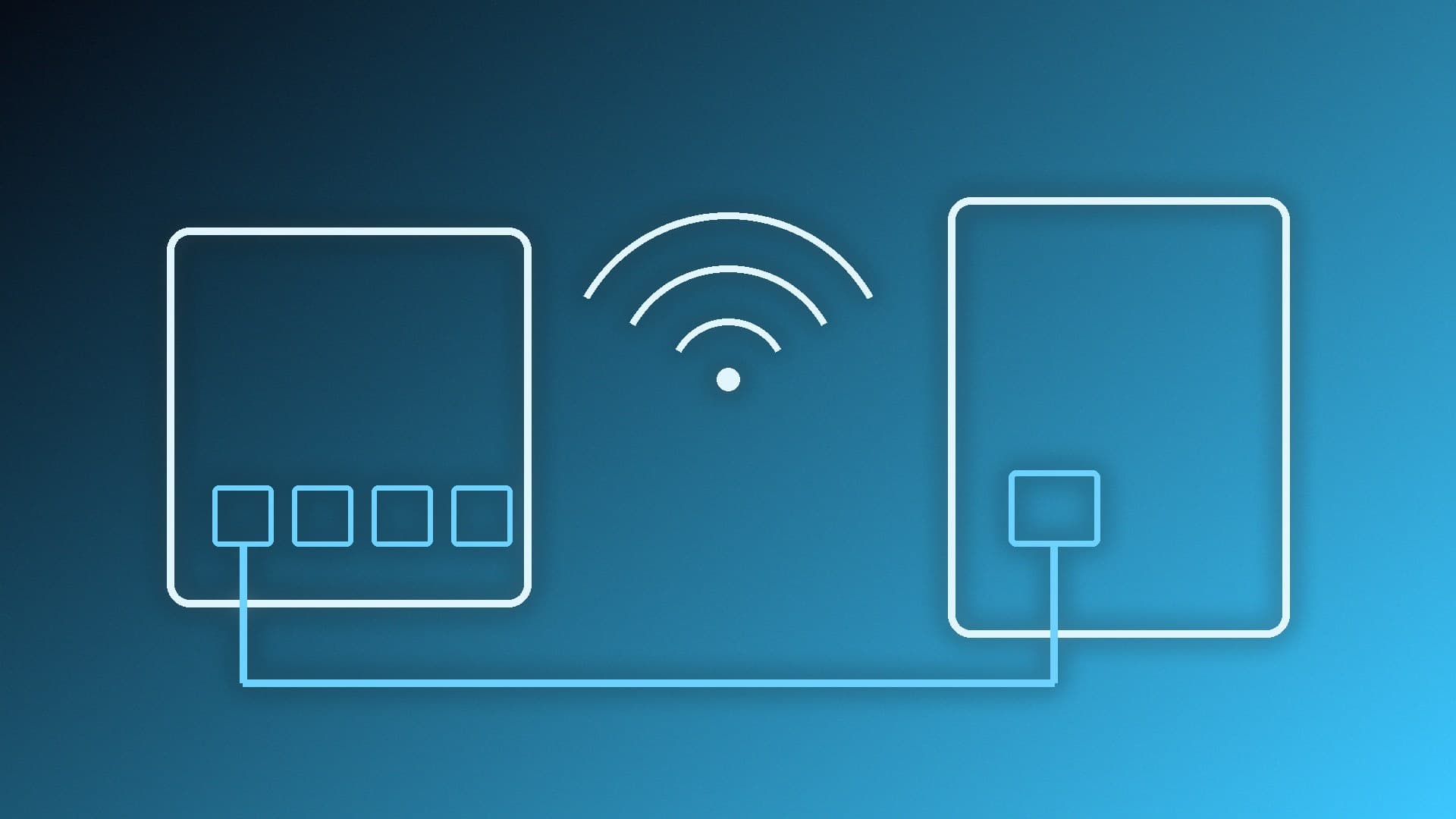
Check which port you've used on the router. Microsoft points out that the cable should go into one of the router's Ethernet (LAN) ports, not the Internet port that connects the router to your modem.
Try a different cable if you have one. If a second cable works, the first one is probably faulty.
If your PC doesn't have an Ethernet port at all, or the built-in port has failed, a USB to Ethernet adapter is a simple workaround. Our best USB Ethernet adapter guide covers the options.
Step 3: Restart your modem and router
Restarting your modem and router makes a fresh connection to your internet provider. Everyone on your Wi-Fi will lose their connection for a few minutes, so warn the household first. Microsoft's general steps are:
Unplug the router's power cable.
Unplug the modem's power cable. If the modem has a backup battery and its lights stay on after unplugging, remove the battery.
Wait at least 30 seconds, then refit the battery if you removed one.
Plug the modem back in and wait for its lights to stop blinking.
Plug the router back in and wait a few minutes for both to fully start. The status lights usually show when they're ready.
Try your Ethernet connection again.
If you have a combined modem and router you only need to restart that one box.
Step 4: Check the network status in Windows
Open Settings > Network & internet. Your Ethernet connection status appears at the top of the page, and it should say Connected under the network name. If it shows an error such as Action needed, select Ethernet to see the connection settings for more detail.
While you're there, it's worth checking whether you've set a manual IP address or DNS server in the past and forgotten about it. A manual address that doesn't match your router's network will stop you getting online. Our guides to setting a static IP address and changing DNS in Windows 11 show where these settings live, so you can switch them back to automatic if needed.
Step 5: Try Wi-Fi to narrow it down
If your router also does Wi-Fi and your PC has a Wi-Fi adapter, connect to Wi-Fi for a moment. Microsoft notes that this does two things: it gets you online, which helps if you need to download a driver, and it helps narrow down the cause. If Wi-Fi works but Ethernet doesn't, the router and your internet connection are fine, and the problem is the cable, the port or the Ethernet adapter on your PC. If neither works, look at the router or your broadband provider.
Step 6: Reset the network stack with commands
Next, Microsoft suggests a set of commands that reset the TCP/IP stack, release and renew your IP address, and flush and reset the DNS client cache.
Search for Command prompt on the taskbar, select Run as administrator, then Yes.
Run these commands in this order, pressing Enter after each one:
netsh winsock reset
netsh int ip reset
ipconfig /release
ipconfig /renew
ipconfig /flushdns
Then check whether your connection works. If it doesn't, restart the PC and check again before moving on.
Step 7: Reinstall the Ethernet adapter driver
If the connection stopped working after a recent update, the driver may be to blame. Microsoft's advice is to uninstall the network adapter driver and restart, so Windows installs it again automatically.
Before you do this, download a backup driver first. Get the latest network driver from your PC maker's website, or from your motherboard maker's support page if you built the PC yourself. If the PC can't get online, download it on another device and copy it over on a USB stick.
Search for Device Manager on the taskbar and open it.
Expand Network adapters and find your Ethernet adapter.
Right-click it, choose Uninstall device, tick Attempt to remove the driver for this device, then select Uninstall.
Restart the PC from Start > Power > Restart.
After restarting, Windows should find and install a driver. If it doesn't, install the backup driver you saved.
Step 8: Use Network reset as a last resort
Microsoft says Network reset should be the last thing you try. It removes all your network adapters and their settings, then reinstalls them with default settings after a restart. Microsoft says it can help with connection problems after upgrading from Windows 10 to Windows 11, and with cases where you can get online but can't reach shared network drives.
Go to Settings > Network & internet > Advanced network settings > Network reset, select Reset now and confirm with Yes. Your PC will restart.
Be aware of the side effects. Afterwards you may need to reinstall or set up VPN software and virtual switches such as those from Hyper-V. Microsoft also notes that Network reset may set your known networks to the Public profile, which stops your PC being visible to other devices on your network. If you share files or printers at home, switch your network back to Private afterwards.
Step 9: Test with another device
If nothing has worked, try connecting another PC to the same router port and cable, using a USB to Ethernet adapter if it has no port. If the other PC connects, the problem is with your first PC, most likely its Ethernet port or adapter. If neither can connect, the problem is likely the router, your internet provider or the adapter, so contact your provider.
Our verdict
Most Ethernet problems are fixed by the simple steps: checking the cable is in a LAN port rather than the router's Internet port, trying another cable and restarting the modem and router. If that doesn't work, reset the network stack with Microsoft's commands, then reinstall the adapter driver, keeping a backup driver ready. Save Network reset for last, because you'll have to set up VPNs and network profiles again afterwards. All steps are based on Microsoft's official guidance, not our own testing.