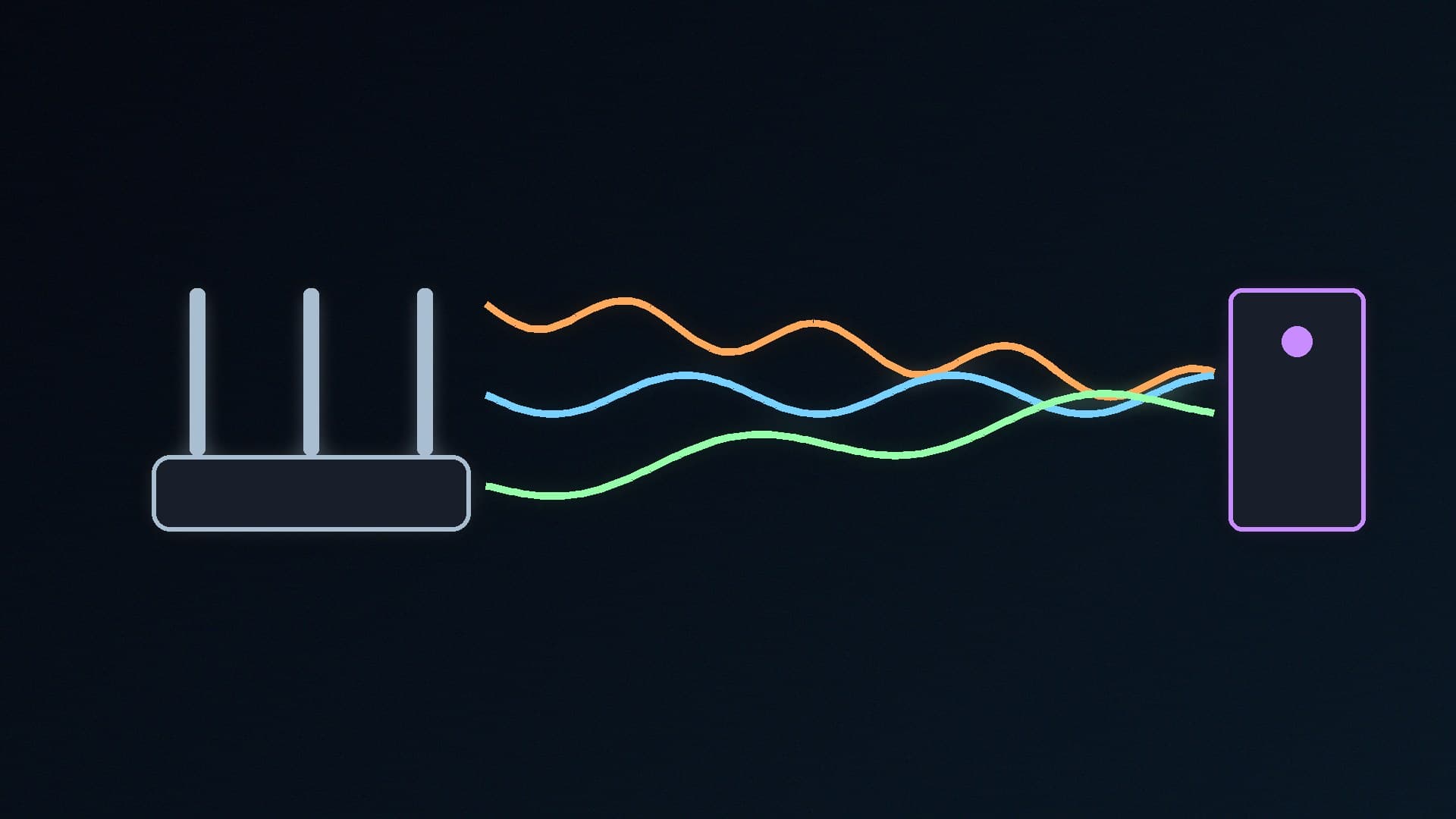
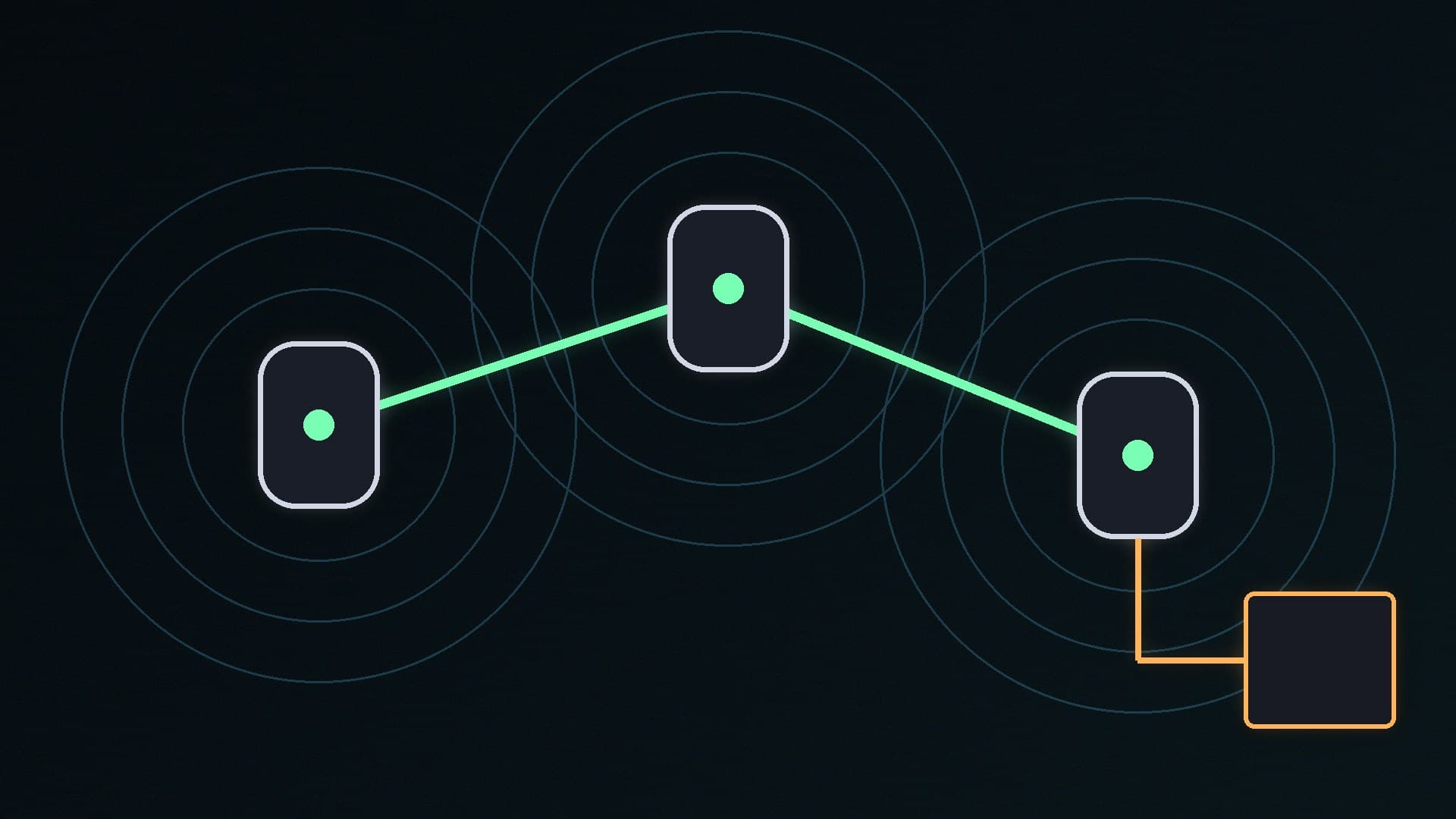
Multi-Link Operation (MLO) is the headline feature of Wi-Fi 7. Instead of connecting on a single band, a device can use two or three bands (2.4GHz, 5GHz and 6GHz) at the same time, which Microsoft says helps avoid congestion and keep the connection going. It doesn't switch itself on just because you own a Wi-Fi 7 router, though, and it only helps if both ends support it properly. This guide explains what you need, how to enable MLO and how to check your PC is actually using it. We've based the steps on Microsoft's Windows 11 Wi-Fi documentation and TP-Link's support material.
What you need
A Wi-Fi 7 router or mesh system with MLO. TP-Link describes MLO as a core Wi-Fi 7 (802.11be) feature, says Wi-Fi 7 routers are built with MLO capabilities and that its Deco Wi-Fi 7 mesh systems support it; check your router's product page or manual for your model.
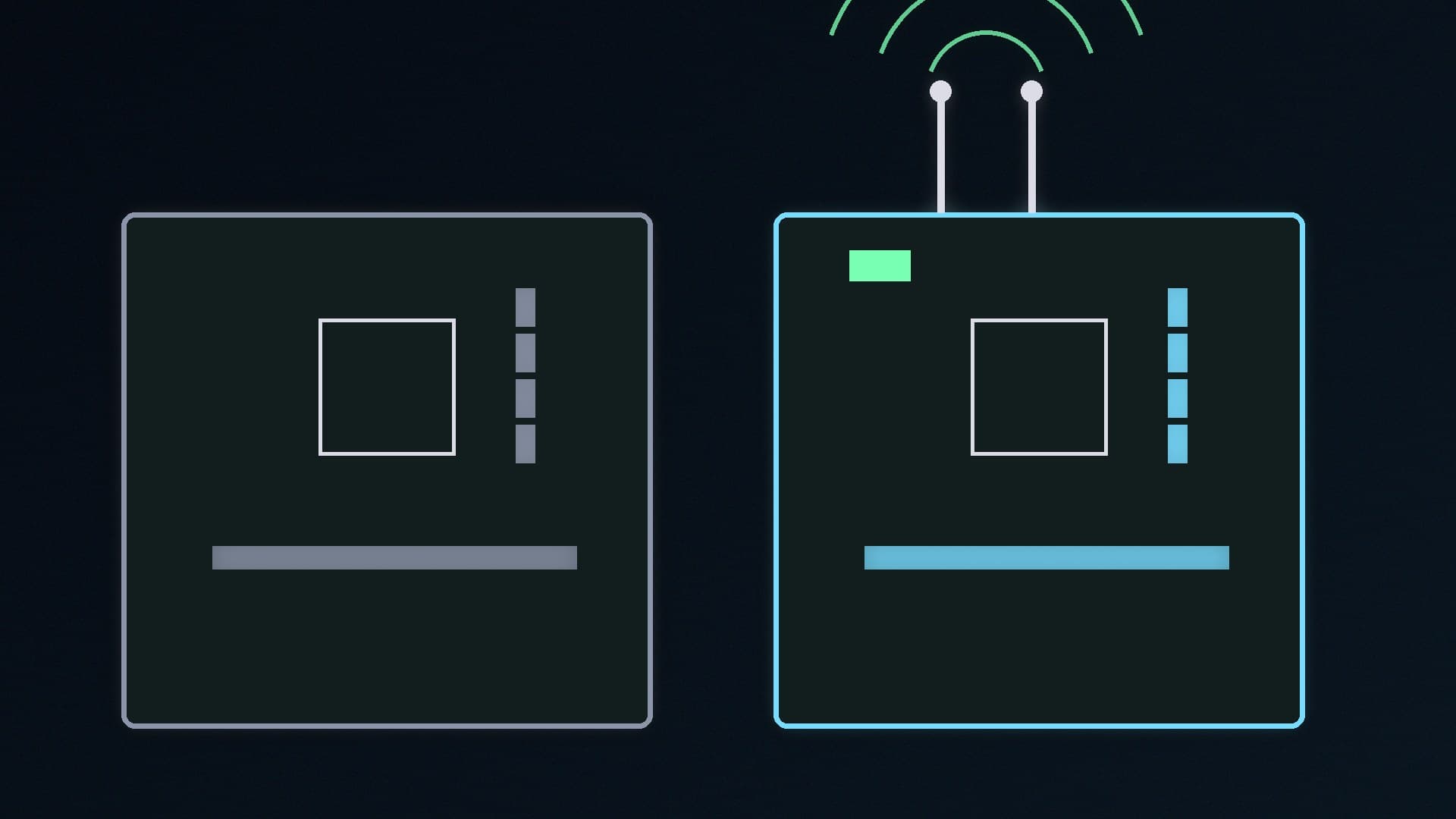
A Wi-Fi 7 adapter in your PC. Desktops often don't have one; see our guides to adding Wi-Fi to a desktop PC and the best Wi-Fi 7 PCIe card.
Windows 11 version 24H2 or later. Microsoft says Wi-Fi 7 support starts with that version. Wi-Fi 7 Enterprise networks aren't supported in Windows 11, according to Microsoft, but that won't affect a home network.
Step 1: Check your PC's Wi-Fi adapter supports Wi-Fi 7
Open Terminal or Command Prompt and type:
netsh wlan show drivers
Look at the line Radio types supported. Microsoft says it should include 802.11be for Wi-Fi 7 (802.11ax means Wi-Fi 6 or 6E). If 802.11be isn't listed, try the latest driver from the card or PC maker; if it still doesn't appear, check the adapter's specifications, as it may not be a Wi-Fi 7 card.
Then check you're on 24H2 or later: press Windows + R, type winver and press Enter. Install pending updates through Settings > Windows Update.
Step 2: Make sure the router's bands are set to Wi-Fi 7
TP-Link says MLO needs at least two of the router's main-network bands to be enabled and set to the 802.11be standard in the wireless mode settings. If the MLO option is greyed out, that's the usual reason. On TP-Link routers that combine bands with Smart Connect, you may need to turn Smart Connect off first to see the separate 2.4GHz, 5GHz and 6GHz settings.
Which bands you can combine depends on the router. TP-Link lists four possible combinations: 2.4GHz + 5GHz, 5GHz + 6GHz, 2.4GHz + 6GHz, and all three. Its examples show how this varies by model:
TP-Link router | MLO band combinations (TP-Link) |
|---|
Archer BE400 | 2.4GHz + 5GHz |
Archer BE550 V1 | 5GHz + 6GHz only (its 2.4GHz band is Wi-Fi 6, 802.11ax) |
Archer BE805 | All four combinations |
So an original (V1) Archer BE550, for example, can only build its MLO network from its 5GHz and 6GHz bands. Check the hardware version on your router's label, because TP-Link says supported protocols are listed per hardware version. For more on the trade-offs between bands, see 2.4GHz vs 5GHz vs 6GHz Wi-Fi.
Step 3: Turn on the MLO network
On TP-Link Archer Wi-Fi 7 routers such as the Archer BE700, TP-Link's steps are:
Log in to the router's web interface at tplinkwifi.net.
Go to Advanced > Wireless > Wireless Settings and find the MLO Network section.
Enable MLO Network.
Choose the bands for the MLO network (the options depend on your model).
Give it a network name (SSID), choose the security type and set a password.
Click Save.
You can also edit the MLO network in the TP-Link Tether app under Tools > Wireless Settings; TP-Link says to update the app if you can't see it.
On TP-Link routers the MLO network runs alongside your main network, and TP-Link says its name (SSID) should be different from the main network's. That's useful: older devices can stay on the main network while your Wi-Fi 7 PC joins the MLO one. Other router makers put the setting in different places, so check your router's manual if you're not using TP-Link.
Step 4: Connect your PC and check MLO is active
Connect your PC to the new MLO network name. Then go to Settings > Network & internet > Wi-Fi, open your network's properties and look at Network band (channel). Microsoft says that if it shows more than one band, such as 5GHz and 6GHz, your connection is using MLO. If it shows only one band, your PC has connected to that network on a single link.
If MLO isn't working
The MLO option is greyed out on the router: set at least two bands to 802.11be, and turn off Smart Connect if you can't reach the individual band settings (TP-Link).
Your PC can't see the MLO network: TP-Link says only MLO-compatible devices can connect to it, so check your adapter supports MLO. Also check that Hide SSID isn't enabled on the MLO network.
It's connected but only one band shows: update the Wi-Fi driver and Windows, and check that the bands in the router's MLO network are ones your adapter supports (for example, 6GHz needs a Wi-Fi 6E or Wi-Fi 7 adapter).
Mesh satellites don't carry the MLO network: TP-Link says that for most of its EasyMesh models the MLO network can't yet be extended to satellites; it names the Archer BE550 V2 as the exception with MLO backhaul. TP-Link says its Deco Wi-Fi 7 mesh systems support MLO, so check the product page for your Deco model; see also our best mesh Wi-Fi system guide.
Is MLO always faster?
Not necessarily. TP-Link says the client device is the main variable: Wi-Fi 7 phones, laptops and network cards vary in how completely they support MLO. In its own comparative testing, TP-Link says some clients saw no significant throughput improvement on an MLO network, and that if a client's MLO support is limited, a standard single-band connection can be faster because the overhead of managing several links outweighs the benefit. It describes MLO as a rapidly evolving technology and expects newer devices to support it better.
So the practical approach is to try it. Keep your main network as it is, set up the MLO network alongside it, and compare the two on your PC with your usual games and downloads. If the MLO network isn't better, go back to the main network; you can still use Wi-Fi 7 on a single band.
Our verdict
To use Wi-Fi 7 MLO, you need a Wi-Fi 7 router with MLO, a Wi-Fi 7 adapter in your PC and Windows 11 24H2 or later. Check netsh wlan show drivers lists 802.11be, set at least two router bands to Wi-Fi 7, enable the MLO network and connect to it. Then confirm in Settings that Network band shows more than one band. TP-Link warns that MLO isn't always faster, because results depend on how well your adapter supports it, so compare it with your normal network before switching for good.