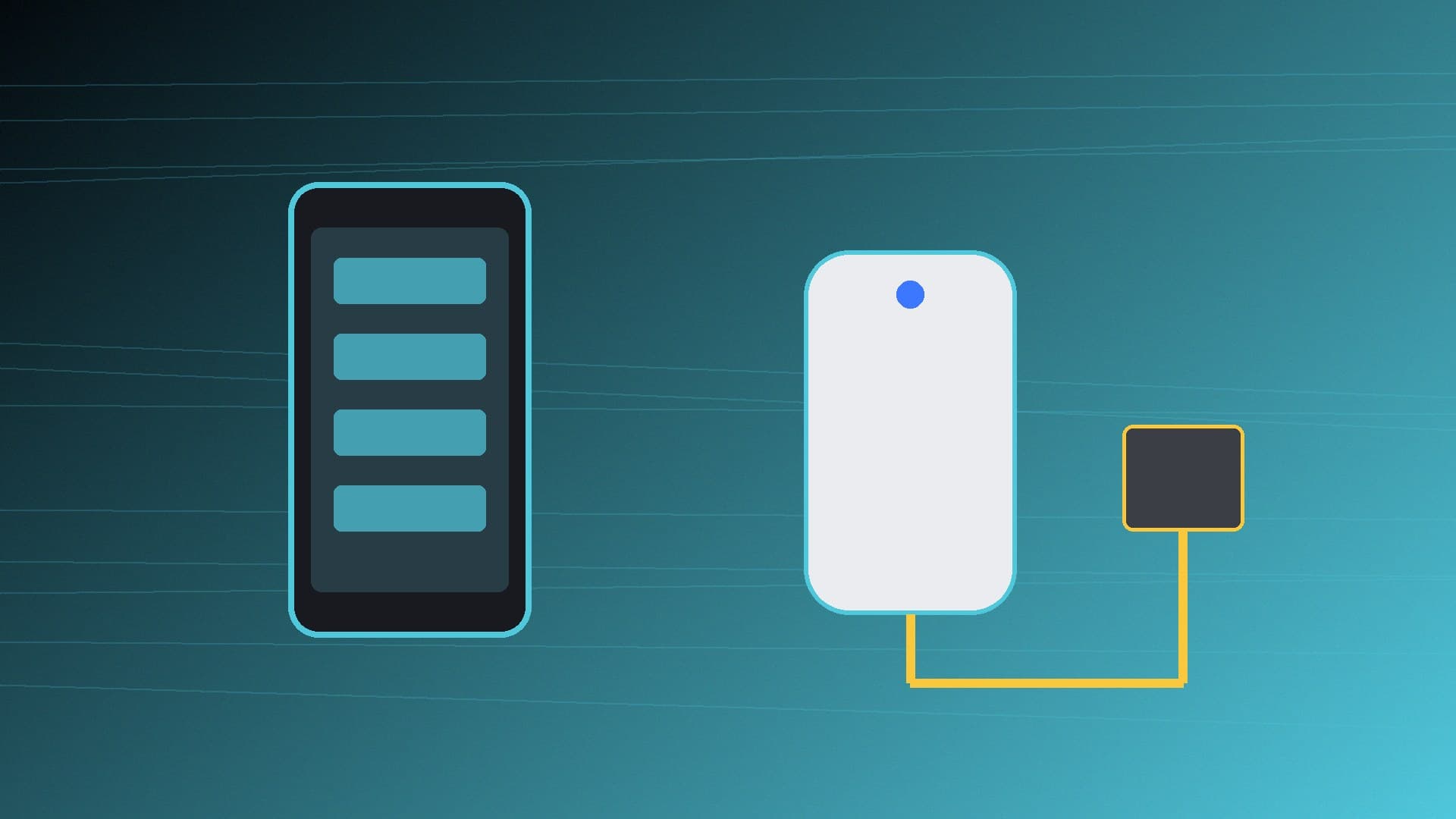
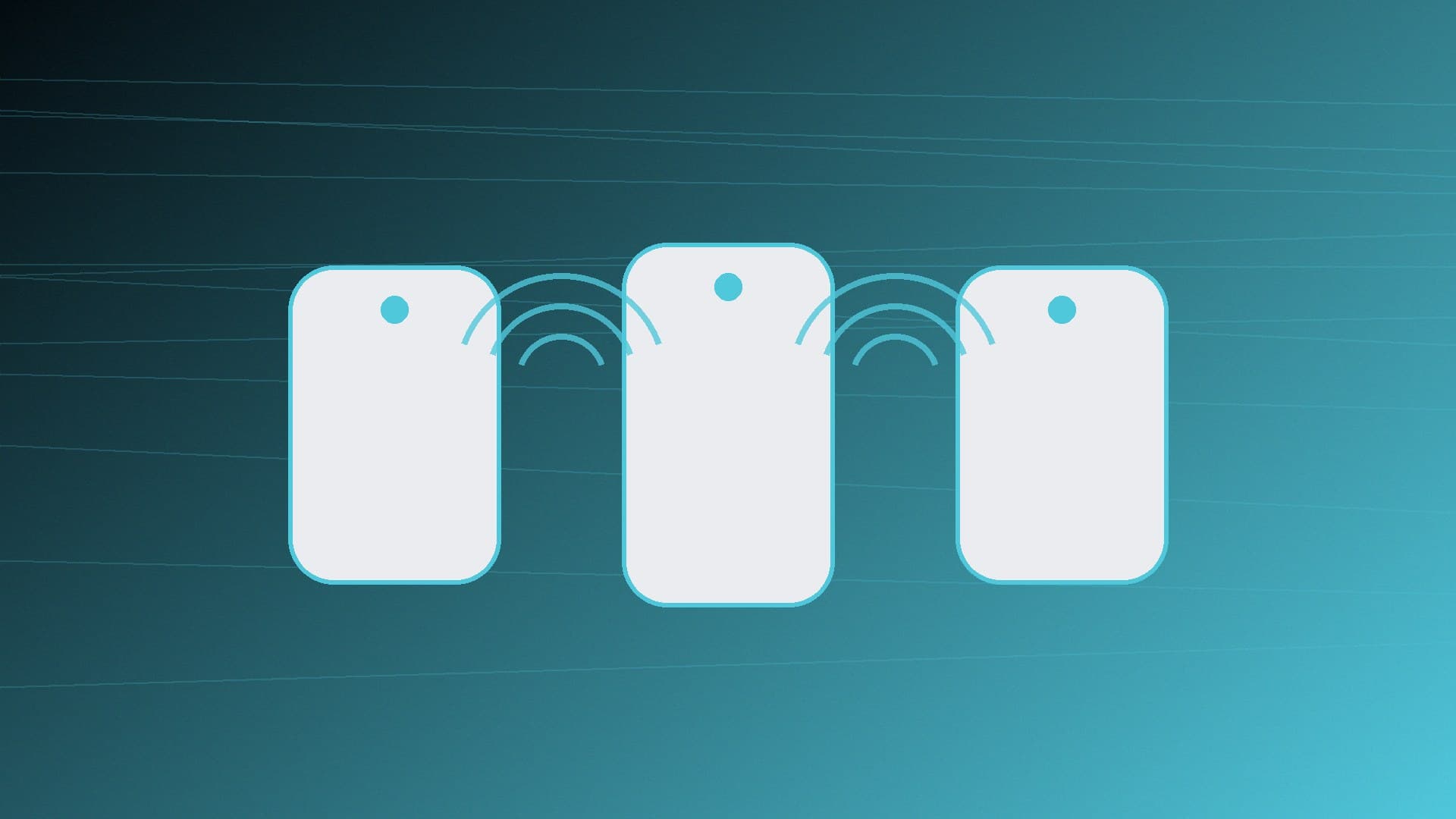
TP-Link's Deco mesh systems are set up entirely from a phone app, and the basic setup only takes a few minutes. Getting good speeds in every room takes a little more thought: where you put the satellite units, whether you can wire them together with Ethernet, and whether the Deco should be your router or sit behind your broadband provider's router. This guide follows TP-Link UK's official Deco setup and support pages. TP-Link notes that menu names and features can vary by model and software version, so follow the app if it differs from the steps below.
What you need
A Deco system (any model) and its power adapters.
An Android or iOS phone or tablet with the Deco app installed. TP-Link says Deco can only be set up through the app.
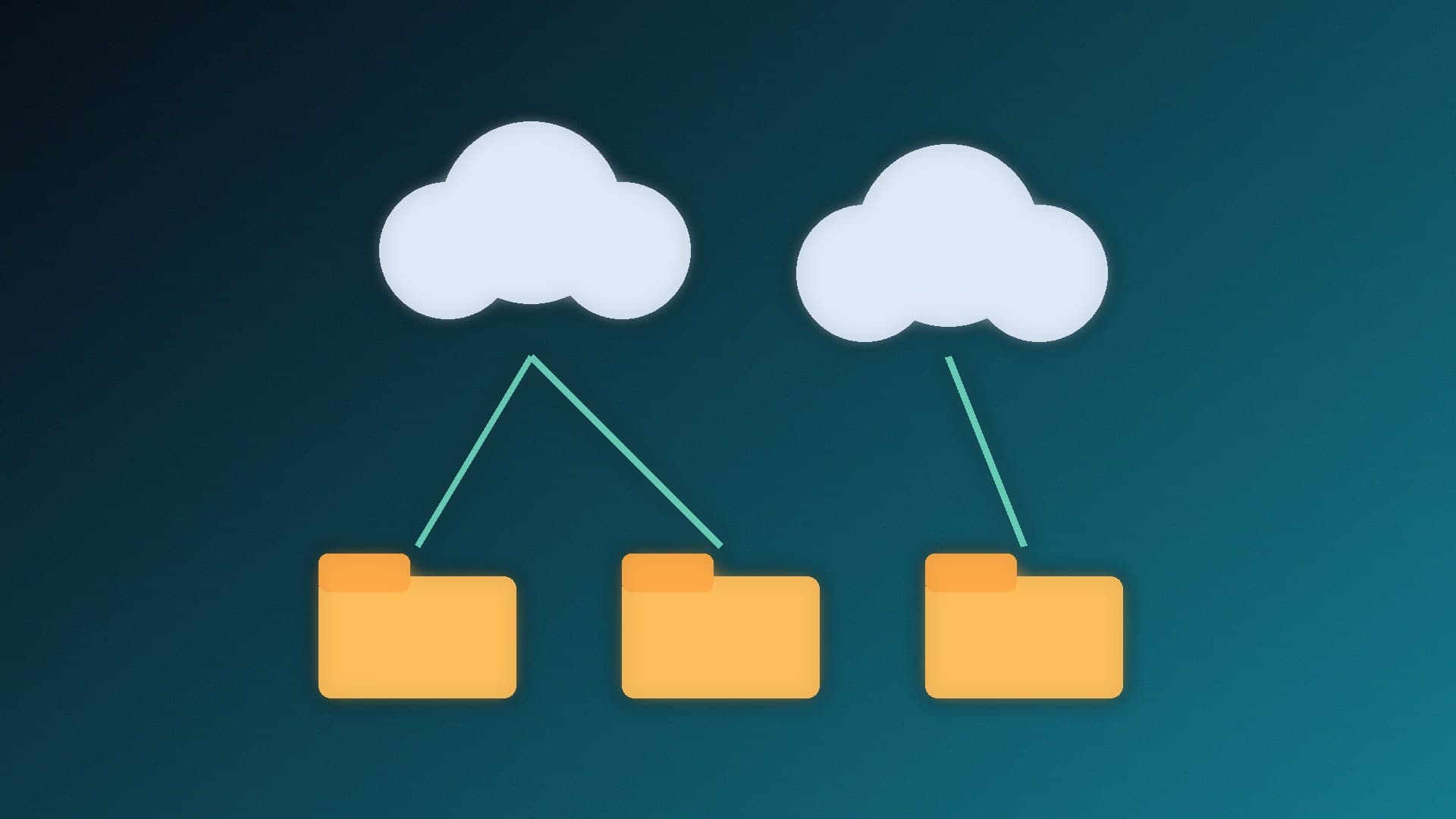
A TP-Link ID (you can create one in the app).
The Ethernet cable from the box, plus your broadband login details if your provider uses PPPoE.
Before you start, TP-Link recommends turning off power-saving mode on your phone. On iOS 14 and later, the app needs the Local Network permission.
Step 1: Connect the main Deco
Install the Deco app and log in with your TP-Link ID.
If you have a separate modem, power it off. Connect one of the main Deco's Ethernet ports to the modem or your provider's router, then power both on. With no modem, connect the Deco straight to the Ethernet wall socket for your broadband.
Wait for the Deco's LED to pulse blue, which means it's ready for setup. If it doesn't, press the reset button for one second; TP-Link says the light turns yellow and should change to pulsing blue after about two minutes.
Tap Let's begin in the app. If you don't see it, tap the + icon in the top corner and choose Create a Network.
Step 2: Follow the app setup
Let your phone connect to the Deco's Wi-Fi when the app asks. The default network name (Deco_XXXX) is printed on the label. Some models can also connect over Bluetooth for a quicker setup.
Choose a location (room name) for the Deco. This becomes its name in the app.
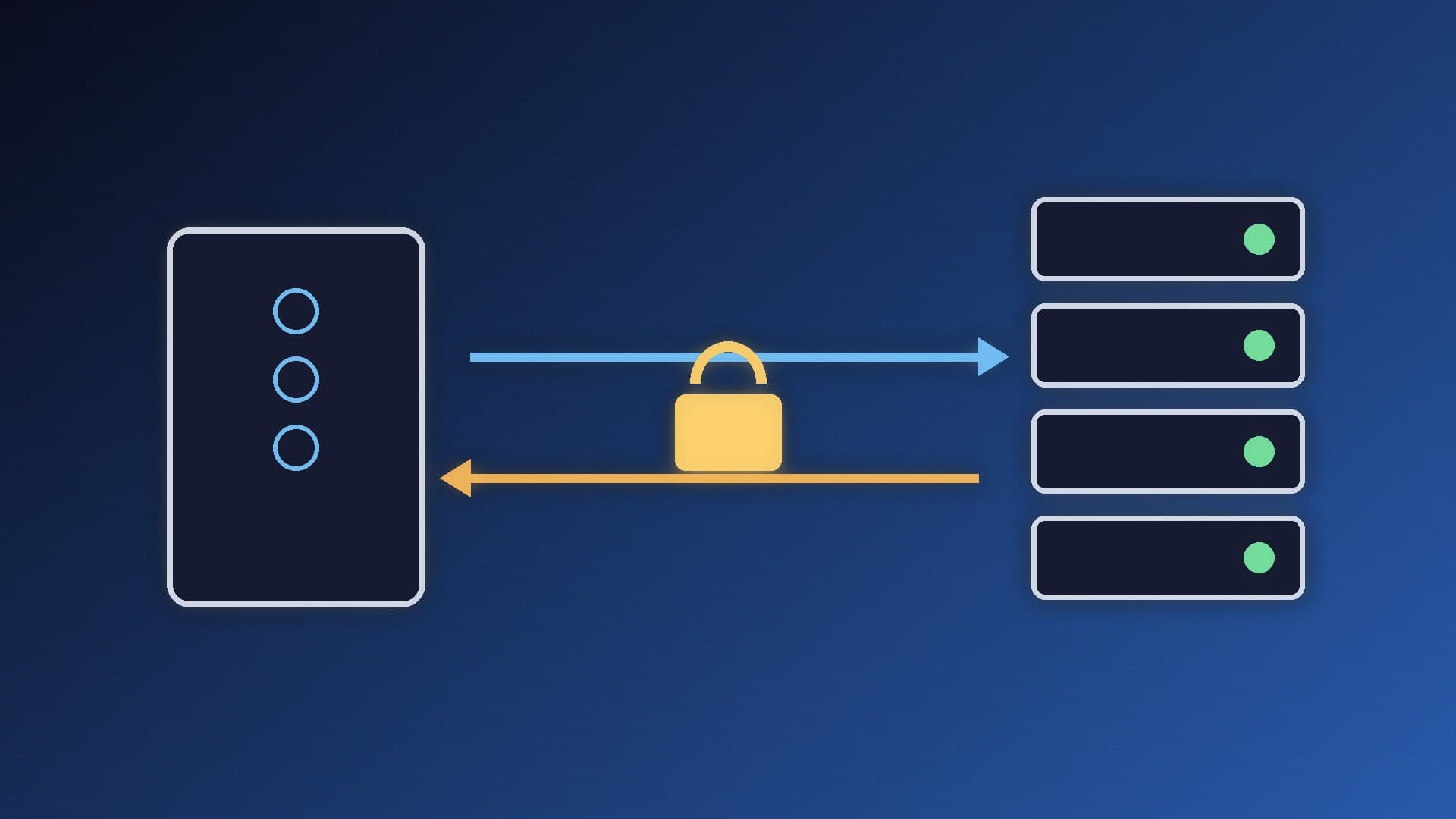
Pick your internet connection type. TP-Link says to choose Dynamic IP if the Deco is plugged into a router or modem router. If it connects to a bridge modem or directly to your provider's line, check the connection type (such as PPPoE or Static IP) with your provider. If your provider needs a VLAN ID, enter it under Advanced Settings > IPTV/VLAN.
Create your Wi-Fi network name and password. The password must be at least eight characters.
Reconnect your phone to the new network when prompted. Then connect your other devices.
Step 3: Add the other Deco units
If your Deco units came in the same box, TP-Link says Wi-Fi 6 and newer models will join the network on their own: just power them on in the same room as the main unit and wait about two minutes. Once they've joined, you can move them to where you want them.
For a Deco bought separately, power it on near the main Deco and wait for the LED to flash blue. In the app, open the Network tab, tap +, choose Add a Deco Unit and follow the prompts. Make sure your phone is connected to your Deco network first, or the app may not find the new unit.
You can mix different Deco models in one network. The main Deco (the one connected to your modem) decides which features are available in the app, so TP-Link recommends using your newest or highest-spec model as the main unit. TP-Link recommends no more than six units in one network for most models, although some newer models support more.
Step 4: Place the satellites properly
Placement makes the biggest difference to speed when the units talk to each other over Wi-Fi. TP-Link's placement guide recommends:
Placing satellites at the same height as the main Deco, ideally about 1 to 1.5ft off the floor.
Keeping units in open areas, away from walls and metal objects such as filing cabinets.
Keeping them away from microwaves, Bluetooth devices and USB 3.0 devices, which can interfere with the 2.4GHz band.
Checking each satellite's signal in the app (Network, then tap the satellite). TP-Link's recommended signal strength is two bars.
If a satellite shows a weak signal, move it closer to the main Deco and check again. Our guide to positioning Wi-Fi antennas on a desktop PC helps if your PC's own reception is the weak link.
Step 5: Use Ethernet backhaul if you can
If you have Ethernet cable between rooms, wiring the Decos together gives a faster, more stable link than Wi-Fi. TP-Link's rules are simple:
Set up every Deco wirelessly first, using the steps above.
Put each satellite where you want it and connect the Ethernet cables. Ethernet backhaul turns on automatically; there's nothing to change in the app.
In the default Router mode, satellites must connect to the main Deco's LAN port, or to a switch connected to that port. Don't plug a satellite straight into the modem or router in front of the main Deco, as that creates a network loop.
You don't have to wire every unit; wired and wireless backhaul can be mixed. If your switch has loop detection, TP-Link says the brief changeover from Wi-Fi to Ethernet backhaul may cause the switch to block the port, so turn loop detection off. For more on cabling, see our mesh Wi-Fi Ethernet backhaul guide and Cat5e vs Cat6 vs Cat8 Ethernet cable explainer.
Step 6: Choose Router mode or Access Point mode
By default, the Deco is your router. If you need to keep your provider's router as the main router, for example for its phone service, you can switch the Deco to Access Point mode: open More > Advanced > Operation Mode, choose Access Point, tap Save, then tap Reboot to confirm. TP-Link recommends updating the Deco firmware first. TP-Link says this takes about two minutes, until the LED turns solid green.
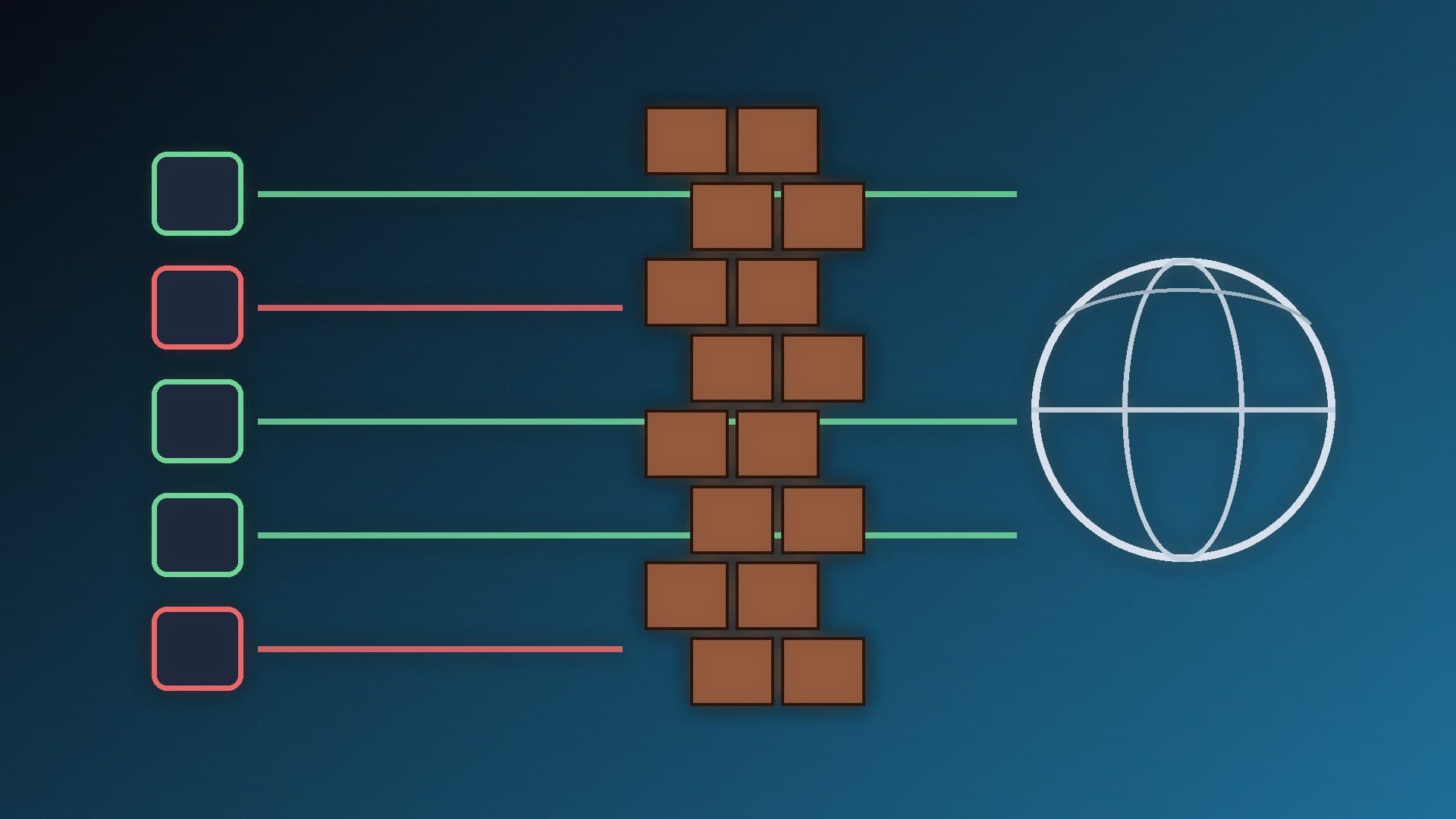
In Access Point mode, your existing router hands out IP addresses, so make sure its DHCP server is on. Some Deco features stop working because the main router manages the devices, including parental controls, port forwarding, address reservation and antivirus. Ethernet backhaul still works, and satellites can be wired to any Deco or to the main router. If you no longer need your provider router's own Wi-Fi, you can turn it off in that router's settings so your devices connect to the Deco instead.
Step 7: Update firmware and check the lights
Keep Deco firmware up to date from the app (More > System > Update Deco). TP-Link's LED guide for most Deco X and BE models says solid green means all is well, pulsing green means a firmware update, pulsing red means a satellite has lost its connection to the main Deco, and solid red means there's a problem, such as a lost internet connection.
If speeds are poor on your PC after setup, our guides to fixing Wi-Fi disconnecting in Windows 11 and checking Wi-Fi signal strength in Windows 11 can help. Choosing a system? See our best mesh Wi-Fi system guide and Deco BE25 vs Deco BE65 comparison.