If you need to move files between your PC and a web host, a home server, a Raspberry Pi or a NAS, a proper file transfer client is far easier than juggling command lines. The good news is that the best options are free. This guide compares WinSCP, FileZilla, Cyberduck and the SFTP client that's already built into Windows 11, using each developer's own documentation and download pages as of 28 November 2026.
Quick picks
Pick | Best for | Protocols (per developer) | Licence |
|---|
WinSCP | Most Windows users | SFTP, SCP, FTP, FTPS, WebDAV, S3 | Free, open source |
FileZilla | Simple FTP/SFTP on any OS | FTP, FTPS, SFTP (cloud storage in paid Pro) | Free, GPL |
Cyberduck | Cloud storage and servers in one app | FTP, SFTP, WebDAV, S3, Azure, Backblaze B2 and more | Free (donation prompt), libre |
Windows OpenSSH sftp | Quick command-line transfers | SFTP, SCP | Built into Windows |
Before you start: use SFTP where you can
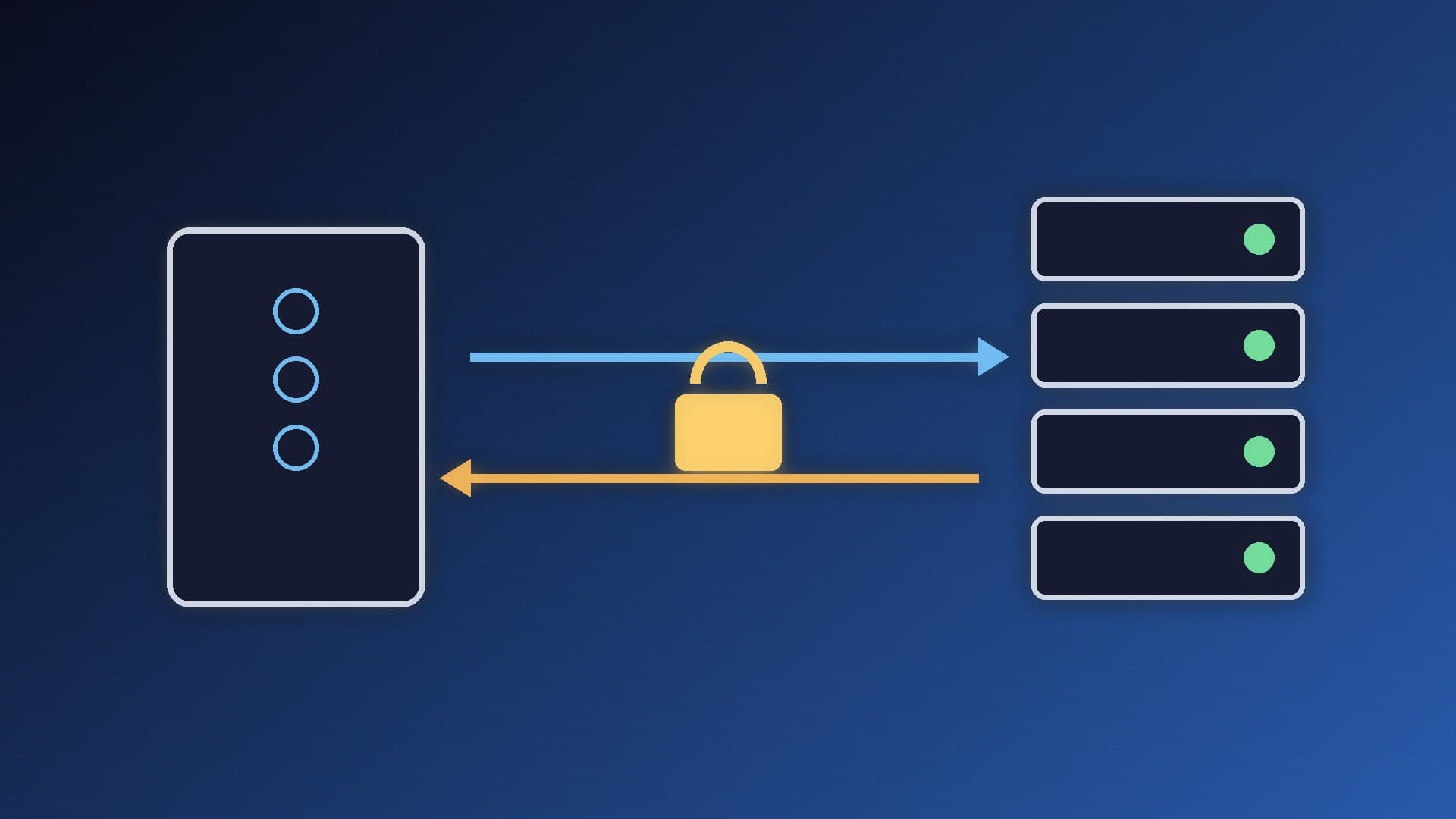
Plain FTP sends your login details and files unencrypted. SFTP runs over SSH and encrypts everything, and WinSCP's own requirements page notes that most SSH servers include an SFTP server. If your host, NAS or Linux box offers SFTP (usually on port 22), use it. FTPS (FTP over TLS) is the other secure option if a server only speaks FTP. All four picks below support SFTP.
1. WinSCP: best overall for Windows
WinSCP describes itself as "an open source free SFTP client, FTP client, WebDAV client, S3 client and SCP client and file manager for Windows". The latest stable version at the time of writing is 6.7.1, and the developer says it runs on Windows 7 (with SP1) and newer, up to Windows 11. The primary build is 32-bit but runs on 64-bit Windows; version 6.7 added an experimental 64-bit build.
What makes it our top pick is the depth of its Windows integration and automation:
Two interfaces. An Explorer-style view, or a two-pane Commander view with local files on one side and the server on the other.
Directory synchronisation. WinSCP can synchronise local and remote folders "in several semi or fully automatic ways", including a Keep remote directory up to date mode that watches a local folder and uploads changes as you save them. That's handy for web development.
Scripting. Batch scripting, a command-line interface and a .NET assembly for scheduled or automated transfers.
Security options. Password, public key and Kerberos authentication, integration with PuTTY's Pageant key agent, and an optional master password to protect saved site details.
Portable use. It can store its settings in a configuration file rather than the registry, so you can run it from a USB stick.
The downsides: it's Windows-only, the site shows adverts, and it doesn't connect to consumer cloud services such as Google Drive or OneDrive. Choose WinSCP if you mainly work on Windows and want the most capable free client.
FileZilla's FAQ states that it's free, open-source software under the GNU General Public License, and that anyone, including businesses, can use it. The free client handles FTP, FTPS and SFTP; the official tutorial shows that you can connect over SFTP simply by typing sftp://hostname into the Quickconnect bar, then save the connection with Copy current connection to Site Manager so you can reconnect in one click.
Its strengths are familiarity and simplicity: a classic layout with local files on the left, remote files on the right and a transfer queue at the bottom, and, according to the FileZilla wiki's installation guide, versions for Windows, macOS and GNU/Linux, so you can use the same tool on every machine.
Cloud storage is where it stops. The developer's paid FileZilla Pro adds Amazon S3, Google Drive, OneDrive, Backblaze B2, Box, WebDAV and more, plus file synchronisation features. If you only need servers, the free client is enough. Download it only from the official filezilla-project.org site, and read each installer screen carefully before clicking Next. Choose FileZilla if you want a straightforward client that works the same on Windows, Mac and Linux.
3. Cyberduck: best for cloud storage and servers together
Cyberduck calls itself "a libre server and cloud storage browser for Mac and Windows". Its protocol list goes well beyond FTP and SFTP: WebDAV, Amazon S3, OpenStack Swift, Backblaze B2, Microsoft Azure and Windows file shares (SMB) are all listed on the official site. For SFTP it supports public key and two-factor authentication, and can read your existing OpenSSH configuration.
The current Windows release is version 9.6.0, and it needs 64-bit Windows 10 or later. Cyberduck's documentation also covers bookmarks, folder synchronisation, editing remote files in your own editor and Cryptomator vaults for client-side encryption.
Cyberduck is free, but it shows a donation prompt after installing or updating. According to the download page, a contribution of at least US$10 gets you a registration key that removes it, or you can buy it from the Microsoft Store. Choose Cyberduck if you want one app for both SFTP servers and S3-style cloud storage.
4. Windows' built-in OpenSSH sftp: best for quick jobs
Windows 11 includes the OpenSSH Client as an optional feature, and Microsoft's documentation explains how to check it and install it from Settings or PowerShell. Once it's there, you can open Terminal and run sftp user@hostname to browse a server and use put and get to move files, or use scp for one-off copies. There's no interface to learn and nothing to install from a third party.
It's not a replacement for a graphical client if you move lots of files, but it's useful for a quick upload to a Raspberry Pi or a home server. Our guide to using OpenSSH in Windows 11 covers setting up the client and SSH keys.
Which should you choose?
Most people on Windows: WinSCP. It's free, open source and has the best synchronisation and scripting tools.
You use several operating systems: FileZilla, for the same simple interface everywhere.
You also manage S3, Azure or Backblaze B2 storage: Cyberduck.
You just need to copy one file: the built-in sftp and scp commands.
Whichever you pick, download it from the official site, prefer SFTP over plain FTP, and use SSH keys rather than passwords where your server allows it. To check that a large download arrived intact, see how to check a file hash in Windows 11. If you want to sync your PC with consumer cloud services rather than servers, see our best free cloud storage and best free file sync software guides. For controlling a remote PC rather than just moving files to it, see best free remote desktop software.