rclone is a free command-line tool that moves files between your PC and cloud storage. Its developers describe it as "a command-line program to manage files on cloud storage" with support for over 70 storage products, from OneDrive and Google Drive to S3-compatible services, SFTP servers and NAS boxes. It's ideal for scripted backups, for copying a big folder to the cloud reliably, or for mounting a cloud drive as a drive letter. This guide walks through installing rclone 1.76 on Windows 11, connecting a cloud account, copying and syncing safely, and mounting storage in File Explorer. It's based on rclone's official documentation.
Before you start
rclone has no graphical interface by default. It runs in Command Prompt, PowerShell or Windows Terminal. If you'd rather click than type, a sync app may suit you better; see our best free file sync software guide.
It needs Windows 10 or later. rclone's download page lists Windows 10 and Server 2016 as the minimum for release v1.76.0.
Sync deletes files. The difference between copy and sync matters, and we explain it below. Make sure you have a backup of anything important before experimenting; our best free backup software guide can help.
Step 1: Install rclone
The easiest way is the Windows Package Manager. Open Terminal and run:
winget install Rclone.Rclone
rclone's install guide notes that winget comes pre-installed with recent versions of Windows; if it's missing, update App Installer from the Microsoft Store. Our guide to installing apps with winget explains the basics. Chocolatey and Scoop packages are also available.
Alternatively, download the zip for your processor (Intel/AMD 64-bit, 32-bit or ARM 64-bit) from rclone.org and extract rclone.exe. The developers say it's a portable executable, so you can put it wherever is convenient.
If you plan to mount cloud storage as a drive (Step 5), also install WinFsp, the free Windows File System Proxy that rclone's mount feature depends on.
Step 2: Connect a cloud account with rclone config
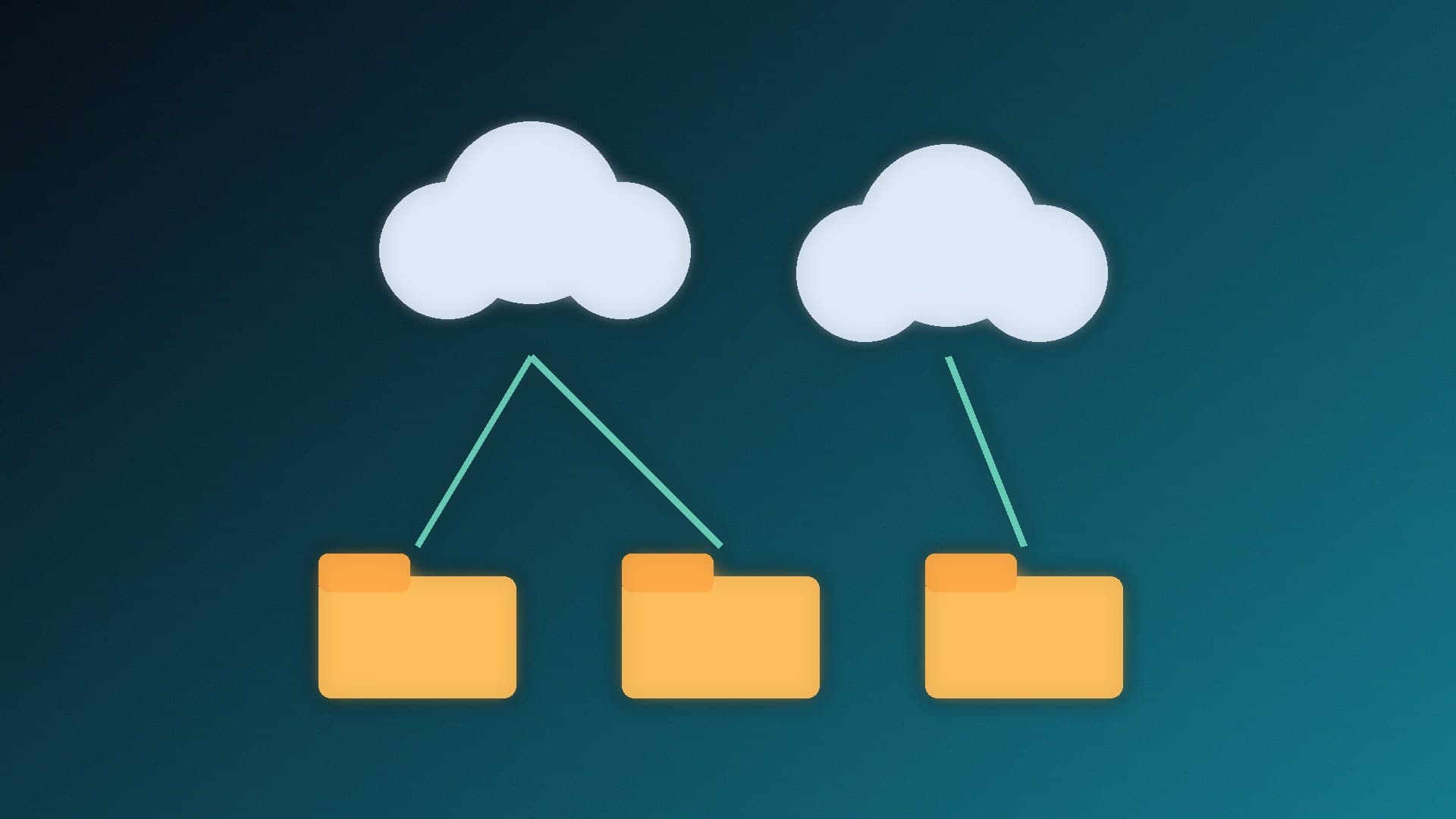
rclone stores each storage connection as a named remote. To create one, run:
rclone config
Then:
Type n for a new remote and give it a short name, such as onedrive.
Choose the storage type from the list, for example Microsoft OneDrive or Google Drive.
Accept the defaults for most questions unless you know you need something different.
When asked whether to use a web browser to authenticate, say yes on a normal PC. Your browser opens, you sign in to your account and grant access, and rclone receives a token.
For OneDrive, choose your drive when prompted, then confirm and quit.
rclone saves remotes in a configuration file, by default %APPDATA%\rclone\rclone.conf on Windows; running rclone config file shows the exact location. Treat that file like a password, because it holds the access tokens for your accounts.
Check it worked by listing the top-level folders:
rclone lsd onedrive:
rclone listremotes shows every remote you've set up. Paths always use the format remote:path, such as onedrive:Backups/Photos.
Step 3: Copy files (the safe option)
rclone copy sends files from a source to a destination and skips files that are already identical, checking by size and modification time or checksum. Crucially, it doesn't delete anything from the destination.
rclone copy "D:\Photos" onedrive:Backups/Photos -P
The -P (--progress) flag shows live progress. As rclone's documentation explains, it copies the contents of the source folder, not the folder itself, so name the destination folder in the command. If the destination doesn't exist, rclone creates it.
Step 4: Sync a folder, after a dry run
rclone sync makes the destination identical to the source. That means it deletes files from the destination that aren't in the source. rclone's own documentation warns that this "can cause data loss" and says to test first with --dry-run or --interactive (-i).
Always do a dry run first:
rclone sync "D:\Documents" onedrive:Backups/Documents --dry-run
Read the output carefully. If it lists only the changes you expect, run the same command without --dry-run. Two safety features are worth knowing: rclone won't delete destination files if there were errors at any point during the sync, and rclone check compares a source and destination so you can confirm they match.
Note that sync is one-way. rclone also offers bisync for two-way sync, but its documentation describes it as an advanced command to use with care, and the first run needs a --resync. If you want two PCs to stay in step automatically, our Syncthing guide is a simpler route.
Step 5: Mount cloud storage as a drive letter
With WinFsp installed, you can make a remote appear in File Explorer:
rclone mount onedrive: X: --vfs-cache-mode writes
rclone's documentation explains a few points about mounting on Windows:
You can mount to an unused drive letter, to a path inside an existing folder, or use * to pick the next free letter, starting at Z: and working backwards.
On Windows the mount runs in the foreground, so keep that Terminal window open. Press Ctrl+C to unmount.
By default rclone mounts a remote as a normal fixed drive. If you see program errors or freezes, the documentation suggests adding --network-mode to mount it as a network drive instead (this needs a drive letter).
Without --vfs-cache-mode, files can only be written sequentially, so many applications won't work with files on the mount. The docs recommend --vfs-cache-mode writes or --vfs-cache-mode full.
Step 6 (optional): Encrypt your cloud backups
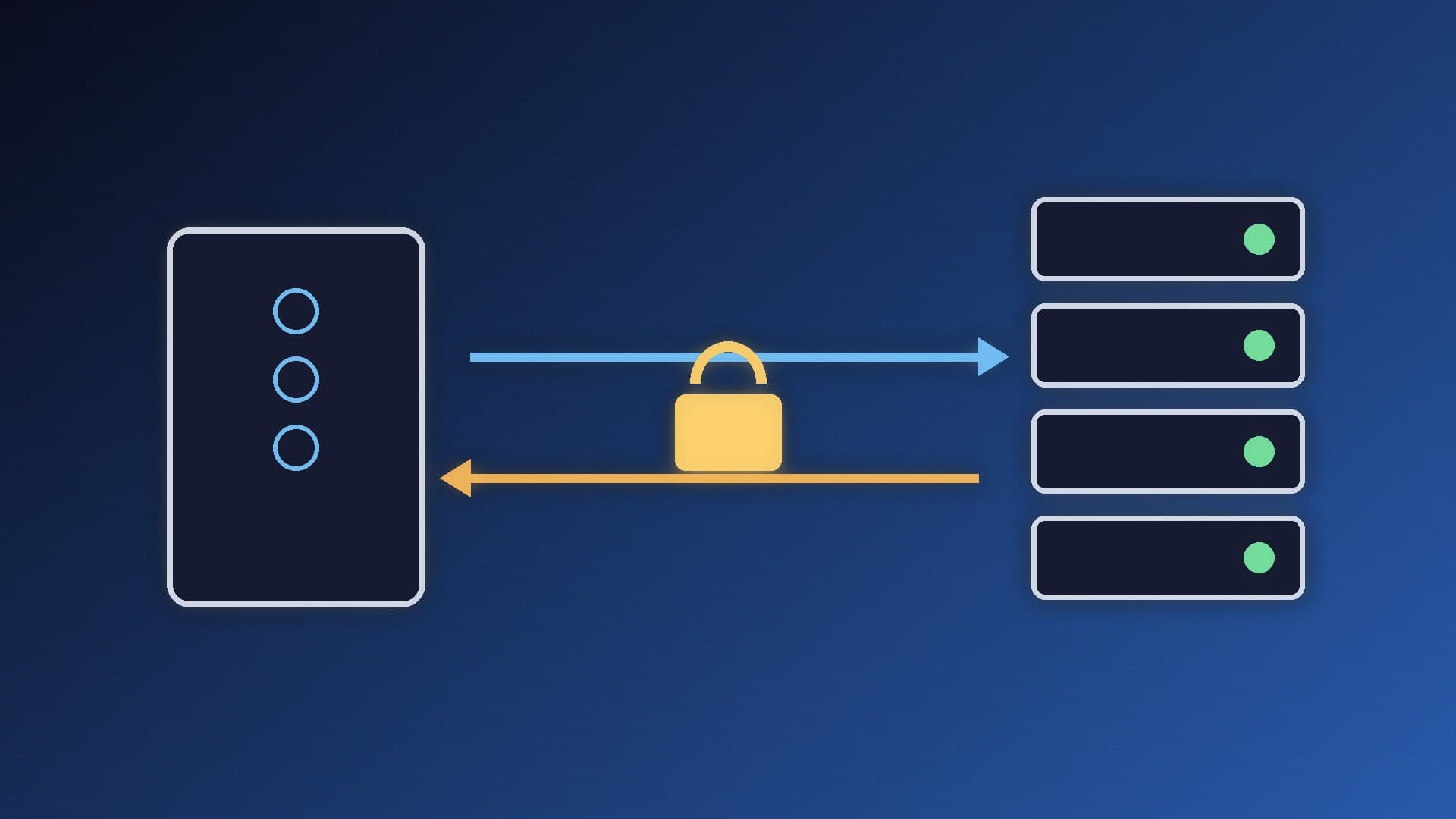
rclone's crypt remote wraps another remote and encrypts files before they're uploaded, using a password you choose. You create it with rclone config like any other remote, then point it at a folder on your existing cloud remote. Anything you copy to the crypt remote is stored encrypted in the cloud and decrypted when you read it back through rclone. The documentation stresses keeping your password safe: if you lose it, you can't recover your files.
Tips for regular use
Put your favourite rclone copy command in a batch file and run it from Task Scheduler for automatic backups.
Use --dry-run whenever you change a sync command.
rclone works with SFTP servers and NAS boxes as well as cloud services. For a graphical way to manage server files, see our best free SFTP and FTP clients guide.
Choosing a provider? Our best free cloud storage guide compares free allowances.