If you record music, play a virtual instrument or use audio software such as a DAW or Room EQ Wizard, you'll quickly be asked to pick an ASIO driver. ASIO is the low-latency driver standard that most music software on Windows expects, and choosing the right one makes the difference between a responsive setup and frustrating delays or dropouts. This guide explains your three options: your hardware maker's own driver, the free universal driver ASIO4ALL (version 2.22) and the open-source FlexASIO (version 1.10b). It's based on the developers' official documentation.
What ASIO is and why it matters
Windows has its own audio system that mixes sound from every app. That's convenient, but it adds delay. ASIO, which is Steinberg's technology and trademark, lets music software talk to audio hardware more directly. Steinberg offers ASIO to other manufacturers so they can build ASIO-based software and hardware, which is why so many audio interfaces ship with ASIO drivers and so many music apps on Windows list them in their audio settings.
There are two kinds of ASIO driver:
Device-specific drivers written by the maker of your audio interface or sound card.
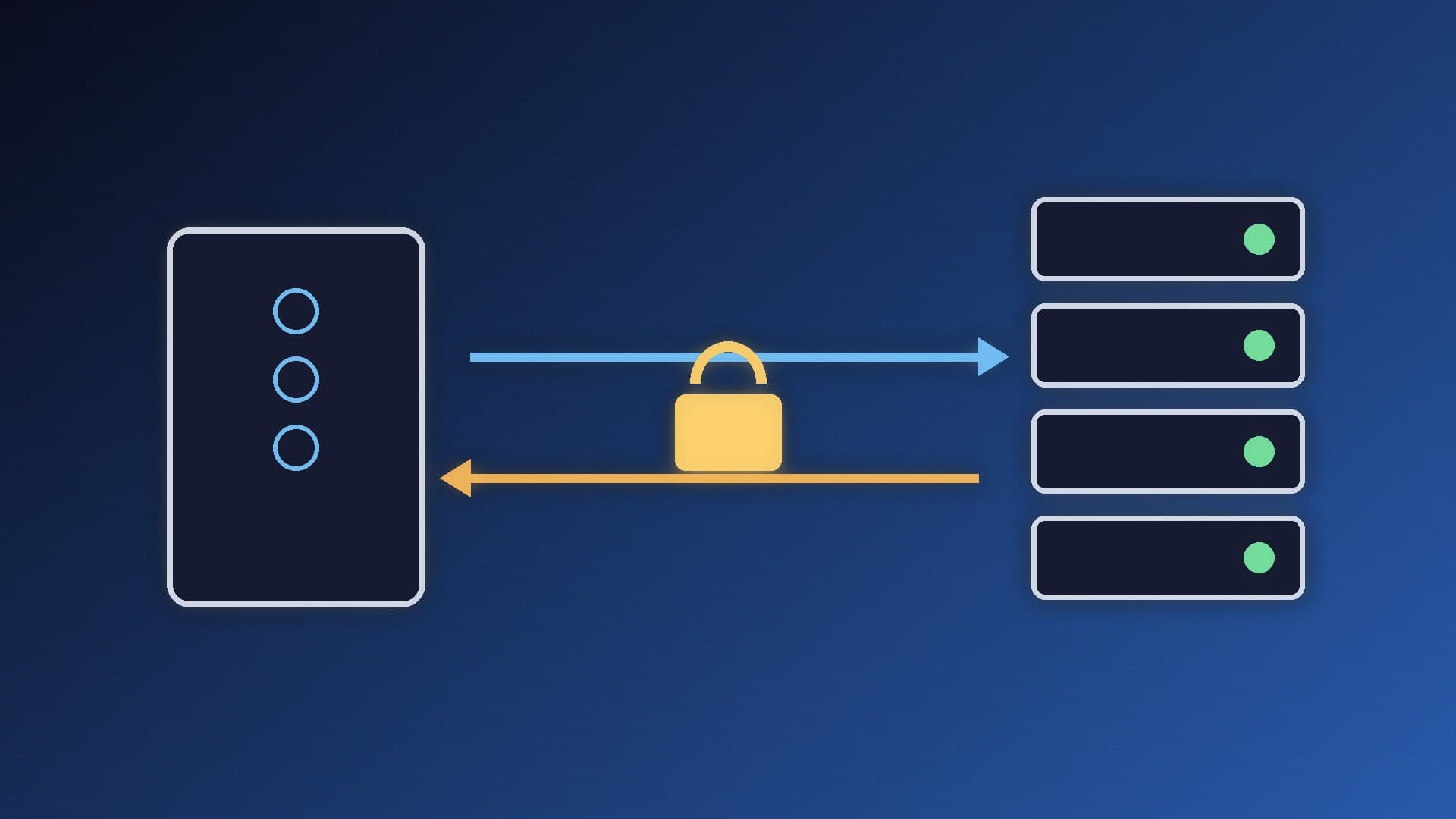
Universal drivers such as ASIO4ALL and FlexASIO, which work with almost any audio device by sitting on top of Windows' own audio interfaces.
Option 1: Use your audio interface's own ASIO driver (best)
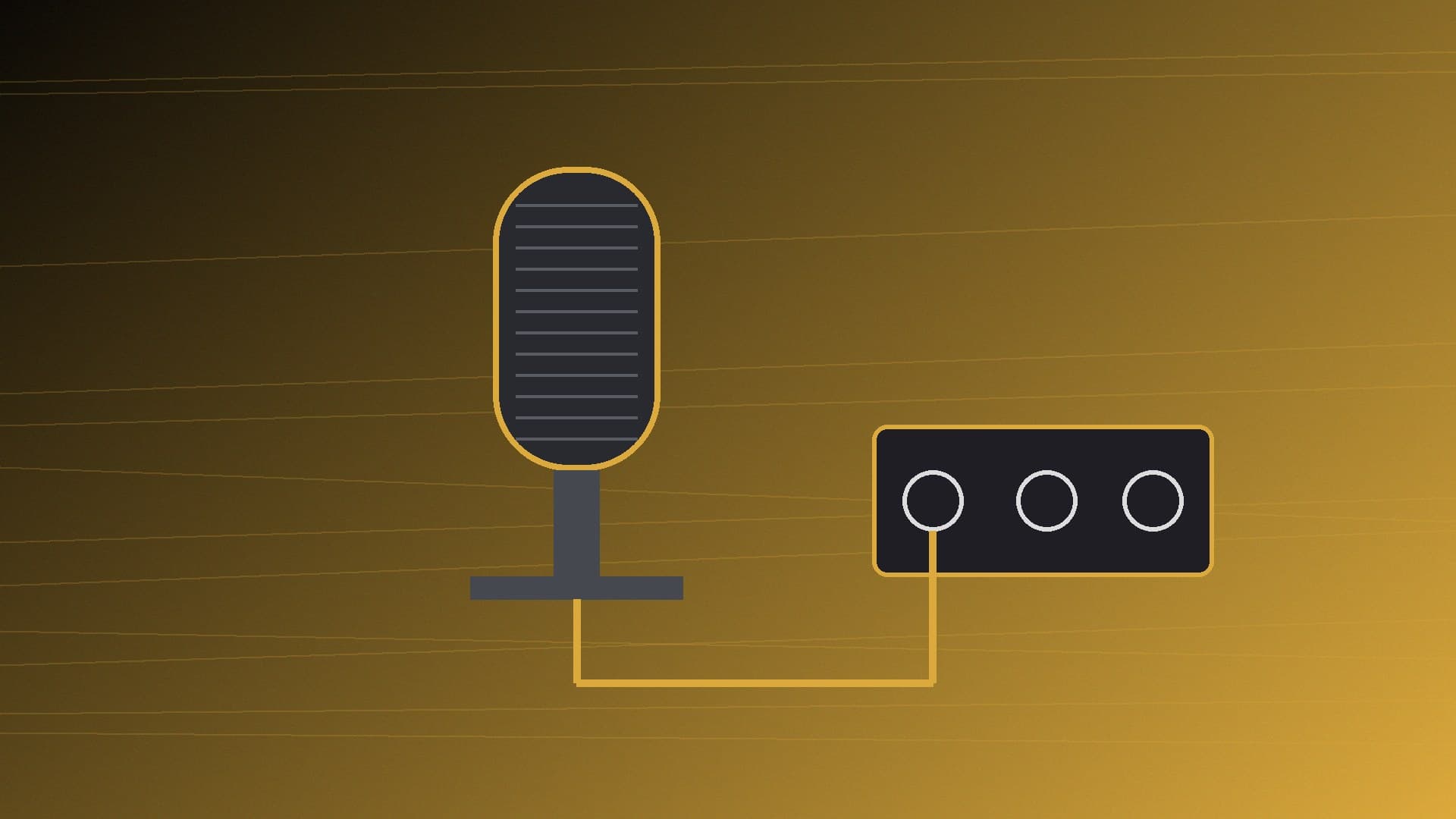
If you have a dedicated USB audio interface, its maker almost certainly provides an ASIO driver. This is usually the best choice, because it's written for that hardware. Download it from the manufacturer's support page, install it, restart if asked, then select it in your audio software's device settings.
Use a universal driver only if your hardware doesn't have its own ASIO driver, such as onboard motherboard audio, a USB headset or many USB microphones.
Option 2: ASIO4ALL
ASIO4ALL's developer describes it as "a hardware independent low latency ASIO driver for WDM audio devices", which in practice means almost any device with a normal Windows driver. It's free for end users (commercial bundling and resale are restricted). The current version is 2.22, which according to the developer adds support for Windows on ARM, both emulated and native, including low-latency support for older USB Audio Class devices that lack ARM64 drivers.
To set it up:
Download ASIO4ALL from the official asio4all.org site and install it.
In your audio software, open the audio settings and select ASIO, then ASIO4ALL v2 as the device.
Click the button to open the ASIO control panel. Its label depends on your software, but the ASIO4ALL control panel should appear.
In the WDM Device List, activate the device you want to use by clicking the button next to its name. ASIO4ALL's manual notes that parameter changes only apply to the device currently highlighted.
Adjust the ASIO Buffer Size (see below).
While an app is using ASIO4ALL, an icon appears in the system tray. Left-click it to open the control panel at any time. Since version 2.20, right-clicking it pauses audio processing and releases your audio devices. If there's no tray icon, your software isn't currently using ASIO4ALL.
The main limitation is that ASIO4ALL takes exclusive control of the device. FlexASIO's documentation points out that universal drivers other than FlexASIO always open devices in exclusive mode, so while your DAW is running, other apps such as your browser or Discord may not be able to play sound through the same output.
Option 3: FlexASIO
FlexASIO is a free, open-source universal ASIO driver by developer Etienne Dechamps. It differs from ASIO4ALL by using the PortAudio library, which can talk to several Windows audio interfaces: WASAPI in shared and exclusive modes, Kernel Streaming, DirectSound and MME. The headline benefit is shared mode, which lets other apps keep playing sound through the same device, with Windows mixing everything as normal.
FlexASIO needs Windows Vista or later and works with 32-bit and 64-bit ASIO host applications. The latest release on GitHub at the time of writing is 1.10b.
To set it up:
Download the installer from the FlexASIO GitHub releases page and run it.
In your audio software, select FlexASIO in the ASIO driver list.
By default it uses the DirectSound backend, your Windows default playback and recording devices, 32-bit float samples and a 20 ms preferred buffer size.
To change those defaults, create a text file called FlexASIO.toml in your Windows user folder (for example C:\Users\Your Name\FlexASIO.toml). The official configuration guide includes examples, such as using the WASAPI backend and setting a buffer size in samples:
backend = "Windows WASAPI"
bufferSizeSamples = 480
The documentation also shows how to turn on WASAPI exclusive mode for input and output, which the FAQ covers for low-latency use. If you'd rather not edit text files, the FlexASIO documentation mentions a third-party tool called FlexASIO GUI.
Choosing a buffer size
Whatever driver you use, the buffer size is the main setting to tune. A smaller buffer means less delay between pressing a key and hearing the sound, but asks more of your PC, and if it's too small you'll hear clicks, pops or dropouts. A larger buffer is more stable but adds delay.
A sensible approach is to start at a moderate setting, play or record for a few minutes, and reduce it step by step until you hear problems, then go back up a step. Larger buffers are fine for mixing, when you're not playing live.
If you hear crackles even with a generous buffer, the problem may be elsewhere in your system. Our guides to fixing audio crackling in Windows 11 and finding DPC latency problems with LatencyMon can help track it down.
Which should you use?
You have an audio interface: use its maker's ASIO driver.
You need low latency from onboard audio or a USB headset and don't mind exclusive access: ASIO4ALL.
You want other apps to keep playing sound while your DAW is open, or want fine control over the Windows audio backend: FlexASIO.
For free recording and editing apps to use with your new setup, see our best free audio software for Windows guide.