simplewall is a free, open-source tool that decides which programs on your PC are allowed to use the network. Instead of letting everything connect and blocking the odd app, it works the other way round: once you turn its filtering on, apps are blocked until you allow them. That makes it a powerful way to stop software phoning home, but it also means a careless setup can cut off your browser, games or Windows Update. This guide explains how simplewall works, how to install it, how to allow and block apps, and how to remove it cleanly. It's based on the developer's official GitHub documentation and release notes, current as of version 3.9.2.1.
What simplewall is (and isn't)
simplewall, by developer Henry++, is a small app (under a megabyte, according to its developer) that configures the Windows Filtering Platform (WFP), the set of system services Windows provides for network filtering. Three points from its documentation are worth understanding before you start:
It isn't a front end for Windows Firewall. simplewall creates its own filters and doesn't interact with Windows Firewall at all. Its FAQ says it's safe to keep Windows Firewall switched on, because the two work independently. We recommend leaving Windows Firewall on.
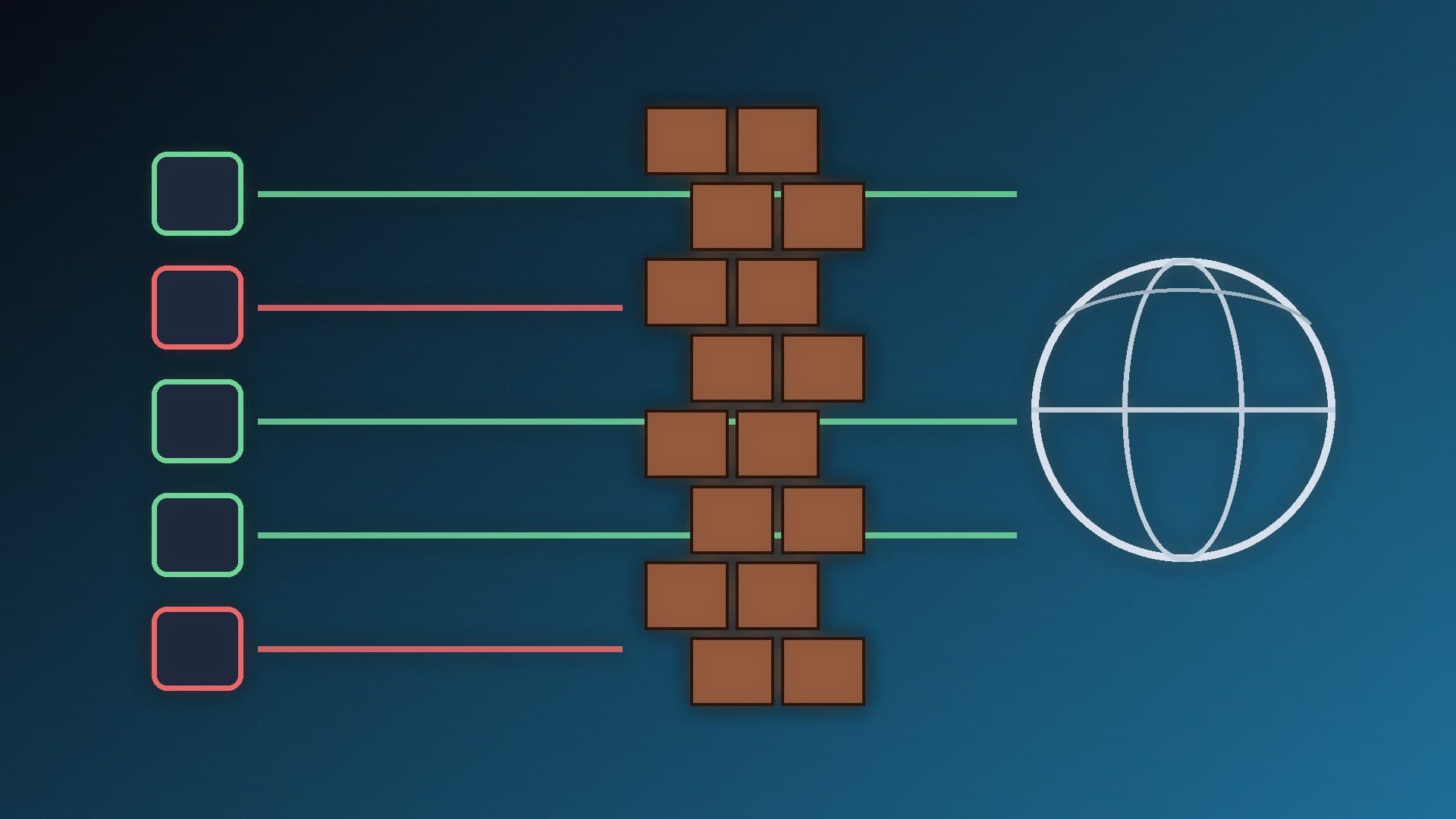
It blocks everything by default. Once filtering is enabled, simplewall blocks all applications unless you allow them. You don't need to create rules to block specific apps.
Its filters keep working when the app is closed. Rules stay active even if simplewall isn't running, and even after you uninstall it, until you disable them.
The developer describes simplewall as "definitely for advanced users". If you just want to stop one or two apps going online, Windows Firewall can do that without extra software; our guide to blocking an app in Windows Firewall explains how. For easier alternatives, see our best free firewall software guide.
Step 1: Download and install simplewall
simplewall runs on 64-bit and ARM64 versions of Windows 7, 8, 8.1, 10 and 11, and needs administrator rights to work. Download it only from the official GitHub releases page (github.com/henrypp/simplewall). Each release offers:
a setup .exe installer
a bin .7z archive with the program files (the developer offers both an installer and a portable version)
a GPG .sig signature file and a .sha256 checksum file, so advanced users can check the download
The latest release on GitHub at the time of writing is v3.9.2.1, published on 21 November 2026, a maintenance release that fixes a "Could not load internal profile!" error. It follows v3.9.2 a day earlier, which added a multilanguage installer, grouping of dropped-packet log entries and an option to exclude the main window from screen capture, and fixed several bugs. One of those fixes matters for anyone using timed rules: in earlier versions, manually clicking "Disable timer" on a program could give it full internet access. If you run an older version, update.
To run simplewall as a portable app, the documentation says to create a file called simplewall.ini in the program folder, or move the existing one from %APPDATA%\Henry++\simplewall.
Step 2: Prepare your allow list before you enable filtering
Because simplewall blocks everything once filtering is on, the safest approach is to open it and allow the apps you need before you switch filtering on. The essentials for most people are:
your web browser
your game launchers, such as Steam
chat and voice apps you use, such as Discord
any backup, cloud storage or password manager apps
security software
In simplewall's main window, find each of these apps and allow it. Anything you haven't allowed will be blocked once filtering is on.
Step 3: Enable filtering
When you enable filtering, simplewall offers two modes:
Permanent rules, which stay in place until you disable them manually.
Temporary rules, which are reset at your next reboot.
We suggest choosing temporary the first time. If something important stops working and you can't work out why, a restart puts everything back to normal.
simplewall's feature list includes notifications about dropped packets, which help you spot apps you've forgotten to allow. It can also log dropped packets to a file, and on Windows 8 and later, allowed packets as well.
Step 4: Fix Windows Update and the "no internet" icon
Two common problems after enabling simplewall have fixes in its documentation:
Windows Update can't connect. On Windows 10 and 11, open simplewall's Settings, go to Rules and enable Allow Windows Update.
The network icon shows an exclamation mark. Windows checks for an internet connection using a feature called the Network Connectivity Status Indicator (NCSI). If it's blocked, Windows thinks you're offline. In simplewall, open the System rules tab and make sure the NCSI rule is allowed; the documentation says it's enabled by default.
simplewall also has an internal blocklist aimed at Windows telemetry. If it causes problems, you can turn it off under Settings > Blocklist by selecting Disable.
Step 5: Create custom rules (optional)
For finer control, simplewall's rules editor supports two types of user rule:
Global rules, which apply to all applications.
Special rules, which apply only to the apps you choose on the rule's Apps tab.
Rules can target IP addresses, IP ranges, CIDR blocks such as 192.168.0.0/24, and ports or port ranges such as 20-21. Separate multiple entries with a semicolon.
If you'd rather block a few apps and allow everything else, the documentation explains how: open Settings > Rules, untick Block outbound for all and Block inbound for all, then create a user rule with a block action and no remote or local addresses, and assign it to the apps you want to block.
Step 6: Remove simplewall properly
This is the step people most often get wrong. According to the documentation, uninstalling simplewall does not remove the filters it created, so apps can stay blocked with no obvious cause. Before you uninstall it:
Open simplewall.
Click Disable filters.
Then uninstall the app.
simplewall also supports command-line options, including -install to enable filtering, -install -temp to enable it until the next reboot and -uninstall to remove all installed filters. If you're troubleshooting, the documentation explains that netsh wfp show filters, run from an administrator Command Prompt, saves a list of the active filters to a file you can inspect.
Tips for living with simplewall
Start in temporary mode until you're happy with your allow list.
Check new apps. When you install a new program that needs to go online, remember to allow it in simplewall.
Don't use it as your only protection. Keep Windows Firewall and Microsoft Defender switched on.
Consider privacy tools too. simplewall also appears in our best free privacy tools for Windows 11 guide.