Online "restore my old photo" sites are everywhere, but uploading a family archive to a website you don't know isn't ideal, and some of those sites run open-source models without the authors' permission. The better option is to do it on your own PC. The free tools below repair blurry faces, remove scratches and add colour to black-and-white pictures, and most of them run on a mainstream graphics card. Our picks are based on each project's official README and licence, read on 28 November 2026. All five are free, so there are no prices to quote.
At a glance
Tool | Best for | Licence | Hardware notes from the developers |
|---|
CodeFormer | Restoring faces in personal photos | NTU S-Lab License 1.0 (non-commercial) | PyTorch 1.7.1+, CUDA 10.1+ |
GFPGAN | Face restoration for commercial work | Apache 2.0 | Nvidia GPU and CUDA optional |
Bringing Old Photos Back to Life | Scratched and creased prints | MIT | Tested on Ubuntu with Nvidia GPUs |
chaiNNer | A graphical, no-code workflow | GPL-3.0 | Nvidia via PyTorch, ONNX and TensorRT; AMD and Intel via NCNN |
DeOldify | Colourising black-and-white photos | MIT | Windows GUI version needs no GPU |
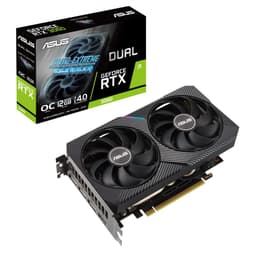
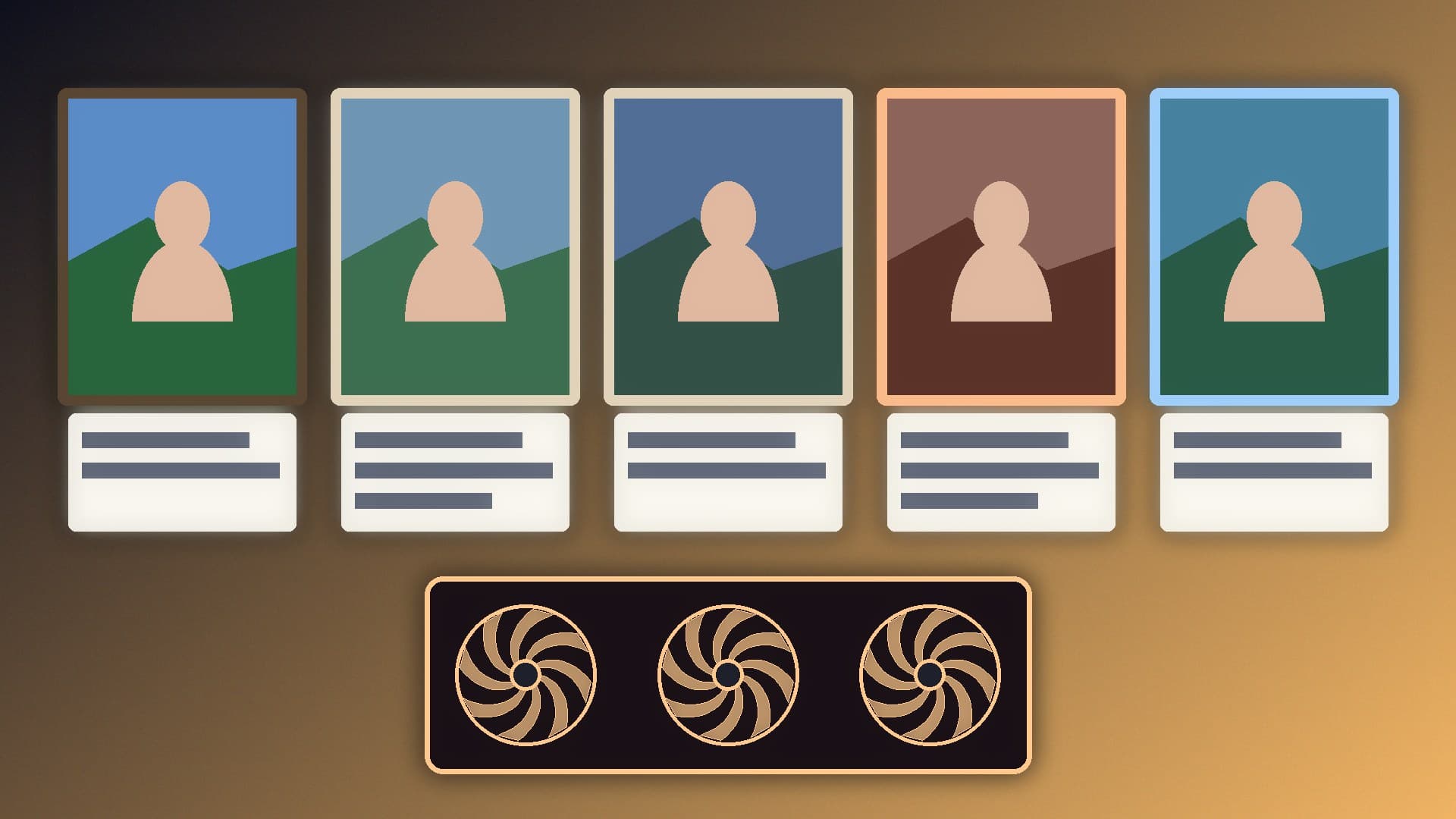
None of these developers publishes a minimum VRAM figure for photo restoration. These models are much smaller than image generators or large language models. As our suggestion rather than an official requirement, an 8GB card such as the ASUS RTX 5060 8GB Dual OC is enough to get started, and a 12GB card like the ASUS RTX 3060 12GB Dual Gaming OC V2 gives you more room for other local AI jobs.
CodeFormer, from S-Lab at Nanyang Technological University, is a face restoration model presented at NeurIPS 2022. It finds every face in a photo, predicts a sharper and cleaner version and blends it back in. It can also enhance the background with Real-ESRGAN, process video clips, colourise black-and-white face crops and fill in masked areas of a face.
Its standout feature is the fidelity weight. The README says lower values tend to give higher-quality results and higher values stay closer to the original, so you can find the right balance between a clean result and a face that still looks like your relative. Our guide to restoring old photos with CodeFormer takes you through installing it and choosing a setting.
The catch is the licence. The NTU S-Lab License 1.0 only permits non-commercial use, so CodeFormer is for your own photos, not paid work. The README also warns that only its Hugging Face, Replicate and OpenXLab demos are maintained by the authors, and it names several non-official websites.
Choose it if: you're restoring faces in your own family photos and want the most control over the result.
2. GFPGAN: best for commercial work
GFPGAN comes from Tencent's Applied Research Center and uses the priors in a pretrained face GAN, such as StyleGAN2, to restore faces. It's released under the Apache 2.0 licence, apart from the third-party components listed in its licence file, which makes it the obvious face restorer if you edit photos for paying clients.
Instead of a slider, GFPGAN offers model versions. Its README says V1.3 gives more natural results but isn't very sharp and slightly changes identity, while V1.2 is sharper but some outputs look unnatural. V1.4 adds slightly more detail and better identity than V1.3, according to the developers. GFPGAN can also upscale the whole image with Real-ESRGAN, and its "clean" version doesn't need custom CUDA extensions. See our GFPGAN vs CodeFormer comparison for the full breakdown.
Choose it if: you need a commercial-friendly licence, or you want to compare several model versions on the same photo.
3. Bringing Old Photos Back to Life: best for scratched prints
Face restorers don't repair the rest of the picture. Bringing Old Photos Back to Life, from researchers at City University of Hong Kong and Microsoft and presented at CVPR 2020, does. Its full pipeline restores the overall photo, and a --with_scratch option detects and repairs scratches. A --HR option handles high-resolution scratched images, and a separate stage refines faces with its own face enhancement model. There's a simple GUI script as well as the command line.
Be aware of the limits. The repository was archived on 3 October 2026 and is now read-only, so don't expect fixes. The developers say the code is mainly for research and hasn't been optimised for performance, and they note that the face model was trained on 256x256 images, so it may not work ideally at every resolution. The code was tested on Ubuntu with Nvidia GPUs and needs Python 3.6 or newer, so on Windows we'd use WSL2. Our guide to setting up WSL2 for GPU-accelerated local AI covers that. You can set --GPU -1 to run it on the CPU. It uses the MIT licence.
Choose it if: your prints have scratches, creases or tears, not just blurry faces.
4. chaiNNer: best if you don't want to use a terminal
chaiNNer is a free, open-source (GPL-3.0), node-based image processing app for Windows, macOS and Linux. It started as an AI upscaling tool, and you build a workflow by connecting nodes: load a folder of scans, restore the faces, upscale the result and save it. You don't need to install Python yourself, as chaiNNer downloads its own integrated Python build and installs the rest from its dependency manager.
Nvidia cards get full support through PyTorch (CUDA), ONNX and TensorRT. AMD cards can use PyTorch via ROCm on Linux, and NCNN works with AMD and Intel GPUs on all platforms. For model loading it uses Spandrel, which supports GFPGAN and RestoreFormer in its main package, while CodeFormer is in a separate extra-architectures package intended for non-commercial and private projects. If you already use chaiNNer for upscaling, our best AI image upscaler software guide has more on it.
Choose it if: you want a visual, repeatable workflow for restoring a whole album in one batch.
5. DeOldify: best for colourising black-and-white photos
DeOldify is a long-running open-source colouriser for black-and-white photos and video, started in 2018. It offers two image models: "artistic", the default, and "stable", which the developer says generally produces less interesting colours but noticeably fewer glitches. It uses the MIT licence.
The original repository was archived in October 2024, so treat it as finished software. Its README points to two desktop options: a Stable Diffusion Web UI plugin for photos and video, and a Windows-only GUI called DeOldify.NET for photos, which the README says doesn't need a GPU. Remember that AI colours are guesses, not the real colours of the scene.
Choose it if: you want to add colour to black-and-white family photos and don't mind some trial and error.
A sensible order of work
For a typical damaged family photo, we'd scan it at a good resolution and keep the original. Next, remove scratches with Bringing Old Photos Back to Life if needed, then restore faces with CodeFormer or GFPGAN, and only then try colourising with DeOldify. Do the final touch-ups in an image editor. Our list of the best free photo editors for Windows can help, and our guide to the best local AI photo organisers will help you keep the finished archive in order.