The picks are based on each developer's official documentation and system requirements, all read on 24 November 2026. We haven't quoted prices because the only paid app here is sold on subscription with frequently changing offers in US dollars.
AI upscaling is one of the most practical uses of a modern graphics card. Instead of simply stretching pixels, an upscaling model predicts the detail that a larger version of the image would contain. That makes it useful for printing old digital photos, rescuing low-resolution product shots, cleaning up game screenshots or making a wallpaper from a small image.
The good news is that you don't need a high-end card for most of it. The apps below range from free tools that run on almost any gaming GPU to a professional suite that wants at least 6GB of video memory, and one option is already built into Windows on Copilot+ PCs.
At a glance
App | Best for | Cost | GPU support (developer's own docs) |
|---|
Upscayl | Most people | Free, open source | Needs a Vulkan-compatible GPU |
Topaz Gigapixel | Photographers and print work | Paid subscription | NVIDIA, AMD or Intel with 6GB VRAM; 8GB for generative models |
chaiNNer | Power users and batch workflows | Free, open source | NVIDIA via PyTorch/TensorRT; AMD and Intel via NCNN |
Photos app Super resolution | Copilot+ PC owners | Built into Windows 11 | Copilot+ PCs only |
Real-ESRGAN ncnn-vulkan | Command-line and scripting | Free, open source | Intel, AMD and NVIDIA GPUs |
1. Upscayl: best free AI upscaler for most people
Upscayl is a free, open-source desktop app that describes itself simply as an "AI Image Upscaler". You pick an image, choose a model and an output folder, and it does the rest. It's available for Windows 10 and later, macOS 12 and later, and Linux, and the project's GitHub page shows version 2.15 as the latest release.
The one hardware requirement that matters is flagged as important on its GitHub page: you need a Vulkan-compatible graphics card. Upscayl warns that many integrated GPUs don't work, although it says there's no harm in trying. Because Vulkan isn't tied to one GPU maker, Upscayl is an easy choice if you don't have an NVIDIA card. Upscayl also supports extra community models and lets you convert your own.
If you want a step-by-step walkthrough, including choosing the GPU and scale, see our guide on how to upscale images with AI using Upscayl.
Hardware tie-in: any recent dedicated graphics card with Vulkan support. More VRAM helps with very large images, but Upscayl doesn't publish a minimum figure.
2. Topaz Gigapixel: best for photographers and big prints
Topaz Gigapixel is the paid, professional option. Topaz says it can upscale almost any image 6x, and it offers a range of AI models for different kinds of image, including Standard, High Fidelity, Low Res, Text & Shapes and Art & CG, plus newer models such as Wonder and Redefine. It runs as a standalone app or as a plugin for Photoshop and Lightroom Classic, and subscriptions include both local rendering on your own PC and cloud rendering on Topaz's servers.
It's also the most demanding app here, and Topaz is specific about it. Its Windows minimum requirements, as listed on its documentation site, are:
Operating system: Windows 10 (latest version), with Topaz recommending Windows 11
System memory: 16GB of RAM, and 24GB or more may be needed for large upscales
CPU: Intel or AMD with AVX instructions, released after 2016
Graphics: an NVIDIA, AMD or Intel card with 6GB of VRAM; Intel support for the core models covers Arc Alchemist and Battlemage cards with 6GB or more
Generative models: need 8GB of VRAM to run locally; Topaz says they may work on 6GB but will be slow and that isn't supported
Storage: 55GB on the C: drive, with about 48GB going into the ProgramData folder
Topaz also says external GPUs, virtual machines and Linux aren't supported. Snapdragon X laptops are supported, with 16GB of RAM minimum and 24GB for the generative models.
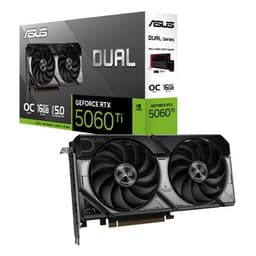
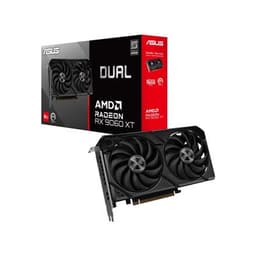
Hardware tie-in: this is the app where your graphics card really matters. An 8GB card is the practical floor if you want to use the generative models locally, and a 12GB or 16GB card such as the Intel Arc B580 or a 16GB RTX 5060 Ti or RX 9060 XT gives you headroom. If your card falls short, cloud rendering is included.
3. chaiNNer: best for power users and batch jobs
chaiNNer is a free, open-source, node-based image processing app. Its developers say it was "born as an AI upscaling application", and it's still one of the most flexible ways to run upscaling models. Instead of a single button, you build a chain of nodes: load a folder, upscale it with one model, sharpen or resize it, convert the format and save it. Once a chain is built, you can reuse it on thousands of images.
chaiNNer supports several AI frameworks, which you install from its built-in dependency manager: PyTorch, NCNN, ONNX and TensorRT. Its documentation spells out which to use for each type of GPU:
NVIDIA: PyTorch (CUDA) or TensorRT, with TensorRT offering the best performance on supported models
AMD: NCNN on all platforms, or PyTorch via ROCm on Linux
Intel: NCNN
CPU: all frameworks can fall back to CPU-only mode
Two tips from its own documentation are worth knowing. First, when using NCNN, select your graphics card in the settings, because chaiNNer may default to your integrated graphics. Second, some NCNN users with non-NVIDIA GPUs get all-black outputs, which the developers attribute to the graphics driver running out of memory; setting a tiling amount manually is the suggested fix. chaiNNer doesn't support Windows 8.1 or older.
Hardware tie-in: NVIDIA owners get the most options thanks to TensorRT, while AMD and Intel owners should stick to NCNN models on Windows.
4. Photos app Super resolution: best built-in option on Copilot+ PCs
If you have a Copilot+ PC, you already have an AI upscaler. Microsoft's Photos app includes a Super resolution tool that Microsoft says is exclusive to Copilot+ PCs and currently works on images only. Open a photo, select Edit, then Super resolution, and choose 1x, 2x, 4x or 8x. You get a before-and-after comparison before saving.
Microsoft says the model runs locally on your device, isn't generative, and fills in missing detail rather than creating new content. It's the simplest option here, but it only works on the laptops and desktops that qualify as Copilot+ PCs, and you get far fewer controls than in the dedicated apps. Our guide to the AI features in the Windows 11 Photos app covers it alongside the other tools, and our explainer on what an NPU and a Copilot+ PC are explains who qualifies.
Hardware tie-in: a Copilot+ PC. A powerful desktop graphics card doesn't unlock it on its own.
5. Real-ESRGAN ncnn-vulkan: best for scripting
Real-ESRGAN is an open-source project whose developers say it aims at practical algorithms for general image and video restoration, and it provides general-purpose and anime-optimised upscaling models. Its developers also publish portable executables for Windows, Linux and macOS built on NCNN and Vulkan, which they describe as working with Intel, AMD and NVIDIA GPUs without a CUDA or PyTorch environment.
There's no graphical interface: you run a command such as realesrgan-ncnn-vulkan.exe -i input.jpg -o output.png -n realesrgan-x4plus, with options for the scale (2, 3 or 4) and the tile size. That makes it ideal for batch scripts, but note that the portable release linked from the project's page dates from 2022, so for a friendlier, maintained front end, Upscayl is the better choice.
Hardware tie-in: any Vulkan-capable GPU. If you run out of video memory, a smaller tile size is the documented setting to change.
How much GPU do you need for AI upscaling?
Most of these apps are far less demanding than local chatbots or image generators. Upscayl, chaiNNer's NCNN models and Real-ESRGAN only need a Vulkan-capable card, so any mainstream gaming GPU from the last few years will do. Topaz Gigapixel is the exception: 6GB of VRAM is its minimum and 8GB is required for its generative models locally.
Very large outputs use more memory, which is why both chaiNNer and Real-ESRGAN let you process an image in tiles. If you're unsure how much memory your card has, our guide on how much VRAM you need in 2026 is a good starting point.
Our verdict
For most people, Upscayl is the AI image upscaler to start with: it's free, open source, runs on Windows, macOS and Linux, and works with any Vulkan-compatible NVIDIA, AMD or Intel graphics card. Photographers who need the best possible prints should look at Topaz Gigapixel, as long as their PC has at least 6GB of VRAM, or 8GB for its generative models. chaiNNer is the pick for batch workflows and NVIDIA TensorRT users, and Copilot+ PC owners can try the Photos app's built-in Super resolution before installing anything.