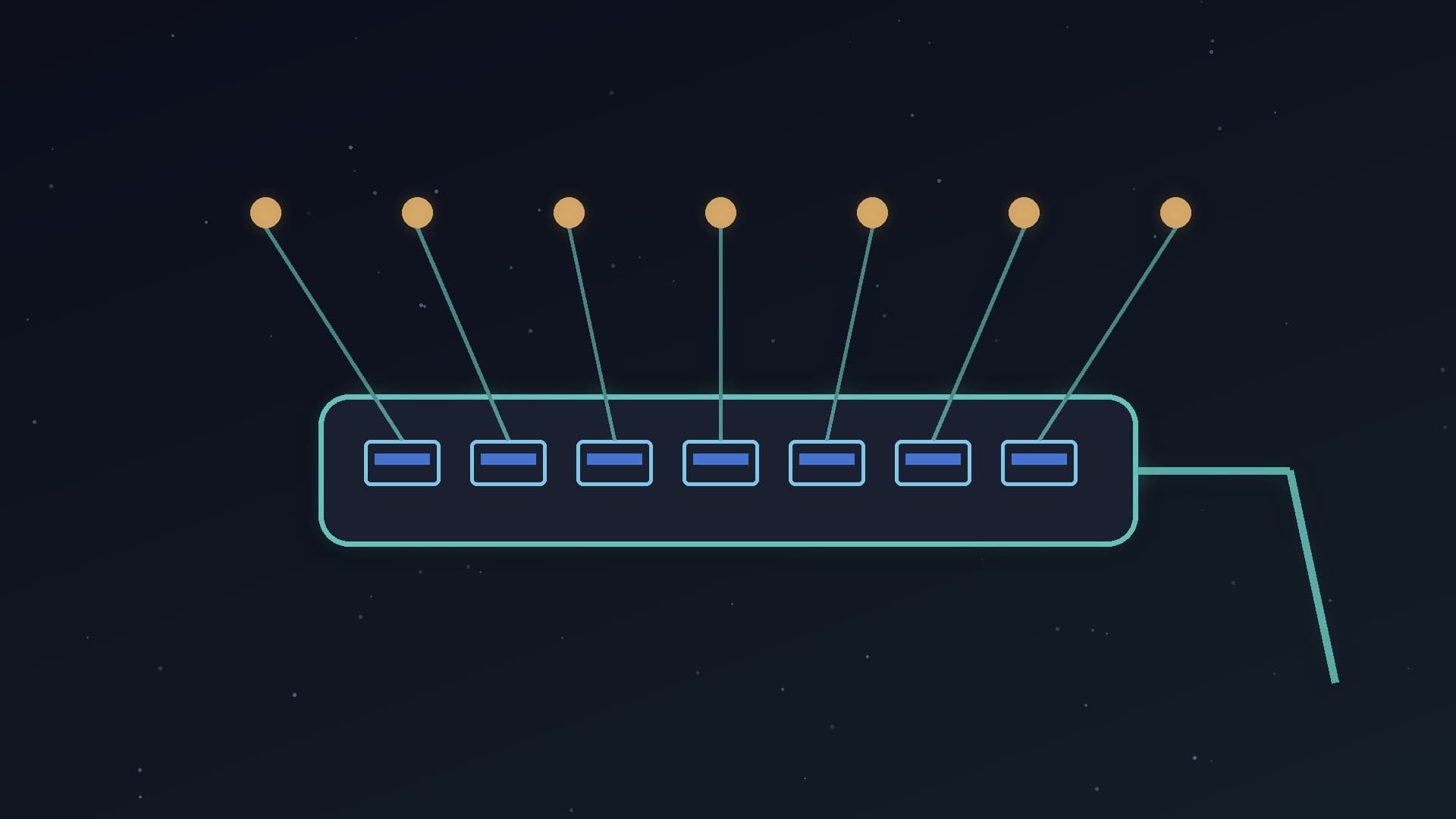
A wireless dongle, a webcam, a mic, a controller, an external drive and a phone cable will use up the USB ports on most desks quickly, especially if the rear ports are hard to reach. A USB hub is the simple fix, but the right one depends on whether it needs its own power supply. Our picks are based on TP-Link's and Sabrent's official product pages and TP-Link's USB hub FAQ, linked in the sources.
We haven't included prices because accessory pricing is moving daily in the run-up to Black Friday (Friday 27 November 2026). See our guide on how to check Black Friday PC deals before you buy.
Our picks at a glance
| Best compact | Best with port switches | Best powered 7-port | Best for charging |
|---|
Model | TP-Link UH400 | Sabrent HB-UM43 | TP-Link UH700 | TP-Link UH720 |
Downstream ports | 4 x USB 3.0 | 4 x USB 3.0 | 7 x USB 3.0 | 7 x USB 3.0 + 2 charging |
Data speed | Up to 5Gbps | Up to 5Gbps | Up to 5Gbps | Up to 5Gbps |
Power adapter | None | None | 12V, 2A (V2/V3) | 12V, 3.3A (V2) |
Charging | Not specified | Not specified | 3 shared ports at 5V, 1.5A | 2 dedicated ports at 5V, 2.4A |
Connection to PC | Built-in USB-A cable | Built-in cable (10in) | 1m USB 3.0 Micro-B cable | 1m USB 3.0 Micro-B cable |
Figures are from TP-Link's UK product pages and its USB hub FAQ, and Sabrent's product page. All four are USB 3.0 (5Gbps) hubs. We couldn't verify official UK spec pages for 10Gbps hubs in time for this guide, so if you need more than 5Gbps for a fast external SSD, plug it straight into a 10Gbps or faster port on your PC instead.
Powered or unpowered?
An unpowered (bus-powered) hub shares the power from one USB port on your PC between everything plugged into it. That's fine for a keyboard, mouse, dongles and flash drives. A powered hub has its own mains adapter, so it can run more devices and charge things at higher currents.
TP-Link's FAQ explains the difference for storage: externally powered drives use their own supply, while drives powered over USB draw from the host and may see limited performance when several devices are connected. It also says the usual cause of devices dropping offline on a hub is that they need more power than the hub can supply. If that happens, unplug something or move to a powered hub.
1. TP-Link UH400: best compact hub
TP-Link's UH400 is a small, unpowered four-port USB 3.0 hub measuring 71 x 71 x 16.6mm. TP-Link says it supports up to 5Gbps and has a foldable built-in cable, a slot to store the USB connector, LED status indicators and protection against short circuits, over-voltage, over-current and over-heating. It needs no drivers on Windows, macOS or Linux.
Choose it if: you want to add four ports for low-power devices, such as dongles, a keyboard, a mouse and a flash drive, and want something you can also carry in a laptop bag.
2. Sabrent HB-UM43: best with per-port power switches
Sabrent's HB-UM43 is another unpowered four-port USB 3.0 hub, but each port has its own power switch with a blue LED to show which ports are on. That's handy if you want to leave a webcam, light or drive plugged in but switched off. Sabrent lists speeds of up to 5Gbps for USB 3.0, 480Mbps for USB 2.0 and 12Mbps for USB 1.1, protection against power failure and overheating, and says the integrated cable is 10 inches long.
Sabrent's own FAQ makes an important point that applies to every hub here: plug a USB 3.0 hub into a USB 2.0 port and everything on it runs at USB 2.0 speeds.
Choose it if: you want to switch individual devices off without unplugging them.
3. TP-Link UH700: best powered seven-port hub
TP-Link's UH700 adds seven USB 3.0 ports and comes with a 12V, 2A power adapter (current V2/V3 versions) and a 1m USB 3.0 cable that uses a Micro-B connector at the hub end. According to TP-Link's FAQ, three of the seven ports are shared charging ports that deliver up to 5V, 1.5A, while the data ports deliver up to 900mA on USB 3.0. The V2/V3 hub can also run without its adapter from the PC's USB port, though the power button then stops working as a switch. The original V1 used a 12V, 2.5A adapter that had to be plugged in.
TP-Link lists protection against short circuits, over-voltage, over-current and over-heating, and the hub measures 165 x 65.5 x 17.5mm.
Choose it if: you need lots of extra ports for a desk full of peripherals, including bus-powered drives.
4. TP-Link UH720: best for charging
The UH720 has the same seven USB 3.0 data ports and dimensions as the UH700, plus two dedicated charging ports that TP-Link rates at 5V, 2.4A. TP-Link says these use its Smart Charging technology to identify connected devices and charge them as quickly as they allow. It comes with a 12V, 3.3A power adapter (V2; the original V1 used a 12V, 4A adapter) and a 1m USB 3.0 cable.
Choose it if: you want to charge a phone and tablet from your desk as well as add seven data ports.
How to choose
Count your devices and add two. It's cheaper to buy a seven-port hub once than to add a second hub later.
Go powered for drives and charging. Bus-powered hubs are best for low-power peripherals.
Use the original cable. TP-Link recommends using the supplied USB 3.0 cable or a USB 3.0 cable under 3m, as a cable that's too long affects USB communication.
Plug it into a USB 3 port. Our guide on how to check USB port speed in Windows 11 shows how to confirm what speed a hub and its devices are actually running at.
Need video or laptop charging too? That's a USB-C hub or dock job; see USB-C hub vs docking station.
Our verdict
For most desktop PCs, TP-Link's powered UH700 is the best USB hub to buy: seven USB 3.0 ports, a power adapter so bus-powered drives and peripherals get enough current, and three 1.5A charging ports. If you charge a phone or tablet at your desk, the UH720 adds two dedicated 2.4A charging ports. For a few low-power peripherals, the compact UH400 is enough, and Sabrent's HB-UM43 is the pick if you want to switch individual ports off.