Our picks are based on each project's official documentation and feature lists, read on 25 November 2026.
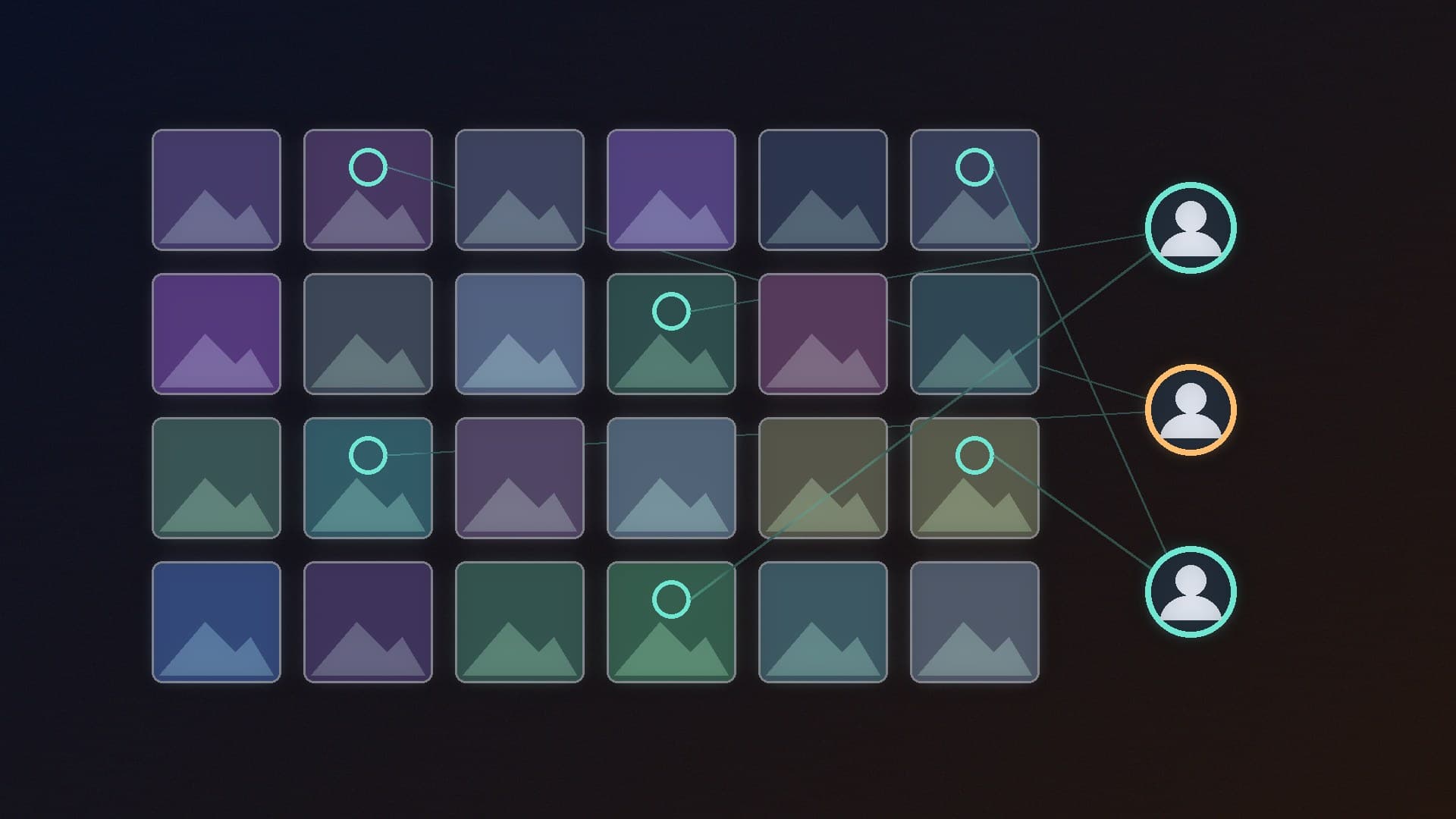
Cloud photo services made two AI features feel essential: grouping photos by the people in them, and finding a picture by typing what's in it, such as "dog on a beach". Several free or open-source photo organisers now do both with models that run on your own hardware, so your family photos aren't analysed on someone else's servers.
They fall into two camps. Server apps such as Immich and PhotoPrism run in Docker on a PC or NAS and give you a web interface and phone apps, much like Google Photos. Desktop apps such as digiKam run on one Windows, macOS or Linux PC with no server at all. Ente sits in between: an end-to-end encrypted service that runs its AI on your devices and can also be self-hosted.
Quick picks
App | Type | Local AI features (per official docs) | Best for |
|---|
Immich | Self-hosted server (Docker) | Facial recognition and clustering, CLIP contextual search, OCR text search | A Google Photos replacement with phone backup |
PhotoPrism | Self-hosted server (Docker) | Automatic labels, face recognition, optional captions and labels from Ollama | Rich search filters and AI captions |
digiKam | Desktop app | Face detection and recognition, auto-tags, aesthetic detection | One PC, no server |
Ente Photos | Encrypted service or self-hosted | On-device face recognition and natural language "magic search" | Privacy-first syncing across devices |
Best overall: Immich
Immich is the closest thing to a self-hosted Google Photos. Its official feature list includes facial recognition and clustering, and search "by metadata, objects, faces, and CLIP" on both the web and mobile apps, plus RAW support, a map view and phone backup. The search documentation says contextual search uses CLIP models, so you can type a freeform description rather than relying on tags, and it also lists searching for text inside images using OCR.
Immich runs its machine learning on the CPU by default, but its hardware acceleration documentation lists CUDA for NVIDIA GPUs with compute capability 5.2 or higher, ROCm for AMD GPUs and OpenVINO for Intel GPUs such as Iris Xe and Arc. The docs describe this as experimental and limited to Linux, or Windows through WSL 2, and say CUDA is the most reliable option.
Why pick it: the most complete package, with phone apps and the strongest search. Consider: it's a server you have to run and maintain, and the project is AGPLv3 open source. Our step-by-step guide to searching photos with local AI in Immich covers installation and GPU set-up.
Best for AI captions: PhotoPrism
PhotoPrism is another self-hosted, AGPL-licensed photo server. Its README says it automatically labels pictures based on content and location, recognises the faces of family and friends, and offers search filters for labels, location, resolution, colour and quality.
What sets it apart is optional integration with local vision models. PhotoPrism's documentation says that, in addition to its built-in models, it can generate captions and labels using Ollama, and its Ollama model guide recommends Gemma 4 (gemma4:latest) as the default for most users, with Qwen3-VL suggested for more advanced tasks such as reading text. PhotoPrism says label generation took around two seconds per photo on an NVIDIA RTX 4060 in its own testing. If you already run Ollama, our guide to using vision models in Ollama explains how those models work.
Why pick it: detailed search and AI-written descriptions from a model you control. Consider: PhotoPrism says some features, such as interactive world maps, are reserved for paying members. We compare the two servers in detail in Immich vs PhotoPrism.
Best desktop app: digiKam
If you don't want to run a server, digiKam is a free, open-source photo manager for Windows, macOS and Linux. Its feature page says all of its deep-learning model files are optional, downloaded on demand and run only on your computer, with no cloud data. The AI tools listed include:
Face detection and recognition, with a People view where you name a few faces and let digiKam suggest matches.
Auto-tags, which identify objects and scenes and add keywords. The manual says the default EfficientNet B7 model recognises 1,000 objects and scenes, with faster YOLOv11 models as alternatives.
Aesthetic detection, which assigns pick labels based on image quality.
Duplicate finding using image fingerprints.
The digiKam manual says its AI features use OpenCV's deep neural network engine and that a graphics card supporting OpenCL can speed them up.
Why pick it: powerful, entirely local and doesn't need Docker. Consider: there's no phone backup or web access, and the interface is aimed at enthusiasts. It's also a full photo editor and RAW processor; see our best free photo editors for Windows if editing matters more than organising.
Best for privacy across devices: Ente Photos
Ente Photos takes a different approach. It's an end-to-end encrypted photo service whose apps and server are open source; Ente's README says the service is paid with 10GB of free storage, or you can self-host it. Because the server can't see your photos, Ente runs its AI on your devices. Its documentation says machine learning happens entirely on-device, and your photos and ML data are never sent to Ente's servers. It powers face recognition and magic search, which finds photos from natural language descriptions such as "red flowers" or "birthday cake".
Machine learning can be enabled in the mobile or desktop app, and Ente says the resulting indexes sync between your devices with end-to-end encryption. The first run has to download and index your photos locally, so a PC with the desktop app is a good place to do the heavy lifting.
Why pick it: strong privacy with cloud-style convenience. Consider: if you use Ente's hosted service rather than self-hosting, storage beyond the 10GB free allowance is a paid service.
What hardware do you need?
None of these apps needs a powerful graphics card to work: Immich and PhotoPrism can run their built-in models on a CPU, and digiKam and Ente process on the device you install them on. A GPU mainly speeds up the first pass over a large library. If you plan to add Ollama captions in PhotoPrism, you'll need a card with enough VRAM for the vision model; our guide to the best 8GB graphics cards for local AI is a good starting point. For an always-on server, our best NAS for home and best mini PCs for local AI guides cover suitable boxes.
Whichever you choose, keep a separate backup of your originals. A photo organiser is not a backup; our guide to the best free backup software for Windows can help. If you're on a Windows 11 PC and just want simple AI tools, the built-in app may be enough: see how to use the AI features in the Photos app.
Our verdict
For most people who want a private Google Photos replacement, Immich is the best local AI photo organiser, with face recognition, CLIP search, OCR and phone backup, and optional GPU acceleration. Choose PhotoPrism if you want AI captions from your own Ollama models, digiKam if you'd rather keep everything in a desktop app on one PC, and Ente Photos if end-to-end encryption and syncing across devices matter most. All four keep the AI analysis on hardware you control.