Skip to content

Author / Systems & Technical Editor / 247 articles

Marcus Thorne

Marcus writes Forge PC's step-by-step build, troubleshooting and system optimisation guides. His background spans Windows kernel and power-state diagnostics, UEFI/BIOS configuration, NVMe storage arrays, ATX 3.1 power delivery and running local AI and LLM workloads on consumer graphics cards.

  • How to Dual Boot Windows 11 and Linux (Ubuntu) Without Losing Your Files

    How-To

    How to Dual Boot Windows 11 and Linux (Ubuntu) Without Losing Your Files

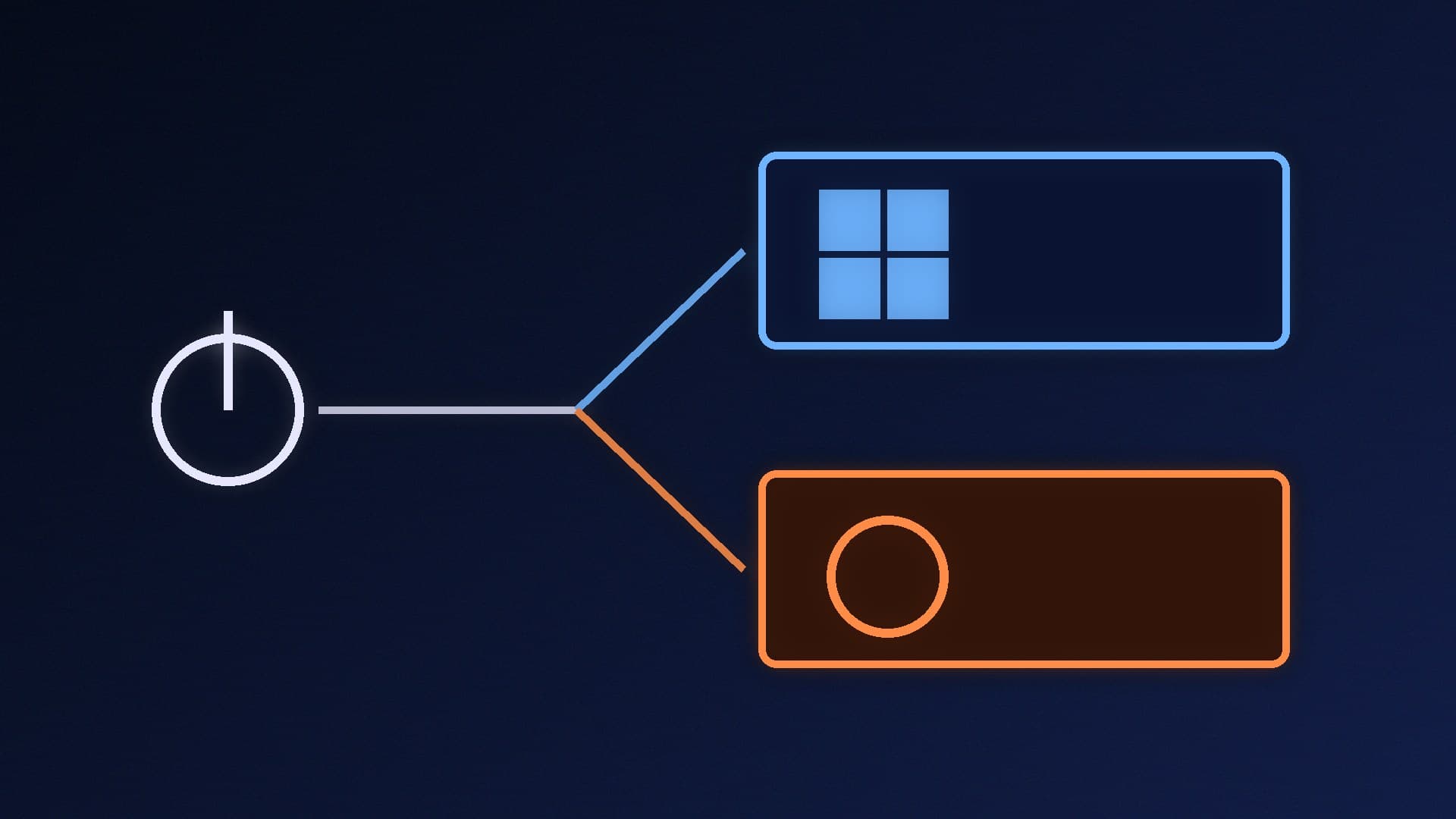
    To dual boot Windows 11 and Ubuntu, back up first. Installing Ubuntu on its own SSD is the safest option and avoids turning off BitLocker. On a single drive, turn BitLocker off and shrink C: in Disk Management. Then create a USB installer with balenaEtcher and choose 'Install Ubuntu alongside Windows'. Ubuntu needs at least 25GB.

    Marcus Thorne4 min
  • Windows Shows Less Usable RAM Than Installed? How to Find the Cause and Fix It

    How-To

    Windows Shows Less Usable RAM Than Installed? How to Find the Cause and Fix It

    A small gap between installed and usable RAM is normal hardware reservation. A big gap usually comes from integrated graphics reserving memory, a Maximum memory limit set in msconfig, or the removememory and truncatememory boot options. If installed RAM itself is too low, reseat the sticks, check the slots and BIOS, then test each stick.

    Marcus Thorne4 min

  • How to Use Microsoft's AI Dev Gallery to Try Local AI Models on Your PC

    How-To

    How to Use Microsoft's AI Dev Gallery to Try Local AI Models on Your PC

    AI Dev Gallery is Microsoft's free, open-source Windows app with more than 25 local AI samples that can run on your CPU, GPU or NPU. Install it from the Microsoft Store, pick a sample, read the model card and download the model. After that it works offline. Microsoft recommends 16GB RAM, 20GB free space and 8GB VRAM for GPU samples.

    Marcus Thorne4 min

  • How to Use ControlNet in ComfyUI: Guide Your AI Images With Sketches, Depth and Poses

    How-To

    How to Use ControlNet in ComfyUI: Guide Your AI Images With Sketches, Depth and Poses

    ControlNet lets a local image model follow a sketch, edge map, depth map or pose. Put a ControlNet model that matches your base model in ComfyUI/models/controlnet, install ComfyUI ControlNet aux through ComfyUI Manager for preprocessors, add Load ControlNet and Apply ControlNet before the KSampler, then tune strength, start and end.

    Marcus Thorne4 min

  • GPU Fans Not Spinning? How to Tell If It's Normal and What to Do If It Isn't

    How-To

    GPU Fans Not Spinning? How to Tell If It's Normal and What to Do If It Isn't

    GPU fans that don't spin at idle are usually normal: MSI says its Zero Frozr cards keep fans still below 60°C, and ASUS says its new Dual cards stop their fans below 50°C. Check the GPU temperature and fan speed, then run a game. If the card gets hot and the fans stay at 0rpm, check power, fan settings and drivers.

    Marcus Thorne3 min

  • How to Enable Wake-on-LAN in Windows 11 (and Why It Stops Working)

    How-To

    How to Enable Wake-on-LAN in Windows 11 (and Why It Stops Working)

    To use Wake-on-LAN, connect the PC by Ethernet, enable wake in the BIOS, turn on Wake on Magic Packet and 'Allow this device to wake the computer' in Device Manager, and wake the PC from sleep. Microsoft says Windows doesn't arm the network adapter after a Fast Startup shutdown, so use sleep or turn Fast Startup off.

    Marcus Thorne4 min

  • Windows 11 Update Stuck or Failing? 9 Fixes to Try

    How-To

    Windows 11 Update Stuck or Failing? 9 Fixes to Try

    If Windows Update is stuck or failing, back up your files and run the Windows Update troubleshooter in the Get Help app. Then check power and internet, use an admin account, unplug extra hardware, clear the update cache, fix the date and time, update drivers and free at least 20GB of space before trying again and restarting.

    Marcus Thorne3 min

  • How to Use Speculative Decoding in LM Studio to Speed Up Local LLMs

    How-To

    How to Use Speculative Decoding in LM Studio to Speed Up Local LLMs

    Speculative decoding in LM Studio pairs your main model with a much smaller draft model from the same family to speed up generation without changing output quality. Turn on Developer Mode, load the main model and pick a draft model in the chat sidebar. LM Studio says speed-ups vary by prompt and can vanish if the draft model is too big.

    Marcus Thorne3 min

  • How to Fix Ethernet Stuck at 100Mbps in Windows 11

    How-To

    How to Fix Ethernet Stuck at 100Mbps in Windows 11

    If Windows 11 shows an Ethernet link speed of 100Mbps instead of 1Gbps, Intel says the cause is almost always a cable. Check the link speed in Settings, make sure Speed & Duplex is set to Auto Negotiation, then swap in a known-good Cat 6 cable plugged straight into the router before blaming switches, wall sockets or the motherboard port.

    Marcus Thorne3 min

  • How to Use Windows Sandbox to Test Apps and Drivers Safely in Windows 11

    How-To

    How to Use Windows Sandbox to Test Apps and Drivers Safely in Windows 11

    Windows Sandbox is a disposable, isolated copy of Windows in Windows 11 Pro, Enterprise and Education (not Home). Turn it on in Windows Features with virtualisation enabled, test downloads inside it, and close it to delete everything. A .wsb file can disable networking and map a folder read-only. It can't test real GPU drivers.

    Marcus Thorne4 min

  • How Much SSD Space Do You Need for Local AI? Model Sizes and Where They're Stored

    How-To

    How Much SSD Space Do You Need for Local AI? Model Sizes and Where They're Stored

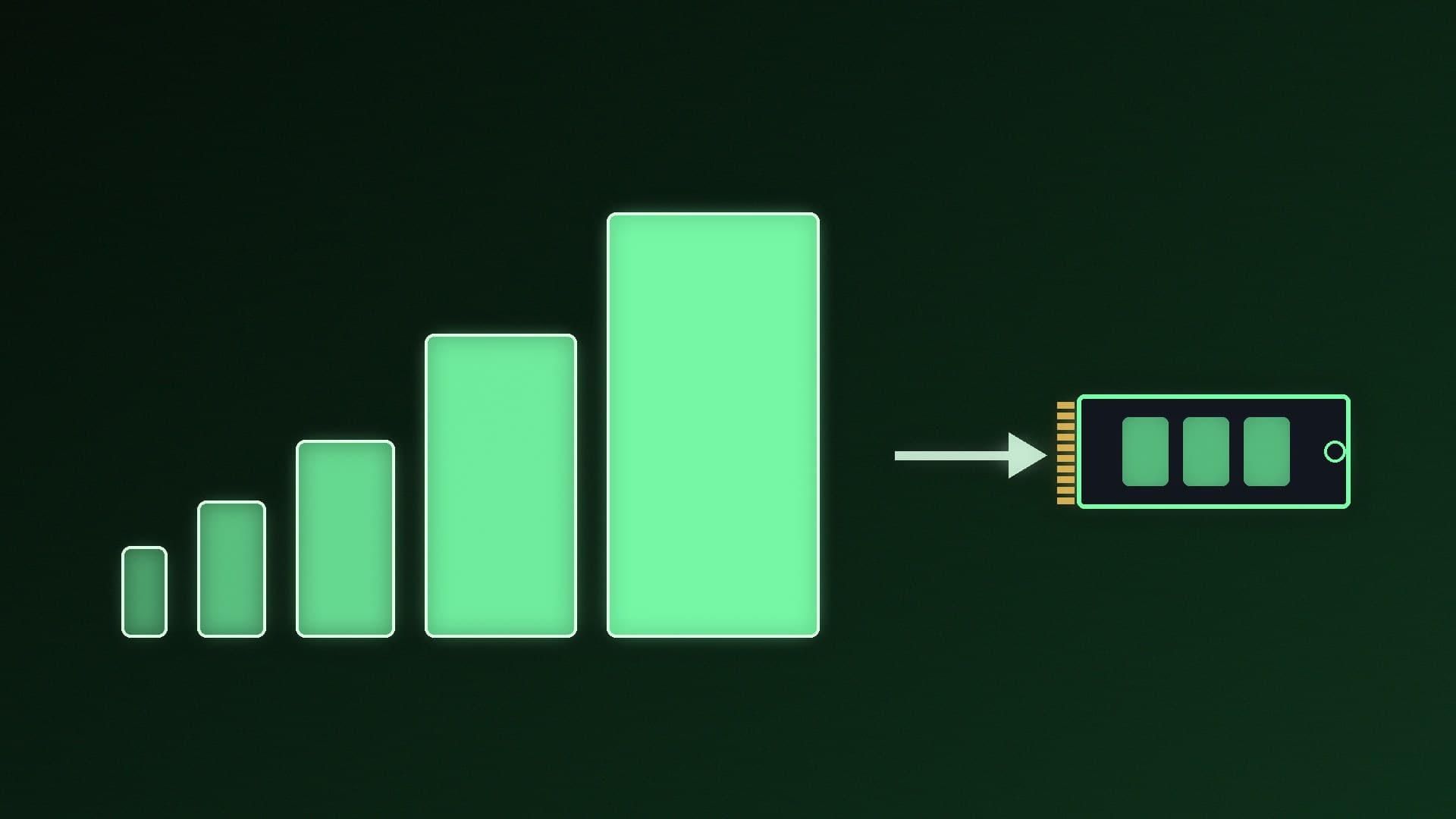
    Local AI models are large: in Ollama, llama3.1:8b is 4.9GB, gpt-oss:20b 14GB, llama3.1:70b 43GB and gpt-oss:120b 65GB, and SDXL's base checkpoint is 6.94GB. Budget about 50GB to experiment and 250GB or more for several models. Ollama, LM Studio, Hugging Face tools and ComfyUI can all store models on a second drive.

    Marcus Thorne4 min

  • No Sound on Windows 11? How to Fix Speakers and Headsets

    How-To

    No Sound on Windows 11? How to Fix Speakers and Headsets

    First check Windows is sending audio to the right device: on a desktop, a monitor connected over HDMI or DisplayPort is a common culprit. Then check cables, jacks, mute and volume, turn off audio enhancements, run the Get Help audio troubleshooter, check the volume mixer, install updates and restart, and finally update or reinstall the audio driver.

    Marcus Thorne3 min

  • How to Check Your Motherboard Model in Windows 11

    How-To

    How to Check Your Motherboard Model in Windows 11

    Press Windows + R, type msinfo32 and look for Baseboard Manufacturer and Baseboard Product on the System Summary page. For copyable text, run Get-CimInstance Win32_BaseBoard in PowerShell, or use CPU-Z's Mainboard tab for BIOS and chipset details too. On prebuilts and laptops, use the PC maker's model number and support page instead.

    Marcus Thorne3 min

  • How to Check Your CUDA Version on Windows (Driver, Toolkit and PyTorch)

    How-To

    How to Check Your CUDA Version on Windows (Driver, Toolkit and PyTorch)

    Run nvidia-smi: its CUDA Version is the highest CUDA version your NVIDIA driver supports, which is what most local AI apps need. nvcc -V shows the CUDA Toolkit version, but only if you've installed it. In PyTorch, torch.cuda.is_available() confirms its CUDA build can see your GPU. If an app needs newer CUDA than nvidia-smi shows, update the driver.

    Marcus Thorne3 min

  • How to Use DLSS Override in the NVIDIA App (DLSS 4.5 Presets)

    How-To

    How to Use DLSS Override in the NVIDIA App (DLSS 4.5 Presets)

    In the NVIDIA app's Graphics tab, choose a game or the global settings and set DLSS Override - Model Presets to Recommended. That uses DLSS 4.5's Preset M in Performance mode, Preset L in Ultra Performance and Preset K elsewhere. NVIDIA says RTX 20 and 30 owners may prefer Model K, because those cards lack native FP8. Check with the Alt+Z overlay.

    Marcus Thorne3 min

  • How to Adjust Webcam Settings in Windows 11: Brightness, HDR, Rotation and Multi-App Mode

    How-To

    How to Adjust Webcam Settings in Windows 11: Brightness, HDR, Rotation and Multi-App Mode

    Go to Settings > Bluetooth & devices > Cameras and select your webcam to set brightness, contrast, sharpness, saturation, HDR, zoom and rotation as defaults for every app. On Windows 11 24H2 or later, Multi-app camera mode lets apps such as OBS and Teams share the webcam. Basic camera mode, Troubleshoot and Reset settings help when it misbehaves.

    Marcus Thorne4 min

  • How to Use Reliability Monitor in Windows 11 to Find Out Why Your PC Keeps Crashing

    How-To

    How to Use Reliability Monitor in Windows 11 to Find Out Why Your PC Keeps Crashing

    Open Reliability Monitor by searching for 'reliability' and choosing View reliability history, or with perfmon /rel. Its stability chart logs app failures, Windows failures, unexpected shutdowns, hardware errors and installs by day for up to a year. Click the first day with red errors, read the technical details and check what installed or changed that day.

    Marcus Thorne3 min

  • How to Set an NVIDIA GPU Power Limit With nvidia-smi for Long Local AI Runs

    How-To

    How to Set an NVIDIA GPU Power Limit With nvidia-smi for Long Local AI Runs

    Open Terminal as administrator and run nvidia-smi -q -d POWER to see your card's default, minimum and maximum power limits. Set a lower cap with nvidia-smi -i 0 -pl followed by a wattage within that range, watch it with the looping power query, and set the default back when you're done. Test your own AI workloads at each step.

    Marcus Thorne3 min