Hard drives (HDDs) and solid state drives (SSDs) both store your files, but they work in completely different ways, and that changes how your PC feels to use. If you're building a gaming PC or wondering whether to keep that old hard drive, here's how the two compare and where each still makes sense.
Forge PC hasn't benchmarked drives for this comparison, and we don't quote frame rates or load times. It's based on explainers from Crucial, which makes SSDs and memory, and Western Digital, which makes hard drives.
The short answer
Windows, apps and the games you play: use an SSD.
Large media libraries, backups and archives: a hard drive is still the cheapest way to store lots of data.
Most gaming PCs: one NVMe SSD is enough. Add a hard drive only if you have terabytes of video, photos or backups.
How they work
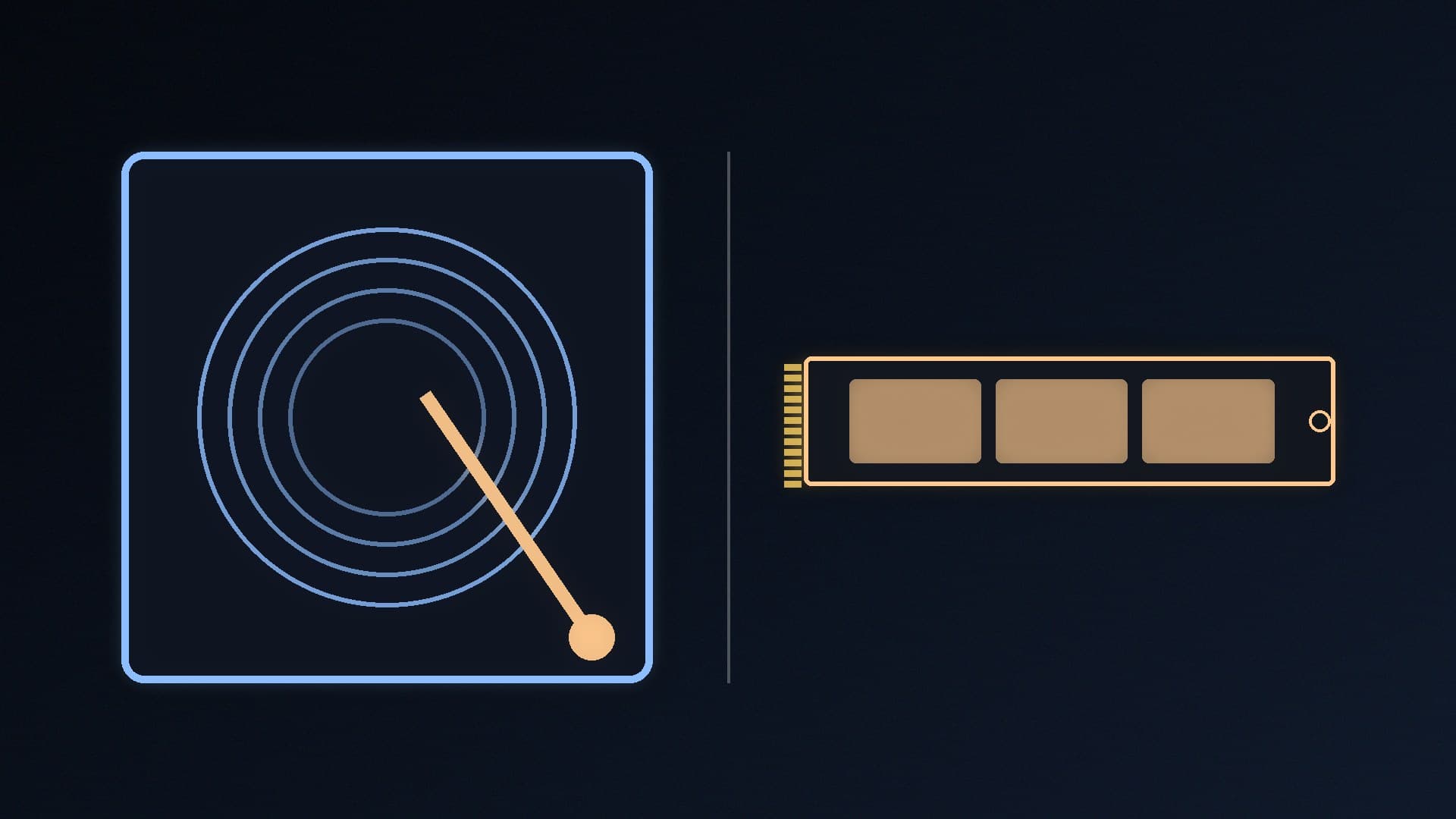
A hard drive stores data on spinning magnetic platters, read by heads on a moving actuator arm. Crucial notes consumer drives spin at between 4,200 and 7,200rpm, and that faster spin speeds mean faster reads and writes. Every time data is needed, the arm has to move to the right place, which takes time.
An SSD stores data in NAND flash memory chips with no moving parts. Crucial compares SSDs to large USB flash drives, as they use the same basic technology.
HDD vs SSD at a glance
| HDD | SSD |
|---|
Moving parts | Yes (platters, heads, motor) | None |
Speed | Slower boot and load times | Much faster boot and load times |
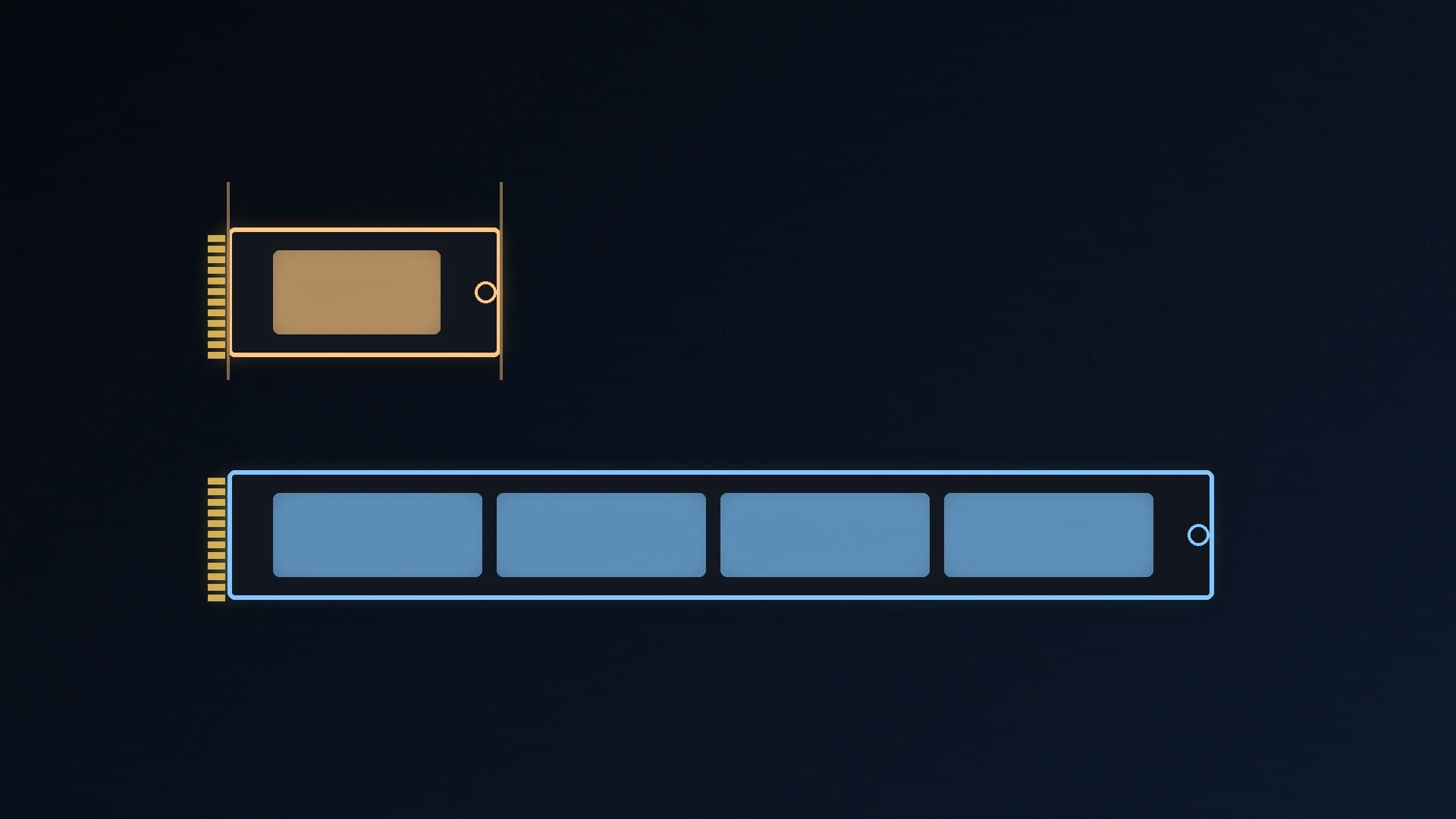
Capacity | WD says over 36TB per drive is possible | WD says M.2 SSDs typically top out at 8TB |
Cost per gigabyte | Lower | Higher |
Physical robustness | More sensitive to knocks | Shock-resistant (no moving parts) |
Noise | Audible spin and seek noise | Silent |
Wear | Mechanical wear | Limited write cycles (rated in TBW) |
The capacity, cost, durability and wear rows follow WD's comparison; the speed row reflects both makers' descriptions.
Speed: why an SSD matters for gaming
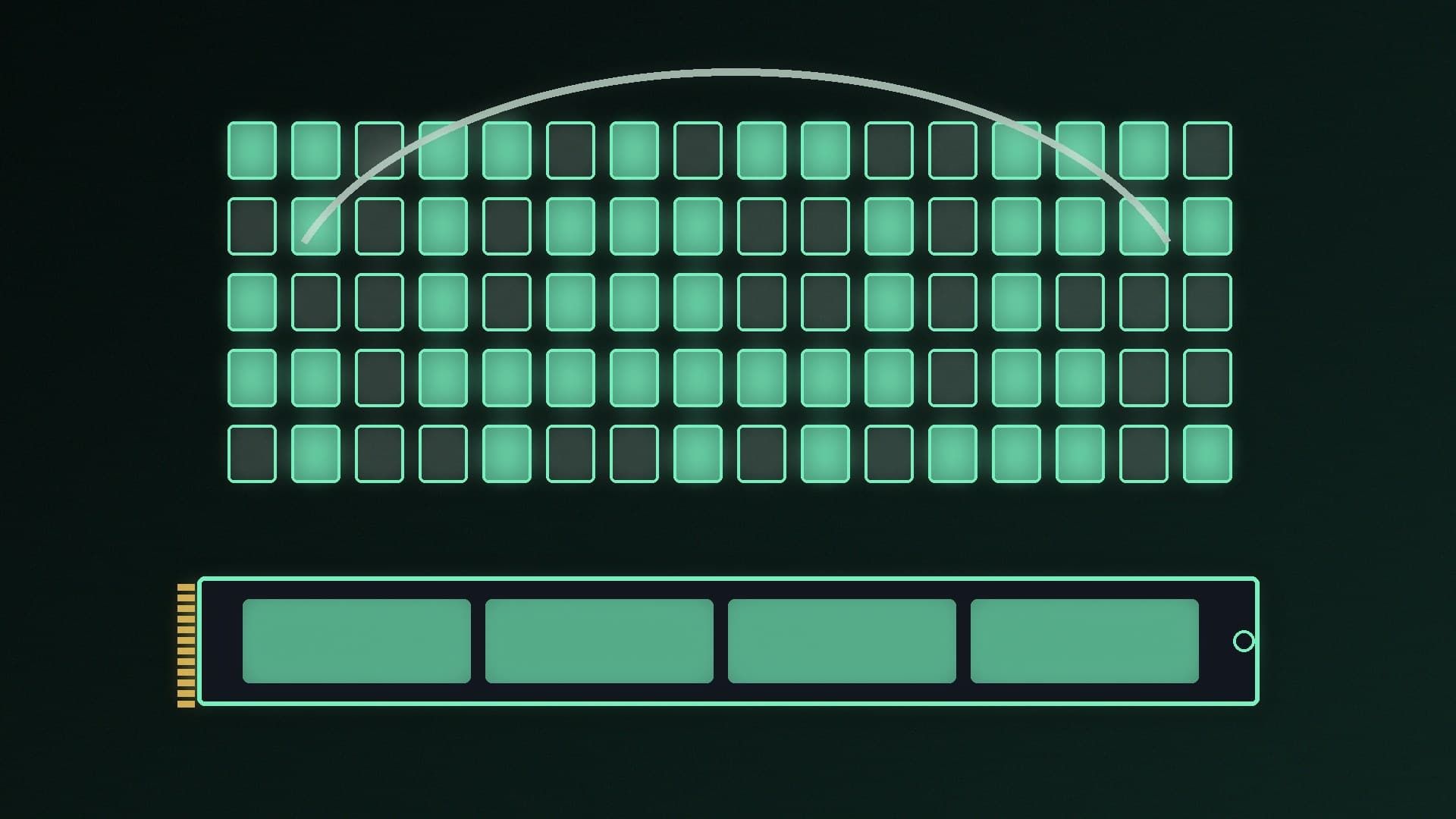
Both Crucial and WD say SSDs deliver much faster boot and load times. For gaming, that means quicker Windows start-up, faster game loading, and less waiting when a game streams data from storage as you play. Some modern games are designed around SSD speeds, so check the system requirements on a game's store page before installing it on a hard drive. Our news story on Gears of War: E-Day's NVMe and RAM streaming is an example of how games are leaning on fast storage.
Don't expect an SSD to raise your average frame rate much in most games: that's mainly down to your graphics card and CPU. Where it helps is loading and data streaming.
Not all SSDs are equal, either. NVMe drives in an M.2 slot are much faster than SATA SSDs, which use the same connection as a hard drive. Our NVMe vs SATA SSD comparison explains the difference, and PCIe 4.0 vs PCIe 5.0 covers the latest drives.
Capacity and cost: where hard drives still win
WD's comparison is blunt: HDDs offer the best value per gigabyte, and the highest capacities. That's why they still make sense for:
Video editing archives and photo libraries
Local backups of your PC (see our Windows 11 backup guide)
Media servers and NAS boxes
If you need a hard drive, our best hard drive guide has current picks.
Durability and reliability
Crucial says SSDs are more durable, run cooler and use less energy because they have no moving parts, and are better able to withstand movement and drops. WD agrees SSDs are shock-resistant, but points out they have limited write cycles and that sudden failures are possible, and it says data recovery is a more mature process for hard drives.
In practice, SSD endurance ratings are generous for normal home use, but no drive is immune to failure. Back up anything important, whichever type you use, and keep an eye on drive health with our SSD health check guide.
The best set-up for most gaming PCs
One NVMe SSD for Windows and games. 1TB is a sensible minimum for a gaming PC; 2TB gives room for several large games. See our best 2TB SSD guide.
Optional hard drive for bulk storage if you have lots of media or want a local backup drive.
Moving games is easy. If you add a bigger SSD later, our guide to moving Steam games to another drive shows how.
If your current PC still boots from a hard drive, swapping it for an SSD is one of the most noticeable upgrades you can make. Our free SSD cloning guide shows how to move Windows across without reinstalling.
Our verdict
Choose an SSD for Windows, apps and the games you play: Crucial and WD both say it's much faster to boot and load, and it has no moving parts. Choose a hard drive only for bulk storage such as media libraries and backups, where its lower cost per gigabyte and huge capacities still win. For most gaming PCs, that means one NVMe SSD, plus a hard drive only if you need the space. Forge PC hasn't benchmarked drives for this comparison.