The steps are based on Ollama's official documentation, LM Studio's system requirements, our own OCuLink vs USB4 comparison, and independent measurements published by Kimono Oyaji's Lab, which we credit where we use them.
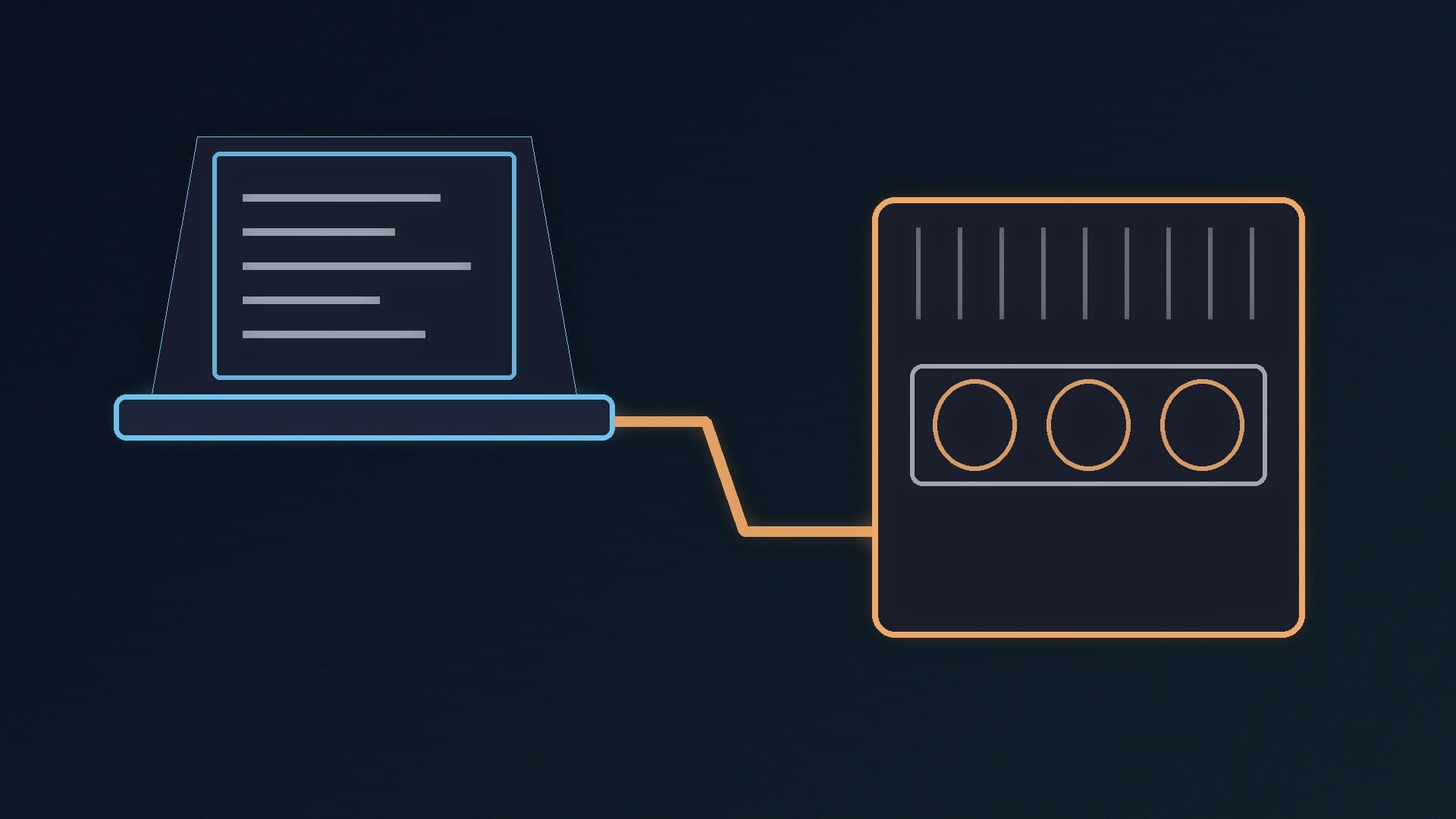
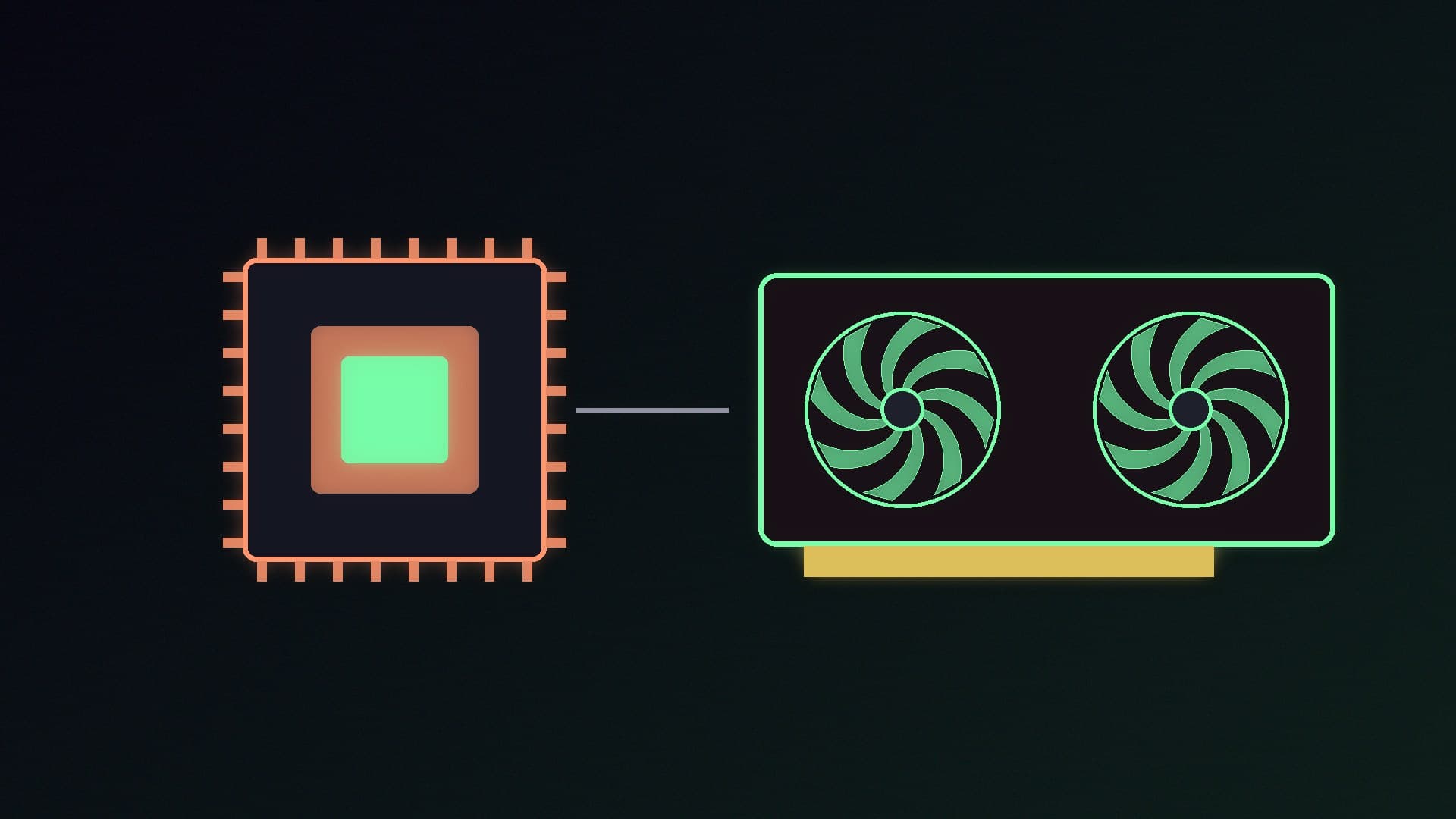
Laptops and mini PCs are convenient, but most have either integrated graphics or a small amount of VRAM, which limits the AI models you can run at a decent speed. An external graphics card (eGPU), in a dock connected over OCuLink, USB4 or Thunderbolt, gives you a desktop graphics card's VRAM without building a desktop. Here's how to do it well.
Step 1: Check which connection your device has
You need a port that carries PCIe to the dock. There are two common types:
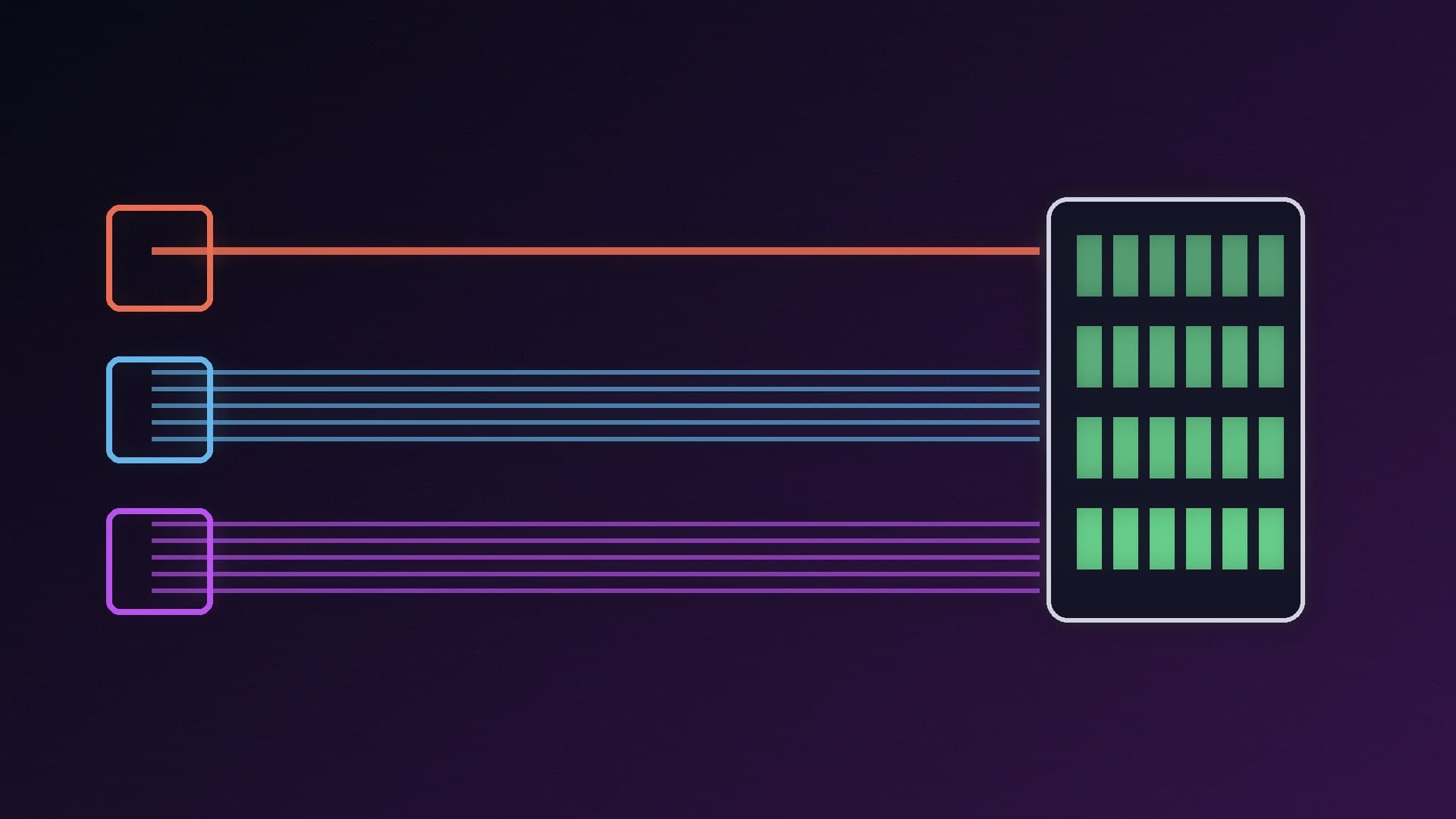
OCuLink. As our comparison explains, a direct PCIe 4.0 x4 link, found on some mini PCs and handhelds. It has more bandwidth, but you must shut the PC down before connecting or disconnecting it.
USB4 or Thunderbolt. Much more common on laptops and mini PCs. It tunnels PCIe over a shared USB-C link, supports hot-plugging and can carry charging and peripherals over the same cable, depending on the dock.
Check your device's specifications, not just the shape of the port: not every USB-C port supports USB4 or Thunderbolt. Our OCuLink vs USB4 for eGPUs comparison explains the trade-offs in detail.
Step 2: Know what the connection does and doesn't affect
This is the part most eGPU advice, written for gaming, gets wrong for local AI.
In tests carried out in July 2026, Kimono Oyaji's Lab measured the same graphics cards in the same dock (an AOOSTAR AG03 with both OCuLink and Thunderbolt 5 ports) on a Windows mini PC running Ollama, changing only the cable. It found:
Text generation speed barely changed. With an RTX 5060 Ti 16GB, the difference between OCuLink and Thunderbolt was under 1% for two of the three models it tested and 2.2% for the third, with Thunderbolt slightly ahead on one model. With an RTX 3060 12GB the gap was 3% to 6%, but the tester found repeat runs of the same setup varied by 3.4%, so it put that gap down to measurement noise.
Model loading was slower over Thunderbolt, taking 1.5 to 1.7 times as long, which the tester notes closely matches the 64Gbps vs 40Gbps bandwidth ratio. For example, a 10.3GB model took 3.96 seconds to load over OCuLink and 6.83 seconds over Thunderbolt on the RTX 3060.
VRAM mattered more than the cable. The tester reports that a model fitting into 16GB rather than spilling out of 12GB changed the speed by more than two times.
The explanation the tester gives is that once a model is loaded into the graphics card's memory, the work happens there and very little data crosses the cable. That leads to our main advice: pick the card for its VRAM, and keep the model loaded. The connection matters more if you switch models often.
One important caveat from the same tests: on Linux, the tester's eGPU wasn't detected over Thunderbolt, though it worked over OCuLink. The Thunderbolt results above are Windows results.
Step 3: Choose the graphics card
For local AI, VRAM is the specification that matters most, because a model that fits entirely in VRAM runs far faster than one that spills over into system memory. We'd treat 16GB as the sweet spot for an eGPU, such as the MSI RTX 5060 Ti 16GB Ventus 2X OC Plus, with the Gigabyte RTX 5070 Ti 16GB Eagle OC as a faster option with the same capacity. Our best 16GB graphics cards for local AI guide covers more options.
Check software support too. Ollama's documentation says it supports NVIDIA GPUs with compute capability 5.0 or later and driver version 550 or newer, and lists the RTX 50 series at compute capability 12.0. For AMD cards on Windows, its ROCm support list is limited to certain Radeon RX 7000 and Radeon PRO W7000 cards, with other GPUs supported through Vulkan. LM Studio's Windows requirements recommend at least 4GB of dedicated VRAM and 16GB of system RAM.
Finally, check that the dock's power supply and physical space suit the card you choose. Graphics card makers publish recommended PSU wattage and card length; compare those with the dock's specifications.
Step 4: Connect it and install drivers
For OCuLink, shut down completely before connecting or disconnecting the cable. Never unplug an OCuLink eGPU while the PC is running.
For USB4 or Thunderbolt, you can connect with the PC running. We'd still close your AI apps before unplugging, so a loaded model isn't cut off mid-task.
Install the graphics card's driver from NVIDIA, AMD or Intel. Our guide to updating graphics drivers walks through it.
Check the link. Our guide to checking GPU PCIe link speed shows how to confirm the eGPU is connected at the speed you expect.
On an NVIDIA card, running nvidia-smi -L in Command Prompt should list the eGPU. If you have an NVIDIA GPU inside the laptop as well, you'll see both.
Step 5: Make your AI app use the eGPU
This is where many eGPU setups go wrong: the app picks the integrated graphics or the laptop's own GPU instead.
In Ollama, run a model and then run ollama ps. Ollama's documentation says the Processor column shows where the model was loaded: 100% GPU means entirely on the GPU, 100% CPU means entirely in system memory, and a split such as 48%/52% CPU/GPU means it was loaded partly into each. Our guide to checking whether Ollama is using your GPU goes further.
If Ollama is using the wrong GPU:
With more than one NVIDIA GPU (for example, a laptop RTX GPU plus an eGPU), set CUDA_VISIBLE_DEVICES to the eGPU. Ollama's documentation recommends using the GPU's UUID, which you can find with nvidia-smi -L, because numeric ordering may vary.
On a system with integrated graphics plus a discrete GPU using Vulkan, Ollama's documentation suggests keeping Vulkan enabled and setting GGML_VK_VISIBLE_DEVICES to the discrete GPU's index if the integrated GPU is causing problems.
Our guide to choosing which GPU Ollama uses covers this in more detail.
In LM Studio, check which GPU it's using and how many layers it offloads; our guide to setting GPU offload in LM Studio explains the settings.
Step 6: Keep the model loaded
Because loading is the slowest part over an external link, it's worth keeping your main model in VRAM between chats. Ollama's documentation says the OLLAMA_KEEP_ALIVE environment variable controls how long models stay loaded, and that a negative value keeps them loaded indefinitely. See our guide to keeping Ollama models loaded.
Also aim to use models that fit entirely in the eGPU's VRAM. If ollama ps shows a CPU/GPU split, that's a sign to choose a smaller model or a lower-precision version.
Is an eGPU worth it?
An eGPU makes most sense if you already own a laptop or mini PC with a fast USB4, Thunderbolt or OCuLink port and want more VRAM without building a second PC. The dock and its power supply add cost and desk space, though, and a desktop gives you more slots, cooling and upgrade options. Our laptop vs desktop for local AI comparison and our report on the ASUS XG Core RX 9060 XT eGPU will help you decide.
Our verdict
An external graphics card is a practical way to give a laptop or mini PC enough VRAM for local AI. Independent testing by Kimono Oyaji's Lab suggests the connection makes little difference to text generation speed once a model is loaded, while Thunderbolt took 1.5 to 1.7 times as long as OCuLink to load models. So choose the card for its VRAM, ideally 16GB, use OCuLink if you switch models often and USB4 or Thunderbolt if you value hot-plugging, then check with ollama ps that the model is really running on the eGPU and keep it loaded.